
TOPELOTEK KIDS707A-708 Kids tablet
TOPELOTEK Kids Tablet 7 inch User Manual
Model: KIDS707A-708 Kids tablet
Introduction
This manual provides comprehensive instructions for the setup, operation, and maintenance of your TOPELOTEK Kids Tablet 7 inch. Please read this manual thoroughly before using the device to ensure proper functionality and safety.

Image: The TOPELOTEK Kids Tablet in Rose Red, featuring its protective case with integrated handles and a kickstand. The screen shows a child-friendly interface with icons for video, gallery, music, and a calculator.
What's in the Box
Verify that all items are present in the package:
- 1x Android Kids Tablet for toddlers (Lanyard not included)
- 1x AC adaptor
- 1x Tablet User Manual
- 1x Free Kid-Proof Case
Product Overview and Features
The TOPELOTEK Kids Tablet is designed for young users, featuring a durable construction and a user-friendly interface. Key features include:
- 7-inch HD Display: A 1024x600 resolution screen for clear visuals.
- Kid-Proof Case: A durable silicone case with handles and an adjustable stand, designed to protect against drops and bumps.
- Dual System Design: Offers both a standard Android 9 Pie interface and the iWawa Child System for a controlled, child-friendly environment.
- Parental Control: Tools to manage content, applications, and screen time.
- Storage: 32GB internal storage, expandable up to 512GB via SD card.
- Battery Life: Approximately 8-10 hours of normal use with a 3500mAh battery.
- Connectivity: Wi-Fi (802.11n).

Image: Detailed view of the tablet's protective case, illustrating its robust design with features like airbag corners, reinforced edges, and a handle that can also accommodate a lanyard for carrying.

Image: A child demonstrating the tablet's portability, showing how it can be carried using a lanyard around the neck or held by its integrated handles, making it convenient for travel.
Setup
1. Initial Charging
Before first use, fully charge the tablet. Connect the provided AC adaptor to the tablet's charging port and plug it into a power outlet. The charging indicator will illuminate. A full charge typically takes several hours.
2. Powering On/Off
- To Power On: Press and hold the Power button located on the side of the tablet until the screen lights up.
- To Power Off: Press and hold the Power button, then select "Power off" from the options that appear on the screen.
- To Restart: Press and hold the Power button, then select "Restart" from the options.
3. Initial Setup Wizard
Upon first power-on, the tablet will guide you through an initial setup process. This includes selecting your language, connecting to a Wi-Fi network, and setting up a Google account (optional, but recommended for app downloads).
4. Inserting an SD Card (Optional)
To expand storage, locate the SD card slot (usually under a protective flap on the side). Gently insert a microSD card (up to 512GB) until it clicks into place. The tablet will prompt you to format the card for use.
Operating the Tablet
1. Navigating the Interface
The tablet operates on Android 9 Pie and features a dual-system design, allowing you to switch between a standard Android interface and the iWawa Child System.
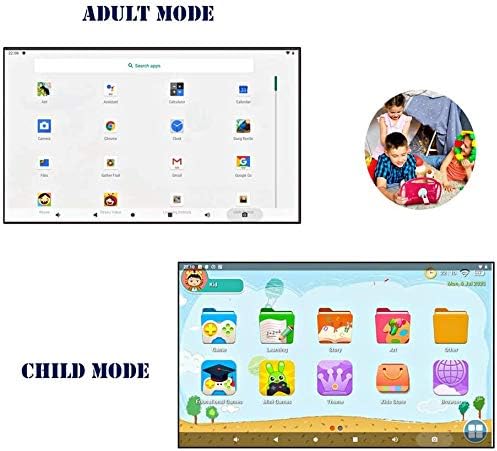
Image: A visual comparison of the tablet's "Adult Mode" (standard Android) and "Child Mode" (iWawa Child System), demonstrating the different user interfaces available.
iWawa Child System
This system provides a safe and engaging environment for children with pre-installed educational apps and games. To access or exit the iWawa system, follow the on-screen prompts or refer to the dedicated iWawa application within the Android interface.
2. Parental Control Setup
The parental control features allow you to manage your child's access to content and applications. These settings are typically found within the iWawa Child System or a dedicated "Parental Control" app in the Android interface.
- App Management: Select which applications your child can access.
- Website Filtering: Block or whitelist specific websites.
- Time Limits: Set daily usage limits or specific time slots for tablet use.
- Content Filtering: Restrict access to inappropriate content.

Image: The Parental Control interface on a smartphone, illustrating the various options available to parents for managing their child's tablet usage, including app and website access.
3. Installing Applications
You can download additional applications from the Google Play Store. Ensure the tablet is connected to Wi-Fi and you are logged into a Google account.
- Open the "Play Store" app.
- Search for desired applications (e.g., Netflix, Khan Academy Kids, YouTube Kids).
- Select the app and tap "Install".

Image: A collage featuring various animated characters and the tablet, emphasizing its access to a wide range of educational and entertainment applications available through the Google Play Store.
4. Wi-Fi Connection
To connect to a wireless network:
- Go to "Settings" > "Network & Internet" > "Wi-Fi".
- Toggle Wi-Fi on.
- Select your desired network from the list.
- Enter the password if prompted and tap "Connect".
5. Usage Scenarios
The tablet's design makes it versatile for various uses, including travel.

Image: The tablet securely mounted to a car seat headrest, showcasing its utility for entertainment and learning during car journeys, allowing hands-free viewing for children.
Maintenance
1. Cleaning the Tablet
Use a soft, lint-free cloth to clean the screen and exterior of the tablet. For stubborn smudges, slightly dampen the cloth with water. Avoid using harsh chemicals or abrasive materials.
2. Battery Care
- Avoid fully discharging the battery frequently.
- Do not expose the tablet to extreme temperatures.
- Use only the provided charger or a certified compatible charger.
3. Software Updates
Periodically check for software updates to ensure optimal performance and security. Go to "Settings" > "System" > "Advanced" > "System update" to check for and install available updates.
Troubleshooting
| Problem | Possible Cause | Solution |
|---|---|---|
| Tablet does not power on | Low battery; software crash. | Charge the tablet for at least 30 minutes. If still unresponsive, perform a hard reset by holding the power button for 10-15 seconds. |
| Tablet freezes or is unresponsive | Application error; system overload. | Close unresponsive apps. If the tablet remains frozen, perform a soft reset by holding the power button until it restarts. |
| Cannot connect to Wi-Fi | Incorrect password; router issue; Wi-Fi disabled. | Ensure Wi-Fi is enabled and the password is correct. Restart your Wi-Fi router. Try connecting to another network to isolate the issue. |
| Charging port issues / Tablet not charging | Loose connection; damaged port; faulty cable/adapter. | Ensure the charging cable is securely connected. Try a different USB cable and AC adapter. Inspect the charging port for any visible damage or debris. If the issue persists, contact customer support. |
| Low storage space | Too many apps/files. | Delete unnecessary apps or files. Move media to an inserted SD card. |
Specifications
| Feature | Detail |
|---|---|
| Model Name | KIDS707A-708 Kids tablet |
| Brand | TOPELOTEK |
| Screen Size | 7 Inches |
| Screen Resolution | 1024x600 |
| Processor | 1.6 GHz Quad-Core (Allwinner) |
| RAM | 1 GB |
| Internal Storage | 32 GB |
| Expandable Storage | Up to 512GB via MicroSD card |
| Operating System | Android 9 Pie |
| Wireless Type | 802.11n (Wi-Fi) |
| Battery Life | Approximately 8-10 hours (3500mAh) |
| Rear Webcam Resolution | 2 MP |
| Item Weight | 1.52 pounds |
| Product Dimensions (LxWxH) | 8 x 3 x 7 inches |
| Color | Rose Red |
Warranty and Support
The TOPELOTEK Kids Tablet comes with a commitment to quality service. This includes:
- Free Exchange: Over 30 days of free exchange support.
- Technical Support: Whole life technology service support.
For any issues or inquiries, please do not hesitate to contact TOPELOTEK customer service. Contact information can typically be found on the product packaging or the official TOPELOTEK website.
Important Safety Information
- Do not expose the tablet to water or excessive moisture.
- Avoid dropping or subjecting the tablet to severe impacts, despite its protective case.
- Keep the tablet away from direct sunlight and heat sources.
- Supervise young children during tablet use.
- Use only manufacturer-approved accessories.
Video Demonstrations
Currently, there are no official product videos from the seller available with the necessary metadata for embedding in this manual. Please refer to the written instructions and images for guidance.
Related documentsKIDS707A-708 Kids tablet

Ask a question about this manual
Ask about setup, troubleshooting, compatibility, parts, safety, or missing instructions. Manuals+ will review the question and use this page’s manual context to help answer it.