
Introduction
This manual provides detailed instructions for the installation, operation, maintenance, and troubleshooting of the HP ProDesk 400 G3 MS-7957 motherboard. Please read this manual thoroughly before proceeding with any installation or operation to ensure proper functionality and safety.
Safety Information
Always observe the following safety precautions to prevent damage to the motherboard or injury to yourself:
- Disconnect the power supply from the wall outlet before installing or removing any components.
- Wear an anti-static wrist strap or frequently touch a grounded metal object to discharge static electricity before handling the motherboard.
- Handle the motherboard by its edges to avoid touching sensitive components.
- Ensure proper ventilation within the computer case to prevent overheating.
- Keep the motherboard away from moisture and extreme temperatures.
Product Overview
The HP ProDesk 400 G3 MS-7957 is a MicroATX motherboard designed for Intel processors with an LGA 1151 socket. It supports DDR4 RAM and features a B250 chipset, offering a reliable foundation for desktop computing.
Key Features
- Compatible CPU Brand: Intel
- Socket Type: LGA 1151/Socket H4
- Form Factor: MicroATX
- I/O Connectors: Ethernet (RJ-45), USB 2.0, USB 3.0, VGA, DisplayPort, HD Audio Jack
Component Identification
Familiarize yourself with the layout of the motherboard to facilitate proper installation and connection of components.

Figure 1: Angled view of the HP ProDesk 400 G3 MS-7957 motherboard. This image highlights the CPU socket (LGA 1151), four DDR4 RAM slots, PCIe slots, and various headers for front panel connections and storage devices.
Setup and Installation
Before You Begin
- Ensure your computer case is compatible with the MicroATX form factor.
- Gather all necessary components: CPU, RAM, CPU cooler, power supply, storage devices, and graphics card (if not using integrated graphics).
- Prepare your workspace by ensuring it is clean, well-lit, and static-free.
Motherboard Installation
- Install the CPU into the LGA 1151 socket. Carefully align the CPU with the socket's notch and gently lower it into place. Close the retention arm.
- Apply thermal paste to the CPU and install the CPU cooler according to its manufacturer's instructions.
- Install the DDR4 RAM modules into the designated slots. Ensure they are fully seated until the clips lock into place.
- Mount the motherboard into the computer case using the appropriate standoffs and screws.
- Connect the main 24-pin ATX power connector and the 4-pin or 8-pin CPU power connector from your power supply to the motherboard.
- Install any expansion cards (e.g., graphics card) into the PCIe slots.

Figure 2: Top-down angled view of the HP ProDesk 400 G3 MS-7957 motherboard. This perspective provides a clear view of the processor socket, memory slots, and the layout of the various internal connectors and components.
Connecting Peripherals
- Connect SATA storage devices (HDDs/SSDs) to the SATA ports on the motherboard.
- Connect front panel headers (power button, reset button, USB ports, audio jacks) to their respective pins on the motherboard. Refer to your case manual for specific pin assignments.
- Connect external peripherals such as monitor, keyboard, mouse, and Ethernet cable to the rear I/O panel.
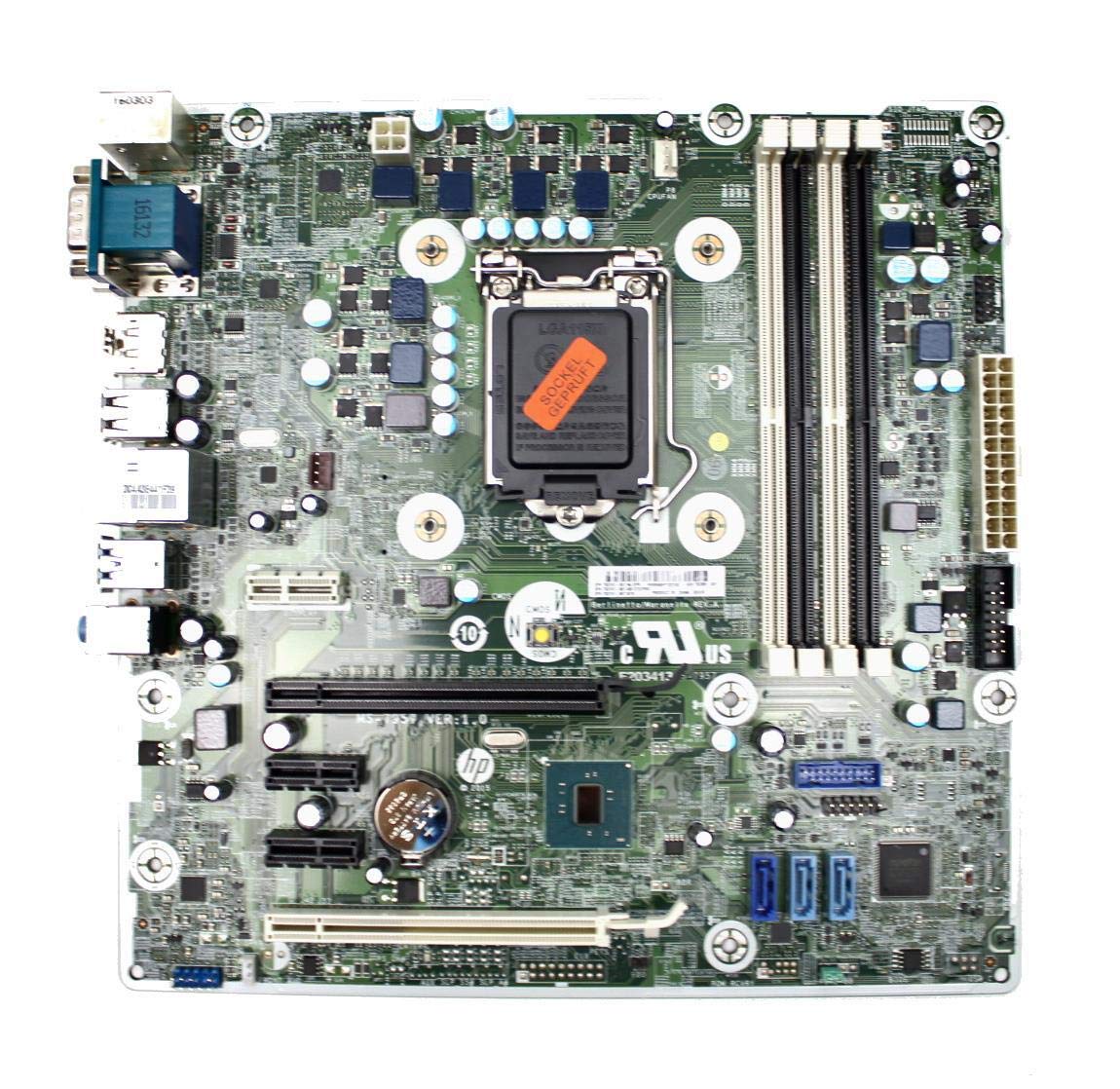
Figure 3: Rear I/O panel of the HP ProDesk 400 G3 MS-7957 motherboard. This image displays the available external connectivity options, including PS/2 ports, serial port, VGA, DisplayPort, USB 2.0, USB 3.0, Ethernet (RJ-45), and HD audio jacks.
Operating Instructions
Initial Power On
After all components are installed and connected, connect the power cable to the power supply and press the power button on your computer case. The system should initiate the boot process.
BIOS/UEFI Configuration
To access the BIOS/UEFI setup utility, press the designated key (commonly Del, F2, F10, or F12) during the initial boot sequence. Here you can configure boot order, system time, and other hardware settings.
Driver Installation
After installing your operating system, it is crucial to install the latest drivers for your motherboard's chipset, integrated graphics, audio, and network adapter. These drivers can typically be found on the HP support website or the chipset manufacturer's website.
Maintenance
- Cleaning: Regularly clean dust from the motherboard and components using compressed air. Ensure the system is powered off and unplugged before cleaning.
- BIOS/UEFI Updates: Periodically check for BIOS/UEFI updates from HP's official support website. Updates can improve stability, compatibility, and performance. Follow update instructions carefully to avoid system damage.
- Driver Updates: Keep all system drivers updated to ensure optimal performance and compatibility with new software and hardware.
Troubleshooting
This section provides solutions to common issues you might encounter:
- No Power: Check all power connections, including the 24-pin ATX and CPU power cables. Ensure the power supply is switched on and the wall outlet is functional.
- No Display: Verify that your monitor is connected to the correct video output (VGA or DisplayPort) and is powered on. Reseat the graphics card (if applicable) and RAM modules.
- System Instability/Crashes: This could be due to overheating, faulty RAM, or outdated drivers. Check CPU and GPU temperatures, run memory diagnostic tools, and update drivers.
- Peripheral Not Detected: Ensure the peripheral is properly connected. Try a different port or update the relevant drivers.
- BIOS/UEFI Issues: If you encounter issues after changing BIOS settings, try resetting the CMOS by removing the CMOS battery for a few minutes or using the clear CMOS jumper (refer to motherboard diagram for location).
Specifications
| Feature | Specification |
|---|---|
| Brand | HP |
| CPU Socket | LGA 1151 |
| Compatible Devices | Desktop Computer |
| RAM Technology | DDR4 |
| Compatible Processors | Intel Core i3-6xxx, Intel Core i5-6xxx, Intel Core i7-6xxx, Intel Core i3-7xxx, Intel Core i5-7xxx, Intel Core i7-7xxx, Intel Core i3-8xxx, Intel Core i5-8xxx, Intel Core i7-8xxx |
| Chipset Type | Intel B250 |
| Platform | Windows |
| Model Name | MS-7957 |
| CPU Model | Core i3 (Note: Supports i3, i5, i7 as listed above) |
| Main Power Connector Type | 24 pin |
| Graphics Card Interface | PCI Express |
| Available Memory Slots | 4 |
| Total SATA Ports | 6 |
| Total USB Ports | 2 (Note: Refers to internal headers, rear I/O has more) |
| Total Ethernet Ports | 1 |
| Total PCIe Ports | 3 |
| Manufacturer | Computer Store Berlin (Reseller/Supplier) |
| Part Number | 4061435962741 |
| ASIN | B08CS13PTQ |
Warranty and Support
This product comes with a 1-year warranty from the date of purchase. This warranty covers defects in materials and workmanship under normal use.
For technical support, warranty claims, or further assistance, please contact your point of purchase or refer to the official HP support resources for the ProDesk 400 G3 series.


