
JJC BTR-S1
JJC Wireless Bluetooth Remote Control Instruction Manual
Model: BTR-S1
Brand: JJC
Introduction
This instruction manual provides detailed information on how to set up, operate, and maintain your JJC Wireless Bluetooth Remote Control (Model BTR-S1). This remote control is designed to replace the Sony RMT-P1BT and offers convenient wireless control for compatible Sony cameras, enabling you to capture still images, record videos, adjust focus, zoom, and activate custom camera functions from a distance.
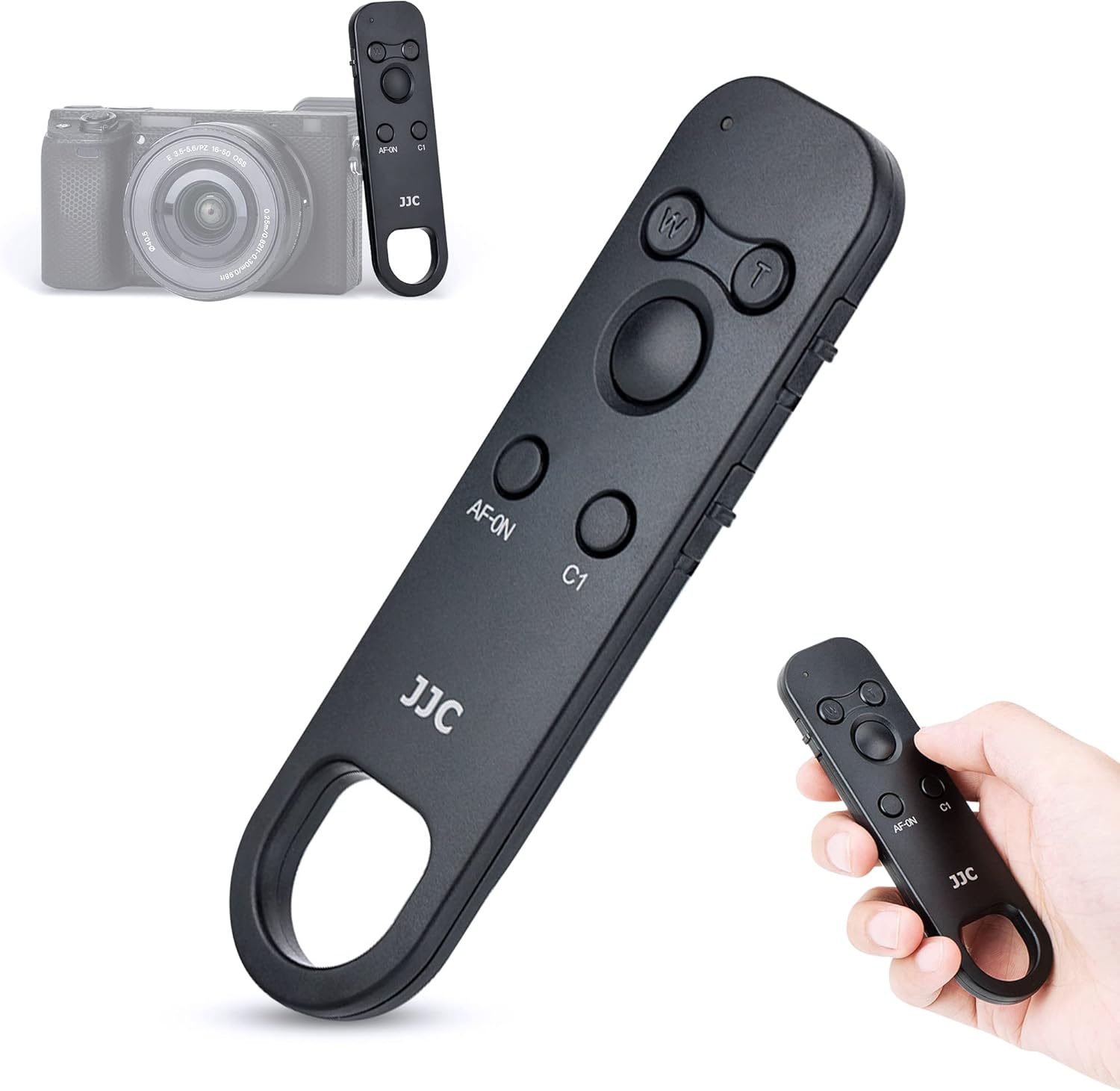
Figure 1: JJC Wireless Bluetooth Remote Control (BTR-S1) with a compatible Sony camera.
Compatibility
The JJC BTR-S1 Wireless Bluetooth Remote Control is compatible with a wide range of Sony cameras. Please ensure your camera's firmware is updated to the specified version for full functionality.
- Sony A1 II, A7R V, A7 IV, A1
- Sony ZV-1 II, ZV-1, ZV-1F, ZV-E1, ZV-E10
- Sony A7C II, A7C, A6700, A6600, A6400 (Ver. 2.0 firmware update required)
- Sony A6100, A7R IV, A7R III (Ver. 3.0 firmware update required)
- Sony A7 III (Ver. 3.0 firmware update required)
- Sony A9 II, A9 (Ver. 6.0 firmware update required)
- Sony DSC-RX100 VII, DSC-RX0 II (Ver. 2.0 firmware update required)

Figure 2: The remote control shown with a compatible Sony camera, highlighting firmware requirements for certain models.
Product Features and Parts
Familiarize yourself with the various buttons and features of your JJC BTR-S1 remote control.

Figure 3: Detailed diagram of the remote control's components.
- Indicator Lamp: Shows pairing status and operation.
- FOCUS/ZOOM Buttons (W/T): Used for zooming in/out or adjusting focus.
- Shutter Release/Video Recording Button: Press to capture a still image or start/stop video recording.
- AF-ON Button: Activates the camera's autofocus.
- C1 Button: Activates the camera's custom C1 function.
- LOCK Switch: Slides to lock all buttons, preventing unintentional operation.
- ZOOM/FOCUS Switch: Toggles the function of the W/T buttons between zoom and focus.
- MOVIE/STILL Switch: Selects between movie recording mode and still image capture mode.
- Battery Compartment: Houses the CR2032 battery.
Setup (Pairing)
Follow these steps to pair your JJC BTR-S1 remote control with your Sony camera via Bluetooth.
- Before starting, ensure the remote control's LOCK switch is in the unlocked position (opposite of "LOCK").
- On your camera, navigate to MENU → (Network) → [Bluetooth Settings] → [Bluetooth Function] → [On].
- On your camera, navigate to MENU → (Network) → [Bluetooth Rmt Ctrl] → [On].
- On your camera, navigate to MENU → (Network) → [Bluetooth Settings] → [Pairing].
- On the remote control, simultaneously press and hold the Shutter Release/Video Recording Button and the FOCUS/ZOOM Button (T button) for at least 7 seconds. The indicator lamp on the remote will flash.
- When a confirmation message appears on your camera's screen (e.g., "Connected device: RMT-P1BT"), select [OK]. Once pairing is complete, [Paired.] will appear on the camera screen.

Figure 4: Visual guide for the Bluetooth pairing process between the remote and camera.
Operating Instructions
The JJC BTR-S1 remote control offers versatile functionality for various shooting scenarios.
Basic Operations:
- Shooting Still Images: Set the MOVIE/STILL switch to "STILL". Press the Shutter Release button to capture a photo.
- Recording Videos: Set the MOVIE/STILL switch to "MOVIE". Press the Video Recording button to start recording, press again to stop.
- Adjusting Focus: Set the ZOOM/FOCUS switch to "FOCUS". Use the W/T buttons to adjust focus.
- Zooming the Camera: Set the ZOOM/FOCUS switch to "ZOOM". Use the W/T buttons to zoom in (T) or out (W). Note: Zoom buttons only work for power zoom lenses when used on mirrorless cameras. They will only function when shooting JPEG, not RAW or RAW + JPEG.
- Activating AF-ON/C1: Press the dedicated AF-ON or C1 buttons to activate their respective camera functions.

Figure 5: Examples of remote control functions: still image, video, zoom, and focus.
Operating Range:
The remote control operates wirelessly up to a distance of approximately 10 meters (32.8 feet) in any direction, providing flexibility for various shooting angles and distances.

Figure 6: The remote control's effective operating range.
Locking System:
To prevent accidental button presses, slide the LOCK switch to the "LOCK" position. This will disable all buttons on the remote control, which is useful when carrying it or storing it in a bag.

Figure 7: The LOCK switch for preventing unintended operations.
Maintenance
Battery Replacement:
The remote control is powered by one CR2032 battery. When the remote's indicator lamp does not light up or its response becomes sluggish, it's time to replace the battery.
- Locate the battery compartment on the back of the remote control.
- Use a small coin or screwdriver to twist the battery compartment cover counter-clockwise to open it.
- Remove the old CR2032 battery.
- Insert a new CR2032 battery with the positive (+) side facing upwards.
- Replace the battery compartment cover and twist clockwise to secure it.
General Care:
- Keep the remote control dry. Do not expose it to water or excessive humidity.
- Avoid extreme temperatures.
- Clean the remote with a soft, dry cloth. Do not use harsh chemicals or abrasive cleaners.
- Store the remote in a safe place when not in use, ideally with the LOCK switch engaged to prevent accidental activation and battery drain.
Troubleshooting
| Problem | Possible Cause | Solution |
|---|---|---|
| Remote does not connect or pair with camera. |
|
|
| Buttons on the remote are unresponsive. |
|
|
| Zoom function does not work. |
|
|
Specifications
| Model Number | BTR-S1 |
| Transmission Method | 2.4GHz, GFSK modulation |
| Operating Distance | Approx. 10m / 32.8ft |
| Power Source | 1 x CR2032 battery (included) |
| Dimensions (L x W x H) | Approx. 110 x 31.6 x 12.7mm (4.3 x 1.2 x 0.5 inches) |
| Item Weight | Approx. 18g (0.635 ounces) |

Figure 8: Physical dimensions and key specifications of the remote control.
Warranty and Support
JJC products are manufactured with quality and reliability in mind. For any issues or inquiries regarding your JJC Wireless Bluetooth Remote Control, please contact JJC customer support through the retailer where you purchased the product or visit the official JJC website for assistance.
Please retain your proof of purchase for warranty claims.
Ask a question about this manual
Ask about setup, troubleshooting, compatibility, parts, safety, or missing instructions. Manuals+ will review the question and use this page’s manual context to help answer it.