
1. Introduction
The ONVIS C3 is an indoor security camera designed for smart home surveillance. It integrates with Apple HomeKit Secure Video, offering 1080P video recording, dual-band Wi-Fi connectivity (2.4GHz and 5GHz), night vision, two-way audio, and local storage options. This manual provides instructions for setting up, operating, and maintaining your ONVIS C3 camera.

Image 1.1: The ONVIS C3 camera with icons illustrating key features such as HomeKit Secure Video, iCloud Storage, 4 Seconds Pre-recording, High Definition Video, Rich Notifications, Privacy, Intelligence, Two-way audio, Scene & Home Automation, and Easy Setup.
2. Package Contents
Please verify that all items are present in the package:
- ONVIS C3 Indoor Security Camera
- Power Adapter
- USB Cable
- Mounting Accessories (screws, wall anchors)
- User Manual
3. Setup
3.1 Powering On
- Connect the USB cable to the ONVIS C3 camera and the power adapter.
- Plug the power adapter into a standard electrical outlet.
- Wait for the camera's indicator light to show it is ready for pairing (refer to the indicator light section for specific status).
3.2 App Installation and Pairing
- Download the latest version of the Apple Home app from the App Store on your iOS device.
- Open the Home app and tap the "+" icon to add an accessory.
- Select "Add Accessory" and scan the HomeKit setup code located on the camera or in the manual.
- Follow the on-screen instructions to complete the pairing process, including assigning the camera to a room and naming it.
- Ensure your Wi-Fi network is active and within range. The camera supports dual-band Wi-Fi (2.4GHz and 5GHz).
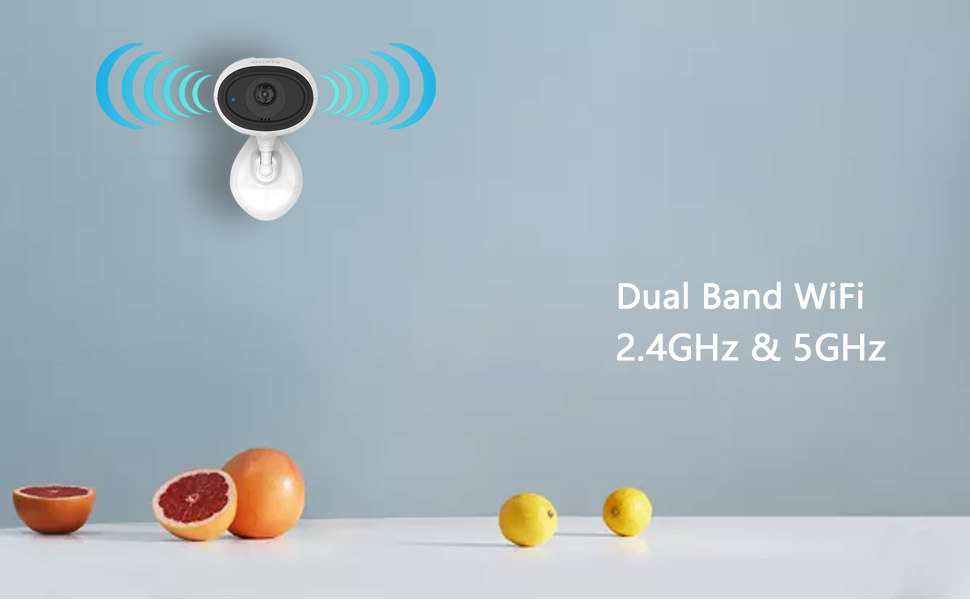
Image 3.1: Illustration of dual-band Wi-Fi support (2.4GHz and 5GHz) for reliable connectivity.
3.3 Mounting the Camera
The ONVIS C3 camera can be placed on a flat surface or mounted to a wall or ceiling.
- Table Placement: Place the camera on a stable, flat surface in your desired monitoring area.
- Wall/Ceiling Mount: Use the provided mounting accessories to secure the camera. Ensure the mounting location provides a clear view and is within Wi-Fi range.
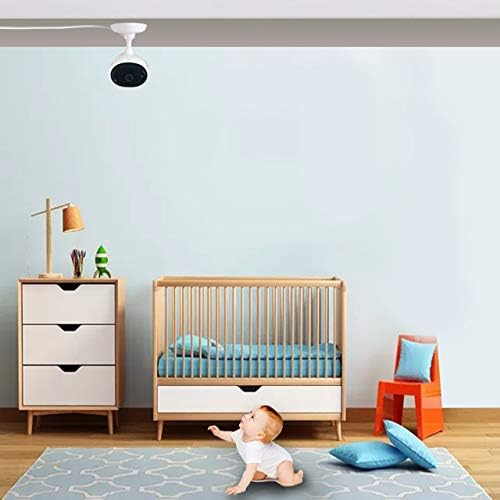
Image 3.2: The ONVIS C3 camera is shown mounted on a ceiling, providing a wide view of a nursery room.
4. Operating the Camera
4.1 Live Streaming
Access live video feeds from your ONVIS C3 camera through the Apple Home app on your iPhone, iPad, or Apple Watch. The camera supports up to two simultaneous live streams.

Image 4.1: A user viewing live camera footage on both an iPhone and an Apple Watch, demonstrating multi-device access.
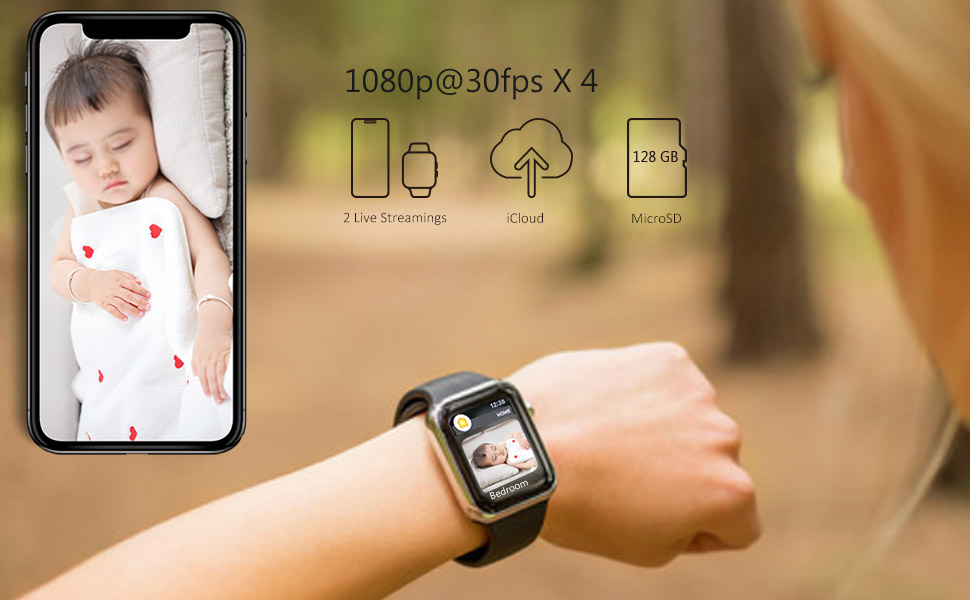
Image 4.2: A visual representation of the live streaming interface within the Home app, displaying the camera's view.
4.2 HomeKit Secure Video and iCloud Recording
The ONVIS C3 camera supports Apple HomeKit Secure Video, allowing for secure recording and storage of video footage in iCloud. This feature provides end-to-end encryption for your privacy.
- Video recordings are stored in your iCloud account, not counted against your iCloud storage plan for eligible tiers.
- Access recorded video history and live feeds securely through the Home app.

Image 4.3: The HomeKit Secure Video feature, highlighting its integration with iCloud for secure video storage.

Image 4.4: An icon representing iCloud privacy, emphasizing the secure nature of video storage.
4.3 Local Recording
The ONVIS C3 supports local recording to a MicroSD card (up to 128GB, not included). This provides an alternative or supplementary recording option without monthly fees.
- Locate the MicroSD card slot on the camera.
- Insert a compatible MicroSD card into the slot until it clicks into place.
- The camera will automatically begin recording to the MicroSD card based on your settings in the Home app.

Image 4.5: The ONVIS C3 camera highlighting the benefits of local storage, including no monthly fees and secure recording to a 128GB MicroSD card.
4.4 Video Quality and Features
- 1080P HDR Video: The camera records in 1080p resolution at 30 frames per second, with High Dynamic Range (HDR) for improved image clarity in varying light conditions.
- Night Vision: Equipped with night vision capabilities, the camera provides clear video footage even in low-light or dark environments.
- Two-Way Talk: Use the built-in microphone and speaker to communicate with individuals near the camera through the Home app.
- Motion Detection: The camera features a motion sensor that triggers recording and sends notifications when activity is detected. It also supports 4-second pre-recording before a detected event.
- Flip Video: If the camera is mounted upside down, you can adjust the video orientation in the Home app settings.

Image 4.6: An icon representing HDR (High Dynamic Range) technology for enhanced video quality.

Image 4.7: An icon illustrating the two-way audio feature, enabling communication through the camera.
4.5 HomeKit Automation
Integrate your ONVIS C3 camera with other HomeKit accessories to create custom automations. For example, you can set lights to turn on when motion is detected by the camera.

Image 4.8: An icon representing HomeKit automation, showing how the camera can trigger other smart home devices.
4.6 Feature Overview Video
Video 4.1: An official product video from Onvis Direct demonstrating various features of the ONVIS C3 camera, including HomeKit Secure Video, iCloud integration, live streaming on multiple devices, dual-band Wi-Fi, playback, HDR, night vision, flip video, 4-second prerecording, motion detection, automation, and local storage via MicroSD card.
5. Maintenance
- Cleaning: Use a soft, dry cloth to clean the camera lens and body. Avoid abrasive cleaners or solvents.
- Firmware Updates: Regularly check for and install firmware updates through the Apple Home app to ensure optimal performance and security.
- Placement: Ensure the camera is placed in a stable location, away from direct sunlight, heat sources, and moisture.
6. Troubleshooting
6.1 Camera Not Connecting to Wi-Fi
- Ensure your Wi-Fi network is 2.4GHz or 5GHz and within range.
- Check if the Wi-Fi password entered is correct.
- Restart your Wi-Fi router and the camera.
- If issues persist, try resetting the camera to factory settings (refer to the reset procedure in the manual) and re-pairing it.
6.2 No Video Feed
- Verify the camera is powered on and the indicator light is showing normal operation.
- Check your internet connection.
- Ensure the Home app has permission to access your local network and cellular data (if applicable).
6.3 Motion Detection Not Working
- Check the motion detection settings in the Home app to ensure it is enabled and configured correctly.
- Ensure there are no obstructions blocking the camera's view or the motion sensor.
7. Specifications
| Feature | Specification |
|---|---|
| Model Number | C3 |
| Video Resolution | 1080p (1920x1080) |
| Frame Rate | 30 fps |
| Connectivity | Wi-Fi (2.4GHz & 5GHz) |
| Night Vision | Yes (Night Color) |
| Audio | Two-Way Talk |
| Storage Options | iCloud Recording (HomeKit Secure Video), Local MicroSD (up to 128GB) |
| Motion Sensor | Yes |
| Power Source | AC/DC Adapter (240 Volts, 5 Watts) |
| Indoor/Outdoor Use | Indoor |
| Dimensions | 6.3 x 5.91 x 3.54 inches |
| Weight | 0.12 Kilograms |
| Control Method | App (Apple Home app) |
| Waterproof Rating | IP65 (Note: While rated IP65, this camera is specified for indoor use.) |
8. Warranty and Support
For warranty information and technical support, please refer to the official ONVIS website or contact their customer service directly. Details are typically provided on the product packaging or a separate warranty card.