1. Introduction
Welcome to the user manual for your Kodak PIXPRO WPZ2 Rugged Waterproof Digital Camera. This guide provides essential information for setting up, operating, maintaining, and troubleshooting your camera. The WPZ2 is designed for durability, featuring waterproof, shockproof, and dustproof capabilities, along with a 16MP sensor and 4x optical zoom, making it suitable for various outdoor and underwater environments.
2. Product Overview
2.1 What's in the Box
- Kodak PIXPRO WPZ2 Camera Body & Lens
- 32GB SD Card
- USB Cable
- Wrist Strap
- Quick Start Guide
2.2 Camera Components


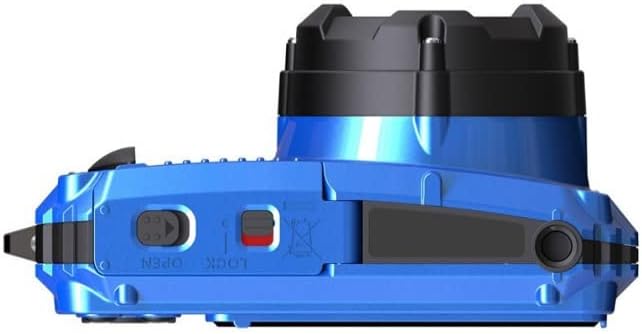
3. Setup
3.1 Battery Installation
- Locate the battery compartment on the bottom of the camera.
- Slide the lock mechanism to open the compartment cover.
- Insert the Lithium-Ion battery, ensuring the correct orientation as indicated inside the compartment.
- Close the compartment cover securely until it clicks into place. Ensure the lock mechanism is engaged to maintain waterproof integrity.
3.2 Memory Card Installation
- Open the battery/memory card compartment cover.
- Insert the provided 32GB microSDHC memory card into the designated slot with the gold contacts facing the correct direction (usually towards the front of the camera).
- Push the card gently until it clicks into place.
- Close the compartment cover securely.
3.3 Charging the Battery
- Ensure the camera is powered off.
- Open the USB port cover (typically on the side of the camera).
- Connect the small end of the USB cable to the camera's USB port.
- Connect the larger end of the USB cable to a USB power adapter (not included) or a computer's USB port.
- The charging indicator light will illuminate. Once charging is complete, the light will change or turn off.
- Disconnect the USB cable and securely close the USB port cover to maintain waterproof sealing.
4. Operating the Camera
4.1 Powering On/Off
Press and hold the Power button (located on the top of the camera) to turn the camera on or off.
4.2 Basic Controls
- Shutter Button: Press halfway to focus, fully to take a picture.
- Zoom Lever (W/T): Use to zoom in (T) or out (W) optically and digitally.
- Mode Button: Press to select shooting modes (e.g., Auto, Program, Scene, Video).
- Record Button: Press to start/stop video recording.
- Playback Button: Press to review photos and videos.
- Menu/Set Button: Access the camera menu and confirm selections.
- Directional Pad: Navigate through menus and settings.
- Display Button: Changes information displayed on the LCD screen.
- Flash/Delete Button: Controls flash settings in shooting mode, deletes files in playback mode.
4.3 Taking Photos
- Turn on the camera.
- Select your desired shooting mode using the Mode button.
- Frame your shot using the LCD screen.
- Press the Shutter button halfway to focus. The focus frame will turn green when focus is achieved.
- Press the Shutter button fully to capture the image.
4.4 Recording Videos
- Turn on the camera.
- Press the Record button to start recording. A red indicator will appear on the screen.
- Press the Record button again to stop recording.
4.5 Special Features
- Waterproof: The WPZ2 is waterproof up to 15 meters (49 feet). Ensure all compartment covers are securely closed before submerging the camera.
- Shockproof: The camera is shockproof up to 2 meters (6.56 feet), providing protection against accidental drops.
- Dustproof: Designed to prevent dust and sand from entering the camera, making it ideal for various outdoor conditions.
- Wi-Fi Connectivity: Connect your WPZ2 to a compatible iOS or Android device via Wi-Fi to transfer photos and videos for sharing. Refer to the camera's on-screen menu for Wi-Fi setup instructions.
5. Maintenance
5.1 Cleaning the Camera
- Camera Body: Wipe with a soft, damp cloth. For stubborn dirt, use a mild soap solution and rinse thoroughly.
- Lens: Use a lens brush or a soft, lint-free cloth specifically designed for camera lenses. Avoid touching the lens surface with your fingers.
- Waterproof Seals: After use in water, rinse the camera with fresh water and dry thoroughly. Inspect the rubber seals around compartments for any debris or damage. Clean gently if necessary.
5.2 Storage
Store the camera in a cool, dry place away from direct sunlight and extreme temperatures. If storing for an extended period, remove the battery.
6. Troubleshooting
| Problem | Possible Cause | Solution |
|---|---|---|
| Camera does not power on. | Battery is depleted or incorrectly inserted. | Charge the battery or re-insert it correctly. |
| Poor image quality. | Lens is dirty; insufficient lighting; incorrect settings. | Clean the lens; use flash or better lighting; adjust shooting mode. |
| Memory card error. | Card is full, corrupted, or incorrectly inserted. | Delete files, format card (will erase all data), or re-insert card. |
| Camera not connecting to Wi-Fi. | Incorrect Wi-Fi settings; device compatibility issue. | Verify Wi-Fi settings on camera and device; ensure device is compatible. |
If you encounter issues not listed here or if the problem persists, please contact KODAK customer support for assistance.
7. Specifications
| Feature | Specification |
|---|---|
| Model Name | PIXPRO WPZ2 |
| Effective Still Resolution | 16 MP |
| Optical Zoom | 4x |
| Photo Sensor Technology | CMOS |
| Image Stabilization | Digital, Optical |
| Water Resistance Depth | 15 Meters (49 feet) |
| Shockproof Rating | 2 Meters (6.56 feet) |
| Connectivity Technology | Wi-Fi |
| Video Resolution | 720p |
| Supported File Format | JPEG (Stills), MP4 (Video) |
| Memory Storage Capacity | Supports SD/SDHC cards (32GB card included) |
| Battery Cell Type | Lithium Ion |
| Dimensions (Approx.) | Item Height: 9.1 inches (Note: This might be package height, actual camera dimensions vary) |
8. Warranty and Support
Your Kodak PIXPRO WPZ2 camera is covered by a limited warranty. Please refer to the warranty card included with your product for specific terms and conditions. For technical support, service, or further inquiries, please visit the official KODAK PIXPRO website or contact their customer service department.
Online Support: www.kodakpixpro.com