1. Introduction
The ASUS MW203 is a multi-device wireless silent mouse designed for comfort and versatility. It offers seamless connectivity across up to three devices using 2.4GHz RF or Bluetooth 3.0/5.0, features adjustable DPI settings, and boasts a long battery life. This manual provides detailed instructions for setting up, operating, and maintaining your ASUS MW203 mouse.
2. Product Overview
Familiarize yourself with the components and features of your ASUS MW203 mouse.

Figure 2.1: Overview of ASUS MW203 mouse features, including durable switches, battery life, LED indicator, DPI switch, ergonomic shape, silent buttons, and multi-device connectivity.
Key Features:
- Ergonomic Design: Features rubberized sides for comfortable long-term use.
- Durable Switches: Equipped with switches rated for a 10-million-click lifespan.
- Long Battery Life: Up to 13 months of battery life.
- DPI Switch: Adjustable DPI settings (1000/1600/2400) for precise control.
- Silent Buttons: Almost-silent mouse buttons for quiet operation.
- Multi-Device Connectivity: Simultaneously connects with up to 3 devices via 2.4GHz RF, Bluetooth 5.0, and Bluetooth 3.0.
- LED Indicator: Provides status for DPI switch and low battery.

Figure 2.2: Bottom view of the ASUS MW203 mouse, showing the battery compartment, USB dongle storage, 2.4GHz/Bluetooth connection mode switch, pairing/connection button, and power on/off switch.
3. Setup
3.1. Installing the Battery
- Locate the battery compartment on the underside of the mouse.
- Open the battery compartment cover.
- Insert one AA battery, ensuring correct polarity (+/-).
- Close the battery compartment cover securely.
3.2. Connecting via 2.4GHz USB Nano Receiver
- Locate the USB Nano Receiver stored inside the battery compartment of the mouse.
- Remove the USB Nano Receiver.
- Plug the USB Nano Receiver into an available USB port on your computer (PC or Laptop).
- Turn on the mouse using the Power On/Off switch on the bottom.
- Set the 2.4GHz / Bluetooth connection mode switch to the "1" position (2.4GHz mode).
- Your computer should automatically detect and install the necessary drivers. The mouse is ready for use.
3.3. Connecting via Bluetooth
- Turn on the mouse using the Power On/Off switch on the bottom.
- Set the 2.4GHz / Bluetooth connection mode switch to either "2" (Bluetooth 3.0) or "3" (Bluetooth 5.0) depending on your device's compatibility.
- Press and hold the Pairing/Connection button on the bottom of the mouse for 3 seconds until the LED indicator starts blinking, indicating pairing mode.
- On your computer (PC or Laptop) or compatible device (e.g., tablet), navigate to the Bluetooth settings.
- Search for new devices and select "ASUS MW203" from the list.
- Follow any on-screen prompts to complete the pairing process. The LED indicator will stop blinking once connected.
4. Operating Instructions
4.1. Basic Mouse Functions
- Left Click: Primary action, selection.
- Right Click: Context menu.
- Scroll Wheel: Scroll up/down documents or web pages. Can also be pressed for middle-click functionality.
- Side Buttons: Typically configured for "Back" and "Forward" navigation in web browsers and file explorers.

Figure 4.1: The ASUS MW203 features almost-silent buttons, allowing for quiet operation in various environments.
4.2. DPI Adjustment
The DPI (Dots Per Inch) button, located below the scroll wheel, allows you to adjust the mouse sensitivity. Press the DPI button to cycle through the available settings:
- 1000 DPI: For precise control and slower cursor movement.
- 1600 DPI: Standard setting for general use.
- 2400 DPI: For faster cursor movement, suitable for larger screens or quick navigation.
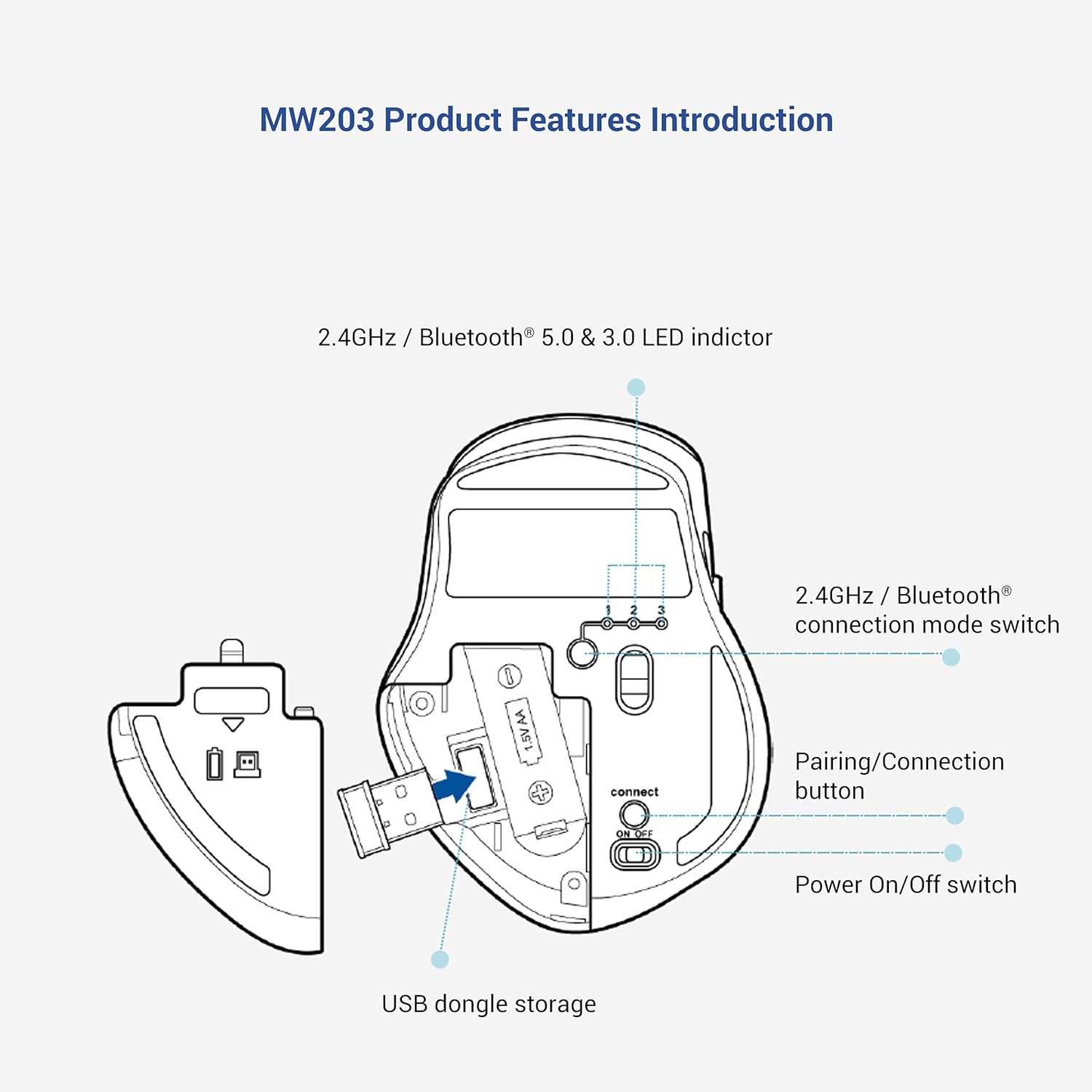
Figure 4.2: The DPI switch allows selection between 1000, 1600, and 2400 DPI for customized cursor speed.
5. Multi-Device Connection
The ASUS MW203 mouse can be paired with up to three different devices. Use the 2.4GHz / Bluetooth connection mode switch on the bottom of the mouse to switch between connected devices.
- Position 1: 2.4GHz RF connection (via USB Nano Receiver).
- Position 2: Bluetooth 3.0 connection.
- Position 3: Bluetooth 5.0 connection.
To switch between devices, simply move the connection mode switch to the desired position. The mouse will automatically connect to the previously paired device for that channel.

Figure 5.1: The ASUS MW203 allows convenient switching between three connected devices with a single click of the mode switch.
6. Battery Information
The ASUS MW203 mouse operates on one AA battery, providing up to 13 months of usage depending on usage patterns.
6.1. Auto Sleep Mode
To conserve battery life, the mouse features an auto sleep mode that activates after a period of inactivity. To wake the mouse, simply nudge it or click any button. It will reconnect automatically without delay.

Figure 6.1: The auto sleep mode efficiently prolongs battery life up to 13 months.
6.2. Low Battery Indicator
The LED indicator on the mouse will signal when the battery level is low, prompting you to replace the AA battery.
7. Maintenance
7.1. Cleaning the Mouse
To maintain optimal performance, regularly clean your mouse.
- Use a soft, lint-free cloth slightly dampened with water or a mild cleaning solution to wipe the exterior.
- Avoid using harsh chemicals or abrasive materials.
- Ensure no liquid enters the mouse's internal components.
- Clean the optical sensor on the bottom with a dry cotton swab if tracking issues occur.
7.2. Battery Replacement
When the low battery indicator lights up, replace the AA battery as described in Section 3.1. Dispose of used batteries responsibly according to local regulations.
8. Troubleshooting
- Mouse not responding:
- Ensure the mouse is powered on.
- Check the battery level and replace if necessary.
- Verify the connection mode switch is set correctly (2.4GHz, BT3.0, or BT5.0).
- For 2.4GHz, ensure the USB Nano Receiver is securely plugged into a working USB port.
- For Bluetooth, ensure Bluetooth is enabled on your device and the mouse is paired. Try re-pairing if connection is lost.
- Intermittent connection or lag:
- Move the mouse closer to the receiver/device.
- Avoid using the mouse on metallic surfaces, which can interfere with wireless signals.
- Ensure there are no other strong wireless devices causing interference.
- Try a different USB port for the receiver.
- Inaccurate tracking:
- Clean the optical sensor on the bottom of the mouse.
- Use the mouse on a clean, non-reflective, and uniform surface (e.g., a mouse pad).
- Adjust the DPI setting to a lower value if the cursor is too jumpy.
- Scroll wheel issues:
- Ensure the scroll wheel is free of debris.
- If the scroll wheel is erratic, try cleaning around it with compressed air.
9. Specifications
| Brand | ASUS |
| Model Name | MW203 |
| Connectivity Technology | 2.4GHz RF (USB), Bluetooth 5.0, Bluetooth 3.0 |
| Movement Detection Technology | Optical |
| DPI Settings | 1000 / 1600 / 2400 DPI |
| Number of Buttons | 6 (Left, Right, Scroll Wheel, DPI, 2 Side Buttons) |
| Hand Orientation | Right |
| Power Source | 1 x AA Battery (included) |
| Battery Average Life | Up to 13 Months |
| Compatible Operating Systems | Windows 10, Chrome OS |
| Compatible Devices | Laptop, PC |
| Item Weight | 96 Grams |
| Item Dimensions (L x W) | 10.5L x 8W Centimeters |
| Box Contents | 1x ASUS MW203 Wireless Mouse, 1x AA Battery, 1x USB Nano Receiver |
| Enclosure Material | Rubber |
| Product Finish Type | Matte |
10. Warranty and Support
The ASUS MW203 Multi-Device Wireless Silent Mouse comes with a 1-year hardware warranty provided by the manufacturer from the date of purchase.
Customer Support:
For technical assistance, warranty claims, or product inquiries, please contact ASUS customer support.
- Toll-Free Support (India): 1800-209-0365 (Mon - Sat | 9am - 6pm)
- Manufacturer: ASUS, Dongguan Intech Electronics Corp.
- Importer (India): ASUS INDIA PRIVATE LIMITED, 402, Supreme chambers, 17/18, Shah Industrial Estate, Veer Desai Road, Andheri (west), Mumbai 400053, India

Figure 10.1: ASUS Assurance offers reliable quality support, including worry-free doorstep replacement for ASUS accessories. Scan the QR code for more information: https://qr.asus.com/bccd
11. Product Video
Watch the official product video for a visual overview of the ASUS MW203 Multi-Device Wireless Silent Mouse.
Video 11.1: An overview of the ASUS MW203 Multi-Device Wireless Silent Mouse, highlighting its ergonomic design, power source, and operating system compatibility.


