1. Introduction
Thank you for purchasing the BATTLETRON RGB Gaming Mouse. This manual provides essential information for setting up, operating, maintaining, and troubleshooting your new gaming mouse. Please read this manual thoroughly before use to ensure optimal performance and longevity of your device.
The BATTLETRON RGB Gaming Mouse is designed for an immersive gaming experience, featuring an optical sensor, customizable RGB lighting, and a durable braided cable. It offers precise control and quick response times for competitive gameplay.
2. Safety Information
To prevent damage to the device or injury to yourself, please observe the following safety precautions:
- Do not expose the mouse to liquids or excessive moisture.
- Avoid extreme temperatures. Operate the mouse within typical room temperatures.
- Do not attempt to disassemble or modify the mouse. This will void the warranty and may cause damage.
- Keep the mouse away from strong magnetic fields.
- Use only with compatible USB ports.
3. Package Contents
Ensure all items are present in the package:
- BATTLETRON RGB Gaming Mouse
- User Manual (this document)
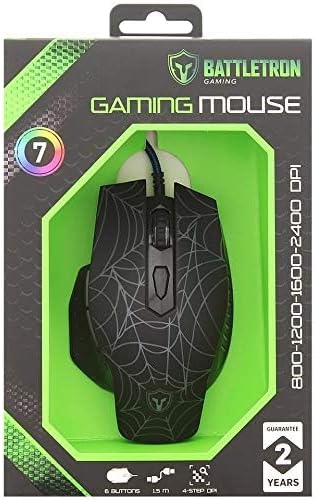
Image 3.1: BATTLETRON RGB Gaming Mouse packaging. The box displays the mouse, brand logo, and key features like 7 buttons, 1.5m cable, and 4-step DPI.
4. Setup
The BATTLETRON RGB Gaming Mouse is a plug-and-play device, requiring minimal setup.
- Connect the Mouse: Locate an available USB port on your computer (Laptop or Personal Computer). Insert the USB connector of the BATTLETRON Gaming Mouse into the USB port.
- Driver Installation: The mouse is designed to work with standard USB drivers, which your operating system should install automatically. If a specific driver is mentioned (as per product description "With driver"), it typically refers to optional software for advanced customization. Check the manufacturer's website for any dedicated driver software if advanced features are desired.
- Initial Recognition: Your operating system will detect the new hardware. A notification may appear indicating that the device is ready for use.
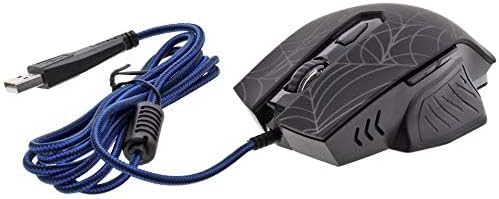
Image 4.1: The BATTLETRON RGB Gaming Mouse connected via its braided USB cable. The cable length is 1.5 meters and includes a magnet ring for signal stability.
5. Operating the Mouse
The BATTLETRON RGB Gaming Mouse features 6 programmable buttons and adjustable DPI settings for optimal gaming performance.

Image 5.1: Top view of the BATTLETRON RGB Gaming Mouse showcasing its ergonomic design, 6 buttons, and vibrant RGB backlight effects. The spiderweb pattern is visible on the surface.
5.1. Button Functions
The mouse is equipped with 6 buttons (6D design) for various functions:
- Left Click: Standard primary action button.
- Right Click: Standard secondary action button.
- Scroll Wheel (Middle Click): Used for scrolling and as a clickable button.
- DPI Button: Located behind the scroll wheel. Press to cycle through DPI settings (1200-2400 DPI). This allows instant adjustment of aiming precision.
- Side Buttons (Forward/Backward): Typically used for navigation in web browsers or can be programmed for in-game actions.
5.2. DPI Adjustment
The mouse features an optical sensor with adjustable DPI (Dots Per Inch) settings, ranging from 1200 to 2400 DPI. Press the DPI button to cycle through the available settings. Higher DPI means faster cursor movement for the same physical mouse movement.
5.3. RGB Backlight
The BATTLETRON RGB Gaming Mouse features dynamic RGB backlight with multiple effects. The lighting automatically cycles through various colors and patterns, enhancing the aesthetic appeal of your gaming setup. There is no explicit button mentioned for controlling the RGB lighting, suggesting it operates automatically or through optional driver software.
6. Maintenance
Proper maintenance ensures the longevity and optimal performance of your gaming mouse.
- Cleaning: Use a soft, dry cloth to wipe the surface of the mouse. For stubborn dirt, slightly dampen the cloth with water. Do not use harsh chemicals or abrasive cleaners.
- Sensor Cleaning: Occasionally, dust or debris may accumulate around the optical sensor on the underside of the mouse. Use a cotton swab or compressed air to gently clean the sensor area.
- Cable Care: Avoid sharp bends or kinks in the braided cable. Do not pull the mouse by its cable.
- Storage: When not in use for extended periods, store the mouse in a clean, dry environment.
7. Troubleshooting
If you encounter issues with your BATTLETRON RGB Gaming Mouse, refer to the following common problems and solutions:
| Problem | Possible Cause | Solution |
|---|---|---|
| Mouse not responding | Loose USB connection, faulty USB port, driver issue. |
|
| Cursor movement is erratic or jumpy | Dirty optical sensor, unsuitable mouse pad surface. |
|
| RGB lighting not working | Power issue, software conflict. |
|
| Buttons not responding | Software issue, physical damage. |
|
8. Specifications
Key technical specifications for the BATTLETRON RGB Gaming Mouse:
- Model Number: BATTLETRON
- Manufacturer: Battletron
- Connectivity: Wired USB
- Sensor Type: Optical
- DPI Settings: 1200-2400 DPI (adjustable via button)
- Buttons: 6 (6D design)
- Switch Rating: 3 million clicks
- Backlight: RGB with multiple effects
- Polling Rate: 125Hz
- Cable Length: 1.5 meters (braided, with magnet ring)
- Hand Orientation: Ambidextrous
- Recommended Use: Gaming
- Compatible Devices: Laptop, Personal Computer
- Color: Black
- Item Weight: 200 Grams
- Package Dimensions: 20.3 x 13.8 x 6.2 cm
9. Warranty and Support
The product information indicates a 2-year guarantee. For warranty claims or technical support, please refer to the retailer or manufacturer's contact information provided at the point of purchase. Keep your proof of purchase for warranty validation.
For further assistance, you may also visit the manufacturer's official website (if available) for updated drivers, FAQs, or contact information.


