
1. Introduction
This manual provides detailed instructions for the installation, operation, and maintenance of your EDUPLINK 1300Mbps USB 3.0 Dual Band WiFi Adapter, model EP-AC1686. This device is designed to provide high-speed wireless connectivity to your computer, supporting both 5GHz and 2.4GHz bands for optimal performance.
2. Package Contents
Please verify that all items are present in your package:
- 1 x EDUPLINK 1300Mbps WiFi Adapter (EP-AC1686)
- 1 x User Manual

3. Product Overview
The EDUPLINK EP-AC1686 is a high-performance wireless adapter featuring a USB 3.0 interface and a 5dBi high-gain antenna. It supports the 802.11ac standard, offering fast and stable dual-band connectivity.
Key Features:
- USB 3.0 Interface: Provides up to 10 times faster data transfer speeds compared to USB 2.0, ensuring optimal throughput and a stable internet connection.
- Dual Band Connectivity: Supports both 5GHz (up to 867Mbps) and 2.4GHz (up to 400Mbps) bands, totaling up to 1300Mbps for versatile and high-speed wireless access.
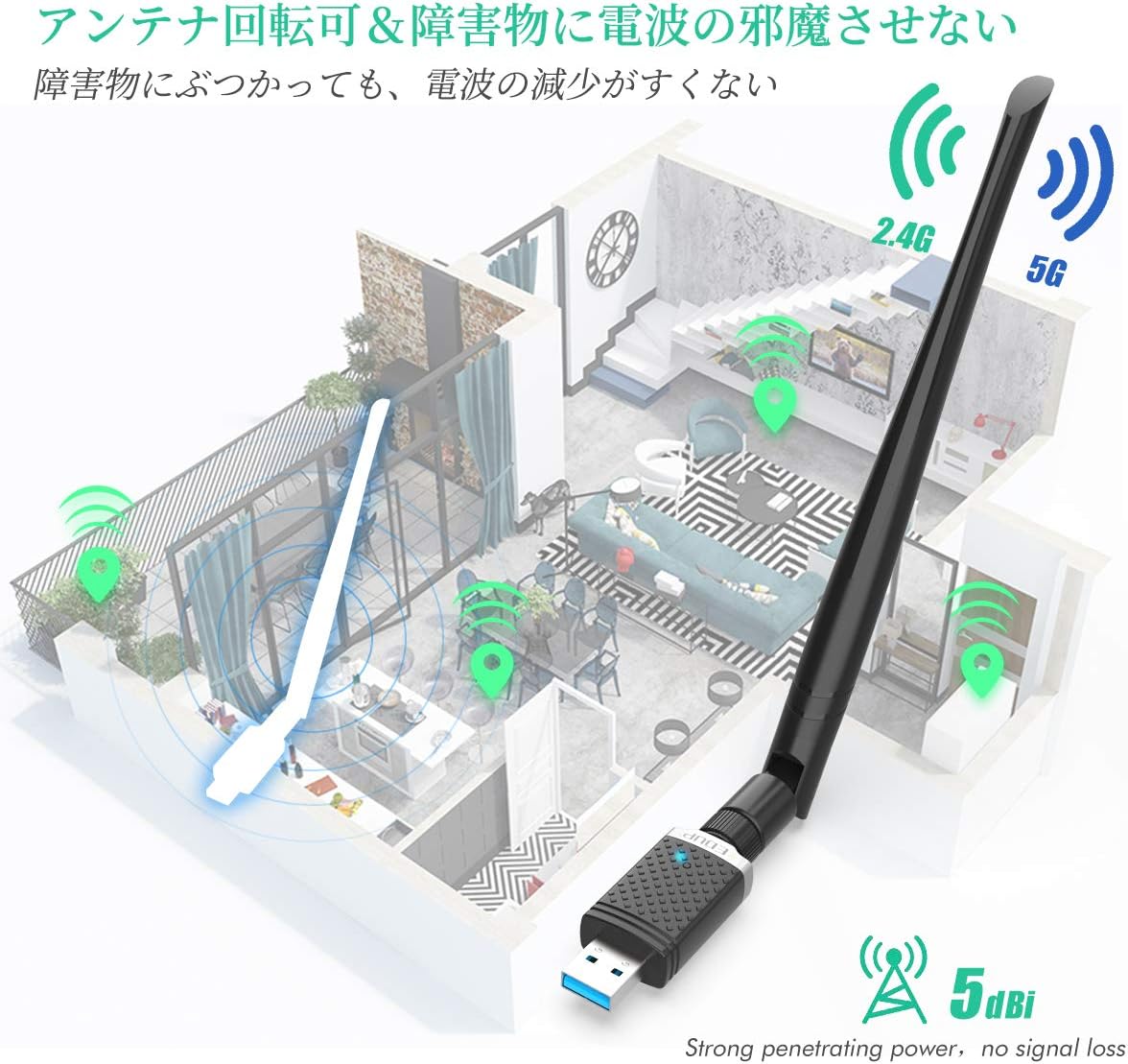
- 5dBi High-Gain Antenna: A 360-degree rotatable antenna enhances signal reception and transmission range, improving connectivity in areas with weak signals.
- Wide Compatibility: Supports Windows XP/7/8/8.1/10 and Mac OS X 10.9-10.15.
- AP Mode: Allows the adapter to function as a Wi-Fi hotspot, sharing your wired internet connection with other wireless devices.


4. Setup Instructions
4.1. Driver Installation
Before connecting the adapter, it is recommended to install the necessary drivers. Drivers automatically installed by Windows may be unstable. For optimal performance, please download and install the correct drivers from the official website:
Driver Download Link: szedup.com/usb-adapters/EPAC1686.html
- Download the appropriate driver for your operating system (Windows or Mac OS).
- Unzip the downloaded file and run the installer.
- Follow the on-screen instructions to complete the installation.
- Restart your computer if prompted.
4.2. Physical Connection
- Ensure your computer is powered on.
- Insert the EDUPLINK WiFi adapter into an available USB 3.0 port on your computer. USB 3.0 ports are typically blue. If your computer does not recognize the device, try different USB ports, especially those on the back of desktop computer cases.
- Attach the 5dBi antenna to the adapter and adjust its orientation for best signal reception.

5. Operating Instructions
5.1. Connecting to a Wi-Fi Network
- After successful driver installation and physical connection, your computer should detect the new wireless adapter.
- Click on the Wi-Fi icon in your system tray (Windows) or menu bar (Mac OS).
- Select your desired Wi-Fi network (SSID) from the list of available networks.
- Enter the network security key (password) if prompted.
- Click 'Connect'. The adapter will establish a connection to the Wi-Fi network.
5.2. Using AP Mode (Hotspot Function)
The AP mode allows your adapter to create a Wi-Fi hotspot, sharing your computer's wired internet connection with other wireless devices like smartphones, tablets, or other laptops.
- Ensure your computer has a stable wired internet connection.
- Open the wireless utility software installed with the driver (or use your OS's built-in hotspot feature if available and compatible).
- Locate and enable the 'AP Mode' or 'Hotspot' function.
- Configure the network name (SSID) and password for your new hotspot.
- Other wireless devices can now connect to this hotspot using the configured SSID and password. Note that devices accessing the wireless LAN need to be registered on the network for proper functionality.
6. Maintenance
- Keep the adapter clean and free from dust. Use a soft, dry cloth for cleaning.
- Avoid exposing the adapter to extreme temperatures, humidity, or direct sunlight.
- Do not attempt to disassemble or repair the device yourself. This may void your warranty.
- Ensure the antenna is securely attached but do not overtighten.
7. Troubleshooting
7.1. No Wi-Fi Connection / Device Not Recognized
- Check Driver Installation: Ensure the correct drivers from szedup.com/usb-adapters/EPAC1686.html are installed. Uninstall any automatically installed Windows drivers first if experiencing issues.
- Try Different USB Port: If the computer does not recognize the device, try plugging it into a different USB port, especially a USB 3.0 port on the back of a desktop computer.
- Restart Computer: A simple restart can often resolve detection issues.
- Check Device Manager (Windows): Verify that the adapter is listed correctly without any error symbols.
7.2. Slow Speed / Unstable Connection
- Antenna Position: Adjust the 5dBi antenna's orientation to find the optimal signal reception.
- Router Distance/Obstacles: Move closer to your Wi-Fi router or minimize physical obstacles (walls, large furniture) between the adapter and the router. Signal strength directly impacts speed.
- Router Band: Ensure you are connected to the 5GHz band for higher speeds if your router supports it and you are within close range. The 2.4GHz band offers better range but lower speeds.
- Interference: Other electronic devices (microwaves, cordless phones) can cause interference. Try to minimize these near your adapter and router.
- Router Speed: The actual speed is also related to your router's capabilities and internet service provider's speed.
7.3. AP Mode Not Working
- Wired Connection: Ensure your computer has an active and stable wired internet connection.
- Driver/Software: Verify that the wireless utility software is correctly installed and configured for AP mode.
- Network Registration: Ensure that devices attempting to connect to the hotspot are properly registered on the network if required by your system settings.
8. Specifications
| Feature | Description |
|---|---|
| Model Number | EP-AC1686 |
| Brand | EDUPLINK |
| Hardware Interface | USB 3.0, Wireless Frequency |
| Data Link Protocol | IEEE 802.11ac |
| Data Transfer Rate | Up to 1300 Mbps (867 Mbps on 5GHz, 400 Mbps on 2.4GHz) |
| Antenna | 5dBi 360° Rotating High-Gain Antenna |
| Compatible OS | Windows XP/7/8/8.1/10, Mac OS X 10.9-10.15 |
| Compatible Devices | Smartphones, Tablets, Desktop PCs, Notebook PCs |
| Product Dimensions | 5.33 x 2.03 x 17.02 cm (approx. 5.3 x 2 x 17 cm) |
| Weight | 60 g |
| UPC | 793420184213 |
9. Warranty and Support
9.1. Warranty Information
This EDUPLINK WiFi adapter comes with an 18-month warranty from the date of purchase. This warranty covers manufacturing defects and malfunctions under normal use. Please retain your proof of purchase for warranty claims.
9.2. Customer Support
If you encounter any issues, have questions, or require technical assistance with your EP-AC1686 adapter, please refer to the troubleshooting section first. If the problem persists, please contact EDUPLINK customer support. Contact details are typically available on the official EDUPLINK website or through your retailer.