1. Introduction
The Green Blue GB200 is a modern radio alarm clock designed for versatile use in any home or office environment. It features a large mirror display, integrated thermometer, and robust audio capabilities, including Bluetooth connectivity and FM radio. This manual provides detailed instructions for setting up, operating, and maintaining your GB200 device.
1.1 Package Contents
- Green Blue GB200 Radio Alarm Clock
- USB Charging Cable
- User Manual
2. Key Features
- Multifunction Device: Combines a radio alarm clock with a high-quality Bluetooth speaker.
- Large Mirror LED Display: Clear display of time (12/24-hour format), ambient temperature, and battery status.
- Dual Alarm Function: Set two independent alarms with adjustable volume and an 8-minute snooze feature.
- Wireless Connectivity: Bluetooth 4.2 for seamless audio streaming from compatible devices.
- FM Radio: Enjoy your favorite radio stations with automatic tuning and external antenna support via AUX-IN.
- Versatile Audio Playback: Supports Micro SD card for MP3 playback and AUX-IN for external audio sources.
- Hands-Free Calling: Built-in microphone for convenient hands-free phone calls when connected via Bluetooth.
- Sleep Timer: Adjustable sleep timer up to 90 minutes for listening to music before sleep.
- Adjustable Brightness: Customize display brightness to suit your environment.
- Portable Power: Integrated 2200 mAh lithium battery for extended use on the go.
3. Controls and Display

Figure 3.1: Front View and Display. This image shows the front of the GB200 radio alarm clock, highlighting its large mirror LED display. The display clearly shows the current time (23:07), ambient temperature (26°C), and battery level indicator. Below the main time display, icons for sleep mode, alarm 1, alarm 2, Bluetooth, FM radio, AUX-IN, and SD card are visible, indicating active functions or available modes.
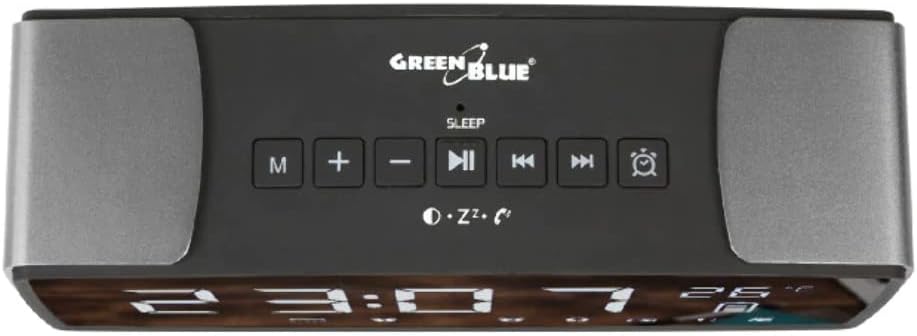
Figure 3.2: Top Panel Controls. This image displays the top panel of the GB200, featuring the main control buttons. From left to right, these include the Mode (M) button, Volume Down (-) button, Play/Pause (▶︎■) button, Previous Track (◀︎◀︎) button, Next Track (▶︎▶︎) button, and Alarm (⏰) button. These buttons are used for navigating modes, controlling media playback, and setting alarms.
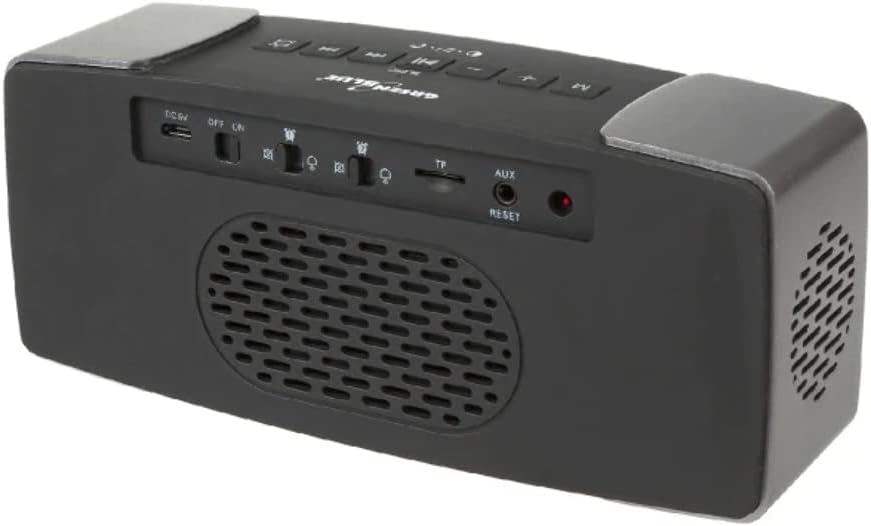
Figure 3.3: Rear Panel Ports and Switches. This image illustrates the rear panel of the GB200, where various ports and switches are located. From left to right, you can see the DC 5V charging port (micro USB), Power ON/OFF switch, Brightness control switch, SD card slot, AUX-IN port, and a small reset button. These provide connectivity for charging, external audio, and memory cards, along with power and display adjustments.
3.1 Button Functions
| Button/Port | Function |
|---|---|
| M (Mode) | Switches between FM Radio, Bluetooth, SD Card, and AUX-IN modes. |
| + / - | Adjusts volume. In time/alarm setting mode, adjusts values. |
| ▶︎■ (Play/Pause) | Plays or pauses audio. In FM mode, short press for auto-scan. Long press to answer/end calls. |
| ◀︎◀︎ (Previous) | Skips to previous track/station. |
| ▶︎▶︎ (Next) | Skips to next track/station. |
| ⏰ (Alarm) | Enters alarm setting mode. Short press to activate snooze when alarm sounds. |
| DC 5V (Micro USB) | Power input for charging the device. |
| ON/OFF Switch | Turns the device power on or off. |
| Brightness Switch | Adjusts the brightness level of the LED display. |
| SD Card Slot | Insert a Micro SD card for MP3 audio playback. |
| AUX-IN | Connect external audio devices using a 3.5mm audio cable. Can also be used for external FM antenna. |
| RESET | Resets the device to factory settings. Use a thin object to press. |
4. Initial Setup
4.1 Charging the Device
Before first use, fully charge the GB200. Connect the supplied USB cable to the DC 5V port on the back of the device and the other end to a USB power adapter (not included) or a computer's USB port. The battery indicator on the display will show charging status and will be full when charging is complete.
4.2 Powering On/Off
Locate the ON/OFF switch on the rear panel. Slide the switch to the "ON" position to power on the device. Slide it to the "OFF" position to power off.
5. Operating Instructions
5.1 Setting Time and Alarms
- Setting Time:
- In standby mode, long press the M button to enter time setting. The hour digits will flash.
- Use the + or - buttons to adjust the hour.
- Press the M button again to confirm the hour and move to minute setting. The minute digits will flash.
- Use the + or - buttons to adjust the minute.
- Press the M button again to confirm and exit time setting.
- Setting Alarm 1/2:
- Short press the ⏰ (Alarm) button to cycle through Alarm 1, Alarm 2, and Alarm Off.
- To set an alarm, long press the ⏰ button when the desired alarm (e.g., Alarm 1) is displayed. The hour digits will flash.
- Use the + or - buttons to adjust the alarm hour.
- Press the ⏰ button again to confirm the hour and move to minute setting.
- Use the + or - buttons to adjust the alarm minute.
- Press the ⏰ button one more time to confirm and select the alarm sound source (FM radio or built-in melody). Use + or - to choose.
- Press the ⏰ button one more time to confirm and exit alarm setting.
- When an alarm sounds, short press the ⏰ button to activate the 8-minute snooze. Press any other button or slide the ON/OFF switch to turn off the alarm.
5.2 Bluetooth Mode
- Press the M button until "Bluetooth" mode is indicated on the display. The Bluetooth icon will flash, indicating it's ready for pairing.
- On your mobile device, enable Bluetooth and search for "GB200".
- Select "GB200" to pair. Once connected, the Bluetooth icon will stop flashing and remain solid.
- You can now play audio from your device through the GB200. Use the ▶︎■, ◀︎◀︎, and ▶︎▶︎ buttons to control playback.
- Hands-Free Calling: When a call comes in, short press ▶︎■ to answer, and short press again to end the call. Long press ▶︎■ to reject a call.
5.3 FM Radio Mode
- Press the M button until "FM" mode is indicated on the display.
- Automatic Station Scan: Short press the ▶︎■ button to initiate an automatic scan for available FM stations. The device will save all found stations.
- Manual Station Selection: Use the ◀︎◀︎ and ▶︎▶︎ buttons to navigate through the saved stations.
- Improving Reception: For better FM reception, connect a 3.5mm audio cable (not included) to the AUX-IN port on the rear panel. This cable will act as an external antenna.
5.4 SD Card Playback
- Insert a Micro SD card containing MP3 audio files into the SD card slot on the rear panel.
- The device will automatically switch to SD card mode and begin playing the first track. If it doesn't, press the M button to select SD card mode.
- Use the ▶︎■, ◀︎◀︎, and ▶︎▶︎ buttons to control playback.
5.5 AUX-IN Mode
- Connect an external audio device (e.g., smartphone, MP3 player) to the AUX-IN port on the rear panel using a 3.5mm audio cable.
- Press the M button until "AUX" mode is indicated on the display.
- Audio will now play from your external device through the GB200 speakers. Control playback from your external device.
5.6 Sleep Timer
The sleep timer allows you to set a duration after which the device will automatically turn off. While playing audio (Bluetooth, FM, SD, AUX), long press the M button to enter sleep timer setting. Use the + or - buttons to adjust the timer (e.g., 15, 30, 60, 90 minutes). The device will turn off after the selected time.
5.7 Display Brightness
Use the Brightness switch on the rear panel to adjust the intensity of the LED display. Slide it to your preferred level for optimal visibility in different lighting conditions.
6. Maintenance
- Cleaning: Use a soft, dry cloth to clean the device. Do not use abrasive cleaners or solvents.
- Storage: Store the device in a cool, dry place away from direct sunlight and extreme temperatures.
- Battery Care: To prolong battery life, avoid fully discharging the battery frequently. Charge the device regularly, even if not in use for extended periods.
- Reset: If the device malfunctions or becomes unresponsive, use a thin object (like a paperclip) to press the RESET button on the rear panel. This will restore factory settings.
7. Troubleshooting
| Problem | Possible Cause | Solution |
|---|---|---|
| Device does not turn on. | Battery is depleted. | Charge the device using the supplied USB cable. |
| No sound from speakers. | Volume is too low or muted. Incorrect mode selected. | Increase volume using the + button. Ensure the correct mode (Bluetooth, FM, SD, AUX) is selected. |
| Bluetooth pairing fails. | Device is too far from the source. Bluetooth not enabled on source. | Ensure the GB200 is in Bluetooth pairing mode. Move devices closer. Restart Bluetooth on both devices. |
| Poor FM radio reception. | Weak signal. No external antenna. | Try repositioning the device. Connect a 3.5mm audio cable to the AUX-IN port to act as an external antenna. |
| Display is too dim/bright. | Brightness setting is not optimal. | Adjust the Brightness switch on the rear panel. |
| Device unresponsive. | Temporary software glitch. | Press the RESET button on the rear panel using a thin object. |
8. Technical Specifications
| Feature | Specification |
|---|---|
| Model | GB200 |
| Brand | Green Blue |
| Color | Black |
| Dimensions (L x W x H) | 190 x 57 x 80 mm (7.48 x 2.24 x 3.15 inches) |
| Weight | 670 g (1.48 lbs) |
| Material | Plastic |
| Bluetooth Version | BT4.2 |
| Bluetooth Transmission Distance | ≤10 meters (open space) |
| Speakers | 2 x 4Ω / 3W / 1.5" |
| Frequency Range | 70 Hz ~ 20 KHz |
| FM Radio Frequency Range | 87.5 ~ 108 MHz |
| Power Supply | Built-in 18650 2200 mAh Lithium battery |
| Standby Power | ≤ 0.6 W |
| Maximum Power | 6.6 W |
| Signal-to-Noise Ratio | > 70dB |
| Distortion Degree | > 1% |
| Display Type | LED |
| Compatibility | Android, iOS |
9. Warranty Information
Green Blue products are manufactured to high quality standards. For specific warranty terms and conditions, please refer to the warranty card included with your product or visit the official Green Blue website. Keep your purchase receipt as proof of purchase for any warranty claims.
10. Customer Support
If you encounter any issues or have questions regarding your Green Blue GB200 Radio Alarm Clock that are not covered in this manual, please contact Green Blue customer support. Contact details can typically be found on the product packaging, the official Green Blue website, or through your retailer.
For more information and product updates, please visit the Green Blue Brand Store.