
1. Introduction
This manual provides essential information and instructions for the proper installation, operation, and maintenance of your TERRAMASTER USB Flash Drive. This drive is specifically designed for use with select TERRAMASTER Network Attached Storage (NAS) devices, including models F2-221, F2-421, F4-421, F5-221, F5-421, F2-422, F4-422, F5-422, F8-422, F2-220, and F4-220. It is crucial to note that this USB flash drive is not compatible with other TERRAMASTER models or non-TERRAMASTER devices.
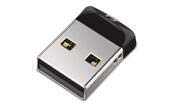
Image 1.1: The TERRAMASTER USB Flash Drive. This compact drive is designed for internal use within specified TERRAMASTER NAS models.
2. Setup and Installation
2.1 Unpacking
Carefully remove the USB flash drive from its packaging. Inspect the drive for any visible damage. If any damage is observed, do not proceed with installation and contact TERRAMASTER support.
2.2 Installation into TERRAMASTER NAS
The TERRAMASTER USB Flash Drive is an internal component for specific NAS models. Installation typically requires opening the NAS enclosure. Please follow these general steps:
- Power Down: Ensure your TERRAMASTER NAS is completely powered off and disconnected from the power source.
- Access Enclosure: Refer to your specific NAS model's user manual for instructions on how to safely open its enclosure and access the internal components. This may involve removing screws and panels.
- Locate USB Port: Identify the internal USB port designated for the operating system flash drive. In some models, this may require disassembling parts of the NAS down to the motherboard level.
- Insert USB Drive: Carefully insert the TERRAMASTER USB Flash Drive into the designated internal USB port. Ensure it is seated firmly.
- Reassemble NAS: Once the USB drive is securely installed, reassemble your NAS enclosure, ensuring all screws and panels are correctly replaced.
- Power On: Reconnect the power source and power on your TERRAMASTER NAS.
Important: Improper installation can damage your NAS or the USB drive. If you are unsure about any step, consult a qualified technician or TERRAMASTER support.
3. Operation
3.1 Initializing the Drive and System Recovery
This USB flash drive contains the necessary bootloader and operating system components for your TERRAMASTER NAS. Upon successful installation and powering on the NAS, the system should automatically detect the new drive.
- First Boot: If this is a new installation or a replacement for a failed boot drive, the NAS will typically enter a recovery or initial setup mode.
- Operating System Installation: You may need to access the NAS's web interface via a connected computer to proceed with the operating system (TOS) installation or reinstallation process. Follow the on-screen prompts provided by the TOS installer.
- Data Drives: Ensure your data hard drives are installed correctly if you intend to use them with the newly installed operating system.
The USB drive functions as the primary boot device for the NAS operating system. It is not intended for user data storage.
4. Maintenance
The TERRAMASTER USB Flash Drive requires minimal maintenance once installed. As an internal component, it is protected by the NAS enclosure.
- Physical Protection: Keep the NAS enclosure closed and secured to protect the internal USB drive from dust, moisture, and physical impact.
- Firmware Updates: Regularly update your NAS operating system (TOS) firmware through the NAS web interface. These updates may include improvements to how the system interacts with the boot drive.
- Avoid Removal: Do not remove the USB flash drive while the NAS is powered on or operating, as this can lead to system corruption or data loss.
5. Troubleshooting
5.1 NAS Does Not Boot or Recognize Drive
- Check Compatibility: Verify that your NAS model is listed as compatible with this specific USB flash drive.
- Re-seat Drive: Power off the NAS, disconnect power, open the enclosure, and carefully re-seat the USB flash drive to ensure it is fully inserted into the internal USB port.
- Inspect Port/Drive: Check the internal USB port for any obstructions or damage. Inspect the USB drive connector for bent pins or damage.
- Test with Another Drive (if available): If you have another compatible TERRAMASTER USB flash drive, try installing it to rule out an issue with the NAS itself.
5.2 Operating System Installation Fails
- Network Connection: Ensure your NAS has a stable network connection during the OS installation process, as it may need to download files.
- Browser Cache: Clear your web browser's cache and cookies, or try a different browser, when accessing the NAS web interface for installation.
- Hard Drive Status: Ensure your data hard drives are in a healthy state and properly installed, as issues with these can sometimes interfere with OS installation.
If troubleshooting steps do not resolve the issue, please contact TERRAMASTER technical support for further assistance.
6. Specifications
| Brand | TERRAMASTER |
| Model Number | TNAS |
| Memory Storage Capacity | 256 MB |
| Hardware Interface | USB |
| Flash Memory Type | USB |
| Connectivity Technology | USB |
| Read Speed | 10 Megabytes Per Second |
| Special Feature | Lightweight |
7. Warranty Information
TERRAMASTER products are covered by a limited warranty. For detailed information regarding the warranty period, terms, and conditions applicable to your USB Flash Drive, please refer to the official TERRAMASTER website or the warranty card included with your NAS device. Keep your proof of purchase for warranty claims.
8. Support
If you encounter any issues or have questions regarding the TERRAMASTER USB Flash Drive that are not covered in this manual, please visit the official TERRAMASTER support website for FAQs, knowledge base articles, and contact information for technical assistance.
TERRAMASTER Official Website: www.terramaster.com