
1. Introduction
This manual provides comprehensive instructions for the installation, operation, and maintenance of the Miwaimao Realtek RTL8821AE 802.11AC 433 Mbps WiFi Bluetooth 4.0 Combo Half Mini PCI-e Wireless WiFi Card. This card is designed to provide wireless connectivity (Wi-Fi and Bluetooth) for compatible laptops and desktop computers.
Please read this manual thoroughly before installation and use to ensure proper functionality and to prevent damage to the device or your computer system.
2. Product Overview
The Realtek RTL8821AE is a versatile wireless communication module offering 802.11ac Wi-Fi and Bluetooth 4.0 capabilities. It operates as a Half Mini PCI-e card, suitable for systems with a compatible slot.

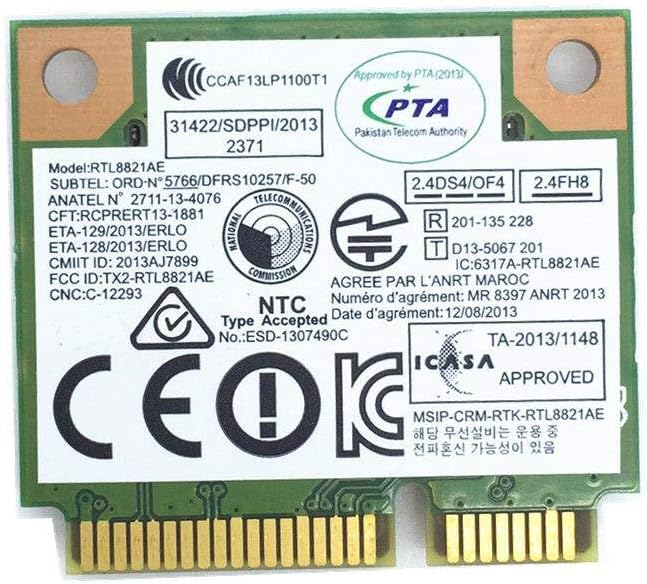
Key Features:
- Wireless Standard: 802.11ac
- Data Transfer Rate: Up to 433 Mbps (Wi-Fi)
- Bluetooth Version: 4.0
- Interface: Half Mini PCI-e
- Compatibility: Laptop, Desktop (with compatible Mini PCI-e slot)
3. Setup and Installation
Important: Before proceeding with installation, ensure your computer is powered off and disconnected from the power source. It is recommended to discharge any static electricity by touching a grounded metal object.
3.1. System Requirements
- Operating System: Windows 7/8/10 (driver availability may vary)
- Available Half Mini PCI-e slot
- Compatible antenna cables (not included with card)
3.2. Installation Steps
- Prepare your computer: Power down your laptop or desktop computer completely. Disconnect the power adapter and remove the battery if it's a laptop.
- Access the Mini PCI-e slot: Depending on your computer model, you may need to remove the back panel, keyboard, or other components to access the internal Mini PCI-e slot. Refer to your computer's service manual for specific instructions.
- Insert the card: Carefully align the Realtek RTL8821AE card with the Mini PCI-e slot. Gently push the card into the slot until it is fully seated.
- Secure the card: Once inserted, secure the card with the retaining screws (if applicable) or clips provided by your computer's chassis.
- Connect antennas: Attach the appropriate antenna cables to the 'Main' and 'Aux' connectors on the card. Ensure a firm connection.
- Reassemble your computer: Carefully reassemble your computer, ensuring all components are properly connected and secured.
- Power on and install drivers: Reconnect the power and turn on your computer. The operating system may automatically detect the new hardware. If not, you will need to install the appropriate drivers for the Realtek RTL8821AE. Drivers can typically be found on the Realtek website or your computer manufacturer's support page.
Note: Driver installation is crucial for the card's proper functioning. Without correct drivers, the Wi-Fi and Bluetooth features may not be available or perform optimally.
4. Operating Instructions
4.1. Wi-Fi Connectivity
- Ensure the Wi-Fi function is enabled in your operating system settings.
- Open the network settings or Wi-Fi icon in your system tray.
- Select your desired Wi-Fi network from the list of available networks.
- Enter the network password (if required) and click "Connect".
- Once connected, you should have internet access.
4.2. Bluetooth Connectivity
- Ensure the Bluetooth function is enabled in your operating system settings.
- Go to Bluetooth settings (e.g., "Bluetooth & other devices" in Windows).
- Turn on Bluetooth.
- Put your Bluetooth device (e.g., headphones, mouse) into pairing mode.
- Click "Add Bluetooth or other device" and select "Bluetooth".
- Select your device from the list and follow the on-screen prompts to complete pairing.
5. Maintenance
The Realtek RTL8821AE card requires minimal maintenance. Follow these guidelines to ensure longevity and optimal performance:
- Keep drivers updated: Regularly check for updated drivers from Realtek or your computer manufacturer's website. Updated drivers can improve performance, stability, and security.
- Keep the environment clean: Ensure the internal components of your computer, including the PCI-e slot area, are free from dust and debris. Dust can accumulate and affect performance or cause overheating.
- Avoid physical damage: Handle the card with care during installation and avoid bending or applying excessive force.
6. Troubleshooting
If you encounter issues with your Realtek RTL8821AE card, refer to the following common troubleshooting steps:
| Problem | Possible Cause | Solution |
|---|---|---|
| Wi-Fi or Bluetooth not detected. | Drivers not installed or corrupted; card not seated properly; hardware issue. |
|
| Poor Wi-Fi signal or slow speeds. | Antennas not connected; interference; outdated drivers; distance from router. |
|
| Bluetooth device not pairing. | Bluetooth not enabled; device not in pairing mode; driver issue. |
|
If these steps do not resolve the issue, consider contacting your computer manufacturer's support or a qualified technician.
7. Specifications
| Feature | Detail |
|---|---|
| Model Number | KA-N-DX257 |
| Chipset | Realtek RTL8821AE |
| Wi-Fi Standard | 802.11ac |
| Data Transfer Rate | Up to 433 Mbps (Wi-Fi) |
| Bluetooth Version | Bluetooth 4.0 |
| Interface | Half Mini PCI-e |
| Compatible Devices | Laptop, Desktop (with compatible slot) |
| Hardware Interface | Bluetooth, PCI, Bluetooth 4.0 |
8. Warranty and Support
This product is manufactured by Miwaimao. For specific warranty information, please refer to the terms and conditions provided at the time of purchase or contact your retailer. As general guidance, most electronic components come with a limited manufacturer's warranty against defects in materials and workmanship.
For technical support, driver downloads, or further assistance, please visit the official Realtek website or the support page of your computer manufacturer, as they often provide specific drivers and support for integrated components.
Please retain your proof of purchase for any warranty claims.