
Introduction
Thank you for choosing the Tomons LP01002 LED Computer Monitor Lamp. This lamp is designed to provide optimal lighting for your workspace, reducing eye strain and glare. Its space-saving design, adjustable lighting, and intelligent features make it an ideal addition to any computer setup. This manual provides detailed instructions for proper installation, operation, and maintenance of your new monitor lamp.
Setup Instructions
1. Unpacking
- Carefully remove all components from the packaging.
- Verify that all parts are present: Monitor Lamp (LP01002), USB Cable, User Manual.
2. Mounting the Lamp
The Tomons LP01002 lamp is designed to sit directly on top of your computer monitor. Its counterweight design ensures stability without requiring screws or adhesives.
- Place the lamp on the top edge of your monitor, ensuring the light bar faces downwards towards your desk.
- Adjust the counterweight at the back of the lamp to securely grip the monitor. The lamp is suitable for monitors with a thickness of up to 3.2 cm (1.2 inches).
- Ensure the lamp is stable and does not obstruct your view of the screen.
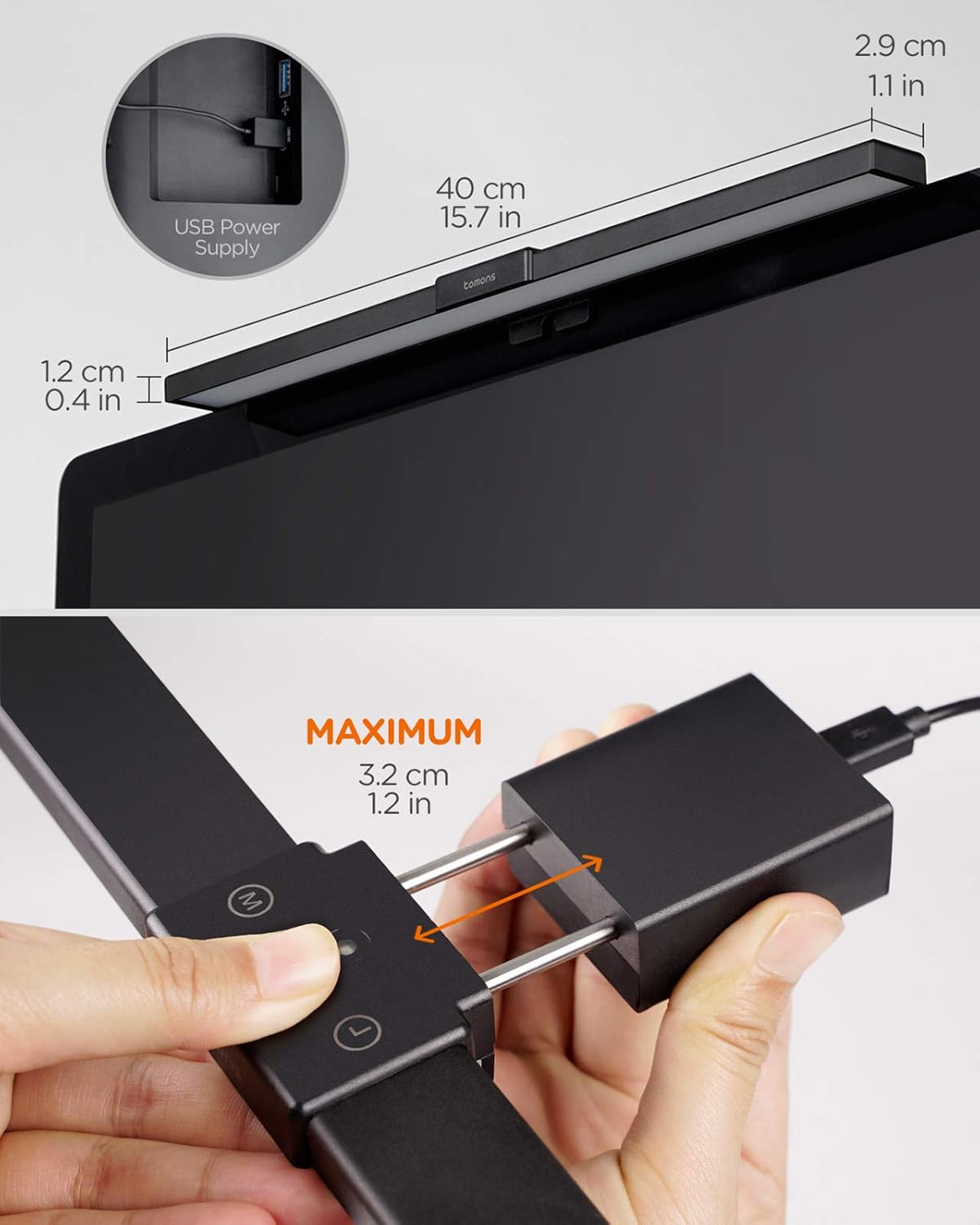
Image: The monitor lamp showing its dimensions (40 cm length, 3.2 cm maximum monitor thickness) and the USB power input port.

Image: A user working at a desk with the Tomons LP01002 monitor lamp mounted on top of their computer screen, illustrating its space-saving design.
3. Connecting Power
- Connect the provided USB cable to the USB port on the lamp.
- Plug the other end of the USB cable into a DC 5V/1A USB power adapter (not included) or a compatible USB port on your computer.
Operating Instructions
The Tomons LP01002 monitor lamp features intuitive touch controls located on the top of the lamp for easy adjustment.

Image: Close-up of the Tomons LP01002 monitor lamp's touch control panel, showing buttons for color temperature, power, and brightness adjustment.
1. Power On/Off
- Touch the power button (circle icon) on the control panel to turn the lamp on or off.
2. Stepless Dimming (Brightness Adjustment)
- Long press the brightness control button (sun icon) to continuously adjust the brightness level from 5% to 100%. Release the button when the desired brightness is reached.

Image: Illustration of the stepless dimming feature, showing the brightness adjustable from 5% to 100% by a long press on the control button.
3. Color Temperature Adjustment
- Touch the color temperature button (M icon) to cycle through three color temperature modes: Warm Light (3000K), Natural Light (4000K), and White Light (6000K).

Image: A monitor screen divided into three sections, demonstrating the different color temperatures: Warm (3000K), Natural (4000K), and White (6000K) light provided by the lamp.
4. Auto-Dimming Function
- The lamp features a built-in sensor that can automatically adjust the brightness based on ambient light conditions. This helps maintain consistent and comfortable illumination.
5. Auto-Off Timer
- The lamp is equipped with an automatic shut-off timer that can turn off the light after 40 minutes of use. This feature is designed to remind users to rest their eyes.
- To disable this function, refer to the specific instructions in the included quick start guide or contact customer support.
6. Memory Function
- The lamp will remember your last used brightness and color temperature settings, automatically resuming them when turned on again.
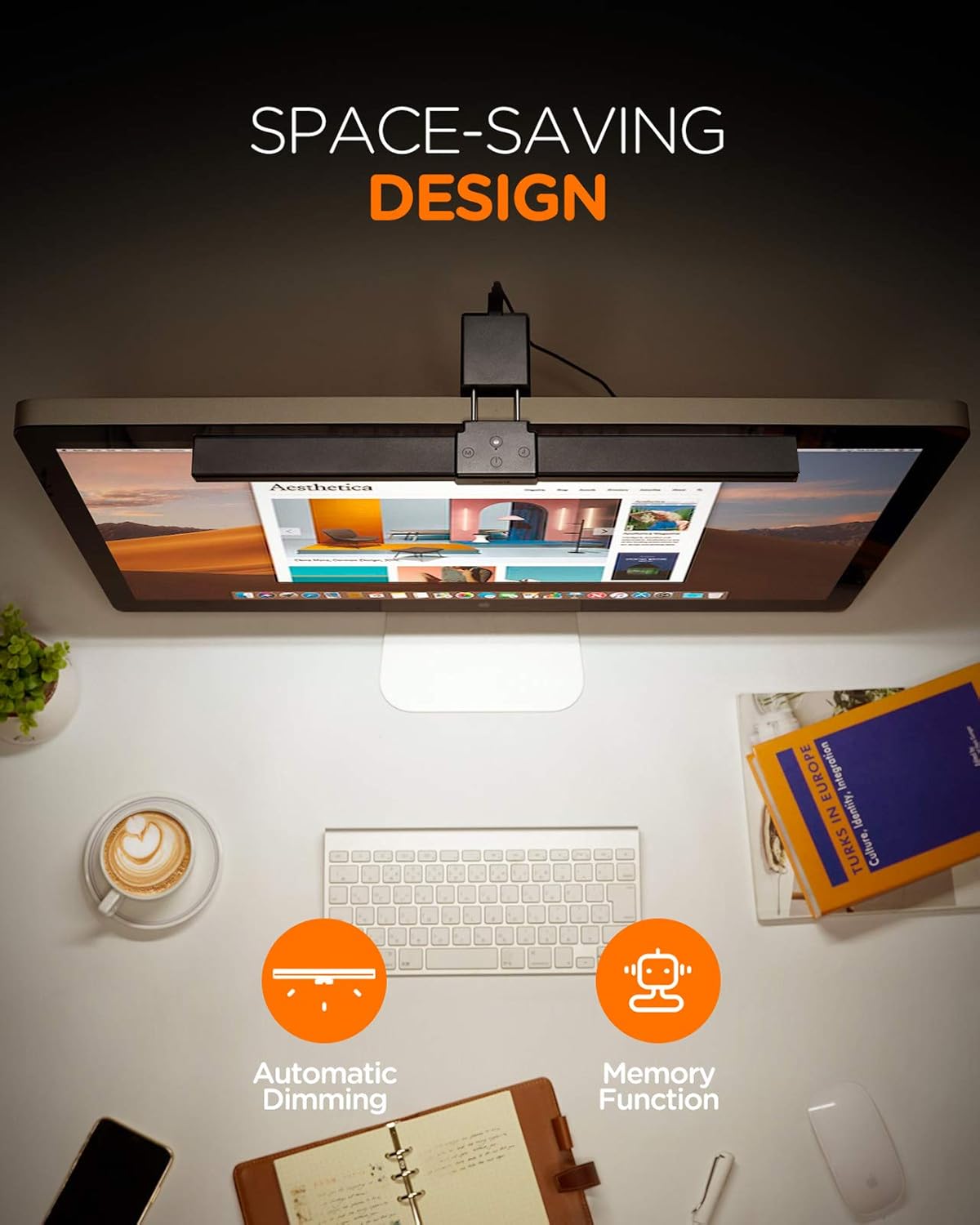
Image: Overhead view of a desk with the monitor lamp, highlighting its space-saving design and icons representing the automatic dimming and memory functions.
Maintenance
To ensure the longevity and optimal performance of your Tomons LP01002 monitor lamp, follow these simple maintenance guidelines:
- Cleaning: Use a soft, dry cloth to wipe the lamp's surface. Do not use abrasive cleaners, solvents, or harsh chemicals, as these can damage the finish.
- Storage: If storing the lamp for an extended period, ensure it is clean and dry. Store it in a cool, dry place away from direct sunlight.
- Handling: Handle the lamp with care to avoid dropping or impacting it, which could damage internal components.
Troubleshooting
If you encounter any issues with your Tomons LP01002 monitor lamp, please refer to the following common problems and solutions:
| Problem | Possible Cause | Solution |
|---|---|---|
| Lamp does not turn on. | No power supply or loose connection. | Ensure the USB cable is securely connected to both the lamp and a functional 5V/1A USB power source. Try a different USB port or power adapter. |
| Light flickers or is unstable. | Insufficient power supply or faulty cable. | Verify the power source provides stable 5V/1A output. Replace the USB cable if necessary. |
| Lamp does not fit securely on the monitor. | Monitor is too thick or has an unusual curvature. | The lamp is designed for monitors up to 3.2 cm (1.2 inches) thick. For monitors with significant curvature or thickness beyond this, the lamp may not fit optimally. Consider alternative mounting solutions if available or contact support for compatibility advice. |
| Touch controls are unresponsive. | Power issue or temporary malfunction. | Disconnect and reconnect the USB power. Ensure your fingers are clean and dry when operating the touch controls. |
Product Specifications
| Model Number | LP01002-BK |
| Brand | Tomons |
| Material | Aluminum, ABS |
| Power | 4.5W |
| Power Supply | DC 5V/1A (USB) |
| Dimensions (L x W x H) | 40 x 3.2 x 2.9 cm (15.7 x 1.2 x 1.1 inches) |
| Weight | 185 g |
| Color Temperature | 3000K (Warm), 4000K (Natural), 6000K (White) |
| LED Beads | 60 |
| Lifespan | Up to 30,000 hours |
| Control Type | Touch |
| Special Features | Stepless Dimming, 3 Color Temperatures, Auto-Dimming, 40-minute Auto-Off Timer, Memory Function, Glare-Free, Eye Protection |
Warranty Information
The Tomons LP01002 LED Computer Monitor Lamp comes with a standard manufacturer's warranty. Please refer to the product packaging or the official Tomons website for specific warranty terms and conditions, including coverage period and claim procedures. Keep your proof of purchase for warranty validation.
Customer Support
For any questions, technical assistance, or support regarding your Tomons LP01002 LED Computer Monitor Lamp, please contact Tomons customer service through their official website or the contact information provided on the product packaging. Our support team is available to assist you with any inquiries.