
Hidrate Spark PRO Smart Water Bottle, 21oz
Hidrate Spark PRO Smart Water Bottle Instruction Manual
Model: PRO Smart Water Bottle, 21oz
1. Introduction
Welcome to the Hidrate Spark PRO Smart Water Bottle. This innovative bottle is designed to help you achieve your daily hydration goals by tracking your water intake and providing glowing reminders. This manual will guide you through the setup, operation, and maintenance of your new smart water bottle.
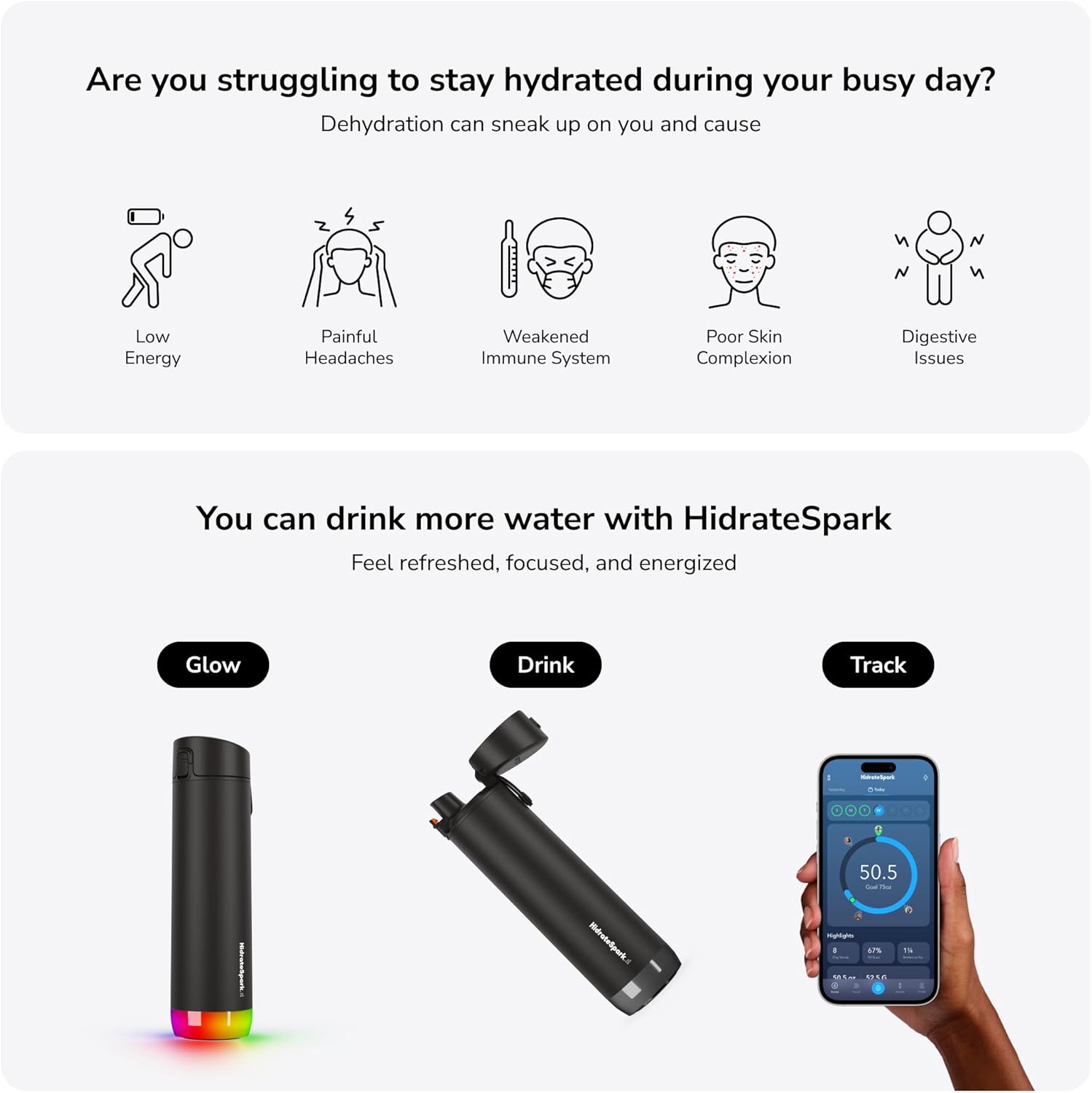
Image: The Hidrate Spark PRO Smart Water Bottle, featuring its sleek design and chug lid.
2. Package Contents
Ensure all items are present in your package:
- Hidrate Spark PRO Smart Water Bottle (21oz, Stainless Steel)
- Chug Lid
- Sensor Puck (pre-installed in the base)
- Magnetic Charging Cable
- Quick Start Guide (not included in this digital manual)
3. Setup Guide
3.1 Initial Charging
Before first use, fully charge the sensor puck.
- Remove the sensor puck from the bottom of the bottle by twisting it counter-clockwise and gently pulling.
- Connect the magnetic charging cable to the sensor puck.
- Plug the USB end of the charging cable into a standard USB AC wall adapter (not included).
- The LED lights on the puck will illuminate during charging. When all green LED lights remain on, the puck is fully charged.
- Once charged, reattach the sensor puck to the bottle by inserting it and turning clockwise until you hear and feel a click.
Video: Demonstrates how to charge the Hidrate Spark PRO sensor puck and reattach it to the bottle.
3.2 App Download and Pairing
Download the free HidrateSpark App to your smartphone to track your hydration progress and customize settings.
- Download the "HidrateSpark" app from your device's app store (available on iOS and Android).
- Open the app and create an account or log in.
- Follow the in-app instructions to add your Hidrate Spark PRO bottle. Ensure your phone's Bluetooth is enabled.
- The app will guide you through calibrating your bottle. This involves placing an empty bottle upright on a flat surface with the lid on.

Image: The Hidrate Spark app interface showing hydration tracking and Bluetooth connectivity.
4. Operating Your Hidrate Spark PRO
4.1 Tracking Water Intake
The sensor puck at the base of your bottle uses SipSense Technology to accurately measure your water intake. For accurate readings:
- Always place the bottle on a flat surface after taking a sip.
- Ensure the bottle is filled to the bottom of the threads.
- The app will automatically sync your progress via Bluetooth when your phone is nearby.

Image: The Hidrate Spark PRO bottle alongside the app displaying personalized hydration goals and real-time progress tracking.
4.2 LED Glow Reminders
Your bottle will glow to remind you when it's time to drink. You can customize the glow color, frequency, and pattern through the HidrateSpark App.

Image: The base of the Hidrate Spark PRO bottle emitting a colorful LED glow, indicating a hydration reminder.
4.3 App Features
- Personalized Hydration Goals: The app calculates your ideal daily water intake based on your personal data and activity levels.
- Progress Tracking: View your daily, weekly, and monthly hydration progress.
- Fitness Integrations: Sync your data with popular fitness trackers like Apple Health, Fitbit, Garmin Connect, and Google Fit.
- Smart Reminders: Receive push notifications and bottle glows to prompt you to drink.
- Find My Bottle: Use the app to locate your bottle if misplaced.
5. Care and Maintenance
- Bottle Cleaning: The bottle body and lid are dishwasher safe.
- Sensor Puck Cleaning: The sensor puck is NOT dishwasher safe. Clean it with a damp cloth only. Do not submerge the sensor puck in water.
- Hand Wash Only: For optimal longevity, hand washing the entire bottle is recommended.
- Storage: Store the bottle with the lid off to allow it to air dry completely.
6. Troubleshooting
- Bottle Not Tracking:
- Ensure the sensor puck is fully charged and correctly attached.
- Verify Bluetooth is enabled on your phone and the app is open.
- Recalibrate the bottle through the app if readings seem inaccurate.
- Make sure the bottle is placed on a flat surface after each sip for accurate measurement.
- Glow Reminders Not Working:
- Check app settings to ensure glow reminders are enabled and customized as desired.
- Confirm the sensor puck is charged.
- App Not Syncing:
- Ensure your phone is within Bluetooth range of the bottle.
- Close and reopen the HidrateSpark App.
- Restart your phone's Bluetooth.
7. Specifications
| Brand: | Hidrate Spark |
| Model Name: | PRO Smart Water Bottle |
| Capacity: | 21 Fluid Ounces |
| Material: | Stainless Steel |
| Lid Type: | Chug Lid |
| Connectivity: | Bluetooth |
| Additional Features: | Dishwasher Safe (bottle body & lid), Reminder, Vacuum-insulated |
| Product Care: | Hand Wash Sensor Puck Only |
| UPC: | 815105022969, 815105023119 |
8. Warranty and Support
For warranty information and customer support, please refer to the official Hidrate Spark website or contact their customer service directly. Keep your purchase receipt for warranty claims.
Visit HidrateSpark.com for more information and support resources.
Related documentsPRO Smart Water Bottle, 21oz


Ask a question about this manual
Ask about setup, troubleshooting, compatibility, parts, safety, or missing instructions. Manuals+ will review the question and use this page’s manual context to help answer it.