
Ridgeway Ridgeway Bluetooth Gamepad
Ridgeway Bluetooth Gamepad User Manual
Model: Ridgeway Bluetooth Gamepad
Introduction
Thank you for choosing the Ridgeway Bluetooth Gamepad. This versatile controller is designed to enhance your gaming experience across multiple platforms, including PC and Android devices. This manual provides detailed instructions on how to set up, operate, and maintain your gamepad to ensure optimal performance.
Product Overview
The Ridgeway Bluetooth Gamepad features an ergonomic design for comfortable extended play, precise controls, and a built-in phone holder for mobile gaming. Familiarize yourself with the various components of your new gamepad.

Figure 1: Front view of the Ridgeway Bluetooth Gamepad with a smartphone securely mounted in the integrated holder, ready for gaming. This image highlights the controller's overall design and its primary use case with mobile devices.
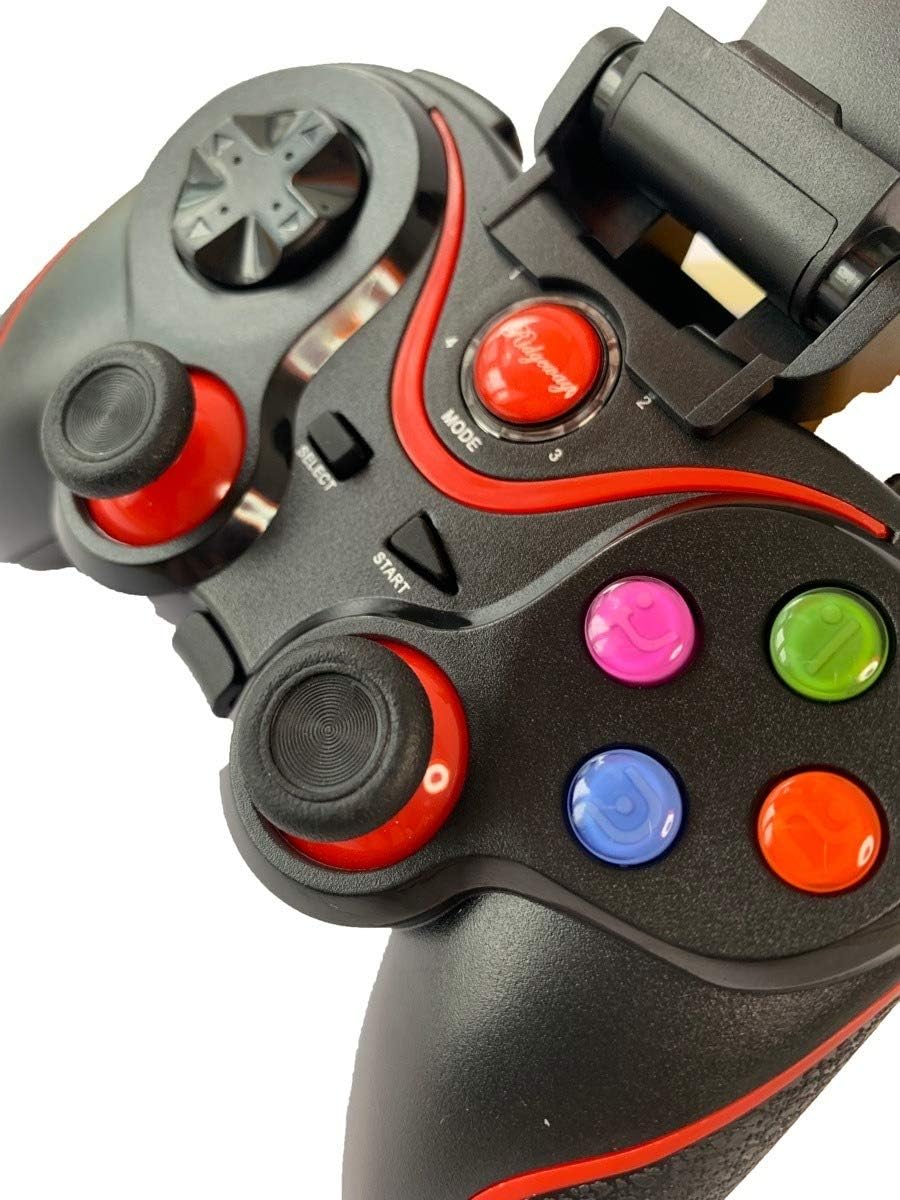
Figure 2: A detailed close-up of the central control area of the gamepad, showing the Mode, Select, and Start buttons, along with the vibrant A, B, X, Y action buttons. This view emphasizes the button layout and the Ridgeway branding.
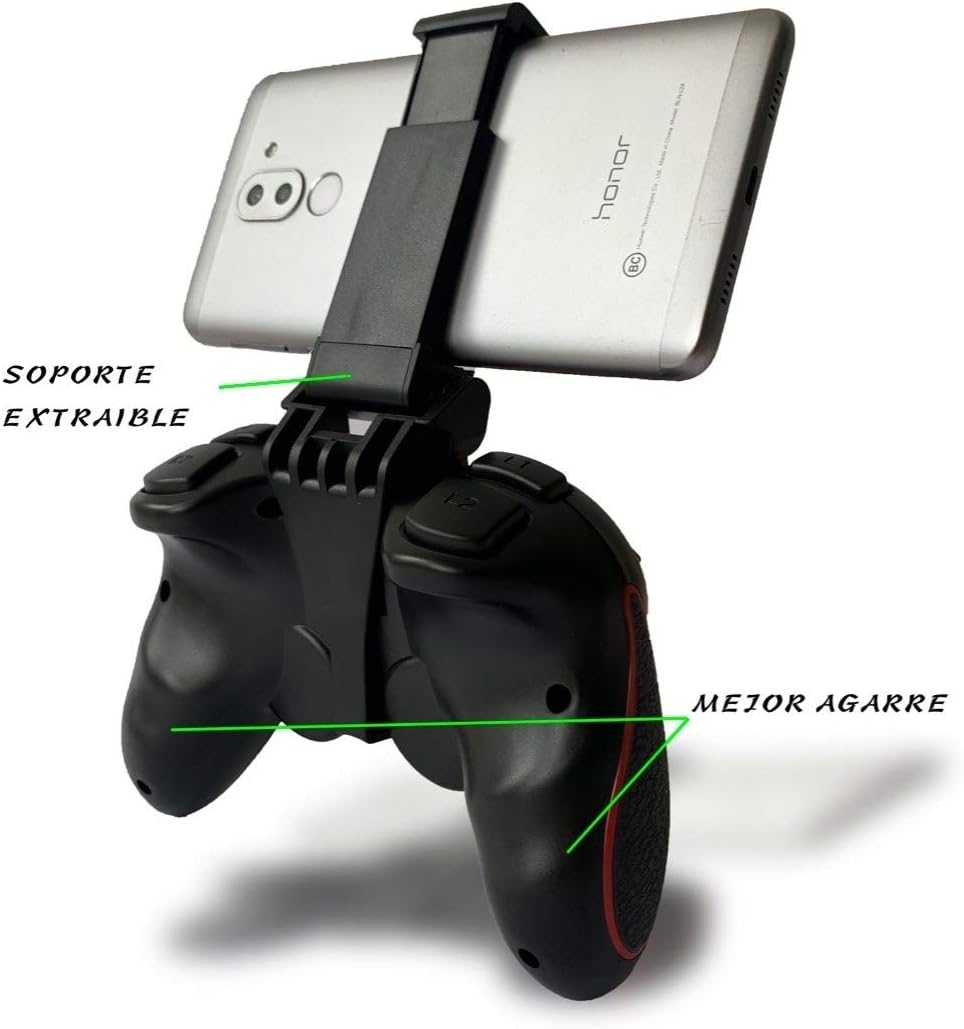
Figure 3: Rear view of the gamepad illustrating the removable phone support mechanism and the textured, ergonomic grip designed for enhanced comfort and stability during gameplay.
Controller Components:
- Analog Sticks: Two high-precision analog sticks for 360-degree movement.
- D-Pad: Directional pad for precise directional input.
- Action Buttons: A, B, X, Y buttons (color-coded).
- Shoulder Buttons/Triggers: L1/R1 and L2/R2 buttons for additional in-game actions.
- Mode Button: Used for switching operating modes and pairing.
- Select/Start Buttons: Standard game control buttons.
- Phone Holder: Integrated, adjustable holder for smartphones.
- Charging Port: Micro-USB port for charging the internal battery.
Setup and Pairing
Before using your Ridgeway Bluetooth Gamepad, ensure it is fully charged. The gamepad supports multiple connection modes for different devices.
Charging the Gamepad:
- Connect the provided USB cable to the gamepad's charging port.
- Connect the other end of the USB cable to a USB power source (e.g., computer USB port, USB wall adapter).
- The indicator light will show charging status (refer to LED indicator section for details).
- Once fully charged, the indicator light will change or turn off.
Pairing with Android Devices:
- Ensure the gamepad is turned off.
- Press and hold the Mode button and the A button simultaneously until the indicator light starts flashing rapidly. This puts the gamepad into Android pairing mode.
- On your Android device, go to Settings > Bluetooth.
- Turn on Bluetooth and scan for available devices.
- Select "Ridgeway Gamepad" (or similar name) from the list of found devices.
- Once paired, the indicator light on the gamepad will become solid.
Pairing with PC (Windows):
- Ensure the gamepad is turned off.
- Press and hold the Mode button and the X button simultaneously until the indicator light starts flashing rapidly. This puts the gamepad into PC pairing mode.
- On your Windows PC, go to Settings > Devices > Bluetooth & other devices.
- Click "Add Bluetooth or other device" and select "Bluetooth".
- Select "Ridgeway Gamepad" (or similar name) from the list.
- Follow any on-screen prompts to complete the pairing. The indicator light on the gamepad will become solid upon successful connection.
- Note: Some games may require controller configuration within their settings.

Figure 4: This diagram illustrates the multi-platform compatibility of the Ridgeway Bluetooth Gamepad, showing its ability to connect wirelessly to various devices such as Smart TVs, desktop computers, Android phones/tablets, and laptops. It highlights the controller's versatility and ease of connection.
Operating Instructions
Once paired, your Ridgeway Bluetooth Gamepad is ready for use. The functionality may vary slightly depending on the game and platform.
General Operation:
- Power On: Press and hold the Mode button for 3 seconds.
- Power Off: Press and hold the Mode button for 5 seconds until the indicator light turns off. The gamepad will also automatically power off after a period of inactivity to save battery.
- Reconnecting: After initial pairing, the gamepad should automatically reconnect to the last paired device when powered on and Bluetooth is active on the device. If not, briefly press the Mode button or re-initiate pairing.
Gaming Experience:

Figure 5: The Ridgeway Bluetooth Gamepad being used in conjunction with a larger display, showcasing a racing game. This image demonstrates the immersive gaming experience possible with the controller on a bigger screen, such as a monitor or TV.
- Analog Sticks: Use for character movement, camera control, or precise aiming.
- D-Pad: Ideal for menu navigation, quick item selection, or specific directional inputs in retro games.
- Action Buttons (A, B, X, Y): Perform in-game actions such as jumping, attacking, interacting, or confirming selections.
- Shoulder Buttons/Triggers: Commonly used for firing weapons, accelerating, braking, or special abilities.
- Phone Holder: Extend the integrated holder to securely mount your smartphone for portable gaming. Ensure your phone is properly seated to prevent accidental drops.
Maintenance
Proper care and maintenance will extend the life of your Ridgeway Bluetooth Gamepad.
- Cleaning: Use a soft, dry cloth to wipe down the gamepad. For stubborn dirt, slightly dampen the cloth with water. Do not use harsh chemicals, abrasive cleaners, or excessive moisture.
- Storage: Store the gamepad in a cool, dry place away from direct sunlight and extreme temperatures.
- Battery Care: Avoid fully discharging the battery frequently. If storing for a long period, charge the battery to about 50% every few months to maintain battery health.
- Avoid Drops: Protect the gamepad from drops and impacts, which can damage internal components.
Troubleshooting
If you encounter issues with your gamepad, refer to the following common problems and solutions.
| Problem | Possible Cause | Solution |
|---|---|---|
| Gamepad does not turn on. | Low battery. | Charge the gamepad for at least 2 hours. |
| Cannot pair with device. | Incorrect pairing mode; Bluetooth off on device; device already paired with another gamepad. | Ensure correct pairing mode (Android/PC); turn on Bluetooth on your device; unpair from other devices or forget the gamepad and try pairing again. |
| Gamepad disconnects frequently. | Low battery; too far from device; interference. | Recharge the gamepad; move closer to the device; reduce interference from other wireless devices. |
| Buttons or sticks are unresponsive. | Software glitch; physical damage. | Restart the gamepad and the connected device. If the issue persists, contact customer support. |
Specifications
- Connectivity: Bluetooth Wireless
- Compatibility: Android (Phones, Tablets, Smart TVs), PC (Windows)
- Battery: Rechargeable Lithium-ion (Capacity not specified, but implied by "long battery life" in image)
- Charging Port: Micro-USB
- Dimensions: (Approximate, based on typical gamepad size) 150mm x 100mm x 50mm
- Weight: (Approximate) 200-300g
Warranty and Support
Ridgeway products are designed for durability and performance. For warranty information and technical support, please refer to the contact details provided with your purchase or visit the official Ridgeway website. Keep your proof of purchase for warranty claims.
For further assistance, please contact Ridgeway Customer Support:
- Website: www.ridgeway.com (Note: This is a placeholder URL as no official website was provided.)
- Email: support@ridgeway.com (Note: This is a placeholder email.)
Ask a question about this manual
Ask about setup, troubleshooting, compatibility, parts, safety, or missing instructions. Manuals+ will review the question and use this page’s manual context to help answer it.