
1. Introduction
Thank you for choosing the VINTO VicTsing PC120 Dual Mode Wireless Bluetooth Mouse. This manual provides detailed instructions for setting up, operating, and maintaining your new mouse. Please read this manual thoroughly before use to ensure optimal performance and longevity of the product.
2. Product Overview
The VicTsing PC120 mouse offers versatile connectivity with both 2.4G wireless and Bluetooth modes, allowing seamless switching between multiple devices. It features adjustable DPI settings for precise control and an ergonomic design for comfortable use.
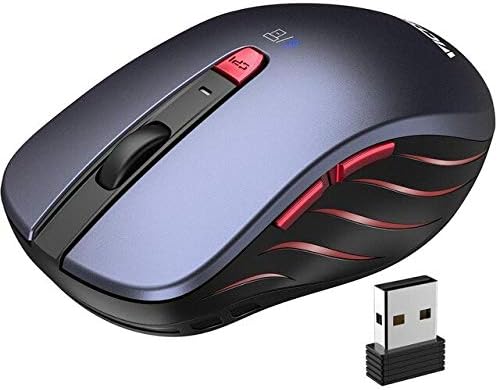
Figure 2.1: Front view of the VicTsing PC120 Dual Mode Wireless Bluetooth Mouse, showcasing its dark blue finish, scroll wheel, DPI button, and side buttons. The 2.4G USB receiver is also shown next to the mouse.
Package Contents:
- VicTsing PC120 Dual Mode Wireless Bluetooth Mouse
- USB Receiver (stored in the battery compartment)
- User Manual
3. Key Features
3.1 Dual Mode Connectivity
The mouse supports both 2.4G wireless and Bluetooth 4.0 connections, allowing you to connect to a wide range of devices including PCs, laptops, Macs, and smartphones. Easily switch between modes with a dedicated button.

Figure 3.1: Diagram illustrating the dual mode capabilities (2.4G and Bluetooth 4.0) of the mouse, along with icons for 5 adjustable DPI, device switching, lightweight design, and sleep mode.

Figure 3.2: Illustration showing the mouse connected to two devices simultaneously: a laptop/smartphone via Bluetooth 4.0 (for Win8+, Mac OS) and a PC/laptop via 2.4G wireless (USB port required).
3.2 5-Level Adjustable DPI
Customize your cursor speed and precision with 5 adjustable DPI levels: 800, 1200, 1600, 2000, and 2400. Easily switch between DPI settings using the dedicated DPI button located on the top of the mouse.

Figure 3.3: Graphic demonstrating the 5 adjustable DPI settings (800, 1200, 1600, 2000, 2400) and indicating the DPI button for switching speeds.
3.3 Ergonomic Design
Designed for comfort, the mouse features an ergonomic shape that fits naturally in your hand, reducing strain during long periods of use. Its sweat-resistant and non-slip surface enhances grip and control.

Figure 3.4: Image showing a hand comfortably resting on the ergonomic mouse, highlighting its sweat-resistant and non-slip features for long-term use without fatigue.
3.4 Compact and Portable
With its delicate and compact size, the PC120 mouse is easy to carry, making it ideal for travel and on-the-go productivity. It can be conveniently stored in a bag or laptop case.

Figure 3.5: Image displaying the compact dimensions of the mouse (107mm length, 65mm width, 43mm height) and showing it being easily placed into a bag, emphasizing its portability.
4. Setup
4.1 Installing Batteries
- Open the battery compartment cover on the bottom of the mouse.
- Insert one AA battery (not included) into the compartment, ensuring correct polarity (+/-).
- Close the battery compartment cover.
4.2 Connecting via 2.4G Wireless Mode
- Locate the USB receiver stored in the battery compartment of the mouse.
- Plug the USB receiver into an available USB port on your computer.
- Turn on the mouse using the power switch on the bottom.
- Switch the mode button on the bottom of the mouse to the 2.4G wireless icon (usually indicated by a small antenna symbol).
- Your computer should automatically detect and install the necessary drivers. The mouse is ready for use.
4.3 Connecting via Bluetooth Mode
- Turn on the mouse using the power switch on the bottom.
- Switch the mode button on the bottom of the mouse to the Bluetooth icon. The indicator light will start flashing, indicating it's in pairing mode.
- On your device (PC, laptop, Mac, smartphone):
- Windows: Go to Settings > Devices > Bluetooth & other devices. Click "Add Bluetooth or other device" and select "Bluetooth". Choose "VicTsing PC120" from the list.
- macOS: Go to System Preferences > Bluetooth. Turn Bluetooth on and select "VicTsing PC120" from the list of devices.
- Android/iOS: Go to Settings > Bluetooth. Turn Bluetooth on and select "VicTsing PC120" from the list of available devices.
- Once paired, the indicator light on the mouse will stop flashing and remain solid for a few seconds, then turn off. The mouse is now connected.
5. Operating Instructions
5.1 Switching Between Modes and Devices
Use the mode switch button on the bottom of the mouse to toggle between 2.4G wireless mode and Bluetooth mode. If you have paired the mouse with multiple Bluetooth devices, it will automatically connect to the last paired device when in Bluetooth mode. To switch between paired Bluetooth devices, you may need to re-select the mouse from your device's Bluetooth settings.
5.2 Adjusting DPI
Press the DPI button (located behind the scroll wheel) to cycle through the 5 available DPI settings (800/1200/1600/2000/2400). Each press will change the cursor speed, allowing you to find the optimal sensitivity for your tasks.
5.3 Basic Mouse Functions
- Left Click: Primary action, selection.
- Right Click: Context menu, secondary action.
- Scroll Wheel: Scroll up/down, middle click.
- Side Buttons: Typically function as Forward/Backward in web browsers and file explorers.
6. Maintenance
6.1 Cleaning the Mouse
- Turn off the mouse before cleaning.
- Use a soft, lint-free cloth slightly dampened with water or a mild cleaning solution to wipe the surface of the mouse.
- Do not use harsh chemicals or abrasive materials.
- Use a cotton swab or compressed air to clean around the scroll wheel and optical sensor.
6.2 Battery Replacement
When the mouse performance degrades or the indicator light signals low battery, replace the AA battery following the instructions in Section 4.1.
7. Troubleshooting
- Mouse not responding:
- Ensure the mouse is turned on.
- Check battery level and replace if necessary.
- Verify the USB receiver is securely plugged into the computer (for 2.4G mode).
- Ensure the mouse is in the correct mode (2.4G or Bluetooth) for your connection type.
- For Bluetooth, ensure Bluetooth is enabled on your device and the mouse is paired. Try re-pairing if issues persist.
- Erratic cursor movement:
- Clean the optical sensor on the bottom of the mouse.
- Ensure you are using the mouse on a suitable surface (non-reflective, non-transparent).
- Check for interference from other wireless devices.
- Connection drops frequently:
- Move the mouse closer to the USB receiver or Bluetooth device.
- Avoid placing obstacles between the mouse and the receiver/device.
- Ensure no other devices are causing significant wireless interference.
8. Specifications
| Model | PC120 |
| Connectivity | 2.4G Wireless, Bluetooth 4.0 |
| DPI Levels | 800, 1200, 1600, 2000, 2400 |
| Operation Mode | Opto-electronic |
| Number of Rollers | 1 (Scroll Wheel) |
| Hand Orientation | Ambidextrous |
| Power Type | Battery (1x AA) |
| Compatible OS | Windows XP/7/8/10/11, macOS, Linux, Android, iOS (Bluetooth 4.0 for Win8+, Mac OS, Smartphone) |
| Dimensions (Approx.) | 107mm x 65mm x 43mm |
9. Warranty and Support
This product comes with a standard manufacturer's warranty. For detailed warranty information, please refer to the product packaging or contact your retailer. For technical support or further assistance, please contact VINTO customer service through the contact information provided with your purchase.


