Introduction
Thank you for choosing the BEAST PLAYFOUR Bluetooth Gamepad. This manual provides detailed instructions for setting up, operating, and maintaining your wireless controller. Please read this manual carefully before use to ensure optimal performance and longevity of your device.
Product Overview
Key Features
- Wireless Bluetooth Connectivity: Seamless connection for gaming.
- Vibration Feedback: Enhances immersion with tactile responses.
- Gravity Sensor (6-axis motion): Provides precise motion control for compatible games.
- Integrated Speaker: Delivers additional audio cues directly from the controller.
- Audio Jack: Allows connection of a headset for private audio.
- Touchpad: Offers new interaction possibilities in games.
- Light Bar: Provides visual feedback and player identification.
Controller Layout
The BEAST PLAYFOUR Gamepad features a standard layout with ergonomic grips for comfortable gameplay. Familiarize yourself with the buttons and features shown below.
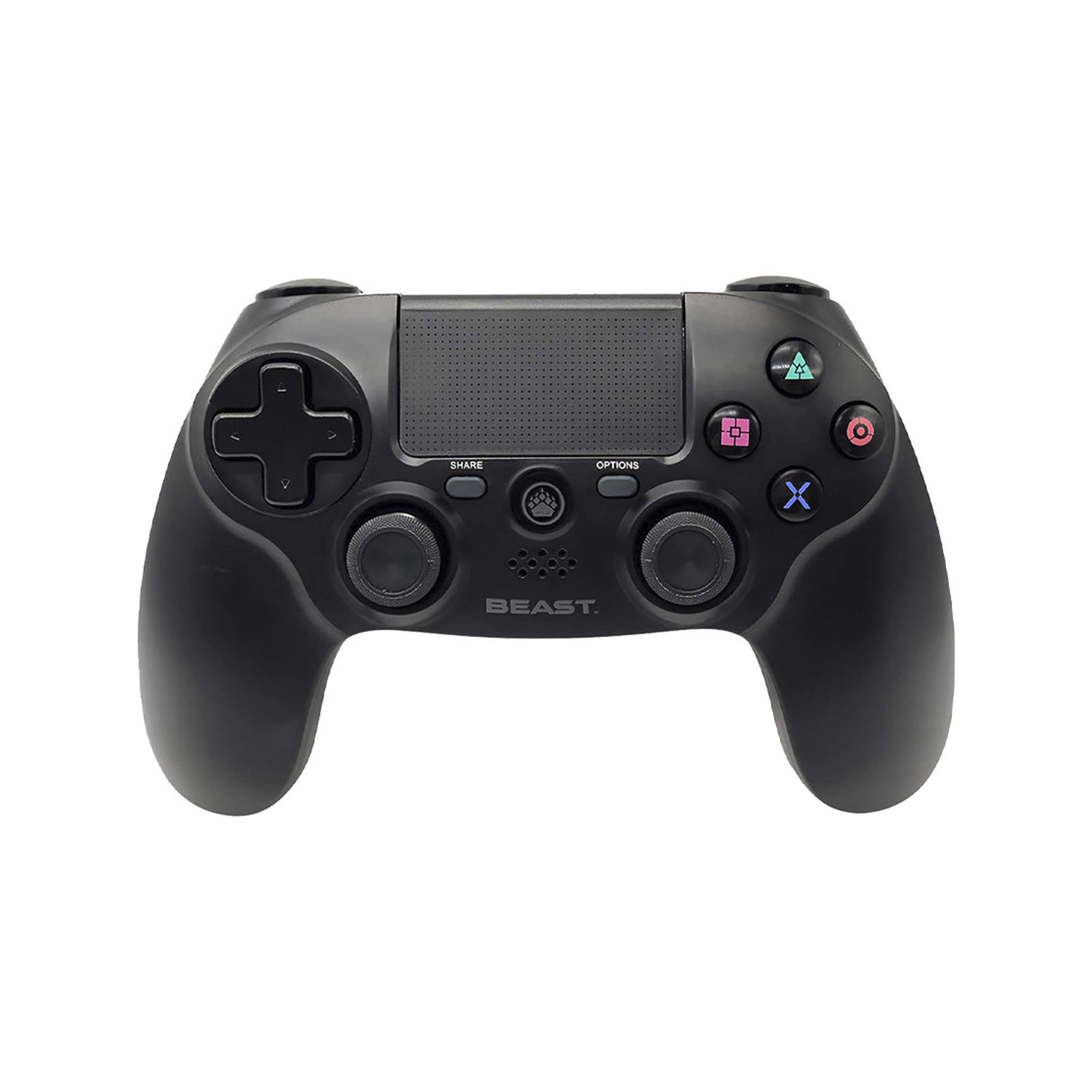
Image 1: Top-front view of the BEAST PLAYFOUR Bluetooth Gamepad. This image highlights the dual analog sticks, D-pad, action buttons (Triangle, Circle, Cross, Square), Share button, Options button, and the central touchpad.

Image 2: Front view of the BEAST PLAYFOUR Bluetooth Gamepad. This view clearly shows the face buttons, the central touchpad, the PlayStation button, and the light bar located at the top edge.
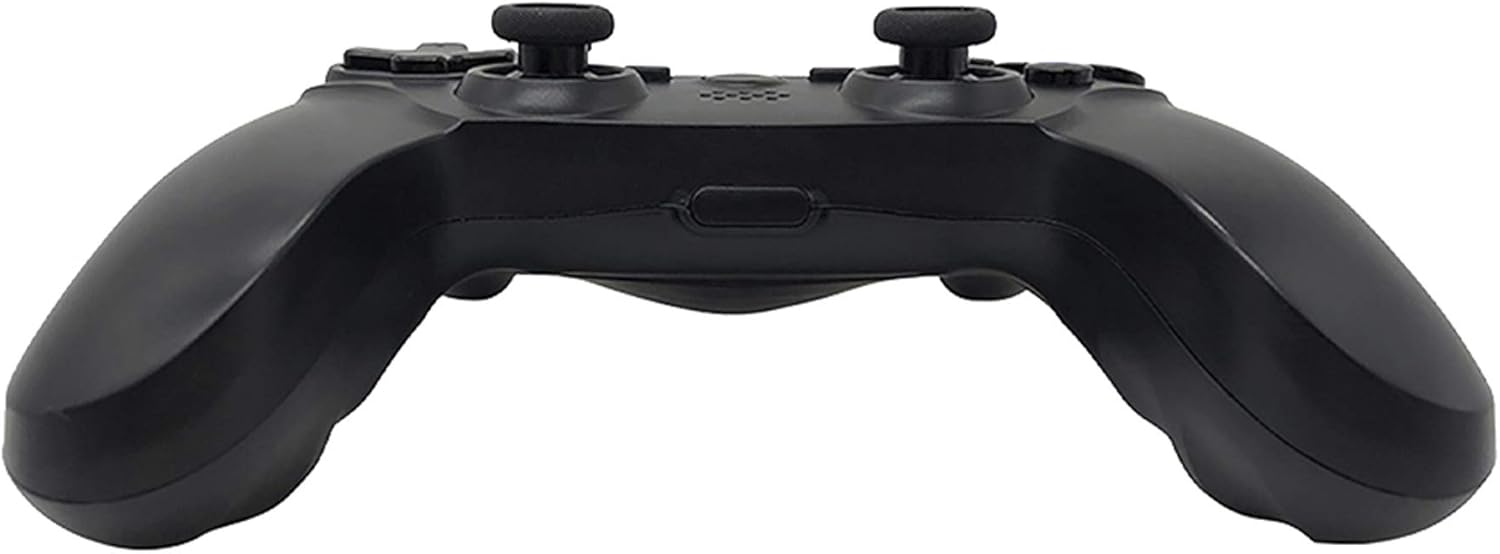
Image 3: Rear view of the BEAST PLAYFOUR Bluetooth Gamepad. This image displays the L1, L2, R1, and R2 trigger buttons, as well as the USB charging port and the EXT port.

Image 4: Side view of the BEAST PLAYFOUR Bluetooth Gamepad. This perspective highlights the ergonomic grip design of the controller.
Setup
Charging the Controller
Before first use, fully charge the controller. Use the provided USB cable to connect the controller to a USB port on your console or a compatible USB charger.
- Connect the small end of the USB cable to the charging port on the rear of the controller.
- Connect the large end of the USB cable to a powered USB port.
- The light bar on the controller will slowly pulse orange while charging.
- The light bar will turn off when charging is complete.
Pairing via Bluetooth
To connect your BEAST PLAYFOUR Gamepad to your console or device, follow these steps:
- Ensure your console is powered on.
- Press and hold the PS button (located between the analog sticks) and the Share button (located to the left of the touchpad) simultaneously for approximately 3-5 seconds.
- The light bar will begin to flash rapidly, indicating the controller is in pairing mode.
- On your console, navigate to the Bluetooth device settings.
- Select the BEAST PLAYFOUR Gamepad from the list of available devices.
- Once successfully paired, the light bar will stop flashing and glow a solid color, indicating the player number.
- To connect to a PC, ensure your PC has Bluetooth capabilities. Go to Bluetooth settings, select 'Add Bluetooth or other device', then 'Bluetooth', and select the controller when it appears.
Operating Instructions
Basic Controls
- Analog Sticks: Used for movement and camera control.
- D-Pad: For directional input, often used in menus or for specific game actions.
- Action Buttons (Triangle, Circle, Cross, Square): Perform in-game actions as assigned by the game.
- L1/R1 Buttons: Shoulder buttons for various in-game functions.
- L2/R2 Triggers: Analog triggers for precise input, such as acceleration or aiming.
- PS Button: Powers on the controller, accesses the console's home menu, or turns off the controller (hold for 10 seconds).
- Share Button: Used to share gameplay content (screenshots, video clips).
- Options Button: Typically functions as a pause or menu button in games.
Special Features
- Touchpad: Functions as a clickable surface for navigation or specific game interactions.
- Integrated Speaker: Some games utilize the speaker for immersive sound effects.
- Vibration Feedback: Dual motors provide haptic feedback for in-game events.
- 6-Axis Motion Sensor: Combines a gyroscope and accelerometer for motion-sensing gameplay.
- Light Bar: Changes color to indicate player number, health status, or other in-game information.
Maintenance
Proper care will extend the life of your gamepad.
- Cleaning: Use a soft, dry cloth to wipe the controller. For stubborn dirt, slightly dampen the cloth with water. Do not use harsh chemicals or abrasive cleaners.
- Storage: Store the controller in a cool, dry place away from direct sunlight and extreme temperatures.
- Battery Care: Avoid fully discharging the battery frequently. Charge the controller regularly, even if not in use for extended periods, to maintain battery health.
Troubleshooting
If you encounter issues with your BEAST PLAYFOUR Gamepad, refer to the following common solutions:
| Problem | Solution |
|---|---|
| Controller does not turn on. | Ensure the controller is charged. Connect it to a power source using the USB cable. |
| Controller does not pair. | Make sure the controller is in pairing mode (flashing light bar). Delete previous pairings from your console's Bluetooth settings and try pairing again. Ensure no other Bluetooth devices are interfering. |
| Input lag or disconnection. | Ensure the controller is within range of the console/device. Reduce interference by moving away from other wireless devices. Recharge the controller if the battery is low. |
| Buttons or analog sticks are unresponsive. | Try resetting the controller. Locate the small reset button on the back (often inside a small hole) and press it with a thin object (like a paperclip) for 3-5 seconds. Then re-pair the controller. |
| Vibration or speaker not working. | Check in-game settings to ensure vibration and speaker output are enabled. Some games may not support these features. |
Specifications
| Feature | Detail |
|---|---|
| Connectivity | Bluetooth Wireless |
| Motion Sensor | 6-axis (Gyroscope, Accelerometer) |
| Feedback | Vibration, Integrated Speaker, Light Bar |
| Input | Dual Analog Sticks, D-Pad, Action Buttons, Shoulder Buttons, Triggers, Touchpad |
| Audio | 3.5mm Headset Jack |
| Package Dimensions | 19 x 16.6 x 6.4 cm |
| Package Weight | 340 g |
| ASIN | B08BSSX288 |
Warranty and Support
For warranty information or technical support, please refer to the documentation included with your purchase or contact BEAST customer service through their official website. Keep your proof of purchase for warranty claims.