
NEXAS NexLINK
NEXAS NexLINK Bluetooth OBD2 Scanner User Manual
Model: NexLINK
1. Introduction
Welcome to Your NexLINK OBD2 Scanner
Thank you for choosing the NEXAS NexLINK Bluetooth OBD2 Scanner. This device is designed to provide comprehensive diagnostic capabilities for both cars and motorcycles, helping you understand and maintain your vehicle's health. This manual will guide you through the setup, operation, and maintenance of your NexLINK scanner.

Image: The NEXAS NexLINK Bluetooth OBD2 Scanner connected to a smartphone displaying its diagnostic interface.
Key Features
- Extensive Compatibility: Works with a wide range of OBDII-compliant cars, SUVs, minivans, and light trucks manufactured since 1996, and select motorcycles.
- Comprehensive Diagnostics: Reads and clears Diagnostic Trouble Codes (DTCs), retrieves live data, freeze frames, O2 sensor data, and performs on-board monitor tests.
- 2-in-1 Functionality: Functions as both a car and motorcycle OBD2 scanner (with compatible Android apps like Motoscan and TuneECU).
- Wireless Connectivity: Bluetooth 5.0 for stable connection with iOS, Android, and PC devices.
- Energy Saving: Features intelligent auto-sleep and over-voltage protection to preserve vehicle battery life and ensure device safety.
- Third-Party App Support: Compatible with popular apps like Torque Lite/Pro, BimmerCode, OBD Fusion, and more.
2. Setup Guide
Package Contents
- NEXAS NexLINK Bluetooth OBD2 Scanner Unit
- User Manual (this document)
Device Overview
The NexLINK scanner is a compact, blue device designed to plug directly into your vehicle's OBD2 port. It features an indicator light for connection status.
Quick Setup Steps
- Download the App: Search for a compatible OBD2 scanner app (e.g., "CAR SCANNER ELM OBD2") on your device's app store (iOS App Store or Google Play Store).
- Start the Car: Turn on your vehicle's ignition to power the OBD2 port.
- Plug in the Device: Locate your vehicle's 16-pin OBD2 diagnostic port (usually under the dashboard on the driver's side) and firmly plug in the NexLINK scanner.
- Turn Bluetooth On: Enable Bluetooth on your iOS or Android device.
- Run the App: Open the downloaded diagnostic app and follow its in-app instructions to connect to the NexLINK device.

Image: Visual guide illustrating the quick setup process for the NexLINK scanner.
Note for iOS Users: Do NOT pair NexLINK adapter with your iPhone directly in Bluetooth settings. Make settings within the diagnostic app itself.
3. Operating Instructions
Main Diagnostic Functions
The NexLINK scanner, in conjunction with a compatible app, provides access to various diagnostic functions:

Image: A visual representation of the various diagnostic functions available with the NexLINK scanner.
- Read Codes: Retrieves Diagnostic Trouble Codes (DTCs) from the vehicle's computer.
- Clear Codes: Erases DTCs from the vehicle's computer and turns off the Check Engine Light (CEL/MIL).
- Read Battery Data: Monitors vehicle battery voltage.
- Read Freeze Frames: Captures a snapshot of vehicle operating conditions at the time a fault code was set.
- O2 Sensor Test: Retrieves O2 sensor monitoring test results.
- On-board Monitoring Test: Retrieves results for emission-related powertrain components and systems.
- Component Test: Allows testing of specific components or systems.
- Perform I/M Readiness: Checks the readiness of the emission monitoring system to determine if the vehicle is ready for an emissions test.
- Read Powertrain Data: Accesses specific data related to the vehicle's powertrain.
- Read Vehicle Information: Retrieves vehicle identification number (VIN), calibration ID (CALID), and calibration verification number (CVN).
Motorcycle Diagnosis
The NexLINK scanner can also be used for motorcycle diagnostics when paired with specific Android applications like Motoscan and TuneECU. This allows for reading/clearing fault codes, real-time data, and other functions for compatible motorcycle models.
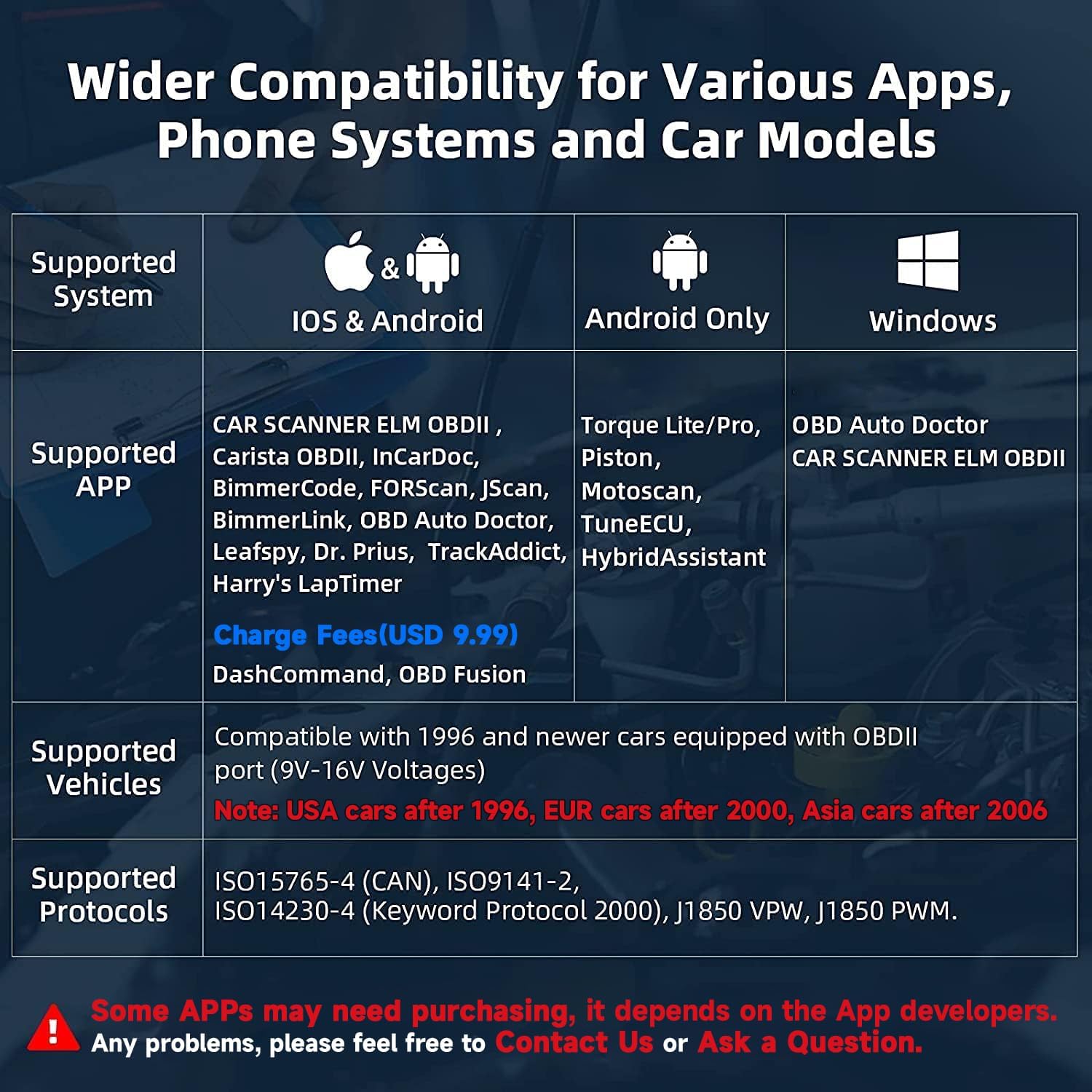
Image: The NexLINK scanner being used for motorcycle diagnostics with the MotoScan app.
Please note: NexLINK only supports diagnosing specific BMW (C, F, G, K, R, S, and Husqvarna series), Triumph, Aprilia, Benelli, Ducati & Moto Guzzi, Morini, Gilera, Husqvarna, KTM, CCM motorcycles.
Compatible Applications and Systems
The NexLINK scanner is designed to work with a variety of third-party applications, extending its functionality. Some apps may require separate purchase.

Image: A selection of compatible third-party applications that can be used with the NexLINK scanner.
| Category | Description |
|---|---|
| Supported Systems | iOS & Android, Windows |
| Supported Apps (iOS & Android) | CAR SCANNER ELM OBDII, Carista OBDII, InCarDoc, BimmerCode, FORScan, JScan, BimmerLink, OBD Auto Doctor, Leafspy, Dr. Prius, TrackAddict, Harry's LapTimer, DashCommand, OBD Fusion |
| Supported Apps (Android Only) | Torque Lite/Pro, Piston, Motoscan, TuneECU, HybridAssistant |
| Supported Apps (Windows) | OBD Auto Doctor, CAR SCANNER ELM OBDII |
| Supported Vehicles | Compatible with 1996 and newer cars equipped with OBDII port (9V-16V Voltages). Note: USA cars after 1996, EUR cars after 2000, Asia cars after 2006. |
| Supported Protocols | ISO15765-4 (CAN), ISO9141-2, ISO14230-4 (Keyword Protocol 2000), J1850 VPW, J1850 PWM. |
4. Maintenance
Cleaning the Device
To maintain the performance and appearance of your NexLINK scanner, wipe it with a soft, dry cloth. Avoid using harsh chemicals or abrasive cleaners.
Storage
Store the device in a cool, dry place away from direct sunlight and extreme temperatures when not in use.
Battery Protection Features
The NexLINK scanner is designed with energy-saving features to protect your vehicle's battery:
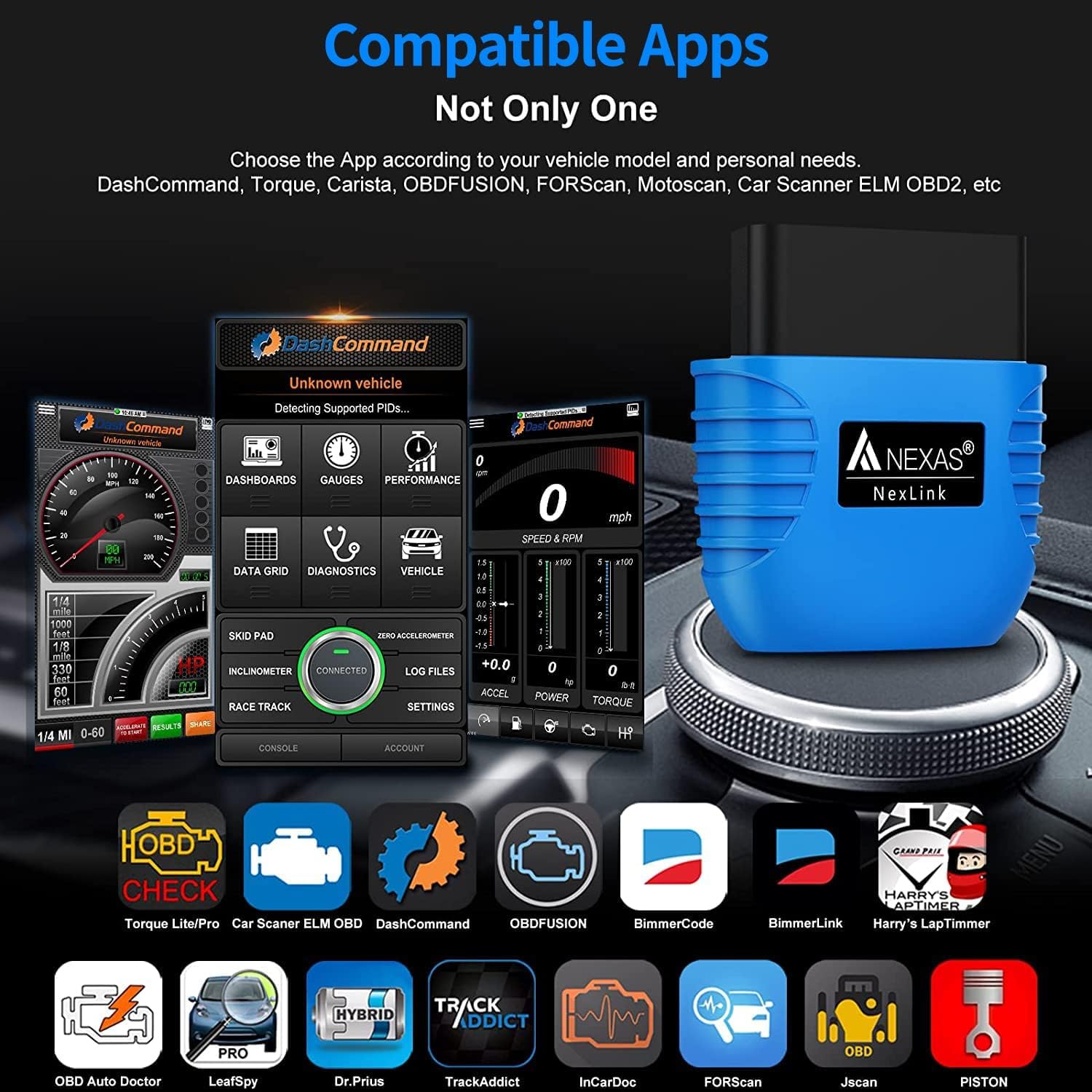
Image: Explanation of the NexLINK's battery protection and overvoltage protection features.
- Battery Drain Protection: When you turn off the ignition, the intelligent auto-sleep function activates instantly, cutting off power consumption to preserve your vehicle's battery life.
- Overvoltage Protection: Monitors your car's voltage in real-time and automatically disconnects the circuit if abnormalities are detected, ensuring device safety.
5. Troubleshooting
Common Issues and Solutions
- Device not powering on: Ensure the device is firmly plugged into the OBD2 port and the vehicle's ignition is on. Check the vehicle's OBD2 port for power issues.
- Cannot connect via Bluetooth:
- Ensure Bluetooth is enabled on your mobile device.
- For iOS, do not pair directly in phone settings; connect via the app.
- Try restarting your mobile device and the diagnostic app.
- Ensure no other Bluetooth devices are interfering.
- App not detecting the vehicle:
- Verify the app is compatible with your vehicle's make/model/year.
- Ensure the vehicle's ignition is on (engine can be off or running, depending on the test).
- Try a different compatible app if available.
- Check Engine Light (CEL) remains on after clearing codes:
- The underlying issue causing the code may still be present. Address the root cause of the DTC.
- Some codes require multiple drive cycles to clear or may reappear if the fault is persistent.
- Inaccurate readings or data:
- Ensure the app is correctly configured for your vehicle.
- Check for app updates.
- Verify the device firmware is up to date (if applicable via the app).
6. Specifications
| Specification | Value |
|---|---|
| Brand | NEXAS |
| Model | NexLINK |
| Power Source | 12V DC (Vehicle Power) |
| Product Dimensions (L x W x H) | 2.68" x 0.71" x 2.68" |
| Operating System Compatibility | iOS, Android, iPad, PC Devices |
| Bluetooth Version | 5.0 |
| Language | English |
7. Warranty and Support
Warranty Information
The NEXAS NexLINK Bluetooth OBD2 Scanner typically comes with a 2-year warranty. Please refer to your purchase documentation for specific warranty terms and conditions.
Customer Support
If you encounter any problems or have questions regarding your NexLINK scanner, please feel free to contact NEXAS customer support. You can often find support contact information within the diagnostic app or on the product's official website.
For general inquiries or technical assistance, you may also reach out via email:
Email: nexas_support@163.com
Related Documents - NexLINK
 |
NexLink OBDII/EOBD Diagnostic Interface User Guide User guide for the NEXAS NexLink OBDII/EOBD Bluetooth Diagnostic Interface. This document provides detailed information on product features, vehicle compatibility, specifications, supported protocols, recommended third-party apps, setup instructions, connection settings, FAQs, troubleshooting, and warranty information. |
 |
NexLink NL102PLUS User Manual - Automotive Diagnostic Tool Guide Comprehensive user manual for the NEXAS NexLink NL102PLUS, detailing its features, operations, and diagnostic capabilities for cars and heavy-duty vehicles. Covers OBDII, J1587, J1939 protocols, DTCs, DPF regeneration, and service resets. |
 |
NexLink NL101 User Manual: Comprehensive Guide to Vehicle Diagnostics Explore the NexLink NL101 User Manual for detailed instructions on vehicle diagnostics, OBD II features, DTC lookup, data stream analysis, and more. This guide provides essential information for automotive technicians and enthusiasts. |