
1. Introduction
This manual provides detailed instructions for the installation, operation, and maintenance of your Imou A1 Indoor IP Security Camera. The Imou A1 is a spherical indoor security camera designed for reliable surveillance, offering 1080p video resolution and Wi-Fi connectivity. Please read this manual thoroughly before using the product to ensure proper setup and functionality.

Figure 1: Front view of the Imou A1 Indoor IP Security Camera.
2. Package Contents
Verify that all components are present in the package:
- Imou A1 Camera Unit
- Power Adapter
- Mounting Plate
- Mounting Screws and Wall Plugs
- Quick Start Guide
3. Camera Overview
Familiarize yourself with the camera's components.

Figure 2: Imou A1 camera with key features highlighted (e.g., lens, microphone, speaker, status LED, power port, reset button, microSD card slot).
- Lens: Captures video.
- Status LED: Indicates camera status (e.g., solid green for connected, flashing red for network error).
- Microphone: For audio input.
- Speaker: For two-way audio communication.
- Power Port: Connects to the power adapter.
- Reset Button: Press and hold for 10 seconds to factory reset the camera.
- MicroSD Card Slot: For local video storage (card not included).
4. Setup
4.1 Download the Imou Life App
The Imou Life app is required to set up and manage your camera.
- Scan the QR code below or search for "Imou Life" in the App Store (iOS) or Google Play Store (Android).
- Download and install the app.
- Create an account or log in if you already have one.
(QR code image placeholder for app download)
4.2 Powering On the Camera
Connect the power adapter to the camera's power port and plug it into a wall outlet. The camera will power on, and the status LED will flash green.
4.3 Adding the Camera to the Imou Life App
- Open the Imou Life app.
- Tap the "+" icon in the top right corner to add a new device.
- Scan the QR code located on the bottom of your camera.
- Follow the on-screen instructions to connect the camera to your Wi-Fi network. Ensure your phone is connected to a 2.4GHz Wi-Fi network during setup.
- Once connected, the status LED will turn solid green.
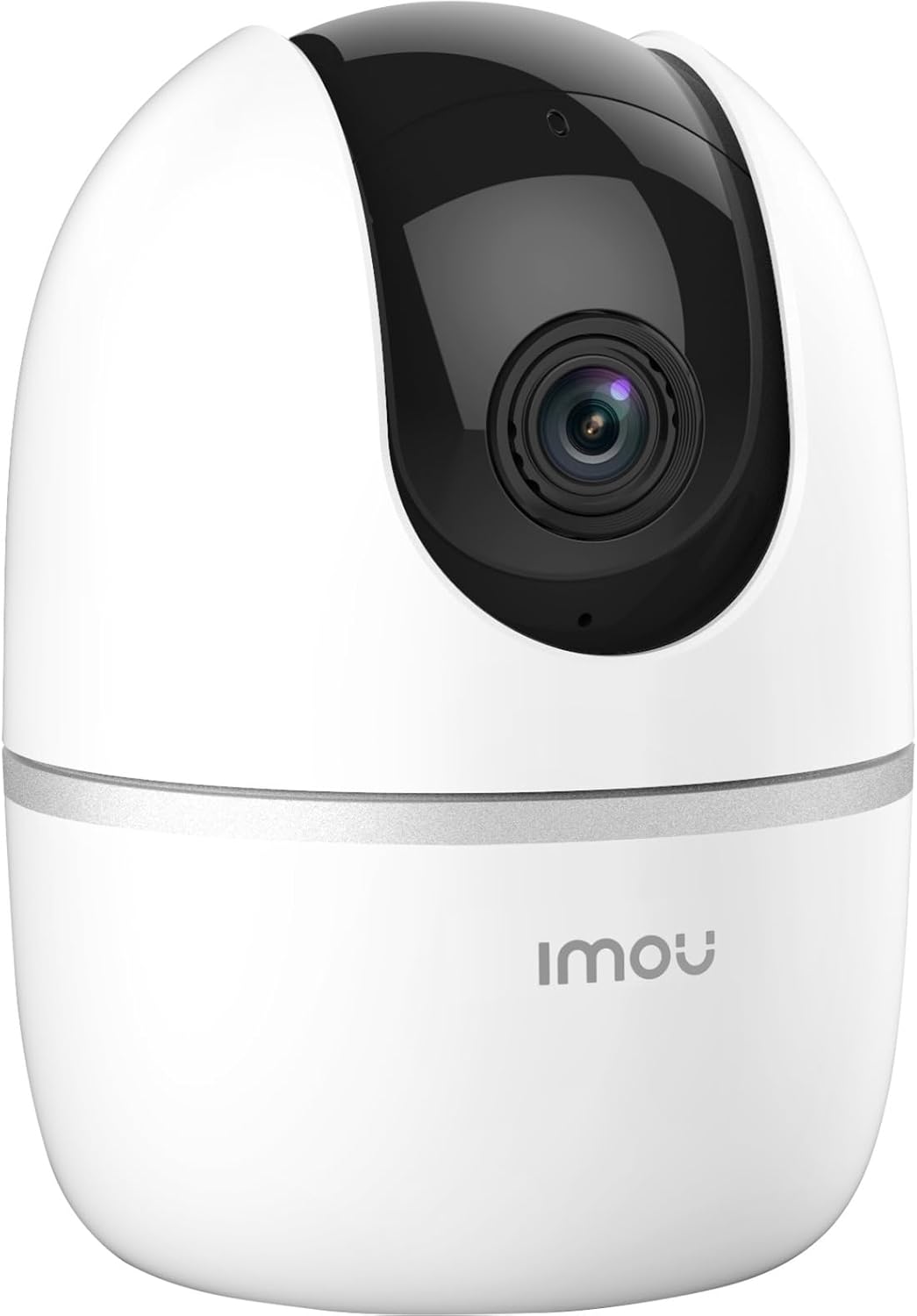
Figure 3: Bottom of the Imou A1 camera, where the QR code for app pairing is located.
4.4 Mounting the Camera (Optional)
The camera can be placed on a flat surface or mounted to a wall or ceiling.
- Choose a suitable location for mounting.
- Secure the mounting plate to the desired surface using the provided screws.
- Attach the camera to the mounting plate by twisting it until it locks into place.

Figure 4: Example of the Imou A1 camera mounted on a ceiling.
5. Operating the Camera
Once set up, you can access and control your camera through the Imou Life app.
5.1 Live View
Open the Imou Life app and select your camera to view the live feed. You can pan and tilt the camera remotely using the controls in the app.
5.2 Two-Way Audio
Tap the microphone icon in the live view to speak through the camera's speaker. Tap again to end.
5.3 Recording and Playback
The camera supports continuous recording or event-triggered recording to a microSD card (if installed) or to the Imou Cloud (subscription may be required). Access recorded footage via the playback feature in the app.
5.4 Motion Detection and Alerts
Enable motion detection in the app settings to receive instant alerts on your smartphone when movement is detected. You can customize detection zones and sensitivity.
6. Maintenance
6.1 Cleaning
Gently wipe the camera lens and body with a soft, dry cloth. Avoid using harsh chemicals or abrasive cleaners.
6.2 Firmware Updates
Regularly check for firmware updates through the Imou Life app to ensure optimal performance and access to new features.
7. Troubleshooting
| Problem | Possible Solution |
|---|---|
| Camera fails to connect to Wi-Fi. |
|
| Poor video quality. |
|
| No motion detection alerts. |
|
| Camera offline. |
|
8. Specifications
| Feature | Detail |
|---|---|
| Model Number | IPC-A22EP-V2-IMOU |
| Video Resolution | 1080p (1920 x 1080 pixels) |
| Wireless Technology | Wi-Fi (2.4GHz) |
| Power | 3.5 Watts |
| Dimensions (L x W x H) | 7.74 x 7.74 x 10.61 cm |
| Weight | 238 grams |
| Special Features | Night Vision, Two-Way Audio, Motion Detection |
| Storage Options | MicroSD Card (up to 256GB, not included), Cloud Storage |
| Mounting Type | Wall/Ceiling/Tabletop |
9. Warranty Information
The Imou A1 camera comes with a 2-year manufacturer's warranty. Please retain your proof of purchase for warranty claims. For detailed terms and conditions, refer to the official Imou website or contact customer support.
Spare parts availability: 1 Year.
10. Customer Support
If you encounter any issues not covered in this manual or require further assistance, please contact Imou customer support.
- Visit the official Imou website for FAQs and support resources.
- Contact technical support via the Imou Life app or the website's contact page.


