
1. Introduction
Thank you for choosing the SAKOBS SB925D-01 60W Soundbar. This soundbar is designed to enhance your audio experience for both TV and PC, delivering powerful stereo sound with deep bass and clear vocals. Featuring Bluetooth 5.0, DSP technology, and multiple input options, it provides versatile connectivity and immersive sound. Please read this manual carefully before use to ensure proper setup and operation.
2. Safety Information
To ensure safe and optimal performance, please observe the following safety precautions:
- Do not expose the soundbar to rain, moisture, or extreme temperatures.
- Do not open the casing. Refer all servicing to qualified personnel.
- Keep the soundbar away from heat sources, direct sunlight, and strong magnetic fields.
- Ensure proper ventilation around the unit. Do not block any ventilation openings.
- Use only the provided power adapter.
- Clean the soundbar with a soft, dry cloth. Do not use liquid cleaners or aerosols.
3. Package Contents
Carefully unpack your SAKOBS SB925D-01 Soundbar and check that all the following items are included:
- SAKOBS SB925D-01 Soundbar
- Remote Control
- Power Adapter
- Optical Cable
- AUX Cable (3.5mm to 3.5mm)
- RCA Cable (3.5mm to RCA)
- Wall Mount Kit (screws and anchors)
- User Manual (this document)

Image: Soundbar dimensions and included accessories, including remote, various cables, and wall mount kit.
4. Product Overview
Front View

Image: Front view of the SAKOBS SB925D-01 Soundbar, showcasing its sleek design and speaker grilles.
Rear Panel and Connections
The rear panel of the soundbar features various input ports for connecting to your devices.

Image: Rear view of the SAKOBS SB925D-01 Soundbar, highlighting the AUX and Optical input ports.

Image: Detailed view of the soundbar's rear panel, showing the AUX and S/PDIF (Optical) input connections.
Control Buttons and Remote
The soundbar can be controlled via the buttons on the unit or the included remote control.
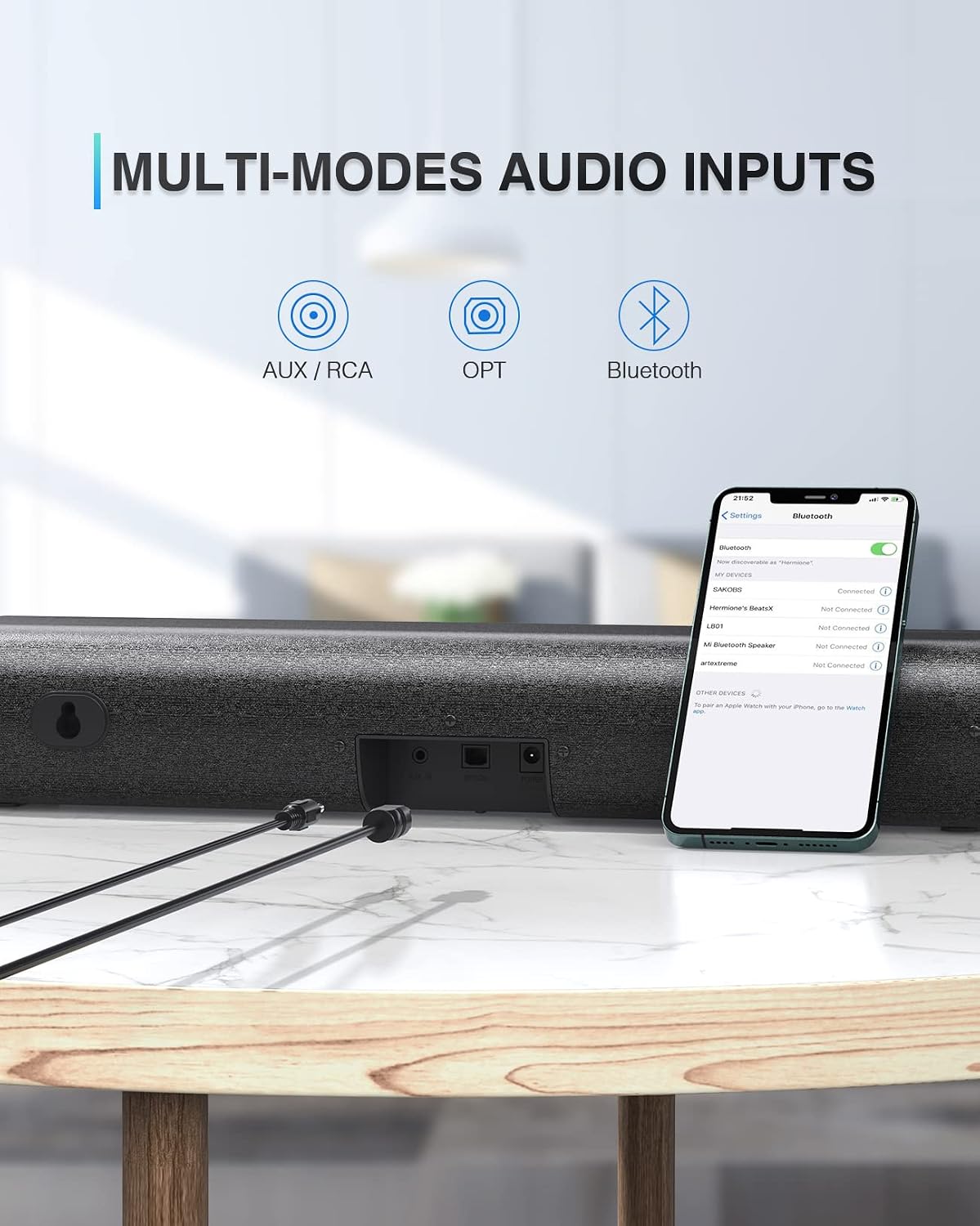
Image: The SAKOBS SB925D-01 Soundbar shown with its remote control.
5. Setup
Placement Options
The SAKOBS SB925D-01 Soundbar offers flexible placement options to suit your setup:
- Tabletop Placement: Place the soundbar flat on a stable surface below your TV or monitor.
- Wall Mounting: Use the included wall mount kit to attach the soundbar to a wall. Ensure the wall can support the weight of the soundbar.

Image: Diagram illustrating soundbar placement options: flat on a surface or wall-mounted below a TV.

Image: Visual representation of the soundbar positioned both on a TV stand and mounted on a wall.
Connecting to Devices
The soundbar supports multiple audio input modes:
- Optical (OPT): For high-quality digital audio from TVs, game consoles, or DVD/Blu-ray players. Use the included optical cable.
- AUX/RCA: For analog audio from TVs, PCs, or other devices with a 3.5mm audio output or RCA outputs. Use the included AUX or RCA cables.
- Bluetooth: For wireless audio streaming from smartphones, tablets, or laptops.

Image: Diagram showing various devices (laptop, desktop, TV, tablet, phone, MP3 player) connecting to the soundbar via AUX, Optical, and Bluetooth.

Image: Close-up of the soundbar's rear inputs, illustrating AUX/RCA, Optical, and Bluetooth connectivity options.
6. Operating Instructions
Power On/Off
Connect the power adapter to the soundbar and a power outlet. Press the power button on the soundbar or the remote control to turn the unit on or off.
Selecting Input Mode
Press the 'Input' button on the soundbar or the 'BT', 'OPT', 'AUX' buttons on the remote control to switch between input modes. An LED indicator on the soundbar will change color to indicate the current mode:
- Blue: Bluetooth Mode
- White: AUX Mode
- Green: Optical Mode
- Red: Standby Mode
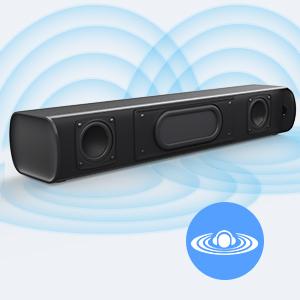
Image: The soundbar's remote control and close-up views of the LED indicator showing different colors for Bluetooth, AUX, and Standby modes.
Bluetooth Pairing
- Turn on the soundbar and switch to Bluetooth mode (Blue LED).
- Enable Bluetooth on your device (smartphone, tablet, etc.).
- Search for "SAKOBS SB925D-01" in your device's Bluetooth list and select it to pair.
- Once paired, the soundbar will emit a confirmation tone, and the LED will remain solid blue.

Image: A smartphone displaying its Bluetooth settings, ready to pair with the SAKOBS soundbar.
Sound Modes
The soundbar features three equalizer modes to optimize your audio experience:
- Music Mode: Enhances bass and treble for a rich musical experience.
- Movie Mode: Provides a wider soundstage and clearer dialogue for films.
- TV Mode: Optimizes vocal clarity for news and general TV programs.
Use the corresponding buttons on the remote control to switch between these modes.
7. Maintenance
To maintain the performance and appearance of your soundbar:
- Wipe the surface with a soft, dry, lint-free cloth.
- Do not use abrasive cleaners, waxes, or solvents.
- Keep the speaker grilles free from dust and debris.
8. Troubleshooting
If you encounter any issues with your soundbar, refer to the following common problems and solutions:
| Problem | Possible Cause | Solution |
|---|---|---|
| No sound | Soundbar is off or in standby. Incorrect input mode selected. Volume is too low. Cables are not connected properly. | Ensure soundbar is powered on. Select the correct input mode (Bluetooth, Optical, AUX). Increase volume on soundbar and source device. Check all cable connections. |
| Bluetooth not connecting | Soundbar not in Bluetooth pairing mode. Device Bluetooth is off. Device is too far from soundbar. Interference. | Switch soundbar to Bluetooth mode. Ensure Bluetooth is enabled on your device. Move device closer to soundbar. Avoid placing soundbar near other wireless devices. |
| Remote control not working | Batteries are dead or incorrectly inserted. Obstruction between remote and soundbar. | Replace batteries (AAA, not included). Ensure line of sight between remote and soundbar. |
| Distorted sound | Volume too high. Source audio quality is poor. | Lower the volume. Try a different audio source to check if the issue persists. |
9. Specifications
Detailed technical specifications for the SAKOBS SB925D-01 Soundbar:
| Feature | Specification |
|---|---|
| Model Number | SB925D-01 |
| Product Dimensions (L x W x H) | 41 x 10 x 7 cm (16.1 x 3.9 x 2.8 inches) |
| Item Weight | 1 Kilogram (2.2 lbs) |
| Maximum Speaker Output Power | 50 Watts (RMS 60W, 110 dB SPL mentioned in features) |
| Connectivity Technology | Bluetooth, Auxiliary, Optical |
| Wireless Technology | Bluetooth 5.0 |
| Bluetooth Range | 10 Meters (33 feet) |
| Audio Output Mode | PCM |
| Number of Audio Channels | 2.0 |
| Speaker Type | Soundbar |
| Mounting Type | Wall Mount |
| Material | Plastic casing, paper/polypropylene/silk components |
| Control Method | Remote Control |
| Compatible Devices | Smartphone, Tablet, Laptop, Television, Projector |
| Power Source | Powered by battery (likely refers to remote) / AC Adapter (for soundbar) |
| GTIN (UPC) | 778463586750 |
10. Warranty and Support
The SAKOBS SB925D-01 Soundbar comes with a limited warranty. For specific warranty terms and conditions, please refer to the warranty card included in your package or contact SAKOBS customer support.
If you have any questions, require technical assistance, or need to report an issue, please contact SAKOBS customer support through the retailer's platform or the official SAKOBS website.