
YESKAMO B08B81VCQF
YESKAMO Wireless Security Camera Outdoor User Manual
Model: B08B81VCQF
Your guide to setting up and operating your YESKAMO security camera.
1. Introduction
Thank you for choosing the YESKAMO Wireless Security Camera. This manual provides detailed instructions for the installation, operation, and maintenance of your new security camera. Please read this manual thoroughly before use and keep it for future reference.
2. Package Contents
Please check the package contents carefully. If any items are missing or damaged, please contact customer support.
- YESKAMO Wireless Security Camera
- Power Adapter
- Mounting Screws and Anchors
- User Manual
3. Product Overview
The YESKAMO Wireless Security Camera is designed for outdoor surveillance, featuring high-resolution video, two-way audio, and advanced motion detection capabilities. It integrates floodlights and a siren for enhanced security.
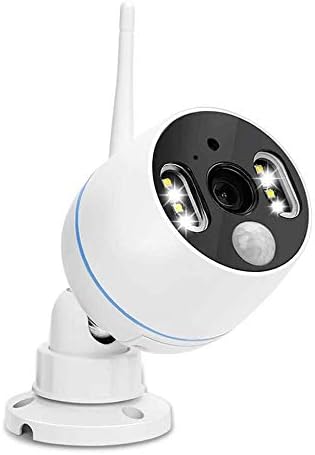
Figure 3.1: Front view of the YESKAMO Wireless Security Camera, showing the lens, floodlights, and antenna.

Figure 3.2: Key features of the YESKAMO camera, including floodlight, siren alarm, PIR activation, two-way audio, 1080P resolution, TF card storage, IP66 waterproof rating, A/V recording, and day/night vision.
4. Setup
4.1 Installation
Choose a suitable location for your camera, ensuring it has a clear view of the area you wish to monitor and is within Wi-Fi range. The camera is designed for wall mounting.
- Mark the drilling positions on the wall using the camera base as a template.
- Drill holes and insert the wall anchors.
- Secure the camera base to the wall with the provided screws.
- Adjust the camera angle as needed.

Figure 4.1: Diagram illustrating the 'True Plug & Play' setup, showing the camera auto-pairing with a local monitor and connecting to a home router for remote viewing.
4.2 App Installation & Account Creation
To access your camera remotely and utilize all its features, you will need to download the official YESKAMO app on your smartphone (Android or iOS).
- Scan the QR code in the quick start guide or search for "YESKAMO" in your app store.
- Install the app and open it.
- Follow the on-screen prompts to create a new account or log in if you already have one.
4.3 Device Pairing
Once the app is installed and you are logged in, follow these steps to pair your camera:
- Power on the camera using the provided power adapter.
- In the app, tap the "Add Device" or "+" icon.
- Select your camera model or scan the QR code on the camera itself.
- Follow the app's instructions to connect the camera to your Wi-Fi network. Ensure your Wi-Fi password is correct.
- Once connected, the camera will appear in your device list.
5. Operating Instructions
5.1 Live View
From the app's main screen, tap on your camera to access the live video feed. You can view real-time footage from your camera anytime, anywhere.
5.2 Motion Detection & Alerts
The camera features advanced PIR motion detection to minimize false alarms. When motion is detected, the camera can trigger floodlights, a siren, and send alerts to your smartphone.

Figure 5.1: Illustration of Smart PIR Motion Detection, which uses dual sensors (heat and motion) to accurately detect humans, animals, and vehicles, significantly reducing false alarms.

Figure 5.2: The camera's proactive deterrence features, including PIR-activated ultra-bright floodlights and a siren alarm, alongside color night vision capabilities displayed on a smartphone.
To configure motion detection settings:
- In the app, go to Camera Settings > Motion Detection.
- Adjust sensitivity levels and define detection zones.
- Enable or disable floodlight and siren activation upon detection.
5.3 Two-Way Audio
The built-in microphone and speaker allow for two-way communication. You can hear what's happening around the camera and speak through the camera to visitors or intruders.

Figure 5.3: The two-way audio function allows users to hear and speak with individuals in the surveillance area directly through the camera via the mobile application.
To use two-way audio:
- While in live view, tap the microphone icon in the app.
- Hold the icon to speak, and release to listen.
5.4 Recording & Playback
The camera supports local storage via a TF card (not included) and cloud storage (subscription may be required). Recordings can be reviewed directly from the app.

Figure 5.4: Workflow for local and remote playback with audio, illustrating how PIR activation, siren alarms, and message alerts lead to recorded events that can be reviewed.
To access recordings:
- In the app, navigate to the "Playback" section.
- Select the date and time to view recorded events.
5.5 Night Vision
The camera provides clear visibility even in low-light conditions. It features color night vision, allowing for more detailed images at night when sufficient ambient light is available or floodlights are activated.
6. Maintenance
6.1 Cleaning
Regularly clean the camera lens and housing to ensure optimal performance. Use a soft, damp cloth. Do not use harsh chemicals or abrasive cleaners.
6.2 Firmware Updates
Periodically check for firmware updates through the app. Keeping your camera's firmware up-to-date ensures you have the latest features and security enhancements.
7. Troubleshooting
7.1 Camera Offline
- Check if the camera is powered on and the power adapter is securely connected.
- Ensure your Wi-Fi router is working correctly and the camera is within Wi-Fi range.
- Restart the camera by unplugging and replugging the power.
- If the issue persists, try re-pairing the camera with the app.
7.2 Poor Video Quality
- Clean the camera lens.
- Ensure a strong Wi-Fi signal. Weak signals can affect streaming quality.
- Check your internet connection speed.
7.3 Motion Alerts Not Received
- Verify that motion detection is enabled in the app settings.
- Check your phone's notification settings to ensure the app is allowed to send notifications.
- Adjust motion detection sensitivity.
8. Specifications
| Feature | Detail |
|---|---|
| Model | B08B81VCQF |
| Resolution | 3MP (1080p, 720p supported) |
| Connectivity | Wireless (Wi-Fi) |
| Power Source | Battery Powered (or via adapter) |
| Night Vision Range | Up to 100 Feet |
| Audio | Two-Way Audio |
| Motion Detection | PIR Motion Activated |
| Weather Resistance | IP66 |
| Dimensions | 8.15 x 7.09 x 3.62 inches |
| Weight | 1.26 pounds |
9. Warranty and Support
YESKAMO products come with a standard manufacturer's warranty. For specific warranty terms and conditions, please refer to the warranty card included with your product or visit the official YESKAMO website.
If you encounter any issues or have questions not covered in this manual, please contact YESKAMO customer support:
- Visit the YESKAMO Store on Amazon: YESKAMO Store
- Refer to the contact information provided in your product packaging.
Ask a question about this manual
Ask about setup, troubleshooting, compatibility, parts, safety, or missing instructions. Manuals+ will review the question and use this page’s manual context to help answer it.