
1. Introduction
This manual provides detailed instructions for the proper setup, operation, maintenance, and troubleshooting of your Kaptur KP1200 Elite Wired 1D/2D Barcode Scanner. Please read this manual thoroughly before using the device to ensure optimal performance and longevity.
2. Product Overview
2.1 Features
- Reads both 1D and 2D barcodes.
- Supports USB keyboard emulation and optional RS232 interface.
- Constructed from durable PC + TPU materials.
- Features shock-resistant tempered glass for enhanced durability.
- Equipped with a 5000K white LED light source for clear scanning.
2.2 Package Contents
Upon unpacking, please verify that all items listed below are present and in good condition:
- Kaptur KP1200 Elite Barcode Scanner Unit
- USB Connection Cable
- User Manual (this document)
3. Setup
3.1 Connecting the Scanner
The Kaptur KP1200 Elite scanner offers flexible connectivity options. Follow the steps below for your preferred connection method.
USB Connection (Standard):
- Locate an available USB port on your computer (laptop or desktop).
- Connect the USB cable to the scanner's interface port.
- Plug the other end of the USB cable into the computer's USB port.
- The computer will typically detect and install the necessary drivers automatically. The scanner is ready for use once the installation is complete.
RS232 Connection (Optional):
If using the optional RS232 interface, ensure you have the appropriate RS232 cable and drivers. Connect the scanner to your computer via the RS232 port and install any required drivers as per your system's instructions.
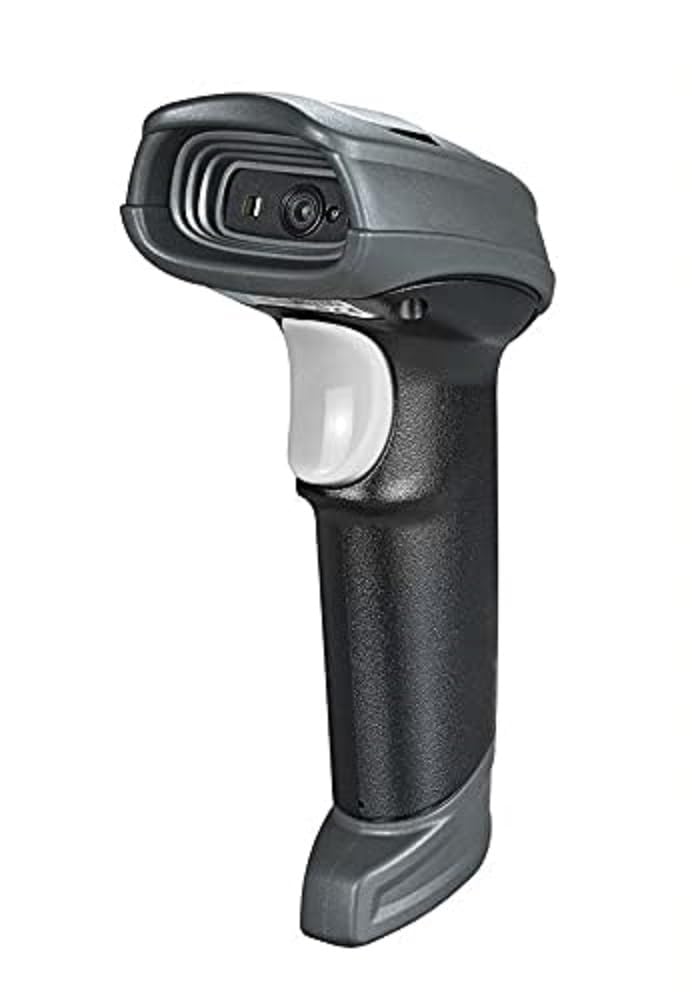
Image: Kaptur KP1200 Elite Barcode Scanner. This image displays the front view of the Kaptur KP1200 Elite barcode scanner, highlighting its ergonomic design and scanning window, ready for connection.
4. Operating Instructions
4.1 Scanning Barcodes
To scan a barcode, follow these steps:
- Hold the scanner firmly in your hand.
- Point the scanning window towards the barcode you wish to read.
- Ensure the entire barcode is within the scanner's aiming beam.
- Press the trigger button. A successful scan is typically indicated by an audible beep and/or a visual confirmation (e.g., a green LED).
- The scanned data will be transmitted to your connected computer as if typed from a keyboard.
The KP1200 Elite is capable of reading a wide range of 1D and 2D barcode symbologies, including but not limited to UPC/EAN, Code 39, Code 128, QR Code, and Data Matrix.
5. Maintenance
5.1 Cleaning the Scanner
Regular cleaning helps maintain optimal scanning performance.
- Scanning Window: Use a soft, lint-free cloth lightly dampened with water or a mild, non-abrasive cleaner. Gently wipe the scanning window to remove dust, smudges, or debris. Avoid harsh chemicals or abrasive materials that could scratch the glass.
- Scanner Body: Wipe the exterior of the scanner with a soft, dry, or slightly damp cloth. Do not immerse the scanner in water or any cleaning solution.
5.2 Storage
When not in use, store the scanner in a clean, dry environment, away from direct sunlight, extreme temperatures, and corrosive materials. Protect the scanning window from scratches.
6. Troubleshooting
If you encounter issues with your Kaptur KP1200 Elite scanner, refer to the following common problems and solutions.
6.1 Scanner Not Recognized by Computer
- Check Cable Connection: Ensure the USB cable is securely connected to both the scanner and the computer. Try a different USB port.
- Restart Computer: Sometimes a simple restart can resolve connectivity issues.
- Test on Another Computer: If possible, test the scanner on a different computer to determine if the issue is with the scanner or the original computer's setup.
6.2 Scanner Not Reading Barcodes
- Barcode Quality: Ensure the barcode is clear, undamaged, and printed with sufficient contrast.
- Aiming: Make sure the aiming beam completely covers the barcode.
- Distance: Adjust the distance between the scanner and the barcode. Scanning distance can vary depending on barcode size and type.
- Scanning Window Cleanliness: Clean the scanning window as described in the Maintenance section.
- Symbology Enabled: Verify that the barcode symbology you are trying to scan is enabled in the scanner's configuration (if applicable, refer to advanced programming guide).
6.3 Poor Scan Performance
- Lighting Conditions: Avoid scanning in direct sunlight or under very bright, reflective lighting that might interfere with the scanner's sensor.
- Barcode Surface: Scanning barcodes on curved, highly reflective, or transparent surfaces can be challenging. Try adjusting the angle.
7. Specifications
| Model Number | KP1200 |
| Manufacturer | Kaptur |
| Barcode Types Supported | 1D, 2D |
| Connectivity Technology | USB, RS232 (optional) |
| Compatible Devices | Laptop, Desktop Computer |
| Power Source | Wired (Cable Electric) |
| Material | PC + TPU, Tempered Glass |
| Light Source | 5000K White LED |
| GTIN / UPC | 655222934918 |
8. Warranty and Support
For warranty information and technical support, please refer to the documentation provided at the time of purchase or contact your vendor. Kaptur is committed to providing reliable products and customer assistance.