
1. Introduction
The Beelink EQ13 Mini PC is a compact and powerful desktop computer designed for various usage scenarios including office work, online education, entertainment, and industrial applications. Featuring an Intel 12th Gen N200 processor, it offers smooth performance and efficient heat dissipation.
Package Contents
- 1 x Beelink EQ13 Mini PC
- 1 x Power Adapter
- 1 x User Manual
- 1 x HDMI Cable
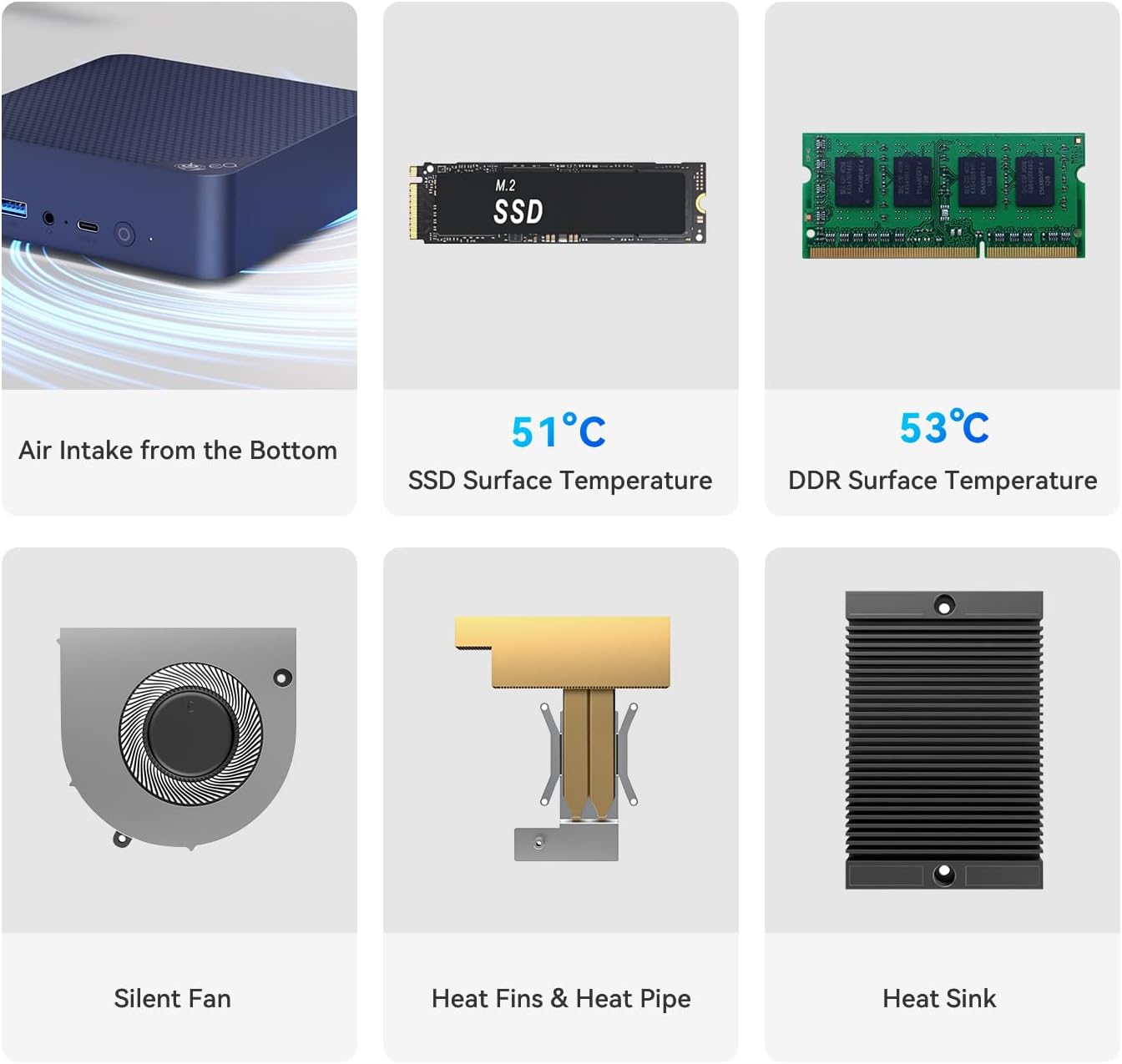
Figure 1: Beelink EQ13 Mini PC and its accessories, including the power adapter, user manual, and HDMI cable.
2. Initial Setup
Follow these steps to set up your Beelink EQ13 Mini PC for the first time.
Connecting Peripherals
- Connect your monitor(s) to the HDMI 2.0 ports on the back of the Mini PC. The EQ13 supports dual 4K@60Hz displays.
- Connect your keyboard and mouse to the USB 3.2 10Gbps ports.
- For wired network access, connect an Ethernet cable to one of the two RJ45 1000Mbps LAN ports. For wireless connectivity, the device supports 802.11ax Dual Band 2.4 & 5GHz Wi-Fi6 and BT5.2.
- Plug the power adapter into the DC Jack and then into a power outlet.

Figure 2: Rear view of the Beelink EQ13 Mini PC, highlighting the dual HDMI ports, USB ports, and LAN ports for connectivity.
Operating System Installation (if applicable)
Your Beelink EQ13 Mini PC typically comes with Windows 11 Pro pre-installed. If you need to reinstall the operating system, refer to the following video tutorials:
Video 1: How To Install Windows 10. This video provides a step-by-step guide on preparing a USB installer and performing a clean installation of Windows 10 on your Mini PC.
Video 2: How to install W-11. This tutorial demonstrates the process of installing Windows 11 on your Beelink Mini PC.
Important Note: Please do not connect to the network or Wi-Fi until the Operating System is fully installed and running. When prompted during setup, it is recommended to skip the email entry step for a smoother installation process.
3. Operating Instructions
The Beelink EQ13 is designed for efficient multitasking and various applications.
Key Features and Functions
- Dual 4K Display: Connect two monitors via the HDMI 2.0 ports for an extended workspace or enhanced visual experience.
- Wireless Connectivity: Utilize built-in Wi-Fi 6 (802.11ax Dual Band 2.4 & 5GHz) for stable and fast internet, and Bluetooth 5.2 for connecting wireless peripherals.
- Advanced Functions: The Mini PC supports Soft Routing, Wake On LAN (WOL), PXE Boot, and RTC Wake, offering flexibility for various network and remote management needs. It also features Auto Power On.

Figure 3: The Beelink EQ13 Mini PC is suitable for diverse applications such as office work, online learning, kiosks, programming, and home entertainment.
4. Maintenance
Regular maintenance helps ensure the longevity and optimal performance of your Mini PC.
SSD Replacement/Upgrade
The Beelink EQ13 supports M.2 PCIe 3.0 x4 SSD storage, with support for up to 4TB. If you need to replace or upgrade your SSD, please follow the instructions in the video below. Ensure you back up all important data before proceeding with any hardware changes.
Video 3: SSD replacement tutorial. This video guides you through the process of safely replacing or upgrading the SSD in your Beelink Mini PC.
Dustproof Design and Heat Dissipation
The EQ13 features a dustproof design with a filter at the bottom to prevent dust accumulation. It also incorporates an efficient cooling fan, heat sink, and hard drive cooler for optimal heat dissipation, ensuring stable performance.

Figure 4: The dustproof design of the Beelink EQ13 includes a removable filter at the bottom to prevent dust buildup and maintain performance.

Figure 5: The MSC2.0 airflow design ensures efficient heat dissipation, keeping the mini PC cool and stable even under load, contributing to near-silent operation.
5. Troubleshooting
This section provides solutions to common issues you might encounter.
Common Issues and Solutions
- Operating System Setup Issues: If you encounter problems during OS installation, ensure you do not connect to the internet or Wi-Fi until the OS is fully running. Also, remember to skip the email entry step during initial Windows setup.
- Driver Issues: After OS installation, if some devices are not recognized, ensure you download and install the latest drivers from the official Beelink support website.
- Boot Issues: If the PC does not boot from the USB drive, check your BIOS settings to ensure the USB drive is selected as the primary boot device.
6. Specifications
| Feature | Specification |
|---|---|
| Brand | Beelink |
| Model Name | Beelink EQ13 N200 |
| Processor | Intel 12th Gen 4-Cores N200 (up to 3.7GHz) |
| RAM | 16GB DDR4 |
| Hard Drive | 500GB M.2 PCIe 3.0 x4 SSD (supports up to 4TB) |
| Graphics Coprocessor | Integrated Graphics |
| Operating System | Windows 11 Pro (pre-installed) |
| Video Output | 2 x HDMI 2.0 (4K@60Hz) |
| USB Ports | 3 x USB3.2 10Gbps, 1 x Type-C (10Gbps) |
| Network | 2 x RJ45 1000Mbps LAN, Wi-Fi6 (802.11ax Dual Band 2.4 & 5GHz) |
| Bluetooth | BT5.2 (AX101) |
| Audio Jack | 1 x 3.5mm Audio Jack (HP&MIC) |
| Dimensions | 4.88 x 4.45 x 1.61 inches |
| Weight | 9.2 ounces |
7. Warranty and Support
Beelink is committed to providing excellent customer service and support for your Mini PC.
Customer Service and Warranty
- All Beelink Mini PCs undergo strict inspection before shipping.
- We offer lifetime technical support and 24/7 after-sales service.
- A 1-Year free warranty is provided for all products.
- Our products have obtained FCC, RoHS, and CE Certifications.

Figure 6: Beelink's after-sales service includes brand trust, fulfillment by Amazon, lifetime technical consulting, and a one-year warranty.
How to Contact Us
If you have any questions or require technical assistance, please do not hesitate to contact us. You can find contact information in the user manual included in your package or through the official Beelink website.
Video 4: How to contact us. This short video provides guidance on how to reach Beelink customer support for any inquiries.