
Introduction
Thank you for choosing the Kaptur KP2230 Wireless 2D Barcode Scanner. This device is designed to provide efficient and reliable barcode scanning for various applications, including traceability, sales management, ticketing, and general office work. This manual will guide you through the setup, operation, maintenance, and troubleshooting of your scanner to ensure optimal performance.
Safety Information
- Do not expose the scanner to extreme temperatures, humidity, or corrosive substances.
- Avoid direct eye exposure to the scanner's light source.
- Do not attempt to disassemble or modify the scanner. This will void the warranty.
- Use only the provided or recommended accessories.
- Keep the scanner away from strong magnetic fields.
Package Contents
Please check the package contents carefully. If any items are missing or damaged, contact your vendor.
- Kaptur KP2230 Wireless 2D Barcode Scanner
- USB Receiver (for wireless connection)
- USB Charging/Data Cable
- User Manual (this document)
Product Overview
The Kaptur KP2230 is a high-performance 2D CMOS barcode scanner offering both 1D and 2D barcode reading capabilities. It features a 2.4 GHz wireless connection for flexibility and ease of use.
Key Features:
- Wireless 2D Scanning: Cost-effective data collection solution supporting 1D and 2D barcodes.
- Advanced Imaging: Equipped with third-generation image scanning technology for excellent scanning performance.
- Extended Wireless Range: Powerful and reliable RF connection up to 50 meters from the host device, allowing unrestricted movement.
- Versatile Applications: Ideal for traceability, sales management, ticketing, and general office tasks.
Scanner Components:
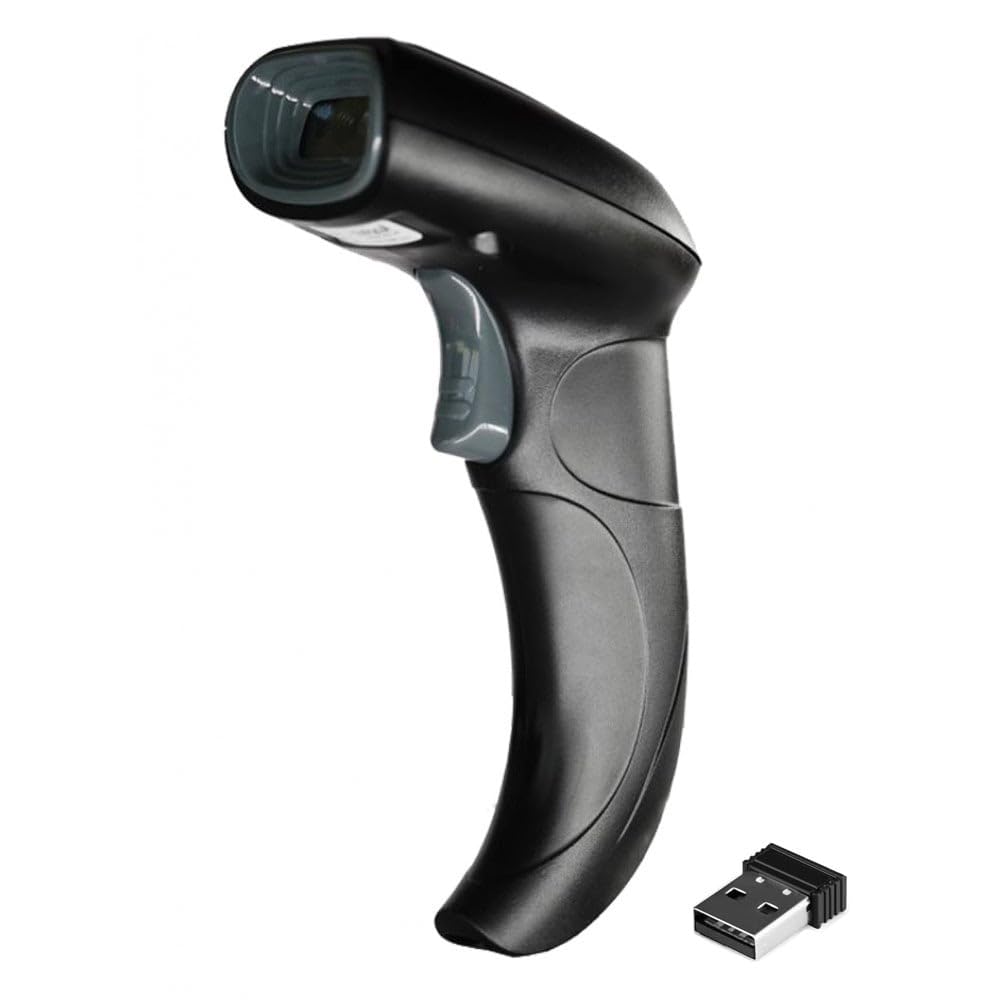
Figure 1: Side view of the Kaptur KP2230 wireless 2D barcode scanner, showing the ergonomic handle and trigger button.

Figure 2: Angled view of the Kaptur KP2230 wireless 2D barcode scanner, highlighting the scanning window and trigger.
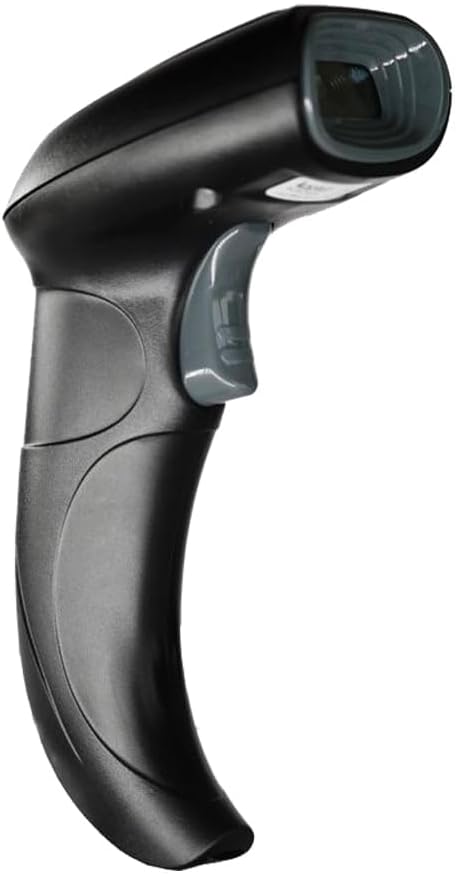
Figure 3: Another angled view of the Kaptur KP2230 wireless 2D barcode scanner, showing the overall design.
Setup
1. Charging the Scanner
Before first use, ensure the scanner is fully charged. Connect the USB charging/data cable to the scanner's charging port and the other end to a USB power adapter (not included) or a computer's USB port. The charging indicator light will show the charging status (e.g., red for charging, green for fully charged).
2. Connecting the USB Receiver
- Locate the USB receiver included in your package.
- Plug the USB receiver into an available USB port on your computer or host device.
- The operating system will typically install the necessary drivers automatically. This may take a few moments.
3. Pairing the Scanner (Initial Setup)
The scanner and receiver are usually pre-paired at the factory. If the scanner does not connect automatically after plugging in the receiver, follow these steps:
- Ensure the scanner is powered on.
- Scan the "Pairing Mode" barcode (if provided in a separate quick start guide or on the scanner itself). If no specific pairing barcode is available, the scanner should automatically attempt to connect to the receiver once the receiver is plugged in and the scanner is powered on.
- A successful connection is usually indicated by a specific sound or LED light on the scanner.
Operating Instructions
1. Powering On/Off
- To Power On: Press and hold the trigger button for a few seconds until you hear a beep and the indicator light turns on.
- To Power Off: The scanner may enter sleep mode automatically after a period of inactivity to conserve battery. To manually power off, press and hold the trigger button until you hear a specific power-off beep.
2. Scanning Barcodes
- Hold the scanner approximately 5-15 cm (2-6 inches) away from the barcode.
- Aim the scanning light at the center of the barcode.
- Press the trigger button. The scanner will emit a light beam.
- Once the barcode is successfully read, the scanner will typically beep and the indicator light will flash. The data will be transmitted to your host device.
Note: For optimal scanning, ensure the barcode is flat, clean, and well-lit. Avoid scanning at extreme angles or through reflective surfaces.
3. Wireless Operation
The Kaptur KP2230 operates wirelessly via a 2.4 GHz connection, providing a range of up to 50 meters (approximately 164 feet) in open areas. Ensure the scanner remains within range of its USB receiver for continuous data transmission. If out of range, scanned data may be stored in the scanner's internal memory (if supported) and uploaded upon reconnection.
Maintenance
Cleaning the Scanner
- Use a soft, clean, damp cloth to wipe the exterior of the scanner.
- For the scanning window, use a lens cleaning cloth or a soft, lint-free cloth with a mild, non-abrasive cleaner.
- Do not use harsh chemicals, solvents, or abrasive materials, as these can damage the scanner's surface or scanning window.
- Ensure the scanner is powered off and disconnected from any power source before cleaning.
Battery Care
- Charge the scanner regularly to maintain battery health.
- Avoid fully discharging the battery frequently.
- If storing the scanner for an extended period, charge it to about 50% and store it in a cool, dry place. Recharge every few months to prevent deep discharge.
Troubleshooting
| Problem | Possible Cause | Solution |
|---|---|---|
| Scanner does not power on. | Low battery. | Charge the scanner using the USB cable. |
| Scanner does not connect to the host device. | USB receiver not properly connected or not recognized. Scanner not paired. Out of range. | Ensure the USB receiver is securely plugged in. Try a different USB port. Re-pair the scanner with the receiver if necessary. Move the scanner closer to the receiver. |
| Cannot scan barcodes. | Barcode damaged or poorly printed. Incorrect scanning angle/distance. Scanner in an unsupported mode. | Ensure the barcode is clear and undamaged. Adjust scanning angle and distance. Refer to advanced settings (if available) to enable specific barcode types. |
| Scanned data is incorrect or incomplete. | Poor scan quality. Incorrect keyboard layout on host device. | Ensure a clear scan. Check the keyboard language settings on your computer to match the scanner's output. |
Specifications
| Brand | Kaptur |
| Model Number | KP2230 |
| Color | Black |
| Connectivity Technology | Wireless (2.4 GHz), USB |
| Power Source | Cable Electric (Rechargeable via USB) |
| Barcode Compatibility | 1D and 2D barcodes |
| Wireless Range | Up to 50 meters (approx. 164 feet) |
| UPC | 736640549462 |
Warranty and Support
For warranty information and technical support, please refer to the documentation provided with your purchase or contact your vendor directly. Information regarding spare parts availability and software updates is not readily available at this time.
Please retain your proof of purchase for any warranty claims.