
Caixun EC24Z2
Caixun 24-inch HD LED TV (Model EC24Z2) User Manual
Model: EC24Z2
1. Introduction
This manual provides essential information for the safe and efficient operation of your Caixun 24-inch HD LED TV, model EC24Z2. Please read this manual thoroughly before using the television and retain it for future reference.

Image 1.1: Front view of the Caixun 24-inch HD LED TV.
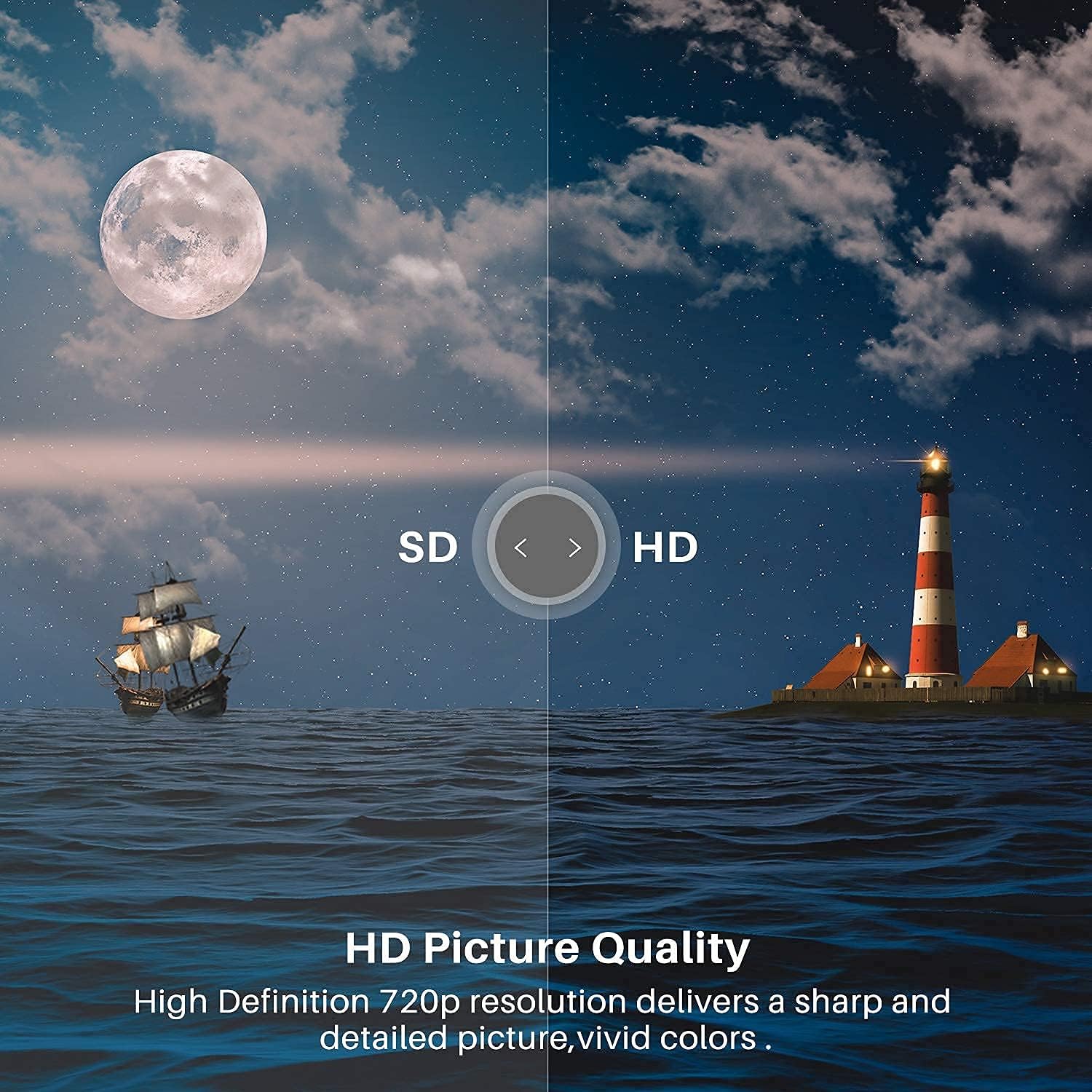
Image 1.2: Visual comparison illustrating the enhanced clarity of HD picture quality.
2. Safety Information
To ensure safe operation and prevent damage, observe the following safety precautions:
- Do not expose the TV to rain or moisture.
- Do not block ventilation openings.
- Protect the power cord from being walked on or pinched.
- Only use attachments/accessories specified by the manufacturer.
- Unplug the TV during lightning storms or when unused for long periods.
- Refer all servicing to qualified service personnel.
3. Package Contents
Verify that all items are present in the package:
- Caixun 24-inch HD LED TV
- Remote Control
- User Manual (this document)
- TV Stand (2 pieces)
- Screws for Stand Installation
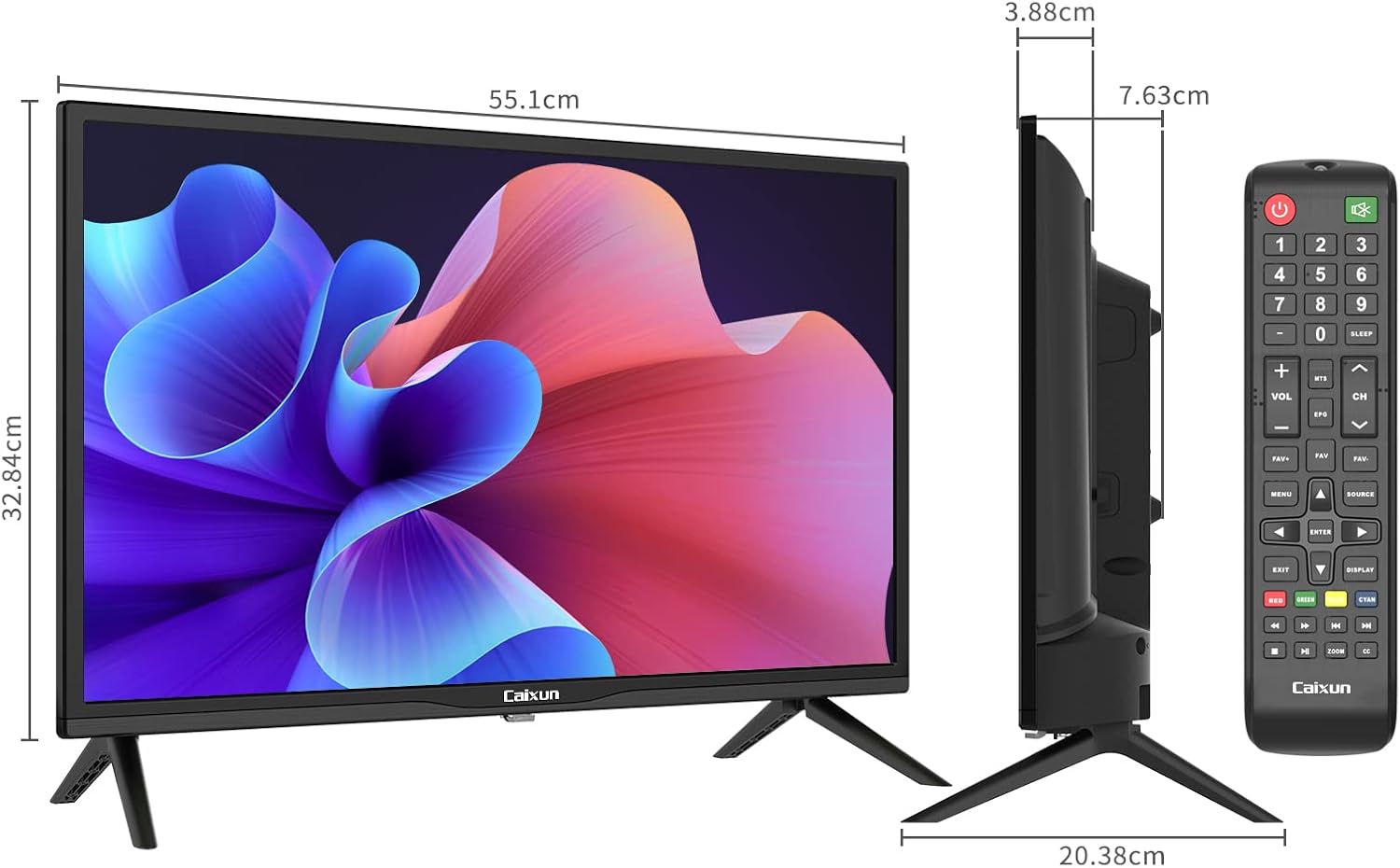
Image 3.1: The television unit, remote control, and approximate dimensions.
4. Setup
4.1. Stand Installation
- Carefully place the TV face down on a soft, flat surface to prevent screen damage.
- Align the two stand pieces with the corresponding slots on the bottom of the TV.
- Secure each stand piece with the provided screws.
- Carefully lift the TV and place it on a stable, level surface.
4.2. Wall Mounting
The Caixun EC24Z2 TV supports wall mounting. A wall mount bracket is optional and not included in the package. Follow the instructions provided with your specific wall mount bracket for installation. Ensure proper ventilation when wall-mounting.

Image 4.1: The television can be placed on a stand or mounted on a wall.
4.3. Connecting Peripherals
Connect external devices to the appropriate ports on the rear of the TV. Refer to the "Connectivity" section for port details.

Image 4.2: Rear panel of the TV displaying various input and output ports.
5. Operating Instructions
5.1. Remote Control Overview
The remote control allows you to operate all functions of your TV. Insert two AAA batteries (not included) into the remote control, observing polarity.
Key functions include:
- Power Button: Turns the TV on or off.
- Number Buttons (0-9): Select channels directly.
- Volume Up/Down: Adjusts the sound level.
- Channel Up/Down: Changes channels sequentially.
- Source Button: Selects input sources (HDMI, USB, VGA, etc.).
- Menu Button: Accesses the main menu.
- Navigation Buttons (Up/Down/Left/Right): Navigates through menus.
- OK/Enter Button: Confirms selections.
- Exit Button: Exits the current menu.
5.2. Basic Operation
- Power On/Off: Press the Power button on the remote control or the TV.
- Channel Selection: Use the Number buttons or Channel Up/Down buttons.
- Volume Adjustment: Use the Volume Up/Down buttons.
- Input Source Selection: Press the Source button to cycle through available inputs (HDMI, USB, VGA, AV, etc.).
5.3. Menu Navigation
Press the Menu button to access settings. Use the Navigation buttons to move between options and the OK button to select. Press Exit to leave the menu.
- Picture Settings: Adjust brightness, contrast, color, sharpness, and picture mode.
- Sound Settings: Adjust volume, bass, treble, balance, and sound mode. Dolby Audio provides enhanced sound quality.
- Channel Settings: Scan for channels, adjust channel preferences.
- Time Settings: Set time, date, and sleep timer.
- System Settings: Language, OSD duration, factory reset.
6. Connectivity
The Caixun EC24Z2 TV offers various ports for connecting external devices:
- HDMI (1x): High-Definition Multimedia Interface for connecting devices like Blu-ray players, gaming consoles, or computers. Supports resolutions up to 1366x768 at 60Hz.
- USB (1x): Universal Serial Bus port for connecting USB storage devices to play media files.
- VGA (1x): Video Graphics Array port for connecting a computer as a monitor.
- AV IN (1x): Audio/Video input for connecting older devices using composite cables.
- PC Audio IN (1x): Audio input for VGA connection.
- Optical (1x): Digital audio output for connecting to a soundbar or home theater system.
- Headphone (1x): 3.5mm jack for connecting headphones.
- YPBPR (1x): Component video input.
- Antenna Input (TV DVB-T/T2/S/S2): For connecting an antenna or satellite dish.
- CI Slot (1x): Common Interface slot for conditional access modules.

Image 6.1: The TV can function as a computer monitor via HDMI connection.

Image 6.2: The TV is suitable for gaming when connected to a console.
7. Maintenance
7.1. Cleaning
- Always unplug the TV before cleaning.
- Use a soft, dry cloth to clean the screen and cabinet.
- For stubborn marks, lightly dampen the cloth with water or a mild, non-abrasive cleaner specifically designed for electronics.
- Never spray cleaner directly onto the screen or cabinet.
7.2. Storage
If storing the TV for an extended period, ensure it is kept in a cool, dry place, away from direct sunlight and extreme temperatures. It is recommended to store it in its original packaging if available.
8. Troubleshooting
Before contacting customer support, try the following solutions for common issues:
| Problem | Possible Solution |
|---|---|
| No power | Ensure the power cord is securely plugged into the TV and a working electrical outlet. Check if the outlet has power. |
| No picture, but sound is present | Check the input source. Ensure the connected device is powered on and functioning correctly. |
| No sound, but picture is present | Check the volume level and mute setting. Ensure audio cables are correctly connected. |
| Remote control not working | Replace batteries. Ensure there are no obstructions between the remote and the TV's IR sensor. |
| Poor picture quality | Adjust picture settings (brightness, contrast, sharpness). Check antenna/cable connection. Ensure the input source is providing a high-quality signal. |
9. Specifications
| Feature | Detail |
|---|---|
| Brand | Caixun |
| Model Number | EC24Z2 |
| Screen Size | 24 Inches (61 cm) |
| Display Technology | LED LCD |
| Resolution | 1366 x 768 (HD) |
| Aspect Ratio | 16:9 |
| Refresh Rate | 60 Hz |
| Audio Technology | Dolby Audio |
| Connectivity | 1x HDMI, 1x USB, 1x VGA, 1x AV IN, 1x PC Audio IN, 1x Optical, 1x Headphone, 1x YPBPR, Antenna (DVB-T/T2/S/S2), 1x CI Slot |
| Mounting Type | Table Mount (Stand included), Wall Mount (Bracket optional) |
| Power Consumption (SDR) | 21.0 W (21 kWh/1000h) |

Image 9.1: The TV features D-LED technology for HD resolution display.

Image 9.2: EU Energy Label for model EC24Z2, indicating energy efficiency class F and 21 kWh/1000h consumption.
For more detailed product information, refer to the EPREL database (QR code link).

Image 9.3: Excerpt from the product data sheet, showing detailed technical specifications.

Image 9.4: Detailed table of panel, audio, video, and input specifications.
10. Warranty and Support
The Caixun EC24Z2 TV comes with a one-year warranty. This warranty is linked to the warranty card provided with your purchase. Please retain your proof of purchase and warranty card for any claims.
For technical support or warranty inquiries, please contact your retailer or the official Caixun customer service channels.