1. Introduction
Thank you for purchasing the EVICIV 15.6-inch Portable Touch Panel Monitor. This manual provides essential information for setting up, operating, and maintaining your new portable display. Please read this manual thoroughly before use to ensure optimal performance and longevity of your device.
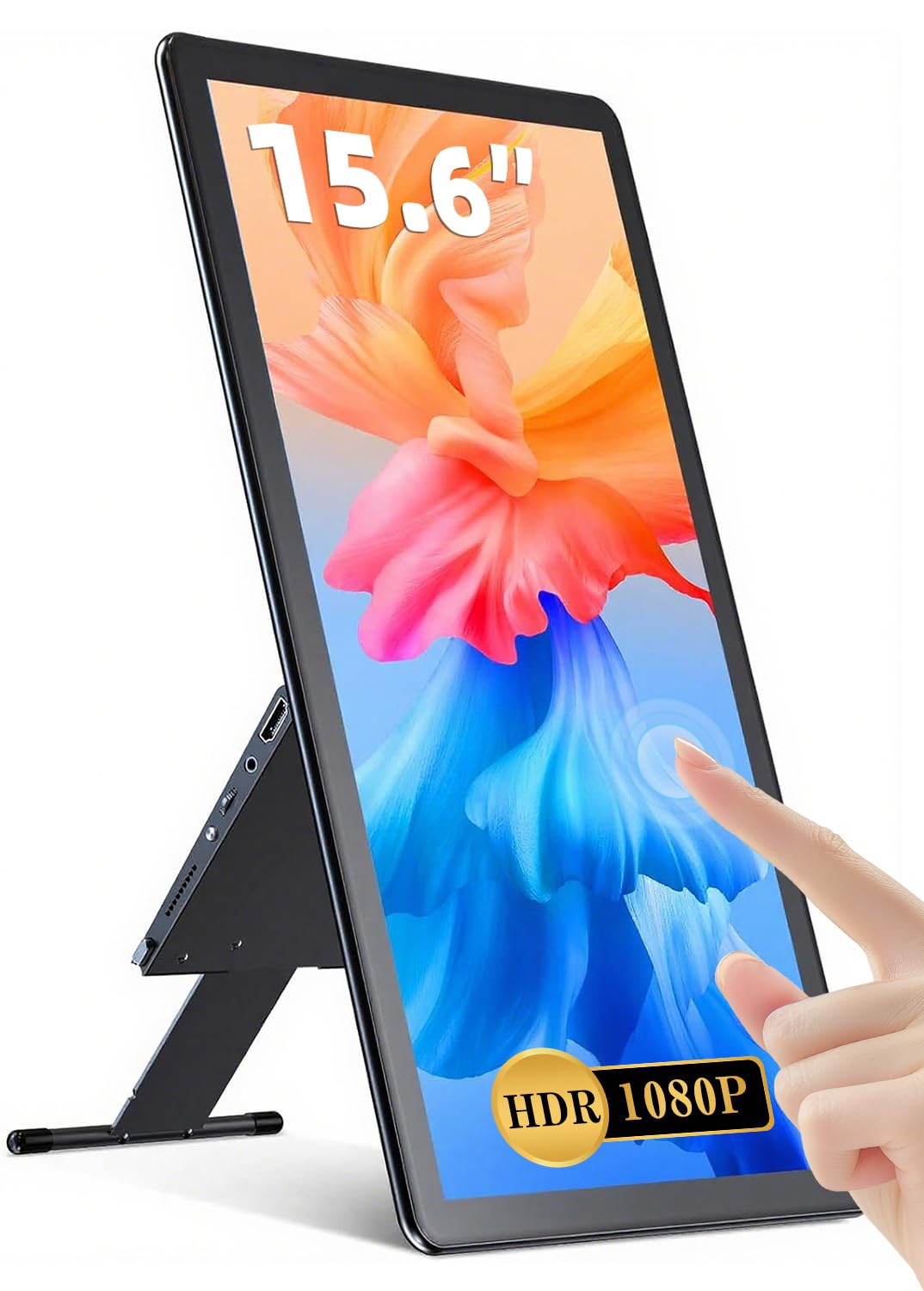
Image: The EVICIV 15.6-inch Portable Touch Panel Monitor, showcasing its sleek design and compact form factor.
2. Product Features
- 5-Point Touch Functionality: Experience interactive and seamless operation with highly accurate and responsive 5-point multi-touch support. Ideal for document editing, drawing, and gaming. Note: Touch functionality is supported only on Windows systems. Smartphones not compatible with USB 3.1 cannot utilize touch features.
- High-Quality Full HD Display: Enjoy clear movie screens and vivid photos with 1920x1080 resolution. The IPS LCD panel offers an ultra-wide 178° viewing angle, ensuring sharp and vibrant images from various perspectives. A 2000:1 contrast ratio provides detailed brightness and color reproduction, even in dark scenes.
- Wide Color Gamut & Gaming Performance: Features a high-quality glossy IPS panel with 100% sRGB coverage and 16.7 million colors for photo-realistic color reproduction. Supports Full HD for immersive gaming and video playback. Includes blue light reduction technology for eye protection and consistent image quality.
- Versatile Connectivity: Equipped with a PD port, standard HDMI, two full-function Type-C ports, and a 3.5mm earphone jack. Compatible with laptops, desktops, smartphones, PS3/PS4, XBOX ONE, Wii, and Nintendo Switch.
- Single Cable Connection: If your device supports Type-C Alternate Mode, a single included Type-C cable can provide both video output and power. Note: The connected device must support DP ALT MODE for video output. If drawing power from the connected device, ensure adequate power supply; otherwise, use a power adapter.
- Integrated Foldable Stand: The sleek design includes an integrated smart stand made of durable aluminum alloy. It allows for free vertical or horizontal adjustment. Non-slip rubber on the bottom ensures stability, minimizing the risk of tipping even at large angles.
3. Package Contents
Please check the package for the following items:
- EVICIV 15.6-inch Portable Touch Panel Monitor
- USB-C to USB-C Cable (for video/power/touch)
- HDMI to Mini HDMI Cable (for video)
- USB-A to USB-C Cable (for power/touch data)
- Power Adapter
- User Manual
4. Setup
4.1 Connecting to a Laptop/PC (Type-C)
- Ensure your laptop's Type-C port supports DP ALT MODE (DisplayPort Alternate Mode) for video output.
- Connect one end of the included USB-C to USB-C cable to your laptop's compatible Type-C port.
- Connect the other end of the USB-C to USB-C cable to one of the full-function Type-C ports on the monitor.
- The monitor should automatically detect the signal and display your laptop's screen. If touch functionality is desired, ensure your Windows system is configured for touch.
- If the monitor does not power on or flickers, connect the power adapter to the monitor's PD port for external power.
4.2 Connecting to a Laptop/PC (HDMI)
- Connect one end of the included HDMI to Mini HDMI cable to your laptop's HDMI output port.
- Connect the Mini HDMI end of the cable to the Mini HDMI port on the monitor.
- Connect the power adapter to the monitor's PD port using a USB-C cable for power.
- For touch functionality, connect the USB-A to USB-C cable from your laptop's USB-A port to the monitor's other full-function Type-C port.
4.3 Connecting to a Smartphone (Type-C)
- Ensure your smartphone's Type-C port supports DP ALT MODE for video output.
- Connect one end of the included USB-C to USB-C cable to your smartphone's compatible Type-C port.
- Connect the other end of the USB-C to USB-C cable to one of the full-function Type-C ports on the monitor.
- The monitor should mirror or extend your smartphone's display.
- If the monitor does not power on or flickers, connect the power adapter to the monitor's PD port for external power.
4.4 Port Overview

Image: Diagram illustrating the various ports on the EVICIV portable monitor, including Mini HDMI, Type-C (full-function), Type-C (power only), 3.5mm audio jack, and control buttons.
4.5 Stand Usage

Image: The integrated foldable stand being adjusted to support the monitor at various angles for comfortable viewing.

Image: The monitor displayed in both horizontal (landscape) and vertical (portrait) orientations, demonstrating the versatility of the integrated stand.
5. Operating Instructions
5.1 Power On/Off and Menu Navigation
- Power Button: Press and hold the power button to turn the monitor on or off. A short press may activate/deactivate standby mode.
- Menu Button: Press the menu button to access the On-Screen Display (OSD) menu.
- Navigation Buttons: Use the navigation buttons (usually + and -) to move through menu options and adjust settings.
- Confirm/Exit: Press the menu button again to confirm a selection or exit the OSD menu.
5.2 Display Settings
Adjust various display settings through the OSD menu:
- Brightness/Contrast: Adjust these to suit your viewing environment.
- Color Temperature: Select from preset options (e.g., Warm, Cool, User) or fine-tune RGB values.
- Aspect Ratio: Choose between 16:9, 4:3, or other available options to match your content.
- Picture Mode: Select modes like Standard, Game, Movie, etc., for optimized viewing.
- HDR/FreeSync: Enable or disable these features if supported by your connected device.
5.3 Touch Operation

Image: A hand demonstrating 5-point multi-touch gestures on the monitor screen, such as tapping, swiping, and pinching.
The monitor supports 5-point multi-touch gestures for intuitive interaction. Ensure the touch data cable (USB-A to USB-C or full-function Type-C) is connected to a compatible Windows system for touch functionality.
5.4 Color Gamut

Image: A split screen demonstrating the monitor's wide color gamut, showing vibrant and accurate color reproduction compared to a standard display.
6. Maintenance
- Cleaning: Use a soft, lint-free cloth to gently wipe the screen. For stubborn smudges, slightly dampen the cloth with water or a screen-cleaning solution. Avoid harsh chemicals or abrasive materials.
- Storage: When not in use, store the monitor in a cool, dry place. Use the protective cover or case to prevent scratches and dust accumulation.
- Handling: Avoid dropping or subjecting the monitor to strong impacts. Do not place heavy objects on top of the monitor.
- Power: Always use the provided power adapter. Disconnect the power cable during thunderstorms or when not in use for extended periods.
7. Troubleshooting
7.1 Common Issues
- No Display/Signal:
- Ensure all cables (video and power) are securely connected.
- Verify the input source on the monitor matches your connection (HDMI, Type-C).
- Check if your device's output settings are correctly configured for an external display.
- If using a single Type-C cable, confirm your device's Type-C port supports DP ALT MODE.
- Flickering Screen:
- This can be caused by insufficient power. Connect the external power adapter to the monitor's PD port.
- Check for loose cable connections.
- No Touch Functionality:
- Ensure the touch data cable (USB-A to USB-C or full-function Type-C) is connected to a compatible Windows system.
- Verify your operating system settings for touch input.
- Smartphones not compatible with USB 3.1 may not support touch.
- No Audio:
- Check the monitor's volume settings and your connected device's audio output settings.
- Ensure the 3.5mm audio jack is properly connected if using external speakers/headphones.
- Brightness Issues:
- If your laptop's battery is below 30% and not plugged in, the screen may dim to save power and cannot be made brighter. Connect external power.
7.2 Video Demonstrations
Video: Demonstration of portable display connection and usage with various devices, including laptops and smartphones.
Video: A brief overview of the portable monitor's features and connectivity options.
Video: A short demonstration of touch screen functionality on a portable monitor.
8. Specifications
| Feature | Specification |
|---|---|
| Brand | EVICIV |
| Model | B089W8CT63 |
| Screen Size | 15.6 inches |
| Resolution | 1920x1080 (FHD 1080p) |
| Aspect Ratio | 16:9 |
| Panel Type | IPS |
| Screen Surface | Glossy |
| Touch Function | 5-point Multi-touch (Windows only) |
| Connectivity | PD Port, Standard HDMI, 2x Full-function Type-C, 3.5mm Earphone Jack |
| Item Weight | 2.18 Kilograms |
| Dimensions (Package) | 40.7 x 25.6 x 7.2 cm |
9. Warranty and Support
This EVICIV product comes with a standard manufacturer's warranty. For detailed warranty information, please refer to the warranty card included in your package or contact EVICIV customer support.
If you encounter any issues not covered in this manual or require further assistance, please contact our customer support team through the official EVICIV website or your retailer.


