
iKiKin M16
iKiKin M16 HUD Car Head-Up Display User Manual
Model: M16 | Brand: iKiKin
1. Introduction
The iKiKin M16 Head-Up Display (HUD) is an advanced vehicle accessory designed to enhance driving safety and convenience by projecting essential driving data directly into the driver's line of sight. Utilizing GPS technology, it provides accurate information such as vehicle speed, compass direction, altitude, driving time, and mileage. The M16 features a 3.5-inch HD display with integrated shading for clear readability in various lighting conditions and includes intelligent alarm functions to alert drivers to potential hazards.

Figure 1.1: iKiKin M16 HUD device displaying speed and compass information.
2. Product Overview
2.1 Key Features
- 3.5-inch HD Display: Clear and bright display with integrated lens cover to prevent image duplication.
- Automatic Brightness Adjustment: Built-in light sensor adjusts display brightness based on ambient light.
- GPS Data Display: Shows speed, GPS compass, altitude, mileage, and driving time.
- Safety Alarms: Includes over-speed alarm and fatigue driving reminder.
- Universal Compatibility: Works with all vehicle types (cars, trucks, motorcycles, new energy vehicles, hybrid cars).
- Durable Material: Constructed from PC + ABS material, resistant to extreme temperatures (-100°F to 170°F).
- USB Power Supply: Low power consumption, no power theft when vehicle is turned off.
2.2 Package Contents
Please check the package for the following items:
- iKiKin M16 HUD Unit
- USB Power Cable
- Anti-slip Mat
- Reflective Film (optional for clearer projection)
- User Manual (this document)

Figure 2.1: The iKiKin M16 HUD is designed for universal compatibility across various vehicle types.
3. Setup and Installation
Follow these steps to properly set up and install your iKiKin M16 HUD:
- Placement: Choose a suitable flat surface on your dashboard where the HUD will not obstruct your view of the road. Ensure the surface is clean and dry.
- Secure the Device: Place the provided anti-slip mat on the chosen dashboard location. Then, place the iKiKin M16 HUD unit on the mat to secure it.
- Connect Power: Connect the supplied USB power cable to the HUD unit's power input port. Plug the other end of the USB cable into your vehicle's USB port or a 5V USB car charger (not included). The device will power on automatically with the vehicle's ignition.
- Reflective Film (Optional): If you experience a double image or prefer a clearer projection, you can apply the reflective film to your windshield.
- Clean the windshield area where the HUD will project.
- Peel off the protective layer from the reflective film.
- Carefully apply the film to the windshield, ensuring no air bubbles. Use a card to smooth it out.
- Positioning: Adjust the angle of the HUD unit so that the display is clearly visible and aligned with your driving position.
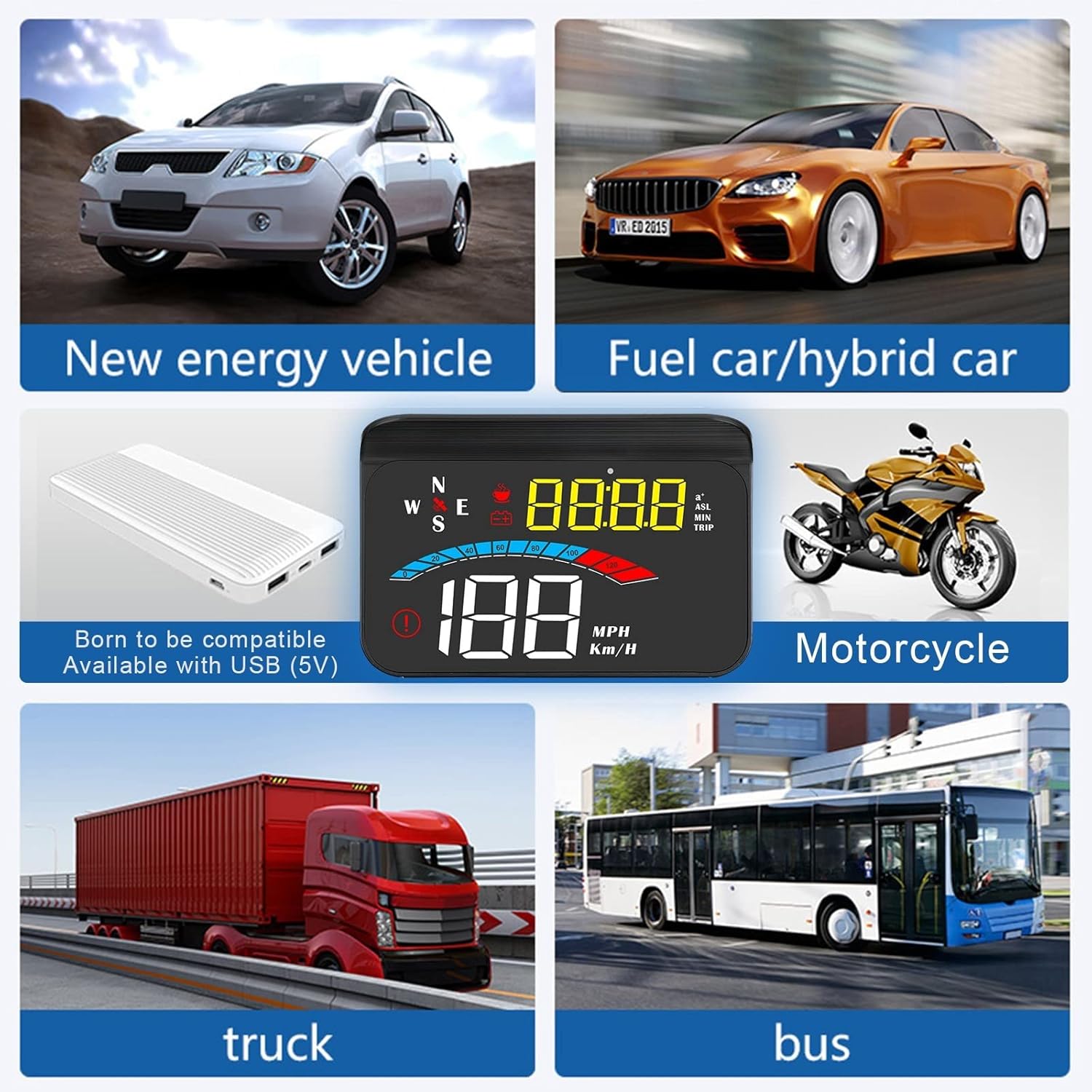
Figure 3.1: The iKiKin M16 HUD is compatible with a wide range of vehicles, connecting via USB (5V).
4. Operating Instructions
The iKiKin M16 HUD provides various driving data and functions. The device automatically adjusts brightness based on ambient light, but manual adjustment is also possible.
4.1 Display Modes and Data
The HUD can display multiple types of data. Use the control button (usually a scroll wheel or button on the side/back) to cycle through display modes.
- Speed: Displays current vehicle speed in MPH or Km/H.
- GPS Compass: Shows current driving direction (N, S, E, W, NE, NW, SE, SW).
- Altitude: Displays current altitude based on GPS data.
- Mileage: Tracks trip mileage. This resets when the device is powered off.
- Driving Time: Shows the duration of the current trip. This also resets when the device is powered off.
- System Time: Displays the current time, synchronized via satellite.
- 100km Acceleration Test: Measures the time it takes to accelerate from 0 to 100 km/h.
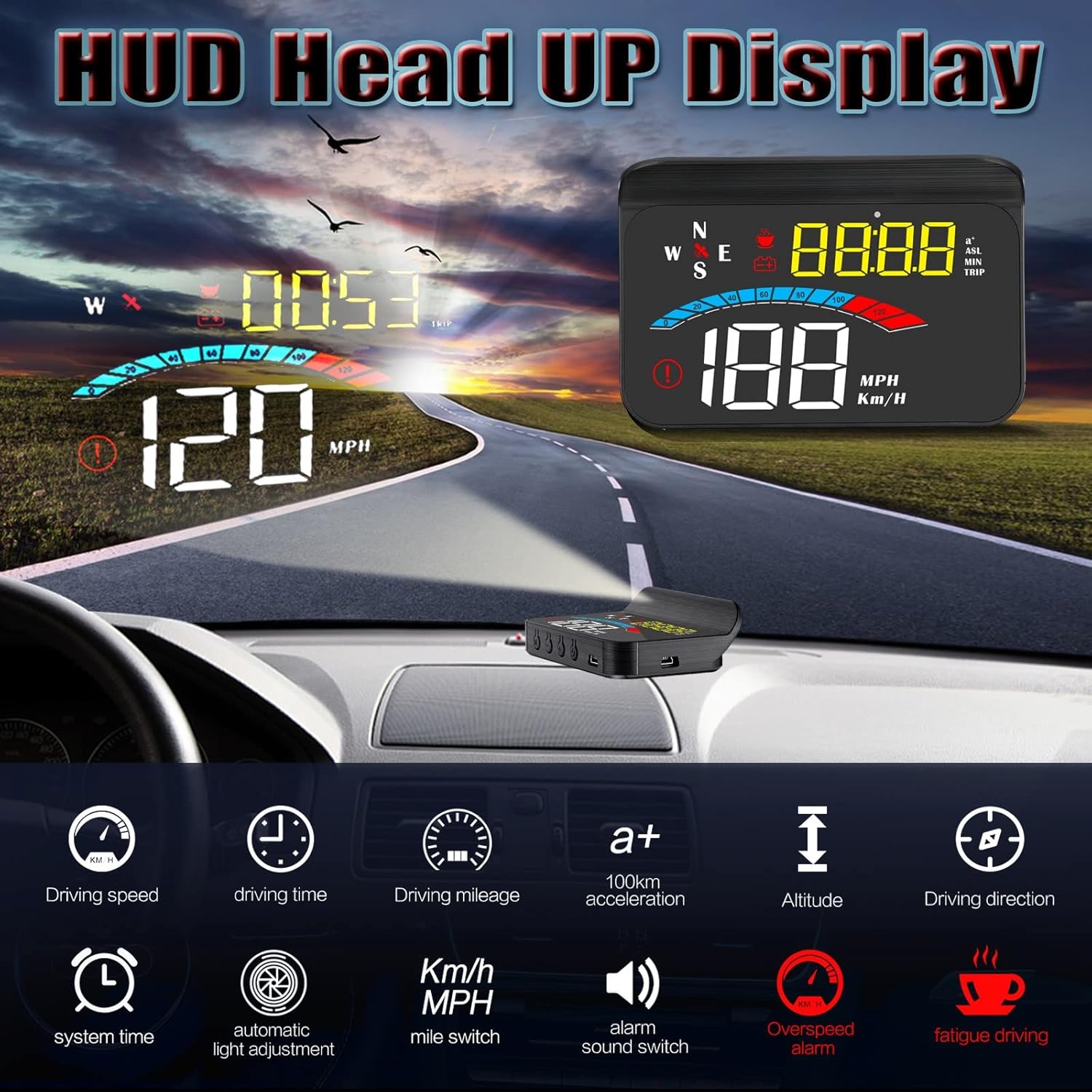
Figure 4.1: Overview of data display modes and functions available on the iKiKin M16 HUD.
4.2 Alarm Functions
The M16 HUD includes two important safety alarm functions:
- Over-Speed Alarm: The device will emit an audible alert and/or visual warning if your vehicle exceeds a preset speed limit. This limit can typically be adjusted in the settings.
- Fatigue Driving Reminder: After a continuous period of driving (e.g., 4 hours), the device will remind you to take a break to prevent fatigue.

Figure 4.2: The iKiKin M16 HUD provides both over-speed and fatigue driving alarm functions for enhanced safety.
4.3 Settings Adjustment
To access and adjust settings (e.g., speed unit, alarm thresholds, brightness):
- Locate the control button/wheel on the device.
- Press and hold the button (or follow specific instructions in the quick start guide if provided with the product) to enter the settings menu.
- Use the button/wheel to navigate through options and adjust values.
- Press and hold again (or short press to confirm and exit) to save changes and exit the settings menu.
Note: Specific button functions and menu navigation may vary slightly. Refer to the quick start guide included with your product for detailed button operations.
5. Maintenance
Proper care and maintenance will ensure the longevity and optimal performance of your iKiKin M16 HUD.
- Cleaning: Use a soft, dry cloth to wipe the display and exterior of the unit. Do not use abrasive cleaners, solvents, or chemical sprays, as these can damage the device.
- Temperature: While the device is designed for wide temperature ranges, avoid exposing it to extreme heat or cold for prolonged periods when not in use.
- Storage: If storing the device for an extended period, disconnect it from power and store it in a cool, dry place.
- Avoid Water: The device is not waterproof. Keep it away from water and excessive moisture.
6. Troubleshooting
If you encounter issues with your iKiKin M16 HUD, please refer to the following common problems and solutions:
| Problem | Possible Cause | Solution |
|---|---|---|
| No display/Device not powering on | No power supply; Loose cable connection; Vehicle's USB port not active. | Check USB cable connection. Ensure vehicle's ignition is on. Try a different USB port or 5V car charger. |
| Inaccurate speed reading | GPS signal interference; Speed calibration needed. | Ensure clear view of the sky for GPS signal. Calibrate speed in settings if discrepancy persists (refer to quick start guide for calibration steps). |
| Double image on windshield | Windshield material; No reflective film applied. | Apply the provided reflective film to the windshield. Adjust the angle of the HUD unit. |
| GPS signal not found/slow to connect | Obstructed view of sky; Device moved during startup. | Ensure the device has a clear view of the sky. Wait a few minutes after starting the vehicle for GPS acquisition. Avoid moving the device during startup. |
| Display too dim/bright | Automatic brightness sensor issue; Manual brightness setting. | Ensure the light sensor on the device is not obstructed. Adjust brightness manually through the settings menu. |
If the problem persists after trying these solutions, please contact customer support.
7. Specifications
| Feature | Detail |
|---|---|
| Model Number | M16 |
| Brand | iKiKin |
| Display Size | 3.5 inches |
| Dimensions (L x W x H) | 14.2 x 9.2 x 5.2 cm (5.59 x 3.62 x 2.05 inches) |
| Weight | 180 Grams (0.4 lbs) |
| Material | Acrylonitrile Butadiene Styrene (ABS) |
| Power Supply | USB (5V) |
| Operating Temperature | -100°F to 170°F (approx. -73°C to 77°C) |
| GPS Module | Yes |
| UPC | 724873493591 |
8. Warranty and Support
8.1 Warranty Information
iKiKin provides a one-year warranty for the M16 HUD Car Head-Up Display from the date of purchase. This warranty covers manufacturing defects and malfunctions under normal use. Additionally, a 90-day free refund or replacement is offered for product issues.
The warranty does not cover damage caused by:
- Accident, misuse, abuse, or improper operation.
- Unauthorized repair or modification.
- Damage from natural disasters or external causes.
8.2 Customer Support
For any questions regarding the product, accessories, or if you encounter any issues not covered in the troubleshooting section, please contact iKiKin customer support. Please have your purchase details and product model number (M16) ready when contacting support.
Contact information for iKiKin customer support can typically be found on the product packaging, official website, or through your point of purchase.
Related documentsM16

Ask a question about this manual
Ask about setup, troubleshooting, compatibility, parts, safety, or missing instructions. Manuals+ will review the question and use this page’s manual context to help answer it.