1. Introduction
Thank you for purchasing the Triby Dual Type Baby Camera BM-DW01. This device is designed to provide reliable monitoring of your child using either a dedicated monitor or your smartphone. This manual will guide you through the setup, operation, and maintenance of your new baby camera.
2. Important Safety Information
- Camera Placement: Do not install the camera directly above your child's head or within their reach to prevent accidental injury or entanglement.
- Wireless Interference: The wireless connection may be interrupted or experience degraded video quality due to distance, physical obstacles (walls, furniture), or other wireless interference. Ensure optimal placement for clear signal.
- Mobile WiFi Incompatibility: This device is not compatible with mobile WiFi hotspots for smartphone connectivity. A stable home Wi-Fi network is required.
- Power Source: Use only the provided AC adapters for the camera and monitor.
3. Package Contents
Please check that all items are present in your package:
- Baby Camera Unit (x1)
- Dedicated Monitor Unit (x1)
- AC Power Adapter for Camera (x1)
- AC Power Adapter for Monitor (x1)
- Instruction Manual (this document)
4. Product Overview
The Triby BM-DW01 offers flexible monitoring options with its camera, dedicated monitor, and smartphone app compatibility.

Image: The Triby BM-DW01 baby camera system, featuring the camera unit, a dedicated 4.3-inch monitor, and a smartphone displaying live feed of a baby.
The system includes a camera unit, a portable dedicated monitor, and supports connection to your smartphone via a dedicated application.
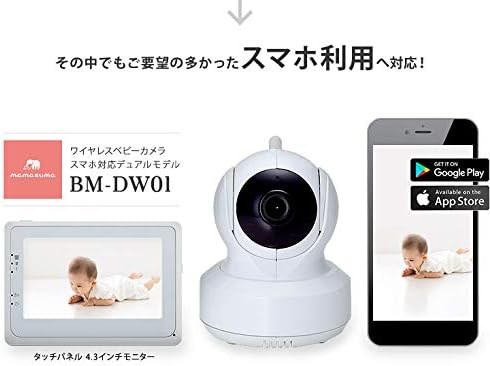
Image: Breakdown of the Triby BM-DW01 system, illustrating the camera, the 4.3-inch touch panel monitor, and a smartphone indicating app availability on Google Play and the App Store.
The dual mode allows you to choose between the dedicated monitor for home use or your smartphone for remote viewing.

Image: An illustration highlighting the dual mode capability of the Triby BM-DW01, allowing users to monitor via a smartphone (iOS/Android) or the dedicated 4.3-inch touch panel monitor.
5. Setup
5.1 Initial Charging
- Connect the provided AC adapters to the camera and monitor units.
- Plug the adapters into a power outlet.
- Allow both units to charge fully before first use. The monitor's built-in battery takes approximately 6 hours to charge.
5.2 Camera Placement
Place the camera on a flat, stable surface in your child's room. Ensure it has a clear line of sight to your child's crib or play area. Avoid placing it too close to the child or in a position where it could be easily knocked over.
5.3 Dedicated Monitor Connection
The dedicated monitor and camera are designed for direct communication. Once both units are powered on, they should automatically connect. If they do not connect, ensure they are within the recommended communication range (5-10 meters, depending on obstacles).
5.4 Smartphone App Connection
To use smartphone monitoring, follow these steps:
- Download the dedicated application from Google Play or the App Store. Search for "Triby Baby Camera" or refer to the QR code in the included quick start guide.
- Install the application on your smartphone.
- Follow the in-app instructions to pair your camera with your home Wi-Fi network.
- Important: When connecting your smartphone to the camera's Wi-Fi network during the setup process, temporarily disable your mobile data (data roaming) to ensure a successful connection.

Image: A network diagram illustrating how the smartphone, internet, broadband router, and the baby camera system (camera and dedicated monitor) connect within a home environment.
6. Operating Instructions
The Triby BM-DW01 offers a range of features for comprehensive baby monitoring.
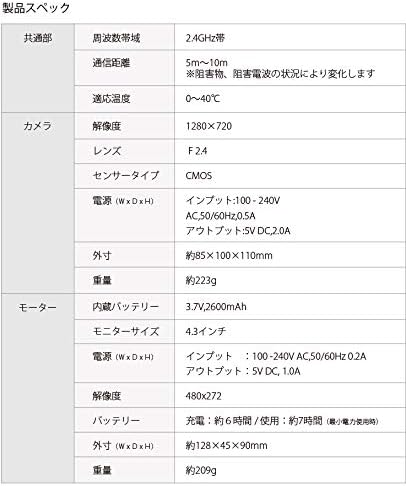
Image: An overview of the key features of the Triby BM-DW01, depicted with icons and brief descriptions.
6.1 Basic Monitoring (Dedicated Monitor)
Once the camera and monitor are connected, the live video feed will automatically display on the 4.3-inch touch panel monitor. You can carry the monitor with you around the house for continuous monitoring.
6.2 Smartphone Monitoring
Open the dedicated app on your smartphone. After successful setup, you can view the live feed from anywhere with an internet connection. This allows for remote monitoring when you are away from home.
6.3 Pan/Tilt Control
Use the controls on the dedicated monitor's touch panel or within the smartphone app to remotely adjust the camera's viewing angle. The camera supports approximately 270° horizontal pan and 120° vertical tilt.
6.4 2-Way Audio
Press and hold the microphone button on the monitor or in the app to speak to your child through the camera's speaker. This allows you to soothe your child with your voice.
6.5 Night Vision
The camera automatically switches to infrared night vision in low-light conditions, providing a clear black-and-white image of your child even in complete darkness (0 Lux minimum illumination).
6.6 Zoom
Digitally zoom in on the image to get a closer look at your child. This feature is available on both the dedicated monitor and the smartphone app.
6.7 Lullaby Function
Select and play lullabies through the camera's speaker to help your child fall asleep or calm down. Adjust the volume as needed.
6.8 Temperature Alarm
Set a desired temperature range. If the room temperature goes outside this range, the monitor will alert you, helping you maintain a comfortable environment for your child.
6.9 Audio Mode (Voice On)
In audio mode, the monitor's screen can turn off to save power, but it will activate and alert you if it detects sound (e.g., your baby crying). This is also referred to as 'Voice On' functionality.
7. Maintenance
- Cleaning: Gently wipe the camera lens and monitor screen with a soft, dry cloth. Do not use abrasive cleaners or solvents.
- Battery Care: To prolong battery life, avoid fully discharging the monitor's battery frequently. Charge it regularly. If storing the device for an extended period, charge the battery to about 50% and store in a cool, dry place.
- Storage: Store the device in a clean, dry environment away from extreme temperatures and direct sunlight.
8. Troubleshooting
- No Video/Poor Quality on Monitor:
- Ensure both camera and monitor are powered on and charged.
- Reduce the distance between the camera and monitor.
- Remove any large obstacles (walls, metal objects) between the units.
- Check for other 2.4GHz wireless devices that might be causing interference.
- Smartphone App Cannot Connect or Disconnects Frequently:
- Ensure your home Wi-Fi network is stable and has internet access.
- During initial setup, temporarily disable mobile data/data roaming on your smartphone.
- Restart the camera unit by unplugging and re-plugging its power adapter.
- Restart your home Wi-Fi router.
- Ensure the camera is within range of your home Wi-Fi router.
- Remember, the device is not compatible with mobile WiFi hotspots.
- No Sound or Poor Sound Quality:
- Check the volume settings on the monitor or smartphone app.
- Ensure there are no obstructions blocking the camera's microphone or monitor's speaker.
9. Specifications
| Category | Item | Specification |
|---|---|---|
| General | Brand | Triby |
| Model Number | BM-DW01 | |
| Connectivity Technology | Wireless (2.4GHz) | |
| Connection Protocol | Wi-Fi | |
| Recommended Use | Baby Monitor | |
| Camera | Resolution | 1280x720 (HD) |
| Lens | F2.4 | |
| Sensor Type | CMOS | |
| Pan/Tilt Range | Horizontal: approx. 270°, Vertical: approx. 120° | |
| Field of View | 60° | |
| Dimensions (W×D×H) | approx. 85 x 100 x 110 mm | |
| Weight | approx. 223 g | |
| Monitor | Display | 4.3-inch Touch Panel |
| Resolution | 480x272 | |
| Built-in Battery | 1 Lithium-ion battery (included) | |
| Battery Operation Time | approx. 7 hours | |
| Battery Charging Time | approx. 6 hours | |
| Dimensions (W×D×H) | approx. 128 x 45 x 90 mm | |
| Weight | approx. 209 g | |
| Environmental | Indoor/Outdoor Use | Indoor |
| Communication Range | 5m-10m (varies with obstacles/interference) | |
| Color | White |
10. Warranty and Support
For warranty information and customer support, please refer to the warranty card included in your product packaging or visit the official Triby website. Contact details for technical assistance are typically provided in the full instruction manual or on the manufacturer's support page.


