
1. Introduction
This manual provides instructions for the CAIWEI WiFi Bluetooth Mini Projector, Model US2-C180AB-01F. This device is a portable LCD projector designed for displaying video, images, and other media. It features wireless connectivity options including WiFi for screen mirroring and Bluetooth for audio and peripheral device connections. The projector operates on an Android 6.0 system, allowing for direct application installation and internet browsing.
2. Package Contents
Verify that all items listed below are included in your package. If any items are missing or damaged, please contact customer support.
- CAIWEI Mini Projector
- Remote Control
- AC Power Cable
- AV Cable
- HDMI Cable
- User Manual

Figure 2.1: Projector and Included Accessories. This image displays the projector along with its standard accessories: a remote control, AC power cable, AV cable, HDMI cable, and the user manual. The physical dimensions of the projector (204mm length, 150mm width, 88mm height) are also indicated.
3. Product Overview
3.1 Projector Components and Controls
Familiarize yourself with the various ports and control buttons on the projector.

Figure 3.1: Projector Controls and Ports. This diagram illustrates the top panel controls including keystone adjustment, focus wheel, power key, menu, directional keys, return, and source selection. The side panel shows ports for Audio Out, AV, USB, HDMI, VGA, and the speaker grille, along with a vent.
3.2 Key Features
- Wireless Connectivity: Integrated Android 6.0 operating system with WiFi and Bluetooth 4.0 for direct app installation, internet browsing, and wireless screen mirroring from smartphones (Airplay/Miracast/DLNA).
- High-Definition Display: Native resolution of 1280x720 pixels, supporting up to 1920x1080. Features 3800 LED lumens brightness and a 4000:1 contrast ratio.
- Long-Life LED Lamp: The LED light source has an expected lifespan of approximately 50,000 hours.
- Multimedia Compatibility: Supports various file formats including TXT, JPEG, BMP, PNG, MP3, WMA, ASF, OGG, AAC, WAV, 3GP, AVI, MKV, FLV, MOV, MP4, MPG, VOB, and RMVB.

Figure 3.2: Android OS and Wireless Connection. This image highlights the projector's Android 6.0 operating system interface, demonstrating its ability to run applications. It also illustrates the wireless connection feature, allowing screen mirroring from smartphones, tablets, and laptops without physical cables.
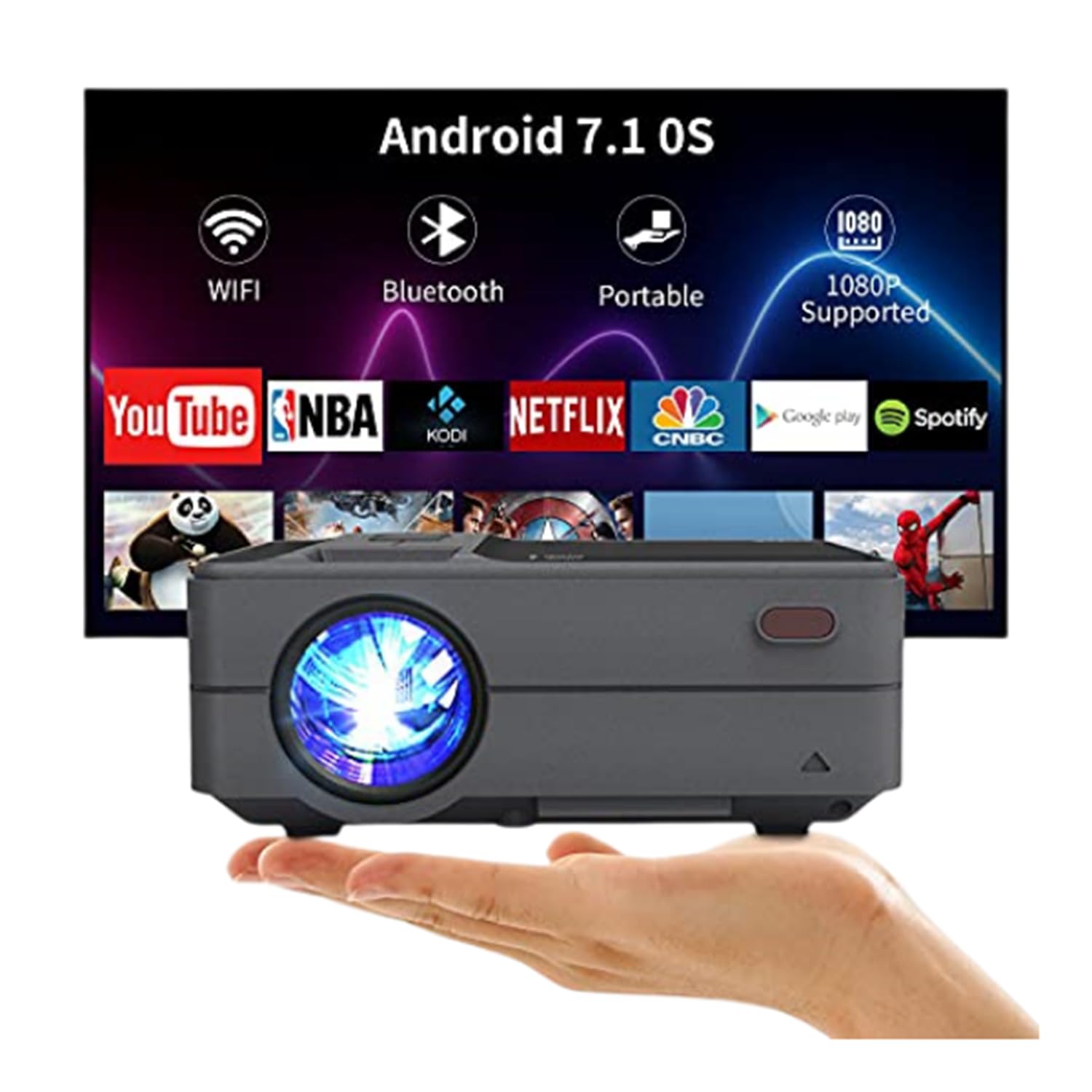
Figure 3.3: Bluetooth 4.0 Connectivity. This image demonstrates the projector's Bluetooth 4.0 capabilities, showing its compatibility with various Bluetooth devices such as external speakers, gamepads, keyboards, and mice for enhanced user interaction and audio output.
4. Setup
4.1 Power Connection
- Connect the AC power cable to the projector's power input port.
- Plug the other end of the AC power cable into a power outlet.
4.2 Initial Power On
- Press the power button on the projector or the remote control to turn on the device.
- Allow a few moments for the projector to boot up and display the main interface.
4.3 Focus and Keystone Adjustment
- Focus: Rotate the focus ring located on the top of the projector until the projected image appears clear and sharp.
- Keystone Correction: Use the keystone adjustment control to correct trapezoidal distortion if the projector is not perfectly perpendicular to the screen. The projector supports manual ±15° keystone correction.
5. Operating Instructions
5.1 Source Selection
To select an input source:
- Press the 'Source' button on the projector or remote control.
- Navigate through the available input options (HDMI, USB, AV, VGA) using the directional keys.
- Press 'OK' or 'Enter' to confirm your selection.
5.2 Wireless Screen Mirroring (WiFi)
The projector supports wireless screen casting for smartphones and tablets.
- For iOS Devices (Airplay): Ensure both the projector and your iOS device are connected to the same WiFi network. On your iOS device, open Control Center and select 'Screen Mirroring', then choose the projector from the list of available devices.
- For Android Devices (Miracast/DLNA): Ensure both the projector and your Android device are connected to the same WiFi network. On your Android device, enable 'Wireless Display', 'Screen Cast', or 'Smart View' (names may vary by device) and select the projector.
5.3 Bluetooth Connection
To connect Bluetooth devices:
- Go to the projector's settings menu and navigate to the Bluetooth section.
- Enable Bluetooth on the projector.
- Put your Bluetooth device (e.g., speaker, gamepad, keyboard, mouse) into pairing mode.
- Select your device from the list of available devices on the projector's screen to pair.
5.4 Media Playback from USB
Insert a USB flash drive into the USB port. The projector's media player will typically detect the drive automatically. Navigate through the files and select the desired media for playback.
6. Placement and Image Adjustment
6.1 Projection Distance and Size
The projector can produce an image size ranging from 24 to 200 inches, with an optimal projection distance between 3.41 and 19.84 feet. Refer to the table below for recommended distances for common screen sizes.
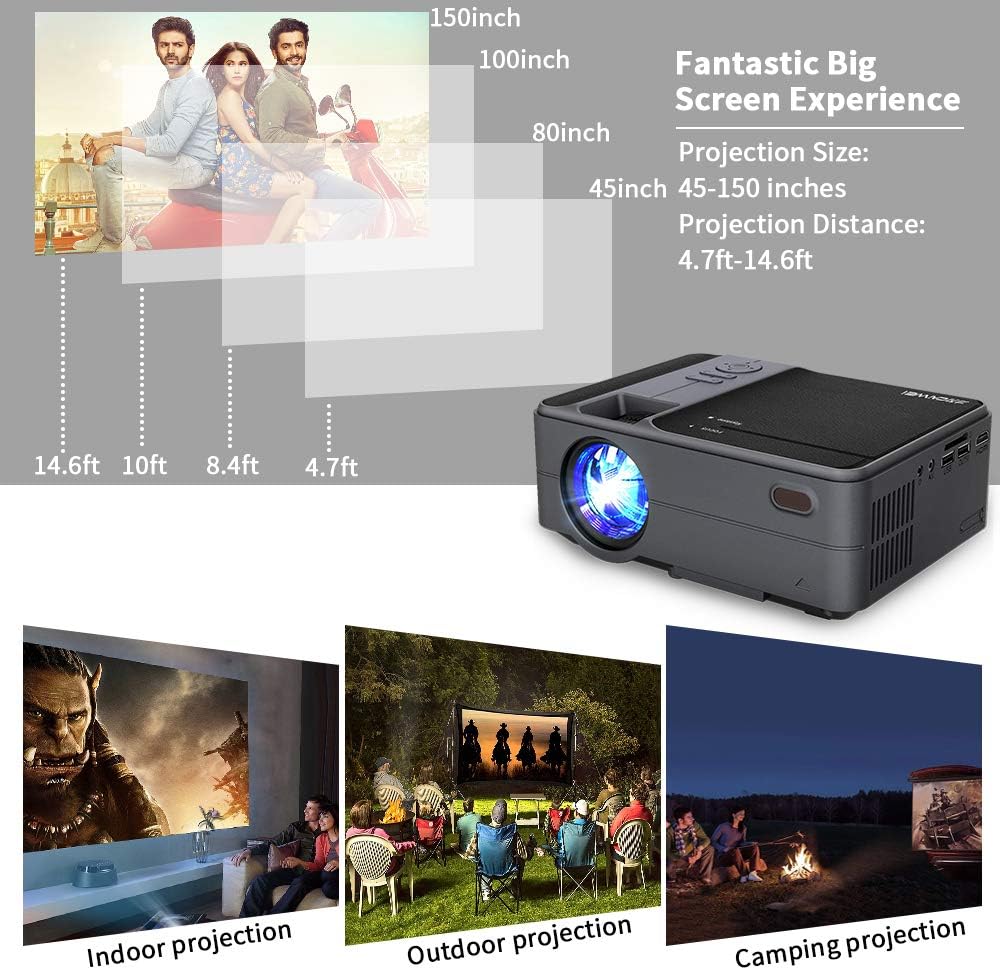
Figure 6.1: Projection Distance Guide. This chart provides recommended projection distances for achieving specific screen sizes, ranging from 45 inches at 4.7 feet to 150 inches at 14.6 feet.
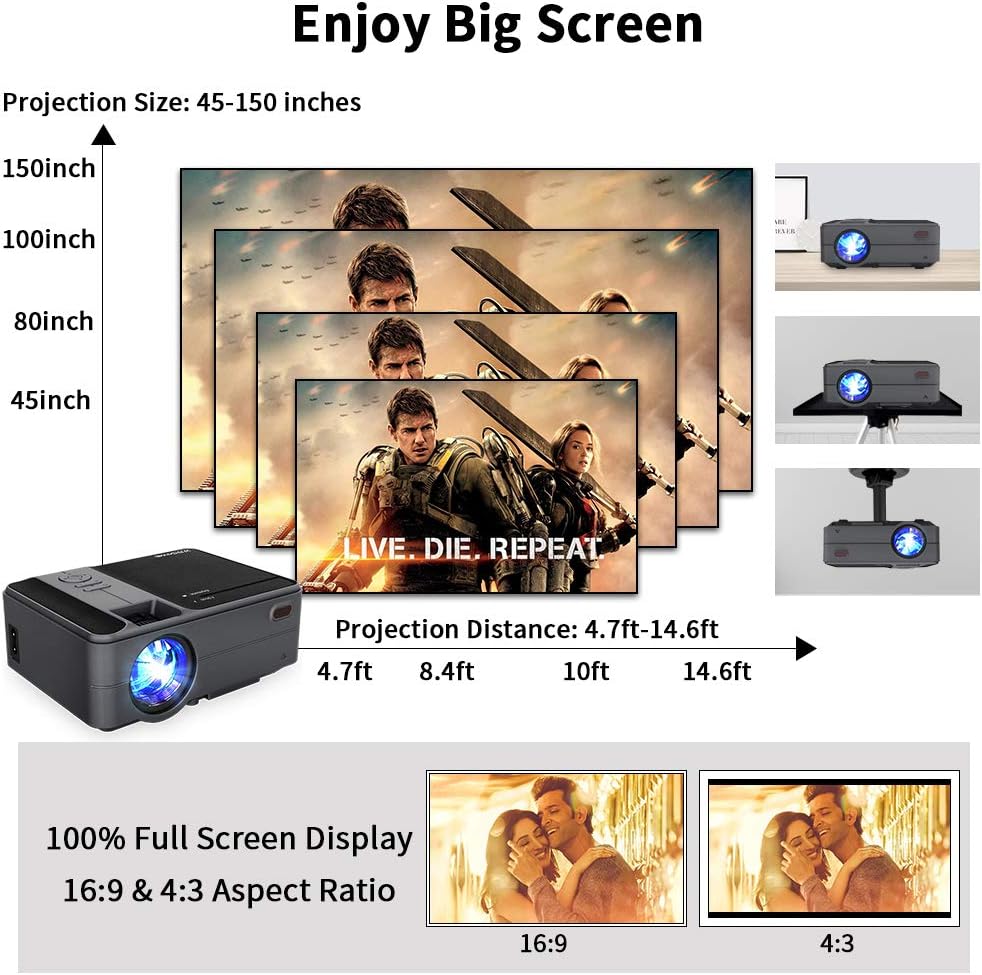
Figure 6.2: Projection Size Examples. This image visually represents various projection sizes (45, 80, 100, and 150 inches) and their respective projection distances, illustrating the scalability of the projected image.
6.2 Image Adjustments
The projector offers several options for adjusting the image to suit your viewing environment.
- Digital Zoom: The projector supports a 25% digital zoom function, allowing you to adjust the image size without physically moving the projector.
- Keystone Correction: Manual ±15° keystone correction is available to correct image distortion.
- Image Flip: A 360-degree image flip function allows for flexible mounting options, including front, rear, and ceiling projection.

Figure 6.3: Image Adjustment Features. This image illustrates the projector's capabilities for 25% digital zoom, manual ±15° keystone correction, and 360-degree image flip, providing flexibility for various projection setups.
7. Maintenance
Regular maintenance helps ensure optimal performance and extends the lifespan of your projector.
- Lens Cleaning: Use a soft, lint-free cloth specifically designed for optical lenses to gently clean the projector lens. Avoid abrasive materials or harsh chemicals.
- Air Vent Cleaning: Periodically clean the air vents to prevent dust buildup, which can obstruct airflow and lead to overheating. Use a soft brush or compressed air.
- Storage: When not in use for extended periods, store the projector in a cool, dry, and dust-free environment.
8. Troubleshooting
If you encounter issues with your projector, refer to the following common problems and solutions:
| Problem | Possible Cause | Solution |
|---|---|---|
| No Power | Power cable not connected; Power outlet faulty | Ensure power cable is securely connected. Test power outlet with another device. |
| No Image | Incorrect input source; Cable connection loose; Device not powered on | Select the correct input source. Check all cable connections. Ensure connected device is powered on. |
| Blurry Image | Focus not adjusted; Keystone not adjusted | Adjust the focus ring. Use keystone correction to square the image. |
| No Sound | Volume too low; Mute enabled; External audio device not connected/selected | Increase volume. Disable mute. Ensure external audio device is properly connected and selected. |
| Remote Control Not Working | Batteries low/dead; Obstruction between remote and projector | Replace batteries. Ensure clear line of sight to the projector's IR receiver. |
| Wireless Connection Issues | Incorrect WiFi password; Devices not on same network; Signal interference | Verify WiFi password. Ensure projector and device are on the same network. Reduce interference. |
9. Specifications
| Feature | Specification |
|---|---|
| Model | US2-C180AB-01F |
| Engine Type | LCD |
| Light Source | LED |
| Brightness | 3800 Lumen |
| Contrast Ratio | 4000:1 |
| Native Resolution | 1280 x 720 |
| Max Supported Resolution | 1920 x 1080 |
| Image Size | 24 - 200 inches |
| Projection Distance | 3.41 - 19.84 ft |
| Aspect Ratio | 16:9 / 4:3 |
| Input/Output Ports | HDMI, USB, VGA, AV, SD, 3.5mm Audio Out |
| Operating System | Android 6.0 |
| CPU | ARM Cortec-A53 Quad-Core 1.7GHz |
| RAM | 1GB DDR3 |
| ROM | 8GB EMMC |
| Wireless Connectivity | WiFi, Bluetooth 4.0 |
| Power Consumption | 40 watts |
| Dimensions (L x W x H) | 204 x 148 x 80 mm |
| Weight | 1 KG (2.2 lb) |
10. Warranty and Support
The CAIWEI Mini Projector comes with a 12-month warranty for free replacement parts. Lifetime technical support is also provided. For assistance or inquiries, please refer to the contact information provided with your purchase documentation.
