
1. Introduction
This manual provides comprehensive instructions for the installation, operation, and maintenance of your DAEWOO SA501 Wireless WiFi/GSM Home Alarm System. This system is designed to provide reliable security for your home, offering both WiFi and optional GSM connectivity for enhanced protection. It integrates seamlessly with the Daewoo Home Connect application and is compatible with Amazon Alexa and Google Home for convenient voice control.
The SA501 alarm system is an expandable solution, allowing you to add up to 90 accessories, including various detectors and sirens, to customize your home security. It also supports integration with other Daewoo smart home products such as cameras, video doorbells, and smart plugs, all managed through a single application.

Image 1.1: DAEWOO SA501 Alarm System with included door/window contacts, motion sensor, remote controls, and RFID tags.
2. Components Included in the Starter Pack
The DAEWOO SA501 Starter Pack typically includes the following components:
- 1x DAEWOO SA501 Alarm Control Panel (WIFI GSM with integrated battery and siren)
- 1x DAEWOO WMS501 Wireless Motion Detector
- 2x DAEWOO WDS501 Wireless Door/Window Contacts
- 2x DAEWOO WRC501 Remote Controls
- 2x DAEWOO RFID Badges
- 1x Power Adapter
- 1x User Manual (in French, this document serves as an English guide)

Image 2.1: Overview of the SA501 Control Panel features, including integrated siren, keypad, RFID reader, LEDs, power input, and integrated battery.
3. Setup Guide
3.1 Initial Placement and Powering On
- Choose a Location: Place the main control panel in a central location within your home, away from direct sunlight and heat sources. Ensure it is within range of your WiFi router and has good signal strength for all wireless accessories.
- Connect Power: Plug the provided power adapter into the control panel and then into a standard wall outlet. The system will power on automatically. The integrated backup battery will provide power in case of an outage.

Image 3.1: Example placement of the SA501 control panel on a furniture piece.
3.2 App Installation and WiFi Connection
- Download the App: Search for "Daewoo Home Connect" in your smartphone's app store (compatible with Android and iPhone). Download and install the application.
- Create an Account: Open the app and follow the on-screen instructions to create a new user account.
- Add Device: In the app, select the option to add a new device. Choose the SA501 alarm system.
- Connect to WiFi: Follow the app's instructions to connect the alarm system to your home WiFi network. Important: The SA501 system requires a 2.4 GHz WiFi network. Ensure your router is configured to broadcast a 2.4 GHz signal, and connect your phone to this network during the setup process. If you have a dual-band router, you may need to temporarily disable the 5 GHz band or ensure your phone is connected to the 2.4 GHz SSID.
3.3 GSM Setup (Optional)
For SMS and call alerts during WiFi outages, you can install a SIM card:
- Insert SIM Card: Locate the SIM card slot on the control panel. Insert a valid, activated SIM card (not included) into the slot. Ensure it is inserted correctly according to the diagram in the physical manual.
- Configure in App: In the Daewoo Home Connect app, navigate to the alarm system settings to configure GSM options, including emergency contact numbers for SMS and calls.
3.4 Pairing Accessories
The SA501 system supports up to 90 wireless accessories. Follow these general steps to pair your included accessories:
- Enter Pairing Mode: Refer to the Daewoo Home Connect app or the physical manual for specific instructions on how to put the control panel into pairing mode.
- Activate Accessory: For each accessory (door/window contact, motion detector, remote control), activate it as instructed (e.g., press a button, separate magnetic parts, trigger the sensor). The control panel should confirm successful pairing.
- Install Accessories: Once paired, install the accessories in their desired locations using the provided adhesive or mounting hardware. Ensure door/window contacts are aligned correctly.


Image 3.2: Various DAEWOO SA501 alarm kits demonstrating expandability with different accessories.
4. Operating Instructions
4.1 Arming and Disarming the System
You can arm or disarm your DAEWOO SA501 alarm system using several methods:
- Keypad: Enter your user code on the control panel keypad and press the arm/disarm button.
- Remote Controls: Use the dedicated buttons on your wireless remote controls to arm (full or home mode) or disarm the system.
- RFID Badges: Tap an authorized RFID badge against the RFID reader on the control panel to disarm the system.
- Mobile App: Use the Daewoo Home Connect app on your smartphone to remotely arm or disarm the system from anywhere.
- Voice Control: Integrate your alarm system with Amazon Alexa or Google Home. You can then use voice commands such as "Alexa, arm the alarm in away mode" to control your system.
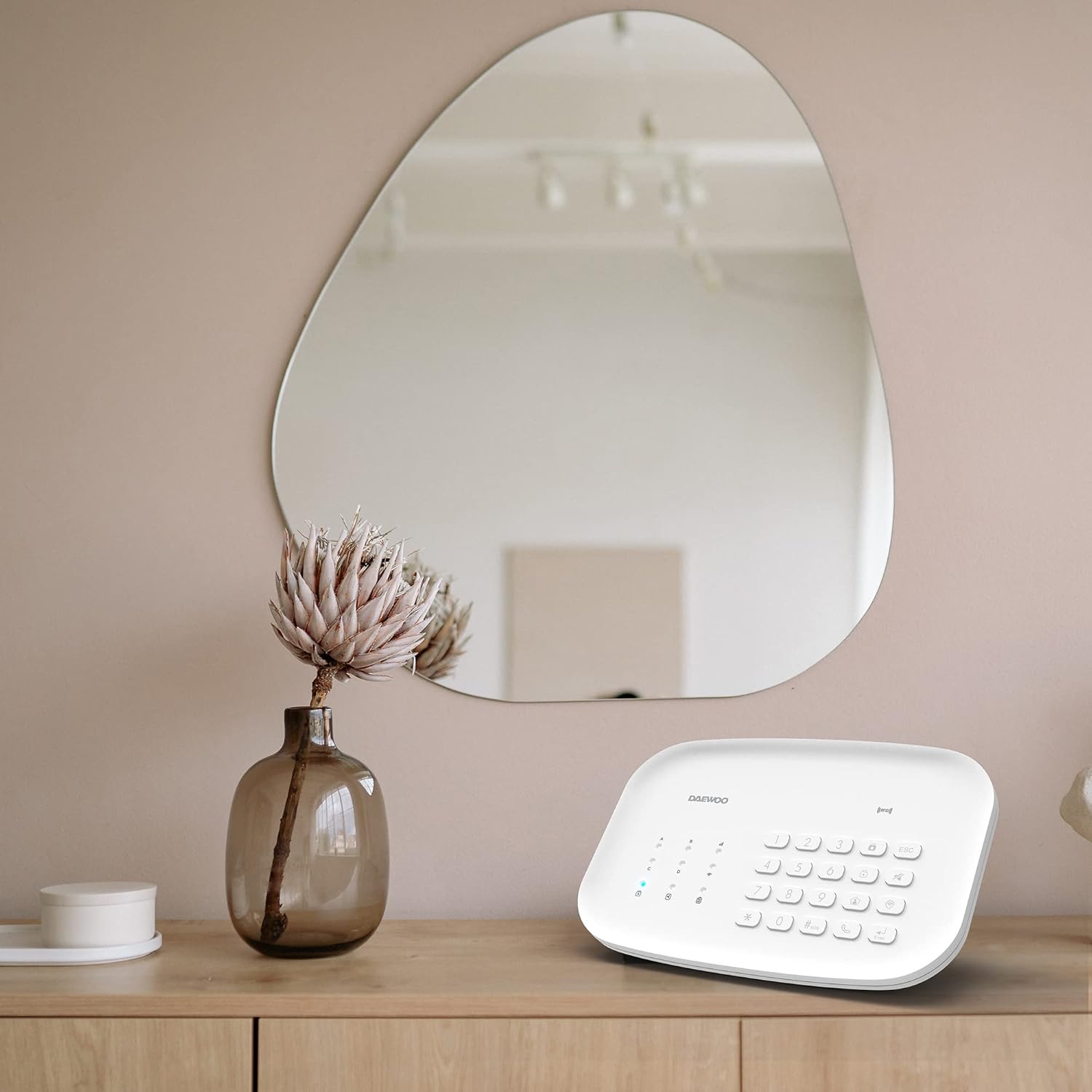
Image 4.1: The SA501 system is compatible with Amazon Alexa and Google Home for convenient voice commands.
4.2 Alarm Notifications and Siren
In the event of an intrusion or triggered sensor:
- Push Notifications: The Daewoo Home Connect app will send immediate push notifications to your smartphone, alerting you to the event.
- Siren: The integrated siren will sound at 95 dB to deter intruders and alert those nearby.
- SMS/Calls (GSM): If a SIM card is installed and configured, the system will send SMS alerts and make calls to pre-programmed emergency contacts.

Image 4.2: Example of an intrusion notification received on a smartphone via the Daewoo Home Connect app.
4.3 Daewoo Home Connect App Features
The Daewoo Home Connect app serves as the central hub for managing your alarm system and other compatible smart home devices:
- Remote arming/disarming.
- Real-time status updates for all sensors and the alarm system.
- Adding and managing new accessories.
- Viewing event history and logs.
- Integrating and controlling other Daewoo smart home products (e.g., cameras, smart plugs).

Image 4.3: The Daewoo Home Connect app allows management of various Daewoo smart home products.
5. Maintenance
5.1 Battery Management
- Control Panel Battery: The main control panel has an integrated Lithium-polymer backup battery, providing up to 4 hours of operation during a power outage. No user replacement is typically required for this internal battery.
- Accessory Batteries: Wireless accessories (motion detectors, door/window contacts, remote controls) require 4 CR2 batteries (not included in the main unit, but may be pre-installed in accessories). Replace these batteries when the app indicates a low battery warning or if an accessory becomes unresponsive. Refer to the individual accessory manuals for specific battery replacement instructions.
5.2 Cleaning
Wipe the control panel and accessories with a soft, dry cloth. Do not use abrasive cleaners or solvents, as these can damage the surfaces.
5.3 System Updates
Periodically check the Daewoo Home Connect app for firmware updates for your alarm system. Keeping your system updated ensures optimal performance and security.
6. Troubleshooting
If you encounter issues with your DAEWOO SA501 alarm system, refer to the following common problems and solutions:
- Alarm System Cannot Connect to WiFi:
- Ensure your WiFi network is 2.4 GHz. The system is not compatible with 5 GHz networks.
- During setup, ensure your smartphone is also connected to the 2.4 GHz network.
- Check your router settings to confirm 2.4 GHz is enabled and broadcasting. You may need to temporarily disable 5 GHz on dual-band routers during initial setup.
- Verify the WiFi password is entered correctly.
- Move the alarm panel closer to the WiFi router to improve signal strength.
- Accessories (Sensors, Remotes) Are Unresponsive or Disconnecting:
- Check the batteries in the accessory and replace them if necessary (requires 4 CR2 batteries for most accessories).
- Ensure the accessory is within the wireless range of the main control panel.
- Re-pair the accessory with the main control panel through the Daewoo Home Connect app.
- For door/window contacts, ensure the two parts are correctly aligned and within the specified gap.
- GSM/SIM Card Not Working:
- Ensure the SIM card is correctly inserted and fully activated with a valid plan.
- Check for cellular network coverage in the alarm panel's location.
- If the SIM functionality stops after a power outage, try rebooting the alarm system by unplugging it, waiting a few seconds, and plugging it back in.
- Verify emergency contact numbers are correctly configured in the app.
- Voice Control (Alexa/Google Home) Not Responding:
- Ensure the Daewoo Home Connect skill/action is enabled in your Alexa or Google Home app.
- Verify that your alarm system is linked to your voice assistant account.
- Use the exact voice commands specified in the app or voice assistant documentation.
- Cannot Reset Alarm from Keypad:
- Ensure you are entering the correct user code.
- If you have changed your internet box, you may need to re-establish the WiFi connection first before full functionality is restored.
7. Specifications
| Feature | Detail |
|---|---|
| Brand | Daewoo Security |
| Model Number | SA501 |
| Dimensions (L x W x H) | 13.5 x 20 x 3.5 cm |
| Weight | 790 grams |
| Connectivity Technology | WiFi (2.4 GHz), GSM (SIM card required) |
| Power Source | Wired (AC adapter), Wireless (Integrated backup battery) |
| Backup Battery Type | Lithium-polymer |
| Accessory Battery Requirement | 4 CR2 batteries (for most wireless accessories) |
| Siren Level | 95 Decibels |
| Installation Method | Self-adhesive / Wall-mounted |
| Compatible Devices | Android, iPhone (via Daewoo Home Connect app) |
| Control Method | App, Keypad, Remote, RFID, Voice (Alexa, Google Home) |
| Max Accessories | Up to 90 |
8. Warranty and Support
For warranty information, technical support, or to inquire about replacement parts, please refer to the documentation included with your product or visit the official Daewoo Security website. Contacting the manufacturer directly will provide the most accurate and up-to-date support information.