
Introduction
Thank you for choosing the Hricane 61-Key Electronic Keyboard. This portable digital music keyboard is designed for beginners and early education, offering a wide range of features to enhance musical exploration and learning. Please read this manual carefully to ensure proper setup, operation, and maintenance of your new instrument.

Figure 1: Hricane 61-Key Electronic Keyboard with included accessories.
Key Features
- 61 Standard Keys: Provides a full range for learning and playing.
- Versatile Connectivity: Connects to mobile phones, tablets, headphones, and external speakers.
- Extensive Sound Library: Includes 100 tones, 100 rhythms, and 10 demo songs.
- Interactive Drum Features: Features 61 keyboard drums, 5 key drums, and 5 animal sounds for creative play.
- Recording and Playback: Allows users to record and listen to their performances.
- Dual Power Options: Can be powered by a USB cable (included) or 4 AA batteries (not included) for portability.
- Educational Aids: Comes with a microphone for singing along and keyboard stickers to assist with learning notes.
- Durable Construction: Made from non-toxic ABS environmentally friendly materials.
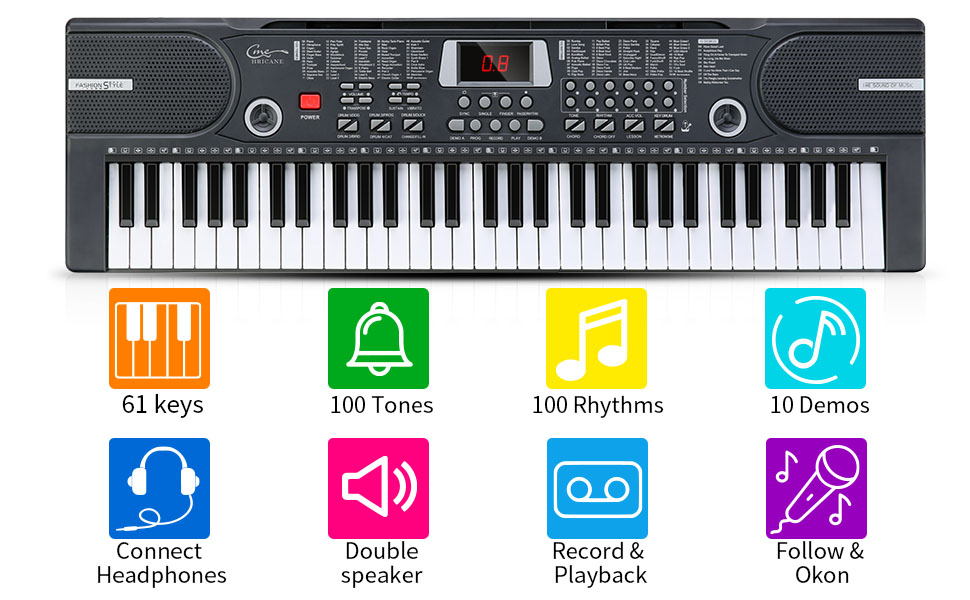
Figure 2: Overview of the keyboard's main functions and features.
Setup
- Power Supply:
- For continuous use, connect the provided USB power cable to the DC5V port on the back of the keyboard and plug it into a compatible USB power adapter (not included).
- For portable use, open the battery compartment on the underside of the keyboard and insert 4 AA batteries (not included), ensuring correct polarity.

Figure 3: Two methods for powering the keyboard: USB cable or 4 AA batteries.
- Attach Music Sheet Stand: Insert the music sheet stand into the designated slots on the top of the keyboard.
- Apply Keyboard Stickers: For beginners, carefully apply the included keyboard stickers to the corresponding keys as indicated in the sticker guide.
- Connect Microphone: Plug the microphone into the "MIC" input port located on the back of the keyboard.
- Connect External Devices (Optional):
- To connect headphones, plug them into the "PHONE" output port.
- To connect to a mobile phone, tablet, or external speakers, use an audio cable (not included) to connect the device to the "AUDIO IN" port.

Figure 4: Connectivity ports for microphone, audio input, headphones/speakers, and power.
Operating Instructions
- Power On/Off: Press the POWER button to turn the keyboard on or off.
- Volume Adjustment: Use the VOLUME control knob to adjust the overall sound level.
- Selecting Tones: Press the "TONE" button and then use the number selection keys (0-9) to choose from 100 different instrument tones. Refer to the tone list printed on the keyboard panel.
- Selecting Rhythms: Press the "RHYTHM" button and then use the number selection keys (0-9) to choose from 100 different rhythms. Refer to the rhythm list printed on the keyboard panel.
- Playing Demo Songs: Press the "DEMO" button and then use the number selection keys (0-9) to play one of the 10 pre-recorded demo songs.
- Drum Functions:
- Keyboard Drums: Certain keys on the keyboard are designated for drum sounds.
- Key Drums: Use the dedicated "KEY DRUM" buttons to activate specific drum sounds.
- Animal Sounds: Press the "ANIMAL SOUNDS" button to play various animal sounds.
- Record and Playback:
- Press the "RECORD" button to begin recording your performance.
- Press the "PLAY" button to listen to your recorded performance.
- Microphone Use: Once connected, the microphone allows you to sing along while playing. Adjust your voice volume through the keyboard's main volume control.

Figure 5: Detailed view of the control panel for various functions.
Maintenance
- Cleaning: Wipe the keyboard surface with a soft, dry cloth. Avoid using abrasive cleaners or solvents, as they may damage the finish.
- Storage: Store the keyboard in a cool, dry place away from direct sunlight and extreme temperatures.
- Battery Care: If using batteries, remove them if the keyboard will not be used for an extended period to prevent leakage.
- Material Safety: The keyboard is made from non-toxic ABS environmentally friendly materials, ensuring safety during use.
Troubleshooting
| Problem | Possible Cause | Solution |
|---|---|---|
| No power/Keyboard does not turn on. |
|
|
| No sound from speakers. |
|
|
| Microphone not working. |
|
|
Specifications
| Feature | Detail |
|---|---|
| Model Name | H612-BK |
| Number of Keys | 61 |
| Dimensions (L x W x H) | 76 x 23 x 6 cm (30" x 9" x 2.3") |
| Item Weight | 2.1 KG (4.49 pounds) |
| Material Type | Acrylonitrile Butadiene Styrene (ABS) |
| Power Source | USB (DC5V) or 4 AA Batteries |
| Tones | 100 |
| Rhythms | 100 |
| Demo Songs | 10 |
| Speaker Count | 2 |

Figure 6: Digital display and key dimensions for comfortable play.
Warranty and Support
Hricane provides a 12-month warranty for this electronic keyboard. If you encounter any issues or have questions regarding your product, please contact Hricane customer service for friendly and prompt assistance. Refer to your purchase documentation for specific contact details.