
CYCLIQ CLQFLY6CEGEN3
CYCLIQ Fly 6 CE Generation 3 User Manual
Model: CLQFLY6CEGEN3
Introduction
The CYCLIQ Fly 6 CE Generation 3 is an advanced rear-facing bicycle camera and safety light designed to enhance your cycling safety and provide peace of mind. This compact device records high-definition video, ensuring you capture important moments on the road, while its powerful light increases your visibility to others, day or night. With features like automatic looping, incident protection, and app control, the Fly 6 CE Gen 3 is an essential companion for every cyclist.
What's in the Box
Please check the contents of your Fly 6 CE Generation 3 package. If any items are missing or damaged, please contact customer support.
- CYCLIQ Fly 6 CE Generation 3 Unit
- USB Data and Charging Cable
- Seatpost Mounting Accessories
- 32 GB MicroSD Card (pre-installed or separate)
- Safety Strap

Image: The main CYCLIQ Fly 6 CE Generation 3 unit, showing the camera lens and the bright red rear light.
Product Features
- High-Definition Recording: Captures video at 1920 x 1080p @ 30 fps or 1280 x 720p @ 60 fps.
- Powerful Rear Light: Maximum output of 50 lumens for enhanced visibility.
- Long Battery Life: Up to 4 hours with camera and light, or up to 5 hours in camera-only mode.
- Automatic Looping: Ensures continuous recording without running out of storage space.
- Incident Protection (Black Box Technology): Automatically locks video and audio footage before and after an impact.
- Wide-Angle Lens: Captures a broad field of view to record more of your surroundings.
- Cycliq Plus App Control: Manage settings, view live footage, and control the device via your smartphone.
- Compact and Lightweight Design: Weighs only 75.5 grams with dimensions of 71mm (H) x 35mm (W) x 40mm (D).
- Water Resistant: Designed to withstand various weather conditions.

Image: The Fly 6 CE Generation 3 unit being splashed with water, illustrating its water-resistant design.
Setup
1. Charging the Device
Before first use, fully charge your Fly 6 CE Gen 3. Connect the supplied USB cable to the device's charging port and to a USB power source (e.g., computer USB port or wall adapter). The LED indicator will show charging status and turn off when fully charged. A full charge takes approximately 2 hours.
2. MicroSD Card Installation
The Fly 6 CE Gen 3 comes with a 32 GB MicroSD card. Ensure it is properly inserted into the MicroSD card slot. The device supports MicroSD cards up to 128 GB (Class 10 or higher recommended).
3. Mounting on Your Bicycle
Use the provided seatpost mounting accessories to securely attach the Fly 6 CE Gen 3 to your bicycle's seatpost. Ensure the camera lens and light are facing directly backward and are not obstructed. The safety strap should be used as an additional security measure.
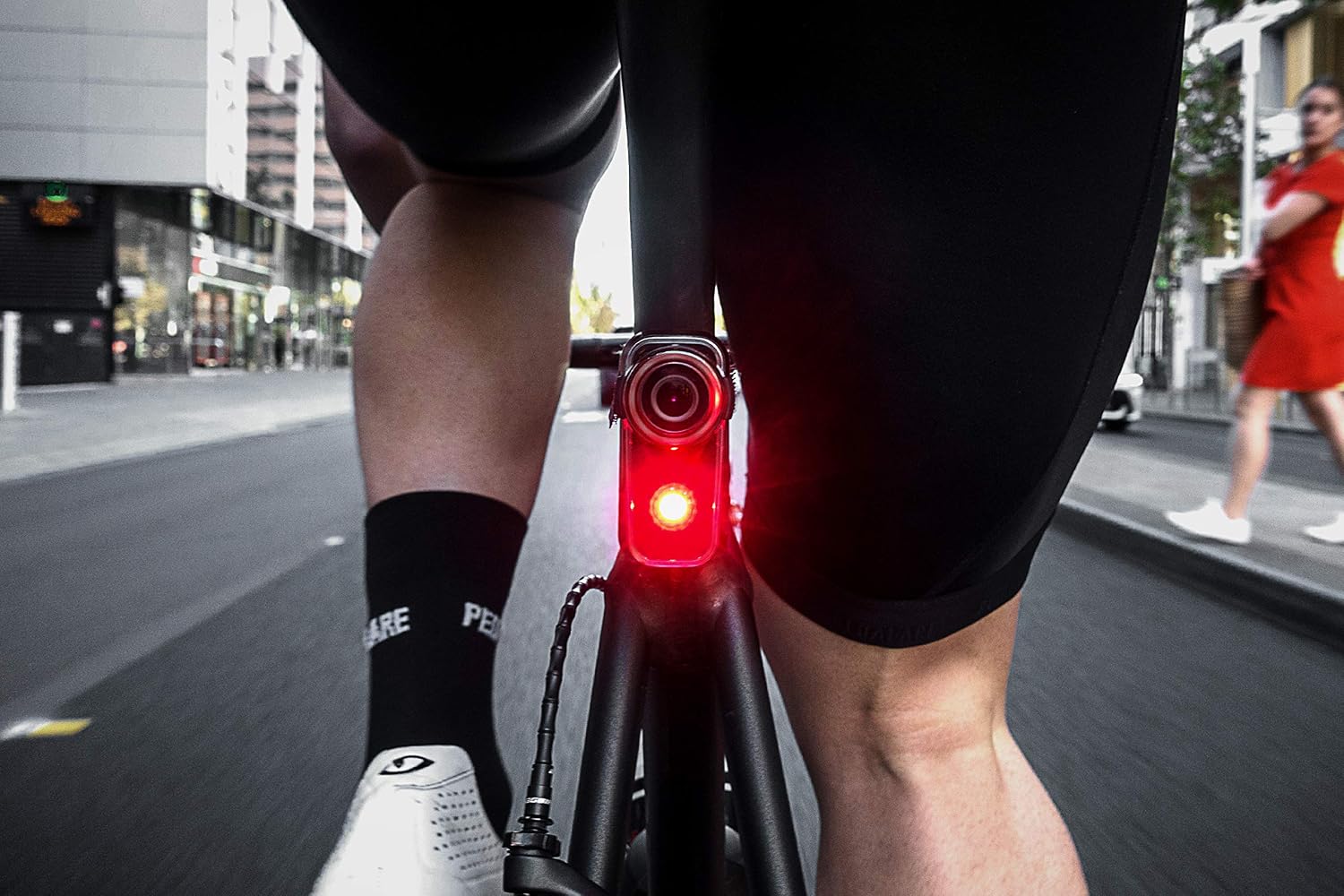
Image: The Fly 6 CE Generation 3 mounted on a bicycle seatpost from a rider's perspective, showing its position for rear-facing recording.
4. Connecting to the Cycliq Plus App
Download the Cycliq Plus app from your smartphone's app store. Turn on your Fly 6 CE Gen 3 and enable Bluetooth on your phone. Open the app and follow the on-screen instructions to pair your device. The app allows you to adjust settings, view live footage, and manage recorded files.

Image: Screenshot of the Cycliq Plus mobile application interface, displaying battery percentage, locked files, and options for settings and alarm.
Operating Instructions
Power On/Off
- To Power On: Press and hold the power button (usually located on the side) for 1-2 seconds until the device vibrates and the light/camera activates.
- To Power Off: Press and hold the power button for 2-3 seconds until the device vibrates and the light/camera turns off.

Image: Side view of the Fly 6 CE Generation 3, highlighting the location of the power button.
Recording Modes
The Fly 6 CE Gen 3 automatically begins recording when powered on. Video files are saved in segments (e.g., 5-minute clips) and loop automatically, overwriting the oldest files when the MicroSD card is full. You can adjust recording resolution and other settings via the Cycliq Plus app.
Light Modes
The device offers multiple light modes to suit different riding conditions and preferences. Cycle through light modes by short-pressing the light mode button (if available, or via the app). Modes typically include constant, flash, and pulse patterns, with varying brightness levels up to 50 lumens.

Image: The bright red light of the Fly 6 CE Generation 3 illuminating the dark road behind a bicycle, demonstrating its visibility.
Incident Protection (Black Box Technology)
In the event of an impact or if the device detects it has been laid down, the Black Box technology automatically locks the current video segment and the preceding segment, preventing them from being overwritten. This ensures critical footage is preserved. You can also manually lock a file by pressing a designated button (refer to device specific button layout or app for details).
Using the Cycliq Plus App
The Cycliq Plus app provides comprehensive control over your Fly 6 CE Gen 3:
- Live View: See what your camera is recording in real-time.
- Settings: Adjust video resolution, frame rate, light modes, audio recording, and incident detection sensitivity.
- File Management: View, download, and delete recorded videos. Lock important files to prevent overwriting.
- Firmware Updates: Update your device's firmware directly through the app.
- Alarm: Activate an alarm feature for added security when your bike is parked.
Maintenance
Cleaning
Wipe the device, especially the lens and light, with a soft, damp cloth. Do not use harsh chemicals or abrasive materials. Ensure the charging port cover is securely closed to maintain water resistance.
Battery Care
To maximize battery life, avoid fully discharging the battery regularly. Store the device in a cool, dry place when not in use, and charge it periodically if stored for extended periods (e.g., every 3-6 months).
Firmware Updates
Regularly check for firmware updates via the Cycliq Plus app. Updates often include performance improvements, bug fixes, and new features. Follow the app's instructions carefully during the update process.
Troubleshooting
| Problem | Possible Cause / Solution |
|---|---|
| Device not turning on. | Battery is depleted. Charge the device fully. Device may be frozen. Perform a hard reset (refer to Cycliq support for specific reset instructions if standard power cycle fails). |
| Recording issues (e.g., no recording, corrupted files). | MicroSD card is full or corrupted. Format the MicroSD card (via app or computer) or replace it. Incorrect MicroSD card type. Ensure it's Class 10 or higher. |
| Poor video quality. | Lens is dirty. Clean the camera lens. Low light conditions. Ensure adequate lighting for optimal recording. Incorrect resolution settings. Adjust resolution in the Cycliq Plus app. |
| Light not working or dim. | Battery is low. Charge the device. Light mode settings. Adjust light mode and brightness via the app. |
| Cannot connect to Cycliq Plus app. | Bluetooth is off on phone or device. Ensure both are enabled. Device is not in pairing mode. Follow app instructions for pairing. App needs update. Update the Cycliq Plus app. |
Specifications
| Feature | Detail |
|---|---|
| Model Name | Fly 6 CE Generation 3 |
| Model Number | CLQFLY6CEGEN3 |
| Video Resolution | 1920 x 1080p @ 30 fps, 1280 x 720p @ 60 fps |
| Light Output | Max 50 Lumens |
| Battery Life | Up to 4 hours (camera + light), up to 5 hours (camera only) |
| Battery Type | 1 Lithium Ion (included) |
| Charging Time | Approx. 2 hours |
| Storage | MicroSD (32 GB included, supports up to 128 GB) |
| Dimensions (H x W x D) | 71 mm x 35 mm x 40 mm (2.8 x 1.4 x 1.6 inches) |
| Weight | 75.5 grams (2.66 oz) |
| Lens Type | Wide Angle |
| Image Stabilization | No |
| Connectivity | Bluetooth (for app control) |
Warranty and Support
CYCLIQ products typically come with a manufacturer's warranty. Please refer to the warranty card included with your product or visit the official CYCLIQ website for detailed warranty terms and conditions. For technical support, troubleshooting assistance, or warranty claims, please contact CYCLIQ customer service directly through their official website or the contact information provided in your product packaging.
Official Website: cycliq.com
Related documentsCLQFLY6CEGEN3


Ask a question about this manual
Ask about setup, troubleshooting, compatibility, parts, safety, or missing instructions. Manuals+ will review the question and use this page’s manual context to help answer it.