
Logitech Z606
Logitech Z606 5.1 Surround Sound Speaker System User Manual
Model: Z606
Introduction
This manual provides comprehensive instructions for the setup, operation, maintenance, and troubleshooting of your Logitech Z606 5.1 Surround Sound Speaker System. Please read this manual carefully before using your speaker system to ensure optimal performance and longevity.
Package Contents
Verify that all components are present in your package:
- Subwoofer with integrated control panel
- Five satellite speakers (Front Left, Front Right, Center, Rear Left, Rear Right)
- Remote control
- Speaker cables (including extra-long cables for rear satellites)
- Power cable
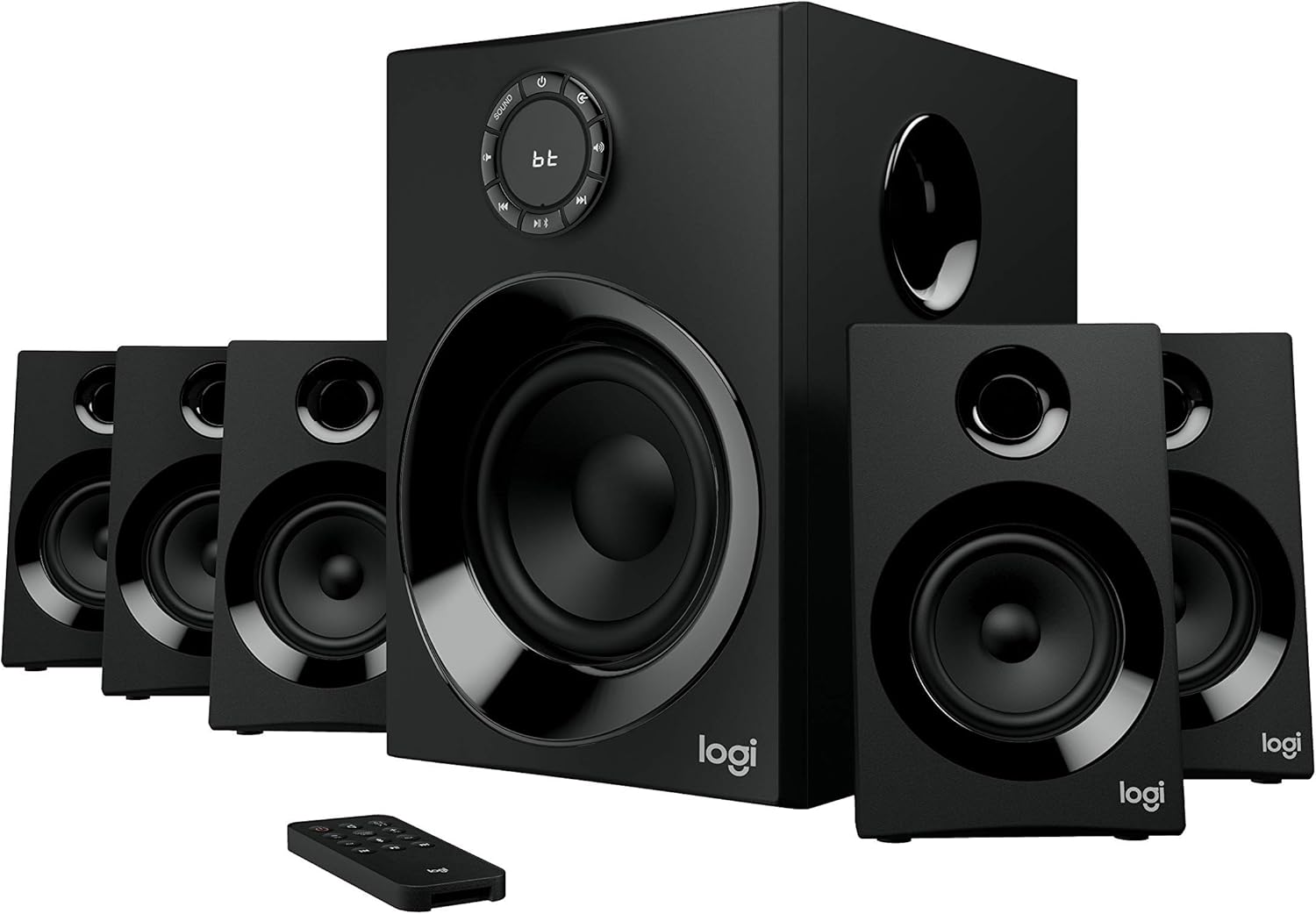
Image: The Logitech Z606 5.1 Surround Sound Speaker System, showing the central subwoofer, five satellite speakers, and the remote control. This illustrates the complete system.
Setup
1. Speaker Placement
Proper speaker placement is crucial for optimal 5.1 surround sound experience. Refer to the diagram below for recommended placement.
- Front Left and Right Speakers: Place these speakers equidistant from your listening position, typically on either side of your display.
- Center Speaker: Position the center speaker directly in front of your listening position, usually above or below your display.
- Rear Left and Right Speakers: Place these speakers behind your listening position, slightly to the sides. The Z606 includes extra-long 20-foot (6.2 meter) cables for flexible placement.
- Subwoofer: The subwoofer can be placed anywhere in the room, but often performs best when positioned in a corner or near a wall to enhance bass response.

Image: A diagram illustrating the recommended placement of the 5.1 speaker system components (subwoofer, front, center, and rear satellites) around a listening area, with cable lengths indicated for optimal setup.
2. Connecting the Speakers
Connect each satellite speaker to the corresponding output on the rear of the subwoofer. Ensure the positive (+) and negative (-) terminals on the speaker match those on the subwoofer.

Image: The rear panel of the Logitech Z606 subwoofer, showing the various input ports (RCA, 3.5mm, Bluetooth indicator) and speaker output terminals for connecting the five satellite speakers.
3. Connecting Audio Sources
The Z606 offers multiple connectivity options:
- Bluetooth: For wireless connection, activate Bluetooth on your device and pair with "Logitech Z606".
- 3.5mm Audio Jack: Connect devices like smartphones, tablets, or computers using a 3.5mm audio cable to the AUX input.
- RCA Cables: Use RCA cables to connect to TVs, Blu-ray/DVD players, or gaming consoles.
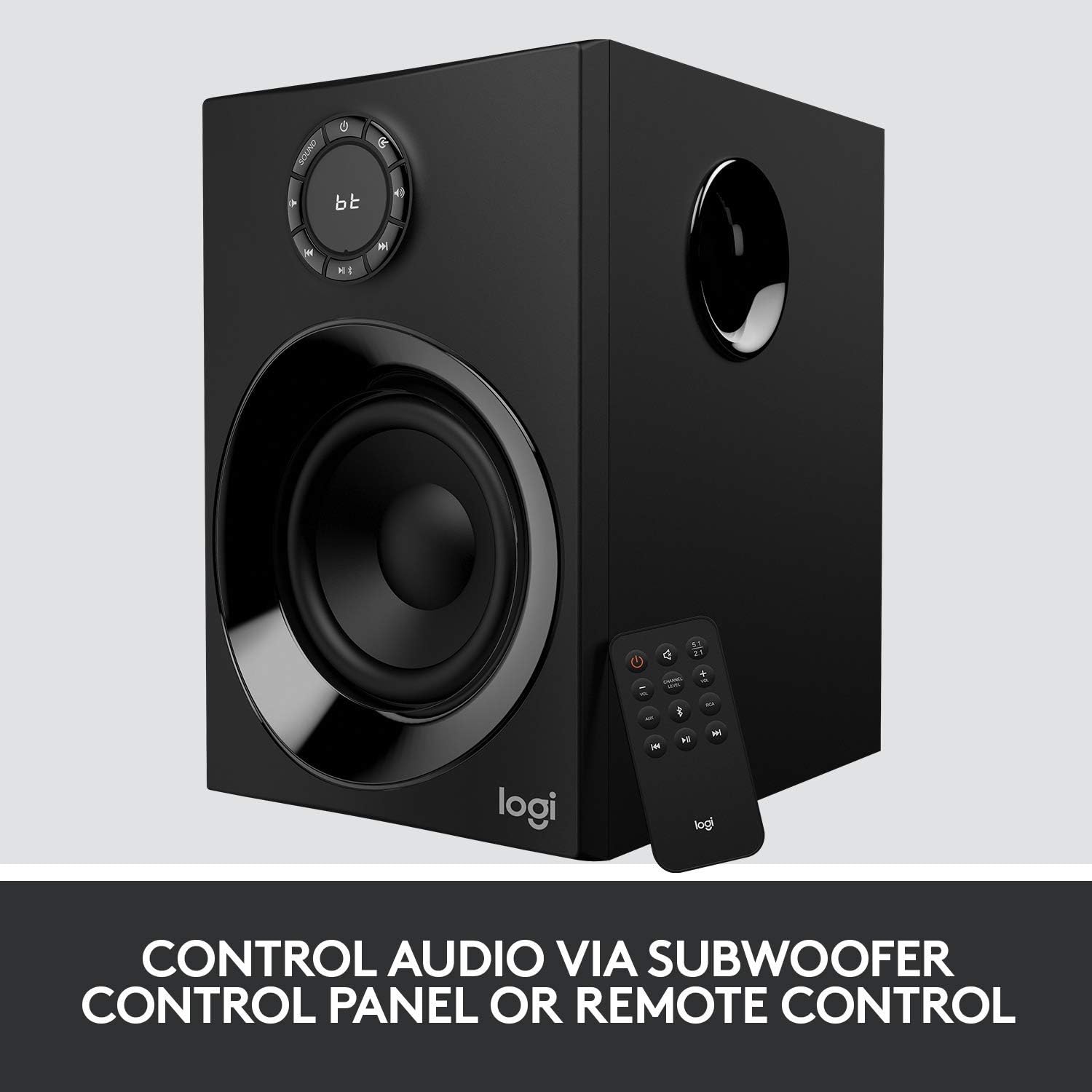
Image: The Logitech Z606 subwoofer alongside its remote control, highlighting the various control options available for audio playback and system settings.
Operating Instructions
Power On/Off
Use the power button on the subwoofer's control panel or the remote control to turn the system on or off.
Volume Control
Adjust the master volume using the large dial on the subwoofer or the volume buttons on the remote control.
Input Selection
Press the "Source" button on the subwoofer or remote to cycle through available audio inputs (Bluetooth, AUX, RCA).
Speaker Level Adjustment
The Z606 allows independent control over the volume of the front, rear, and center speakers, as well as the subwoofer. Use the remote control or the subwoofer's control panel to adjust these levels to your preference for balanced surround sound.

Image: A close-up view of the Logitech Z606 subwoofer's control panel, featuring the main volume dial, input selection buttons, and indicators for Bluetooth connectivity.
Maintenance
- Cleaning: Use a soft, dry cloth to clean the speaker surfaces. Avoid abrasive cleaners or solvents.
- Ventilation: Ensure the subwoofer and speakers have adequate ventilation to prevent overheating. Do not block any vents.
- Cable Management: Keep cables tidy and untangled to prevent damage and ensure clear audio signals.
- Storage: If storing the system for an extended period, disconnect it from power and store in a cool, dry place.
Troubleshooting
| Problem | Possible Cause | Solution |
|---|---|---|
| No sound from speakers |
|
|
| Distorted or poor sound quality |
|
|
| Bluetooth pairing issues |
|
|
Specifications
- Model Name: Z606
- Speaker Type: 5.1 Surround Sound System
- Total Peak Power: 160 Watts
- Total RMS Power: 80 Watts
- Subwoofer Driver: 5.25 inches
- Frequency Response: 50 Hz - 120 kHz
- Connectivity: Bluetooth 4.2, 3.5mm Audio Jack, RCA
- Cable Length (Rear Satellites): 20 feet (6.2 meters)
- Dimensions (Subwoofer): 33.3D x 41.4W x 29.8H Centimetres
- Weight: 0.01 Ounces
- Color: Black
- Manufacturer: Logitech

Image: An overview of the Logitech Z606 5.1 Surround Sound Speaker System, emphasizing its 160 Watts of power and 5.1 surround sound capability.
Warranty Information
This Logitech Z606 speaker system comes with a Limited Warranty provided by the manufacturer, Logitech. For specific details regarding warranty coverage, duration, and claims process, please refer to the warranty card included with your product or visit the official Logitech support website. Keep your proof of purchase for warranty validation.
Support
For further assistance, technical support, or to access additional resources, please visit the official Logitech support website or contact their customer service. You can find contact information and FAQs on their website.
Logitech Official Website: www.logitech.com/support
Related documentsZ606


Ask a question about this manual
Ask about setup, troubleshooting, compatibility, parts, safety, or missing instructions. Manuals+ will review the question and use this page’s manual context to help answer it.