
GE 48843
GE 4-Device Universal Remote Control User Manual
Model: 48843
Brand: GE
Introduction
This user manual provides comprehensive instructions for setting up, operating, and maintaining your GE 4-Device Universal Remote Control. Designed to consolidate control of up to four audio and video devices, this remote simplifies your home entertainment experience. Please read this manual thoroughly to ensure proper use and maximize the functionality of your new remote.
Product Features
- Multi-device control: Operate up to four audio and video devices such as TVs, Blu-ray/DVD players, cable and satellite receivers, soundbars, streaming media players and more.
- Best remote code library: Universal remote works with all major brands and supports thousands of the latest audio and video devices (not for use with radio frequency devices like Roku Streaming Sticks and Amazon Fire TV/Sticks).
- Preprogrammed for Samsung TVs: Universal remote’s TV button is preprogrammed for immediate use with Samsung TVs – simply add two AA batteries (not included).
- Simple setup: Enjoy easy automatic code search and direct code entry programming, as well as master volume control to adjust the audio no matter which device is being used.
- Fully backlit with a stylish finish: The brushed black finish adds a classic look to any décor; blue LED backlighting helps you see each button in a dark or dimly lit room.
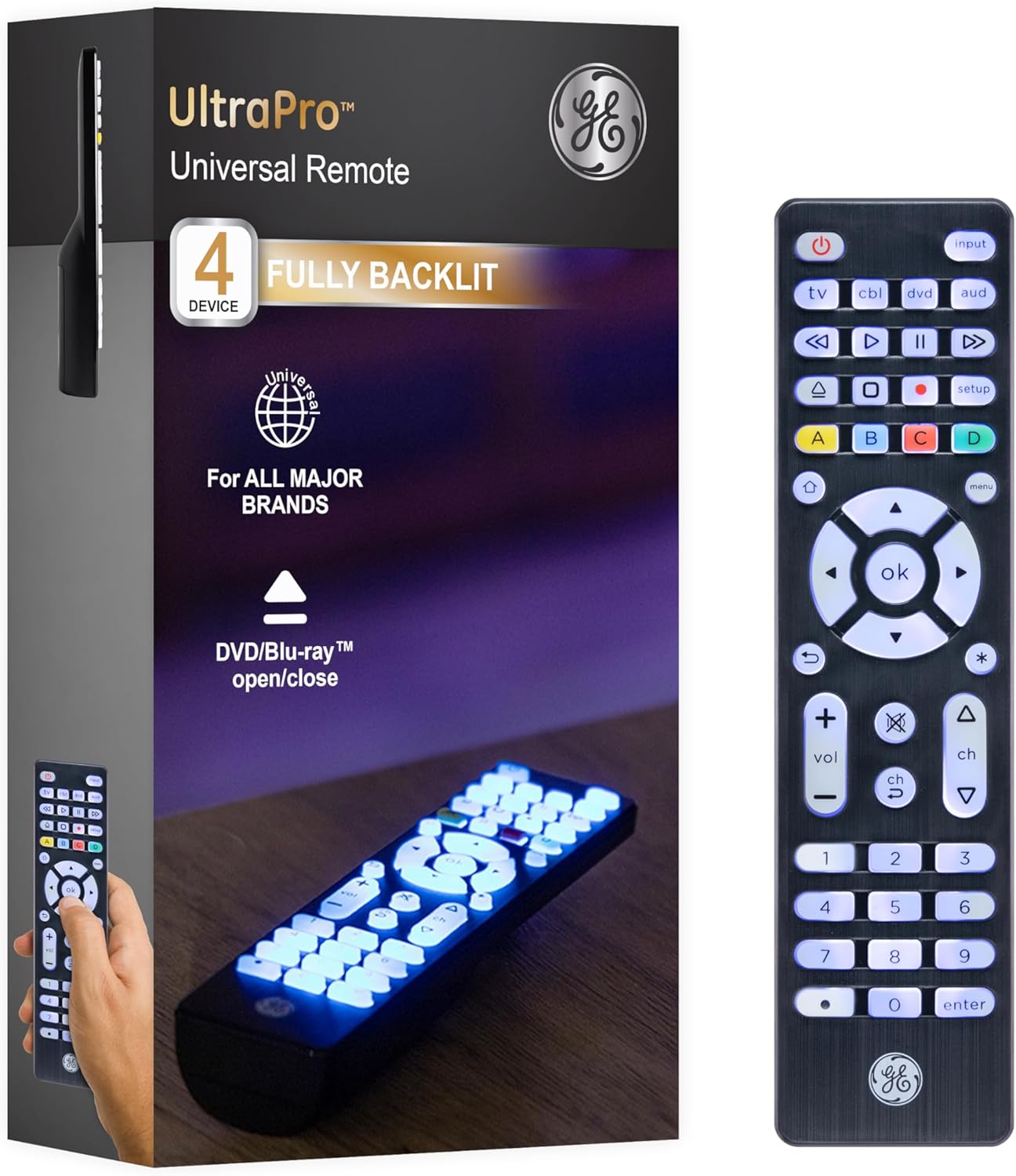
Image: The GE 4-Device Universal Remote Control in its packaging, highlighting its backlit buttons and multi-device capability. The remote itself is shown on the right.

Image: A close-up view of the remote control's buttons illuminated by soft blue LED backlighting, enhancing visibility in low-light conditions.
Setup
1. Battery Installation
Your GE Universal Remote Control requires two (2) AA batteries (not included). To install:
- Remove the battery compartment cover on the back of the remote.
- Insert two AA batteries, ensuring the positive (+) and negative (-) ends align with the markings inside the compartment.
- Replace the battery compartment cover securely.
2. Device Programming (Code Entry Method)
To control your devices, you will need to program the remote using specific codes. The remote is preprogrammed for Samsung TVs, so no programming is required for most Samsung models. For other devices, follow these steps:

Image: A visual guide illustrating the six steps for programming a device to the GE Universal Remote Control.
- Find the remote codes for your device: Refer to the code list provided with your remote or visit www.byjasco.com/remotecodes.
- Press the SETUP button: Press and hold the SETUP button until the red indicator light turns on, then release.
- Press and release device button: Press and release the desired device button on the remote (e.g., TV, CBL, DVD, AUD). The red indicator light will flash once and remain lit.
- Key in the code: Starting with the first code from your list, key in the 4-digit code using the number buttons. After entering each digit, the red indicator light will flash once. After the fourth digit, the light will turn off.
- Test the device: Point your remote at the device and test different buttons (e.g., POWER, VOLUME UP/DOWN, CHANNEL UP/DOWN) to see if the device responds.
- Repeat for additional devices: If the device does not respond, repeat steps 2-5 with the next code in your list until you find a working code. Repeat the entire process for each additional device you wish to control.
Note: It is recommended to write down the working code for each device for future reference, in case the remote resets or batteries are replaced.
3. Automatic Code Search
If you cannot find a code for your device, or prefer an automated method, you can use the automatic code search:
- Turn on the device you want to control.
- Press and hold the SETUP button until the red indicator light turns on, then release.
- Press and release the desired device button (e.g., TV, CBL, DVD, AUD). The red indicator light will flash once and remain lit.
- Press and release the POWER button. The red indicator light will flash once.
- Point the remote at the device and press the PLAY button repeatedly (approximately every 2 seconds) until the device turns off.
- Once the device turns off, immediately press the SETUP button to lock in the code. The red indicator light will turn off.
- Test the remote's functions with the device. If some functions do not work, repeat the process to find a more compatible code.
Operating Your Remote
Once programmed, your GE Universal Remote Control can operate your devices. Here are some common functions:
- Device Selection: Press the corresponding device button (TV, CBL, DVD, AUD) to select the device you wish to control. The selected device button will light up briefly.
- Power: Press the POWER button to turn the selected device on or off.
- Volume Control: Use the VOL + and VOL - buttons to adjust the volume.
- Channel Control: Use the CH + and CH - buttons to change channels.
- Input/Source: Press the INPUT button to cycle through available input sources on your TV.
- Master Volume Control: This feature allows you to control the volume of one device (e.g., your TV or soundbar) regardless of which device is currently selected on the remote. To set up master volume control, refer to the full user manual PDF linked in the Support section.
- Navigation: Use the directional pad (up, down, left, right) and OK button for menu navigation.
- DVR Functionality: The remote includes advanced DVR functions such as record, play, pause, fast forward, and rewind.
- Blu-ray/DVD Open/Close: A dedicated button is available for opening and closing the disc tray on compatible Blu-ray/DVD players.

Image: The GE Universal Remote Control, with icons indicating its ability to control soundbars, streaming media players, home theater systems, TVs, DVD/Blu-ray players, and cable/satellite boxes.
Maintenance
Cleaning
To clean your remote control, use a soft, slightly damp cloth. Do not use abrasive cleaners, solvents, or harsh chemicals, as these may damage the remote's finish or internal components.
Battery Replacement
When the remote's performance degrades or the indicator light does not illuminate, it's time to replace the batteries. Follow the battery installation steps in the "Setup" section. Always replace both batteries at the same time with new AA alkaline batteries. Do not mix old and new batteries or different types of batteries.
Troubleshooting
| Problem | Possible Cause | Solution |
|---|---|---|
| Remote does not operate your device. | Incorrect code entered; batteries are low or dead; remote is not pointed directly at the device. |
|
| Some buttons work, but others do not. | The programmed code is a "best match" but not a perfect match for all functions. | Try other codes for your brand. Sometimes a different code will provide more complete functionality. |
| Remote loses programming. | Batteries removed for an extended period; internal reset. | Reprogram the remote using the code entry or automatic code search method. It is highly recommended to keep a record of your working codes. |
| Blue backlighting does not work. | Batteries are low or dead. | Replace batteries with fresh AA alkaline batteries. |
Specifications
- Model Number: 48843
- Brand: GE
- Product Dimensions: 9 x 2.5 x 0.01 inches
- Item Weight: 3.2 ounces
- Batteries: 2 AA batteries required (not included)
- Max Number of Supported Devices: 4
- Special Feature: Backlit, Ergonomic, Pre Programmed, Universal
- Color: Black
- Compatible Devices: Sony, Samsung, Hisense, Westinghouse, LG, Toshiba, Sharp, Vizio, Insignia, Philips, TCL, Panasonic, Roku (IR devices only), Apple TV, Smart TVs, Streaming Players, Blu-Ray, DVD, VCR, Home Theater, and more.

Image: A diagram illustrating the dimensions of the GE Universal Remote Control: 7.00 inches in length, 1.75 inches in width, and 0.88 inches in thickness.
Warranty and Support
For detailed warranty information, please refer to the product packaging or contact GE customer support. This product typically comes with a standard return policy of 30 days from Amazon.
For further assistance, including a complete list of device codes and advanced programming instructions, please refer to the official User Manual PDF:
Ask a question about this manual
Ask about setup, troubleshooting, compatibility, parts, safety, or missing instructions. Manuals+ will review the question and use this page’s manual context to help answer it.