Introduction
This user manual provides comprehensive instructions for setting up and operating your UltraPro GE 6-Device Backlit Universal Remote Control. This remote is designed to consolidate control of up to six different audio and video devices, simplifying your home entertainment experience. It features pre-programming for popular brands like Samsung and Roku, along with easy setup options for other devices.
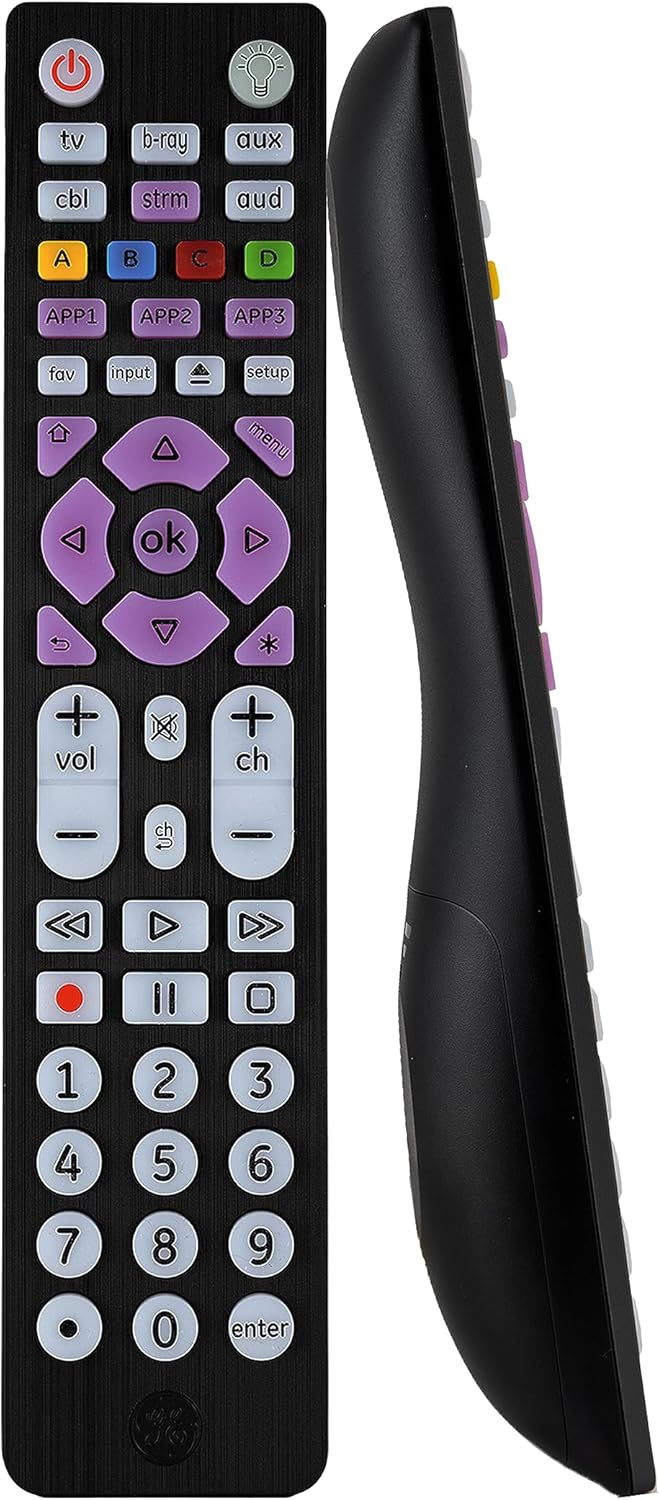
Figure 1: Front and side view of the UltraPro GE 6-Device Backlit Universal Remote Control. The remote is black with purple and white buttons, featuring a sleek, ergonomic design.
Setup and Installation
1. Battery Installation
The remote requires two AA batteries (not included). To install:
- Open the battery compartment cover on the back of the remote.
- Insert two AA batteries, ensuring correct polarity (+ and -).
- Close the battery compartment cover securely.
2. Pre-programmed Devices
The remote's TV and STRM device buttons are pre-programmed for immediate use with Samsung TVs and Roku streaming media boxes. No programming is required for these specific devices, though it is not compatible with Roku Streaming Sticks or Amazon Fire TV/Sticks.
3. Programming Other Devices
For other devices, you can use either automatic code search or direct code entry. Refer to the "Programming Instructions" section for detailed steps.

Figure 2: Key features of the remote, including device selection buttons, backlight ON/OFF, streaming app hotkeys, home and menu navigation, big-button keypad, and DVD/Blu-ray open/close button.
Operating Instructions
Device Selection
To control a specific device, press the corresponding device button at the top of the remote (e.g., TV, B-RAY, CBL, STRM, AUD, AUX). The remote will then send commands to the selected device.

Figure 3: The remote can control up to six different devices, including soundbars/audio systems, streaming media players, home theater systems, TVs, DVD/Blu-ray players, and cable/satellite boxes.
Master Volume Control
The master volume control feature allows you to adjust the audio level regardless of which device is currently selected. This means you can control your soundbar or TV volume without switching device modes.
Backlighting
The remote features full backlighting with blue LEDs for enhanced visibility in low-light settings. Press the light bulb button at the top right of the remote to toggle the backlighting on or off.

Figure 4: The soft blue LED backlighting illuminates all buttons for easy use in dark or dimly lit rooms.
Advanced Functions
- Blu-ray/DVD Open/Close: A dedicated button is included for controlling the disc tray of your Blu-ray or DVD player.
- DVR Functions: Utilize advanced DVR functions for recording, playback, and navigation.
- Menu Navigation: Simple menu navigation buttons (up, down, left, right, OK) allow you to browse menus on your devices.
- Dot Button: Access sub-channels using the dot button.
- Streaming App Hotkeys: Three dedicated hotkeys (APP1, APP2, APP3) provide direct access to your smart TV’s primary streaming applications. These are non-programmable.
Programming Instructions
To program your UltraPro GE Universal Remote Control for devices not pre-programmed, follow these steps:
- Find Remote Codes: Locate the remote codes for your specific device brand. These codes can typically be found in the included code list or online at the manufacturer's support website (e.g., www.byjasco.com/remotecodes).
- Enter Setup Mode: Press and hold the SETUP button until the red indicator light on the remote turns on, then release the button.
- Select Device: Press and release the device button on the remote (e.g., TV, CBL, B-RAY) that you wish to program. The red indicator light will blink once and remain lit.
- Enter Code: Starting with the first code from your list, key in the 3, 4, or 5-digit code using the number buttons on the remote. After each digit is entered, the red indicator light will blink. If the code is valid, the light will turn off. If the code is invalid, the light will flash rapidly.
- Test Device: Point your remote at the device and test different buttons (e.g., Power, Volume, Channel) to see if the device responds correctly.
- Repeat for Additional Devices: If the device does not respond or not all functions work, repeat the process with the next code from your list until full functionality is achieved. Repeat steps 2-5 for each additional device you wish to program.

Figure 5: Visual guide for programming devices, highlighting the setup button and number keypad for code entry.
Product Features
- Multi-device control: Operate up to six different audio and video devices such as TVs, Blu-ray/DVD players, cable/satellite receivers, soundbars, and more.
- Best remote code library: Universal remote works with all major brands and supports thousands of the latest audio and video devices (not for use with radio frequency devices like Roku Streaming Sticks and Amazon Fire TV/Sticks).
- Simple setup: Add two AA batteries (not included) and enjoy easy automatic code search and direct code entry programming, as well as master volume control to adjust the audio no matter which device is being used.
- Preprogrammed for Samsung and Roku: Universal remote’s TV and STRM device buttons are preprogrammed for immediate use with Samsung TVs and Roku streaming media boxes (not compatible with Roku Streaming Sticks).
- Fully backlit with a stylish finish: The brushed black finish enhances any décor; blue LED backlighting helps you see each button easily in dark or dimly lit rooms.
Maintenance
- Cleaning: Wipe the remote with a soft, dry cloth. Do not use abrasive cleaners or solvents.
- Battery Replacement: Replace batteries when the remote's performance degrades or the indicator light does not illuminate during button presses. Always replace both batteries at the same time with new AA batteries.
- Storage: Store the remote in a cool, dry place away from direct sunlight and extreme temperatures.
Troubleshooting
| Problem | Possible Cause | Solution |
|---|---|---|
| Remote does not operate device. | Incorrect device mode selected; batteries are low or dead; remote not programmed correctly. | Ensure the correct device button is pressed. Replace batteries. Reprogram the remote using the correct code for your device. |
| Some buttons do not work. | Incorrect code used; device not fully compatible. | Try other codes listed for your device brand. Some advanced functions may not be supported by all universal remotes. |
| Backlighting is dim or not working. | Low batteries. | Replace batteries with new ones. |
Specifications
- Model Number: 47504v
- Color: Black
- Max Number of Supported Devices: 6
- Power Source: 2 x AA Batteries (not included)
- Dimensions: 9.02 x 2.4 x 1.57 inches
- Item Weight: 4.6 ounces
- Compatible Devices: Sony, Samsung, Hisense, Westinghouse, LG, Toshiba, Sharp, Vizio, Insignia, Philips, TCL, Panasonic, Roku, Apple TV, Smart TVs, Streaming Players, Blu-Ray, DVD, VCR, Home Theater, and more.

Figure 6: Physical dimensions of the remote control: approximately 8.65 inches long, 1.88 inches wide, and 1.06 inches deep.
Warranty and Support
For warranty information, technical support, or to access the full product manual (PDF), please visit the manufacturer's official website or refer to the documentation included with your purchase. A digital version of the user guide is available at: https://manuals.plus/m/a1a0dc82759d8ff7b47913495f68879cf08fd77365d0b959d5dc3d12bc09885f
Manufacturer: Jasco Products Company, LLC