
Bonve Pet HL-5050
Bonve Pet 20M RGB 5050 LED Strip Light User Manual
Model: HL-5050
1. Introduction
Thank you for choosing the Bonve Pet 20M RGB 5050 LED Strip Light. This product is designed to provide versatile and vibrant lighting for various indoor applications. Featuring 16 million colors, 28 dynamic modes, music synchronization, and a timer function, it offers extensive customization options. Control is available via a dedicated smartphone application and a 40-key infrared remote control. This manual provides detailed instructions for installation, operation, and maintenance to ensure optimal performance and longevity of your LED strip lights.

Image 1.1: Bonve Pet 20M RGB 5050 LED Strip Light, showing two rolls of LED strips, a power adapter, a remote control, and a smartphone displaying the control app.
2. Safety Information
Please read all safety instructions carefully before installation and use. Retain this manual for future reference.
- This product is designed for indoor use only. Do not expose to water or high humidity.
- Ensure the power supply is disconnected before installation or maintenance.
- Use only the provided power adapter. Using an incompatible adapter may damage the product or pose a safety risk.
- Do not bend the LED strip sharply or apply excessive force, as this may damage the circuit board.
- Avoid looking directly at the illuminated LEDs for extended periods, as this may cause eye strain.
- Keep out of reach of children.
- If any part of the product is damaged, discontinue use immediately and contact customer support.
- The LED strip can be cut along designated cut marks. Do not cut elsewhere.
3. Package Contents
Verify that all components are present in the package:
- 2 x 10M RGB 5050 LED Strip Lights
- 1 x 40-Key IR Remote Control
- 1 x Control Box with Bluetooth Receiver
- 1 x 24V D/C Power Adapter (EU-Style Plug)
- 1 x User Manual (this document)
- 1 x CR2 Battery (pre-installed in remote control)
4. Setup and Installation
4.1 Preparation
- Unroll the LED strips and ensure they are not tangled.
- Clean the surface where the LED strips will be installed. The surface must be dry, smooth, and free of dust or oil for optimal adhesion.
- Plan the layout of your LED strips before peeling off the adhesive backing.
4.2 Connecting the Components
- Connect the LED strip connectors to the control box. Ensure the arrows on the connectors align correctly.
- Connect the power adapter to the control box.
- Plug the power adapter into a suitable power outlet.

Image 4.1: Connection diagram for the LED strip, control box, and power adapter. Ensure correct alignment of connectors.
4.3 Mounting the LED Strips
- Peel off the protective backing from the adhesive tape on the back of the LED strip, starting from one end.
- Carefully press the LED strip onto the prepared surface, applying even pressure along its length.
- If the strip is too long, it can be cut at the designated cut marks (indicated by a scissor icon or copper pads) every 3 LEDs. Ensure the power is disconnected before cutting.
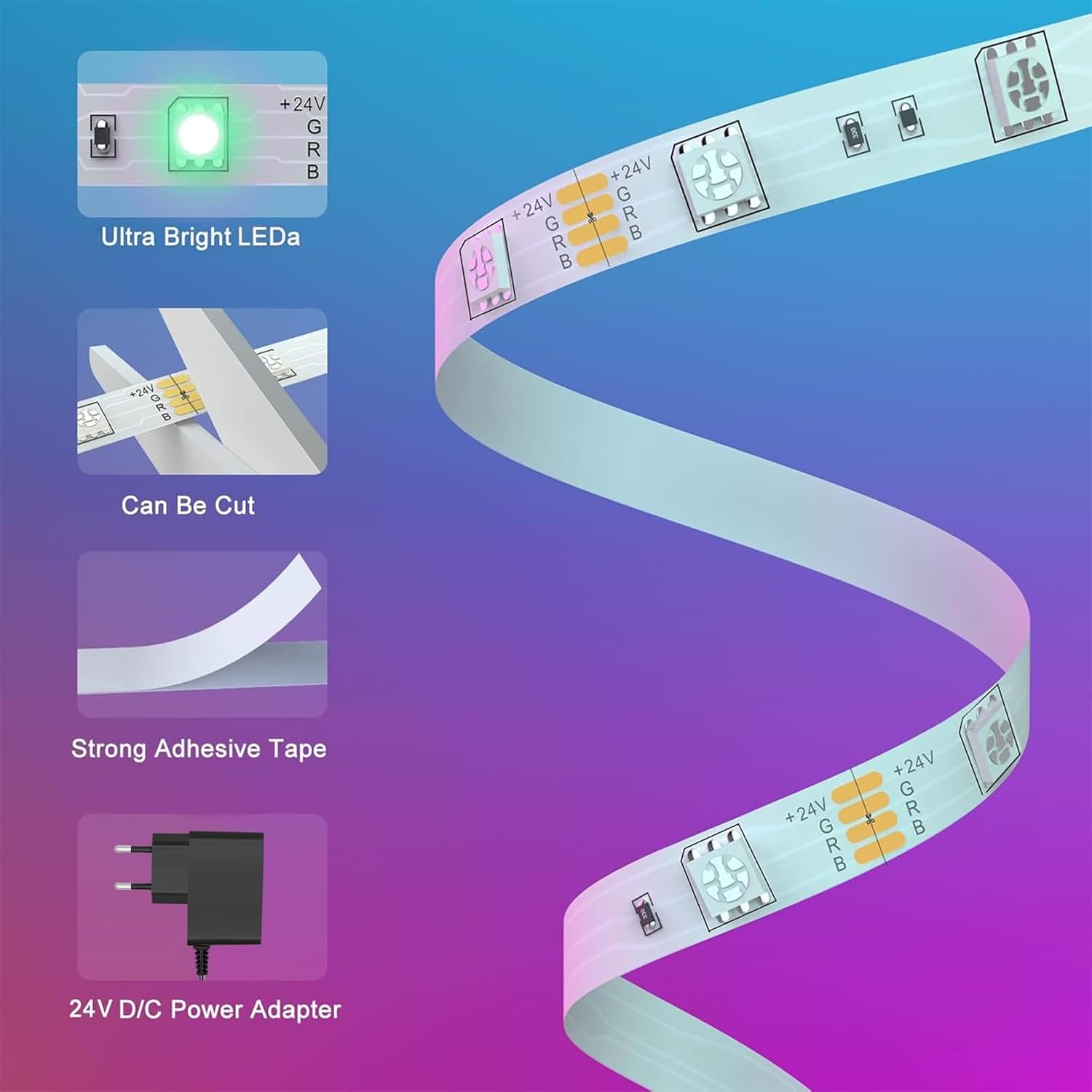
Image 4.2: Detail of the LED strip, highlighting the ultra-bright LEDs, cuttable design, strong adhesive tape, and the 24V D/C power adapter.
4.4 App Installation (Lotus Lantern)
- Scan the QR code provided in the product packaging or search for "Lotus Lantern" in your smartphone's app store (Google Play Store for Android, Apple App Store for iOS).
- Download and install the application.
- Enable Bluetooth on your smartphone and open the "Lotus Lantern" app. The app should automatically detect and connect to your LED strip lights.
5. Operating Instructions
The Bonve Pet LED Strip Light can be controlled via the "Lotus Lantern" smartphone app or the included 40-key IR remote control.
5.1 Smartphone App Control (Lotus Lantern)
The "Lotus Lantern" app offers comprehensive control over your LED strip lights.
- Color Selection: Choose from 16 million colors using the color wheel or predefined color options.
- Dynamic Modes: Select from 28 pre-programmed dynamic lighting modes.
- Brightness and Speed Adjustment: Adjust the intensity of the lights and the speed of dynamic modes.
- Music Mode: Synchronize the lights with music playing on your phone or through the built-in microphone. The lights will change color and rhythm according to the sound.
- Timer Function: Set schedules for the lights to automatically turn on or off at specific times.
- Group Control: Control multiple Bonve Pet LED strips simultaneously by creating groups within the app.

Image 5.1: Control options for the LED strip, showing the smartphone app interface for color selection and various functions, alongside the physical IR remote control.

Image 5.2: The LED strip lights in Music & Mic Mode, demonstrating how they react to music played from a phone or detected by the built-in microphone, creating a dynamic lighting effect.

Image 5.3: Illustration of the timer setting feature, allowing users to schedule sleep and wake-up times for the LED lights, such as turning off at 11:00 PM and on at 8:00 AM.
5.2 Remote Control Operation
The 40-key IR remote control provides quick access to essential functions. Point the remote directly at the control box for optimal response.

Image 5.4: Detailed diagram of the 40-key remote control, indicating buttons for power, music sensitivity, pause, 16 static colors, 4 music modes, brightness adjustment, timing off, and various jump/fade effects.
- On/Off: Power button to turn the lights on or off.
- RGB Buttons: Direct selection for Red, Green, Blue colors.
- Color Buttons: 16 static color options.
- Brightness Adjustment: Increase or decrease light intensity.
- Music Modes: Activate 4 different music synchronization modes.
- Jump/Fade Modes: Various dynamic modes like 3/7 color jump, 3/7 color fade, auto, and flash.
- Speed Adjustment: Control the speed of dynamic and music modes.
- Sleep Mode: A dedicated button for sleep mode.
- Timing OFF: Button to activate a timer for automatic shutdown.
6. Maintenance
Proper maintenance ensures the longevity and optimal performance of your LED strip lights.
- Cleaning: Gently wipe the LED strips with a dry, soft cloth to remove dust. Do not use liquid cleaners or abrasive materials.
- Adhesion: If the adhesive starts to weaken over time, you may reinforce it with additional adhesive clips or tape (not included).
- Storage: If storing the LED strips, ensure they are rolled loosely and kept in a dry, cool place away from direct sunlight.
- Power Adapter: Regularly check the power adapter and cables for any signs of damage. Discontinue use if damage is found.
7. Troubleshooting
If you encounter issues with your Bonve Pet LED Strip Light, refer to the following common problems and solutions:
| Problem | Possible Cause | Solution |
|---|---|---|
| LED strip does not light up. |
|
|
| Remote control is not working. |
|
|
| App cannot connect to the LED strip. |
|
|
| Some LEDs show incorrect colors or are not lighting up. |
|
|
8. Specifications
| Feature | Detail |
|---|---|
| Brand | Bonve Pet |
| Model Number | HL-5050 |
| LED Type | 5050 RGB LED |
| Strip Length | 20 meters (2 x 10M rolls) |
| Number of LEDs | 600 (30 LEDs per meter) |
| Input Voltage | 24 Volts |
| Power Consumption | 30 Watts |
| Luminous Flux | 18 lm (per LED, typical) |
| Control Methods | Smartphone App (Lotus Lantern) via Bluetooth, 40-Key IR Remote Control |
| Special Features | 16 Million Colors, 28 Dynamic Modes, Music Sync, Microphone Mode, Timer Function, Adjustable Brightness/Speed, Cuttable Design, Strong Adhesive |
| Operating Environment | Indoor use only (not waterproof) |
| Energy Efficiency Class | A+++ (Old rating system, equivalent to F under new EU label) |
| Product Dimensions | 13.5 x 13.5 x 6.7 cm (packaging); 210 grams |
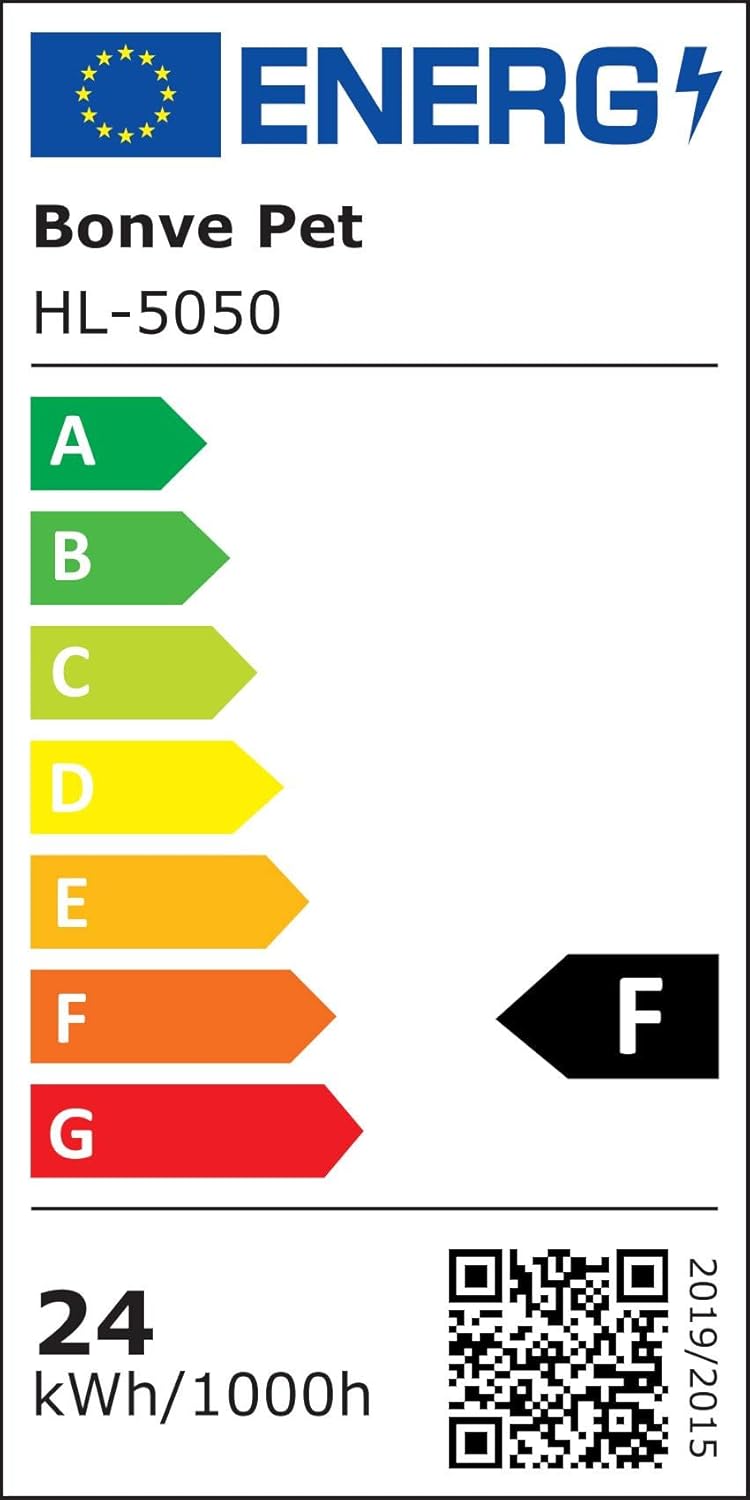
Image 8.1: EU Energy Label for Bonve Pet HL-5050, indicating an energy efficiency class of F (24 kWh/1000h). For more details, visit eprel.ec.europa.eu/qr/1442200.
9. Warranty Information
Specific warranty details for the Bonve Pet 20M RGB 5050 LED Strip Light are not provided in this manual. Please refer to your purchase documentation or contact the retailer/seller for information regarding warranty coverage and terms.
10. Customer Support
For further assistance, technical support, or inquiries regarding your Bonve Pet LED Strip Light, please contact your point of purchase or refer to the contact information provided by the seller.
Ask a question about this manual
Ask about setup, troubleshooting, compatibility, parts, safety, or missing instructions. Manuals+ will review the question and use this page’s manual context to help answer it.