
ASUS ROG STRIX B550-E GAMING
ASUS ROG Strix B550-E Gaming Motherboard User Manual
Model: ROG STRIX B550-E GAMING
1. Introduction
The ASUS ROG Strix B550-E Gaming motherboard is engineered to deliver next-level performance and connectivity for your gaming and computing needs. Designed for 3rd Gen AMD Ryzen CPUs, it features advanced technologies such as PCIe 4.0, WiFi 6, and 2.5Gb Ethernet, ensuring a robust and high-speed foundation for your system.
This manual provides detailed instructions for the installation, operation, and maintenance of your ROG Strix B550-E Gaming motherboard, helping you maximize its potential and ensure stable performance.

Figure 1.1: ASUS ROG Strix B550-E Gaming Motherboard and Box.
Key Features:
- AMD AM4 Socket and PCIe 4.0: Optimized for Zen 3 Ryzen 5000 & 3rd Gen AMD Ryzen CPUs.
- Robust Power Design: Features 14+2 DrMOS power stages with high-quality alloy chokes and durable capacitors for reliable power delivery.
- Optimized Thermal Solution: Fanless VRM and chipset heatsinks with ASUS Stack Cool 3+ design for enhanced passive cooling.
- High-performance Gaming Networking: On-board WiFi 6 (802.11ax), Bluetooth V5.1, and 2.5 Gb LAN with ASUS LANGuard.
- Best Gaming Connectivity: Supports HDMI 2.1 (4K@60HZ) and DisplayPort 1.2 output, dual M.2 slots (NVMe SSD) with PCIe 4.0 x4 connectivity, USB 3.2 Gen 2 Type-C ports, and Thunderbolt 3 header.
2. Package Contents
Before you begin, please verify that all items listed below are present in your motherboard package. If any item is damaged or missing, contact your retailer.

Figure 2.1: Included accessories with the ASUS ROG Strix B550-E Gaming Motherboard.
- ASUS ROG Strix B550-E Gaming Motherboard
- ASUS 2x2 Dual Band Wi-Fi Antenna
- User Manual
- Support DVD
- ROG Audio USB Type-C Cable
- ROG Stickers
- ROG Keychain
- 1 x Cable Ties Pack
- 4 x SATA Cables
- 1 x M.2 Rubber Package
- 1 x M.2 SSD Screw Package
- 1 x Addressable RGB Extension Cable
- 1 x RGB Extension Cable
3. Motherboard Layout and Components
Familiarize yourself with the key components and connectors on your motherboard before installation.

Figure 3.1: Motherboard overview highlighting key areas for performance gaming.
- ProCool Power Connector: Ensures a stable power supply to the CPU.
- AMD Socket AM4: Supports 3rd Gen AMD Ryzen™ Processors.
- 14+2 Power Stages: Robust power delivery for high-performance CPUs.
- DDR4, 4 x DIMM: Supports dual-channel memory configuration with ASUS OptiMem II.
- Multi-GPU SLI®/CFX Support: Includes PCIe 4.0 x16 SafeSlots for graphics cards.
- 2 x M.2 Sockets: One supports PCIe 4.0 x4 & SATA modes, the other supports PCIe 3.0 x4 & SATA modes.

Figure 3.2: Motherboard overview highlighting comprehensive cooling features.
- VRM Heatsink: Dissipates heat from the voltage regulator modules.
- Dual M.2 Heatsinks: Keeps M.2 SSDs cool for sustained performance.
- Chipset Heatsink: Cools the B550 chipset.
- AIO Pump Header: Dedicated header for All-in-One liquid coolers.
- Multiple 4-pin PWM Fan Headers: For flexible fan control and optimal airflow.

Figure 3.3: Motherboard overview highlighting total gaming immersion features.
- I/O Zone Aura Lighting: Customizable RGB lighting on the I/O shroud.
- 2 x 3-pin Addressable Gen 2 RGB headers: For connecting addressable RGB strips and devices.
- 2 x RGB headers: For connecting standard RGB strips and devices.
- Chipset Zone Aura Lighting: Customizable RGB lighting on the chipset heatsink.
- SupremeFX S1220A CODEC: High-quality audio solution with impedance sense, high-quality output and input, SupremeFX shielding, and dual OP amplifiers.
- Sonic Studio III + Sonic Studio Virtual Mixer: Advanced audio software suite.
- Sonic Radar III: Visualizes in-game sound for competitive advantage.
- DTS® Sound Unbound: Immersive audio experience.
4. Setup and Installation
4.1. CPU Installation
Carefully align your AMD AM4 processor with the socket on the motherboard. Ensure the golden triangle on the CPU matches the triangle on the socket. Gently lower the CPU into place and secure it by pushing down the retention lever.
4.2. Memory (RAM) Installation
The motherboard supports DDR4 memory modules. For optimal performance, install memory modules in the recommended DIMM slots for dual-channel operation, typically A2 and B2 (refer to your motherboard manual for exact slot numbering). Open the DIMM slot clips, align the memory module's notch with the slot's key, and press firmly until the clips snap into place.
4.3. Storage Device Installation
The motherboard features two M.2 slots for NVMe SSDs and six SATA 6Gb/s ports for traditional SATA drives.
- M.2 SSD: Remove the M.2 heatsink, insert the M.2 SSD into the slot, and secure it with the provided M.2 screw package. Reattach the heatsink.
- SATA Drives: Connect your SATA SSDs or HDDs to the SATA 6Gb/s ports using the provided SATA cables.
4.4. Graphics Card (GPU) Installation
Insert your PCIe 4.0 graphics card into the primary PCIe 4.0 x16 SafeSlot. Ensure it is fully seated and secured by the slot's retention clip. Connect any necessary PCIe power cables from your power supply to the graphics card.
4.5. Power Connections
Connect the 24-pin ATX main power connector and the 8-pin (or 8+4-pin) ProCool CPU power connector from your power supply to the corresponding ports on the motherboard.
4.6. Front Panel and I/O Connections
Connect your case's front panel headers (power button, reset button, USB ports, audio jacks) to the corresponding headers on the motherboard. Refer to the motherboard's detailed manual for specific pin layouts.
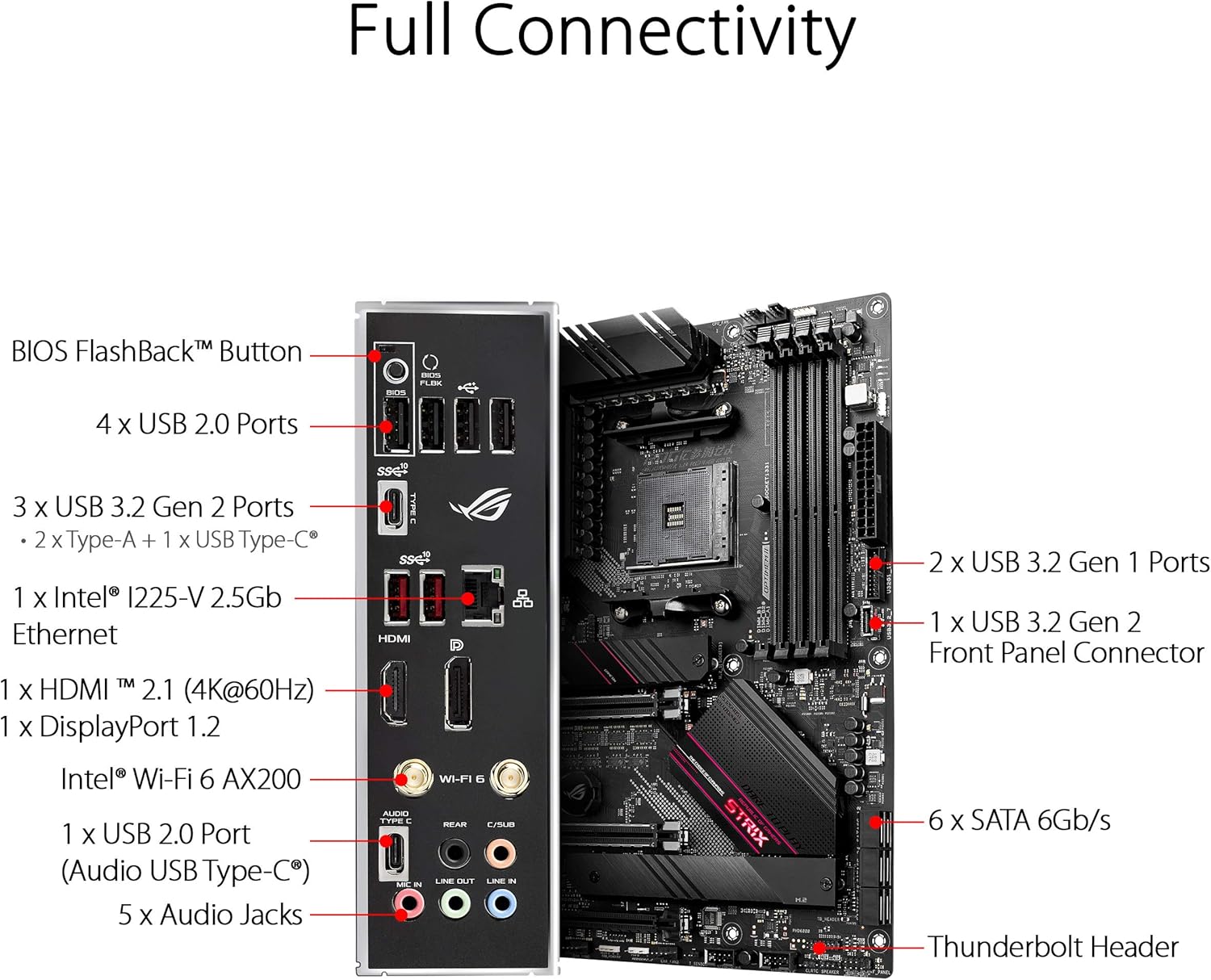
Figure 4.1: Full Connectivity: Rear I/O Panel.
The rear I/O panel provides various connectivity options:
- BIOS FlashBack™ Button
- 4 x USB 2.0 Ports
- 3 x USB 3.2 Gen 2 Ports (2 x Type-A + 1 x USB Type-C®)
- 1 x Intel™ I225-V 2.5Gb Ethernet
- 1 x HDMI™ 2.1 (4K@60HZ)
- 1 x DisplayPort 1.2
- Intel® Wi-Fi 6 AX200
- 1 x USB 2.0 Port (Audio USB Type-C®)
- 5 x Audio Jacks
- Thunderbolt Header (internal)
5. Operating Your Motherboard
5.1. BIOS Setup
The ASUS ROG Strix B550-E Gaming motherboard features an intuitive UEFI BIOS. To enter BIOS setup, press the DEL or F2 key during the Power-On Self-Test (POST). The BIOS allows you to configure system settings, boot order, and overclocking parameters.
5.2. Software and Drivers
Install the necessary drivers from the included Support DVD or download the latest versions from the ASUS official website (www.asus.com). Key software includes:
- Armoury Crate: Centralized utility for managing drivers, utilities, RGB lighting (Aura Sync), and game profiles.
- AI Noise-Canceling Microphone Software: Enhances communication by filtering out background noise.
- Sonic Studio III: For advanced audio customization.
Video 5.1: An overview of the ASUS B550 AMD Ryzen WiFi 6 Gaming Motherboard Series, showcasing its features and design.
6. Maintenance
Regular maintenance helps ensure the longevity and optimal performance of your motherboard.
6.1. Cooling System Maintenance
The motherboard features fanless VRM and chipset heatsinks, reducing dust accumulation in these areas. However, ensure proper airflow within your PC case. Regularly clean dust from case fans, CPU cooler, and GPU fans using compressed air. Keep the heatsinks free from obstructions.
6.2. General Cleaning
Periodically clean the motherboard and other components inside your PC case. Disconnect power before cleaning. Use a soft brush or compressed air to remove dust. Avoid using liquid cleaners directly on components.
7. Troubleshooting
This section addresses common issues you might encounter.
7.1. No Display / Boot Issues
- Check Power Connections: Ensure all power cables (24-pin ATX, 8-pin CPU, GPU PCIe power) are securely connected.
- Reseat Components: Try reseating the CPU, RAM modules, and graphics card. Ensure RAM modules are installed in the correct slots for dual-channel operation.
- Q-Code Display: The motherboard features a Q-Code display (Debug LED) that shows a two-digit code indicating the system status or an error. Refer to the detailed manual for a list of Q-Codes and their meanings to diagnose the issue.
- BIOS FlashBack™: If your system doesn't boot after a BIOS update or if you need to update BIOS for a new CPU without an older one, use the BIOS FlashBack™ feature. Refer to the detailed manual for instructions on how to use this feature.
7.2. Driver Issues
If you experience instability or device malfunction, ensure all drivers are up-to-date. Download the latest drivers from the ASUS support website. Avoid installing generic drivers if specific motherboard drivers are available.
7.3. System Instability / Crashes
- Check Temperatures: Monitor CPU and GPU temperatures using monitoring software. Overheating can lead to instability.
- Memory Compatibility: Ensure your RAM is compatible with the motherboard and CPU. Refer to the Qualified Vendor List (QVL) on the ASUS support website.
- Power Supply: Verify your power supply unit (PSU) has sufficient wattage for all your components.
8. Technical Specifications
| Feature | Specification |
|---|---|
| Brand | ASUS |
| Series | ROG STRIX B550-E GAMING |
| Model Number | ROG STRIX B550-E GAMING |
| CPU Socket | Socket AM4 |
| Compatible Processors | AMD 3rd Generation Ryzen (Zen 3 Ryzen 5000 ready) |
| Chipset Type | AMD B550 |
| RAM Memory Technology | DDR4 |
| Memory Speed | Up to 4400 MHz (OC) |
| PCIe Support | PCIe 4.0 |
| Wireless Type | WiFi 6 (802.11ax), Bluetooth V5.1 |
| LAN | 2.5 Gb Ethernet |
| USB Ports | 4 x USB 2.0, 3 x USB 3.2 Gen 2 (Type-A + Type-C), USB Audio Type-C |
| Video Output | HDMI 2.1 (4K@60HZ), DisplayPort 1.2 |
| Storage | Dual M.2 slots, 6 x SATA 6Gb/s |
| Item Weight | 2.36 pounds |
| Product Dimensions | 13.5 x 10.7 x 3.3 inches |
9. Warranty and Support
For detailed warranty information, please refer to the warranty card included with your product or visit the official ASUS website. ASUS provides comprehensive support for its products, including driver downloads, FAQs, and customer service.
You can find support resources and contact information on the ASUS official support page: www.asus.com/support/
When contacting support, please have your product model number (ROG STRIX B550-E GAMING) and serial number ready.
Related Documents - ROG STRIX B550-E GAMING
 |
ASUS ROG STRIX B550-E GAMING Motherboard User Manual This comprehensive user manual for the ASUS ROG STRIX B550-E GAMING motherboard provides detailed installation instructions, technical specifications, BIOS setup guidance, and troubleshooting information for PC builders and enthusiasts. It covers CPU, memory, storage, and expansion card installation, along with features like PCIe 4.0, Wi-Fi 6, and advanced audio. |
 |
ASUS ROG STRIX B550-E GAMING Quick Start Guide Quick start guide for installing the ASUS ROG STRIX B550-E GAMING motherboard, covering CPU, fan, memory, storage, expansion card installation, and system setup. |
 |
ROG STRIX B550-F GAMING (WI-FI) Motherboard User Manual Comprehensive user manual for the ASUS ROG STRIX B550-F GAMING (WI-FI) motherboard, covering installation, BIOS setup, and specifications. |
 |
ROG STRIX B550-E GAMING Uporabniški priročnik Podroben uporabniški priročnik za matično ploščo ASUS ROG STRIX B550-E GAMING, ki vključuje navodila za namestitev, specifikacije, varnostne informacije in konfiguracijo BIOS-a. |
 |
ASUS PRIME B550M-A Motherboard User Manual and Specifications Comprehensive guide to the ASUS PRIME B550M-A motherboard, covering installation, BIOS setup, specifications, safety, and compliance information for AMD Ryzen processors. |
 |
ASUS ROG STRIX B550-F GAMING WIFI II Motherboard Benutzerhandbuch Umfassendes Benutzerhandbuch für das ASUS ROG STRIX B550-F GAMING WIFI II Motherboard, mit Installationsanleitungen, Konfigurationsdetails und BIOS-Informationen für AMD Ryzen™ Prozessoren. |
Ask a question about this manual
Ask about setup, troubleshooting, compatibility, parts, safety, or missing instructions. Manuals+ will review the question and use this page’s manual context to help answer it.