
1. Introduction
This manual provides detailed instructions for the safe and efficient use of your Moxom 2.4 Amp Micro USB Cable. This cable is designed for both fast charging and high-speed data transfer for compatible devices.
Please read this manual thoroughly before using the product and retain it for future reference.
2. Product Features
- Cable Length: 1 meter
- Supports fast charging up to 2.4 Amps
- High-speed data synchronization
- Supports USB 2.0 data transfer speeds up to 480 Mbps
- Durable and tangle-free design
- High purity oxygen-free copper core and nickel-plated connectors for secure charge and data transfer.

Figure 2.1: Moxom Micro USB Cable with both connector types visible.

Figure 2.2: Illustration of the cable's internal construction for enhanced protection and secure transfer.
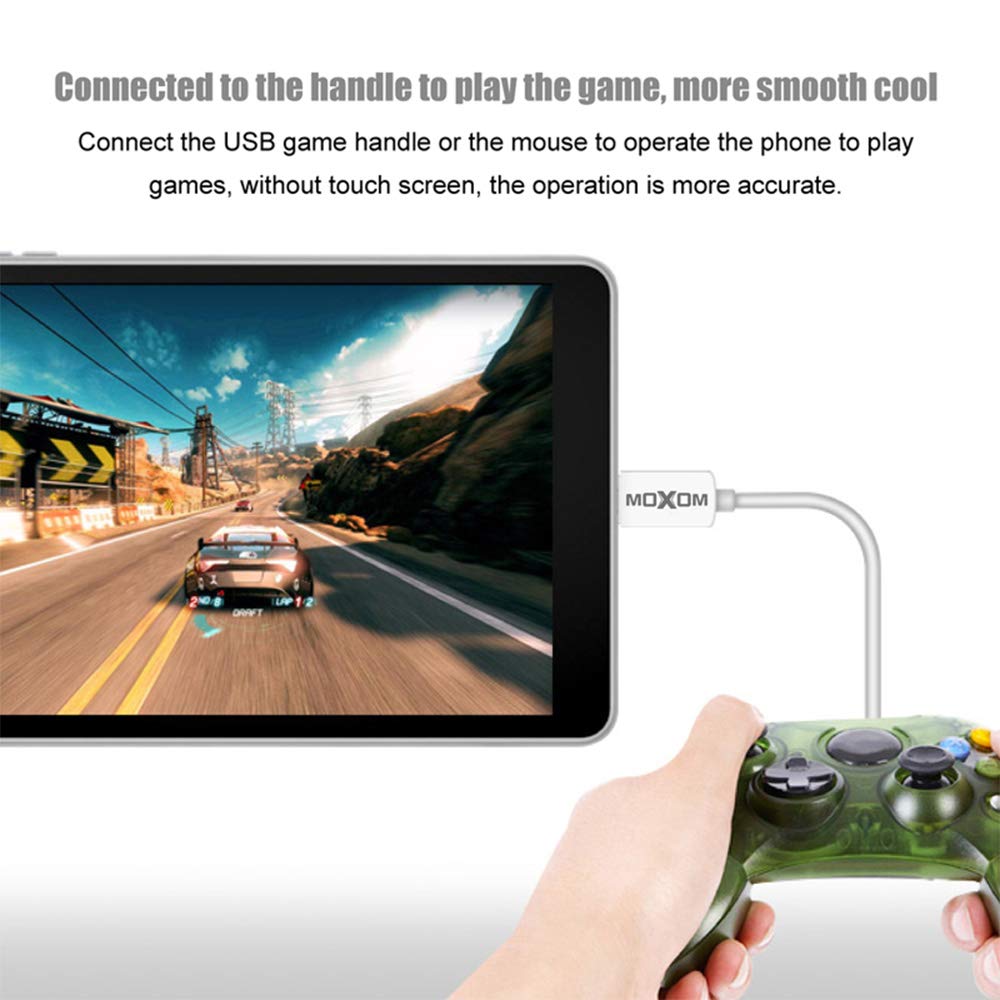
Figure 2.3: The cable can be used to connect compatible devices like game controllers to tablets for enhanced gaming experience.
3. Setup
- Identify Connectors: The cable has a Micro USB connector on one end and a standard USB-A connector on the other.
- Connect to Device: Carefully insert the Micro USB connector into the Micro USB port of your smartphone, tablet, or other compatible device. Ensure the connector is oriented correctly to avoid damage.
- Connect to Power/Data Source: Insert the standard USB-A connector into a compatible USB port on a wall charger, power bank, computer, or other USB-enabled device.
4. Operating Instructions
4.1. Charging
- Connect the Micro USB end to your device and the USB-A end to a USB wall adapter or power bank.
- Ensure the power source is active. Your device should indicate that it is charging.
- The cable supports fast charging for devices that are compatible with 2.4 Amp input.
4.2. Data Transfer
- Connect the Micro USB end to your device and the USB-A end to a USB port on a computer (PC or Mac).
- Your computer should recognize the connected device. You may need to select a data transfer mode on your device (e.g., "File Transfer" or "MTP").
- You can now transfer files between your device and the computer at speeds up to 480 Mbps.
5. Maintenance
- Cleaning: Use a soft, dry cloth to clean the cable and connectors. Do not use liquid cleaners or abrasive materials.
- Storage: Store the cable in a cool, dry place away from direct sunlight and extreme temperatures. Avoid tightly coiling or bending the cable at sharp angles to prevent internal damage.
- Handling: Always grasp the connector head when plugging or unplugging the cable. Do not pull on the cable itself, as this can damage the internal wires.
6. Troubleshooting
- Device not charging:
- Ensure both ends of the cable are securely connected.
- Try a different USB port or power adapter.
- Check if your device's charging port is clean and free of debris.
- Slow charging:
- Ensure your power adapter supports fast charging and provides sufficient current (e.g., 2.4 Amp).
- Avoid using your device heavily while charging.
- Data transfer issues:
- Ensure your device is set to "File Transfer" or "MTP" mode when connected to a computer.
- Try a different USB port on your computer.
- Restart both your device and computer.
7. Specifications
| Feature | Specification |
|---|---|
| Brand Name | Moxom |
| Model Reference | CC-08 |
| Connector Type | Micro USB |
| Cable Type | USB |
| Cable Connector Type | Male to Male |
| Maximum Current | 2.4 Amp |
| Compatible Devices | Charging Adapter |
| Special Features | Tangle-free |
| Recommended Uses | Charging |
| Color | White |
| Item Form | Round |
| Package Dimensions | 24 x 10.5 x 3.7 cm |
| Item Weight | 40 grams |
8. Warranty and Support
Moxom products are manufactured to high-quality standards. For information regarding warranty coverage and customer support, please refer to the packaging or contact your point of purchase. Keep your purchase receipt as proof of purchase.
For further assistance, please visit the official Moxom website or contact their customer service.