
1. Introduction
This manual provides essential information for the setup, operation, maintenance, and troubleshooting of your SAMSUNG The Frame QLED LS03 Series 32-inch Smart TV. Please read this manual thoroughly before using your television to ensure proper and safe operation.
The SAMSUNG The Frame TV is designed to blend seamlessly with your home decor, offering a QLED display for vibrant visuals and transforming into a work of art when not in use. It features integrated Alexa for voice control and smart home integration.

Image: The SAMSUNG The Frame TV in Art Mode, showcasing an abstract painting.
2. What's in the Box
Upon unpacking your SAMSUNG The Frame TV, verify that all components are present:
- SAMSUNG The Frame QLED LS03 Series 32-inch Smart TV
- One Connect Box
- SAMSUNG OneRemote (TM-2050A) with batteries
- No Gap Wall Mount
- One Invisible Connection Cable (5m)
- Power Cable
- User Manual (this document)

Image: Visual representation of the TV dimensions, the OneRemote, and a summary of included accessories.
3. Setup
3.1 Wall Mounting
The included No Gap Wall Mount allows the TV to hang snugly against the wall. For optimal installation, ensure the wall surface is flat and free of sockets or outlets where the mount will be placed.
- Carefully unpack the TV and wall mount components.
- Follow the detailed instructions provided with the No Gap Wall Mount for secure installation.
- Attach the TV to the mounted bracket, ensuring it is level and secure.

Image: The TV mounted flush to a wall, illustrating the No Gap Wall Mount feature.
3.2 Connecting the One Connect Box
The One Connect Box centralizes all your device connections, simplifying cable management. Use the One Invisible Connection Cable to link the TV to the One Connect Box.
- Connect the One Invisible Connection Cable from the TV's One Connect port to the corresponding port on the One Connect Box.
- Connect your external devices (Blu-ray player, game console, soundbar, etc.) to the appropriate ports on the One Connect Box.
- Plug the power cable into the One Connect Box and then into a wall outlet.
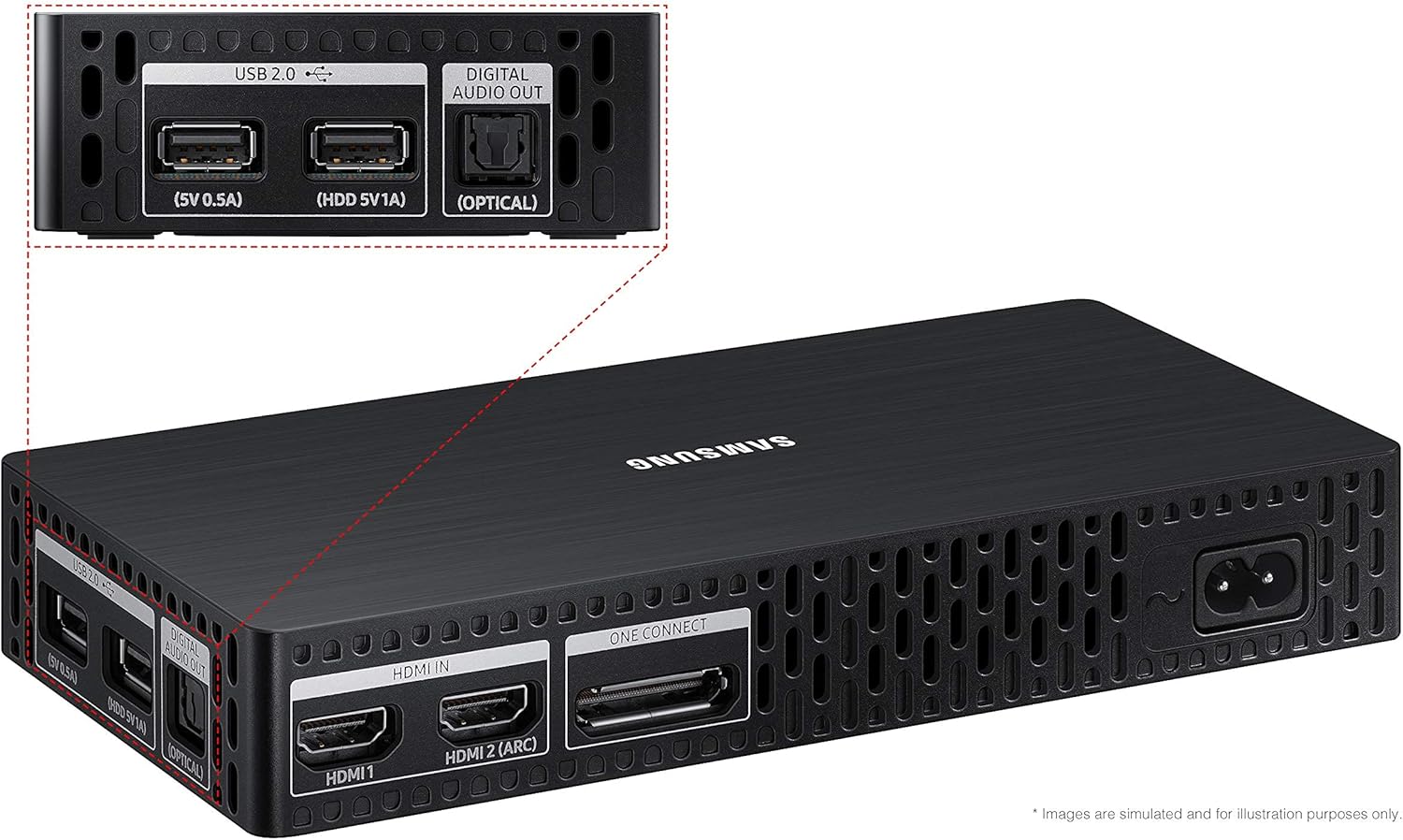
Image: The One Connect Box, showing its various input and output ports.
3.3 Port Overview
The One Connect Box provides the following connectivity options:
- HDMI IN: For connecting high-definition devices such as Blu-ray players, game consoles, and cable/satellite boxes. HDMI 2 supports Audio Return Channel (ARC).
- USB (5V 0.5A / HDD 5V 1A): For connecting USB storage devices to play media files or for software updates.
- DIGITAL AUDIO OUT (OPTICAL): For connecting to a soundbar or home theater system for digital audio output.
- ANT IN: For connecting an antenna or cable TV signal.
- EX-LINK: For service and maintenance purposes.

Image: Rear view of the TV, highlighting the One Connect and ANT IN ports.
4. Operating Your TV
4.1 Powering On/Off
Press the Power button on the OneRemote to turn the TV on or off. Ensure the One Connect Box is properly connected to power.
4.2 Using the OneRemote (TM-2050A)
The OneRemote provides intuitive control over your TV and connected devices. It features a minimalist design with essential buttons for navigation, volume, channel, and smart features.
- Navigation Pad: Use to move through menus and select items.
- Volume/Channel Buttons: Adjust volume and change channels.
- Home Button: Access the Smart Hub for apps, settings, and inputs.
- Mic Button: Press and hold to activate Alexa voice commands.
4.3 Smart Features
- Art Mode: When the TV is off, it can display artwork or personal photos. Activate the built-in motion sensor to automatically display content when someone enters the room.
- Art Store: Access a library of art from established and emerging artists. Subscription fees may apply for full access.
- Customizable Frame: Enhance the TV's appearance with optional customizable bezels in various colors (e.g., black, white, beige, walnut) to match your decor.
- Alexa Built-in: Use voice commands to open apps, change channels, search for content, play music, and control compatible smart home devices. Press and hold the mic button on your remote to speak to Alexa.

Image: Customizable frame options for The Frame TV in various colors.
5. Maintenance
5.1 Cleaning the Screen
To clean the screen, gently wipe it with a soft, dry microfiber cloth. For stubborn smudges, lightly dampen the cloth with distilled water. Avoid using harsh chemicals, abrasive cleaners, or direct spraying of liquids onto the screen.
5.2 General Care
- Keep the TV and One Connect Box away from direct sunlight, heat sources, and excessive dust.
- Ensure adequate ventilation around the TV and One Connect Box to prevent overheating.
- Avoid placing heavy objects on the TV or One Connect Box.
6. Troubleshooting
If you encounter issues with your TV, refer to the following common solutions:
6.1 No Power / TV Not Turning On
- Verify that the power cable is securely connected to the One Connect Box and the wall outlet.
- Ensure the One Invisible Connection Cable is firmly connected between the TV and the One Connect Box.
- Test the wall outlet with another device to confirm it is receiving power.
- If using a power strip, ensure it is switched on and functioning correctly.
6.2 No Picture or Poor Picture Quality
- Check all HDMI or antenna connections for looseness.
- Ensure the correct input source is selected on the TV.
- Adjust picture settings (brightness, contrast, sharpness) in the TV menu.
- If using an external device, check its output settings.
6.3 Remote Control Not Working
- Replace the batteries in the OneRemote (requires 2 AAA batteries).
- Ensure there are no obstructions between the remote and the TV.
- Try re-pairing the remote with the TV if it's a Bluetooth remote (refer to the TV's on-screen guide for pairing instructions).
6.4 TV Turns Off/On Randomly
- Check for any scheduled power-off timers in the TV settings.
- Ensure the TV's firmware is up to date. Navigate to Settings > Support > Software Update.
- Disable the SmartThings function temporarily to see if it resolves the issue.
- Perform a factory reset (note: this will erase all personalized settings).
7. Specifications
| Feature | Detail |
|---|---|
| Model Number | CCCR-QN32LS03C |
| Screen Size | 32 Inches |
| Display Technology | QLED |
| Resolution | FHD (Full High Definition) |
| Refresh Rate | 60 Hz |
| Aspect Ratio | 16:9 |
| Connectivity | Bluetooth, HDMI, USB, Wireless |
| Special Features | Art Mode, Art Store, Alexa Built-in, Customizable Frame, No Gap Wall Mount |
| Dimensions (TV without stand) | 28.5" W x 16.5" H x 1" D |
| Dimensions (TV with stand) | 28.5" W x 17.8" H x 5.6" D |
| Item Weight | 17.5 Pounds |
| Included Components | User Manual, OneRemote (TM-2050A), No Gap Wall Mount, One Connect Box, One Invisible Connection Cable 5m |
Key Features:
- 100% Color Volume with Quantum Dot: Delivers over a billion shades of color, maintaining true-to-life vibrancy even in bright scenes.
- Dual LED: Enhances contrast and color accuracy.
- Quantum HDR: Provides a wider range of brightness and contrast for a more dynamic picture.
8. Warranty and Support
8.1 Warranty Information
This product is a renewed item. Warranty coverage for renewed products may vary. Please refer to your purchase documentation or contact your retailer for specific warranty details. New units typically come with a standard manufacturer's warranty, which may be extended through optional protection plans.
8.2 Customer Support
For technical assistance, service, or further inquiries, please visit the official Samsung support website or contact their customer service directly. Have your model number (CCCR-QN32LS03C) and serial number ready when contacting support.
Samsung Support Website: www.samsung.com/us/support/