
Elgato Wave:1
Elgato Wave:1 Premium Cardioid USB Condenser Microphone User Manual
Model: Wave:1 (10MAA9901)
Introduction
The Elgato Wave:1 is a premium cardioid USB condenser microphone designed for high-quality audio capture in streaming, gaming, and home office environments. It features proprietary Clipguard technology to prevent distortion and integrates with the Wave Link app for advanced audio mixing. This manual provides comprehensive instructions for setting up, operating, maintaining, and troubleshooting your Wave:1 microphone.
Setup
1. Unboxing and Components
Carefully unpack your Elgato Wave:1 microphone. Ensure all the following components are present:
- Elgato Wave:1 Microphone
- USB-C Cable
- Desktop Stand
- Boom Arm Adapter
- Quick Start Guide

Image: Elgato Wave:1 and its included components, including the microphone, USB-C cable, desktop stand, boom arm adapter, and quick start guide.
2. Physical Connection
- Attach the Wave:1 microphone to the included desktop stand or a compatible boom arm using the boom arm adapter.
- Connect the supplied USB-C cable to the USB-C port on the back of the Wave:1 microphone.
- Connect the other end of the USB-C cable to an available USB port on your computer (Mac or PC).

Image: Rear view of the Elgato Wave:1 microphone, highlighting the USB-C port for connection and the 3.5mm headphone jack for direct monitoring.
3. Software Installation
For full functionality and advanced audio control, download and install the Elgato Wave Link software from the official Elgato website. This software is compatible with Windows 10 and macOS.
Operating the Wave:1 Microphone
1. Basic Controls
The Wave:1 features a multi-function control knob on the front:
- Press to Mute: A single press of the knob will mute or unmute the microphone. The LED ring around the knob indicates the microphone status.
- Turn to Adjust: Rotate the knob to adjust microphone input gain, headphone volume, or crossfade between microphone and PC audio, depending on the selected mode in Wave Link software.
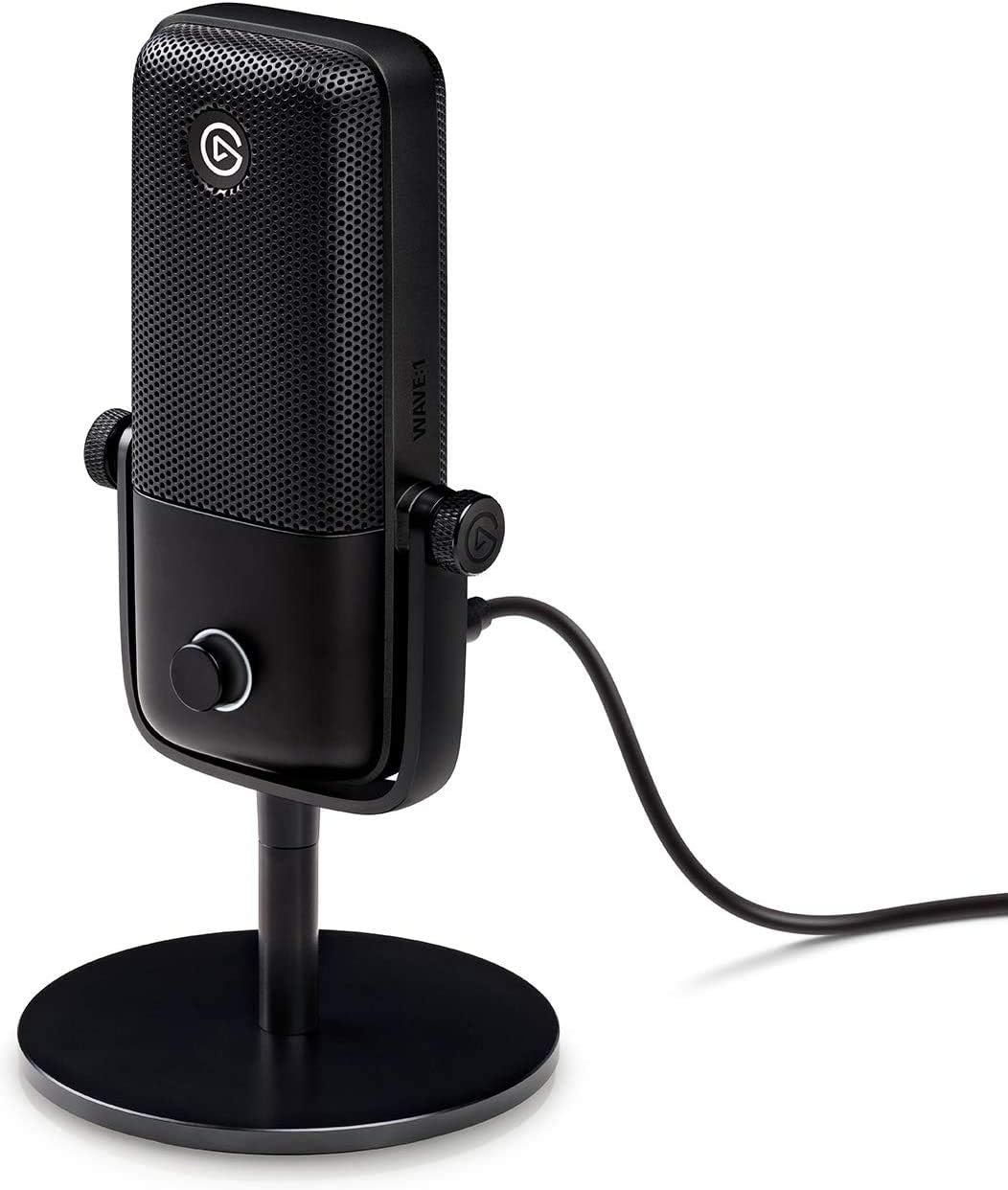
Image: Front view of the Elgato Wave:1 microphone, showcasing its sleek design and the prominent multi-function control knob.
2. Cardioid Condenser Capsule
The Wave:1 utilizes a cardioid condenser capsule, which is optimized to capture sound directly in front of the microphone while minimizing background noise from the sides and rear. This ensures clear and detailed speech capture.

Image: An internal view of the Elgato Wave:1, revealing the cardioid condenser capsule and highlighting its LEWITT audio technology.
3. Clipguard Technology
Elgato's proprietary Clipguard technology automatically reroutes audio through a secondary signal path that runs at a lower volume. This prevents audio clipping and distortion, even when input levels peak unexpectedly, ensuring your audio remains clean and clear.

Image: The Elgato Wave:1 microphone positioned against a background depicting sound waves, emphasizing its Clipguard anti-distortion technology.
4. Wave Link Software
The Wave Link application is a digital mixer that allows you to control the Wave:1 and up to eight other audio sources. It enables you to create two independent output mixes: one for yourself (monitor mix) and one for your audience (stream mix). This software also supports VST plugins for advanced audio processing.

Image: A computer screen displaying the Elgato Wave Link software interface, showing multiple audio input channels and independent output mixes.
5. Stream Deck Compatibility
The Wave:1 integrates seamlessly with Elgato Stream Deck devices. This allows for tactile control over microphone functions, such as muting, adjusting levels, and switching between audio sources, directly from your Stream Deck.

Image: The Elgato Wave:1 microphone positioned alongside an Elgato Stream Deck, illustrating their seamless integration for audio control.
6. Flexible Mounting
The Wave:1 can be used with its included desktop stand or mounted onto a boom arm for optimal positioning. The included boom arm adapter ensures compatibility with standard microphone mounts.

Image: The Elgato Wave:1 microphone mounted on a boom arm, demonstrating its flexible mounting options for various setups.
Maintenance
To ensure the longevity and optimal performance of your Elgato Wave:1 microphone, follow these maintenance guidelines:
- Cleaning: Use a soft, dry cloth to wipe the exterior of the microphone. Avoid using abrasive cleaners, solvents, or harsh chemicals. Do not spray liquids directly onto the microphone.
- Storage: When not in use, store the microphone in a clean, dry environment, away from extreme temperatures and humidity.
- Handling: Handle the microphone with care. Avoid dropping it or subjecting it to strong impacts, as this can damage internal components.
Troubleshooting
If you encounter issues with your Elgato Wave:1 microphone, refer to the following common solutions:
- No Sound Output:
- Ensure the USB-C cable is securely connected to both the microphone and your computer.
- Check your computer's sound settings to confirm 'Elgato Wave:1' is selected as the input and output device.
- Verify the microphone is not muted (check the LED ring on the control knob).
- Confirm the input gain in Wave Link software is set appropriately.
- Distorted Audio:
- While Clipguard technology minimizes distortion, ensure your input gain is not excessively high. Adjust it in Wave Link.
- Check for any physical obstructions or damage to the microphone capsule.
- Wave Link Software Not Recognizing Microphone:
- Restart your computer and the Wave Link software.
- Try connecting the Wave:1 to a different USB port on your computer.
- Ensure you have the latest version of Wave Link installed from the Elgato website.
- Intermittent Connectivity:
- Use the original Elgato USB-C cable.
- Avoid connecting the microphone through unpowered USB hubs. Connect directly to your computer if possible.
For further assistance, please visit the official Elgato support website.
Specifications
| Feature | Detail |
|---|---|
| Model Number | 10MAA9901 |
| Polar Pattern | Unidirectional (Cardioid) |
| Microphone Type | Condenser |
| Connectivity | USB Type-C |
| Analog-to-Digital Converter | 24-bit/48kHz |
| Signal-to-Noise Ratio | 95 dB |
| Hardware Platform | Mac, PC |
| Item Weight | 1.29 pounds |
| Product Dimensions | 1.57 x 2.6 x 5.55 inches |
| Material | Metal, Plastic |
| Special Feature | Mute Function, Clipguard Technology |
Warranty and Support
The Elgato Wave:1 microphone comes with a manufacturer's warranty. Please refer to the warranty card included in your product packaging or visit the official Elgato website for detailed warranty terms and conditions specific to your region.
For technical support, software updates, and additional resources, please visit the official Elgato support portal:
Related documentsWave:1


Ask a question about this manual
Ask about setup, troubleshooting, compatibility, parts, safety, or missing instructions. Manuals+ will review the question and use this page’s manual context to help answer it.