
HUBSAN HUBSAN ZINO 2 PLUS
Hubsan Zino 2+ Drone Instruction Manual
Model: HUBSAN ZINO 2 PLUS
Introduction to the Hubsan Zino 2+ Drone
The Hubsan Zino 2+ is a high-performance GPS RC drone equipped with a 4K 60fps camera and a 3-axis gimbal, designed for both aerial photography and recreational flight. It offers advanced features such as 10KM FPV transmission, extended flight time, and intelligent flight modes to enhance your flying experience.
This manual provides essential information for the safe and effective operation, maintenance, and troubleshooting of your Hubsan Zino 2+ drone. Please read it thoroughly before your first flight.

Figure 1: The Hubsan Zino 2+ drone package contents, including the drone, remote control, two batteries, a carrying bag, and a set of lens filters.
Setup Guide
1. Unboxing and Component Identification
Carefully remove all components from the packaging. Verify that all items listed below are present:
- ZINO 2 RC Drone
- Remote Control
- 2 x Blade sets (total 8 blades)
- 2 x Blade Screws
- Charger
- Screwdriver
- Remote Control USB Charging Cable
- Battery (3800mAh 4s)
- English Manual
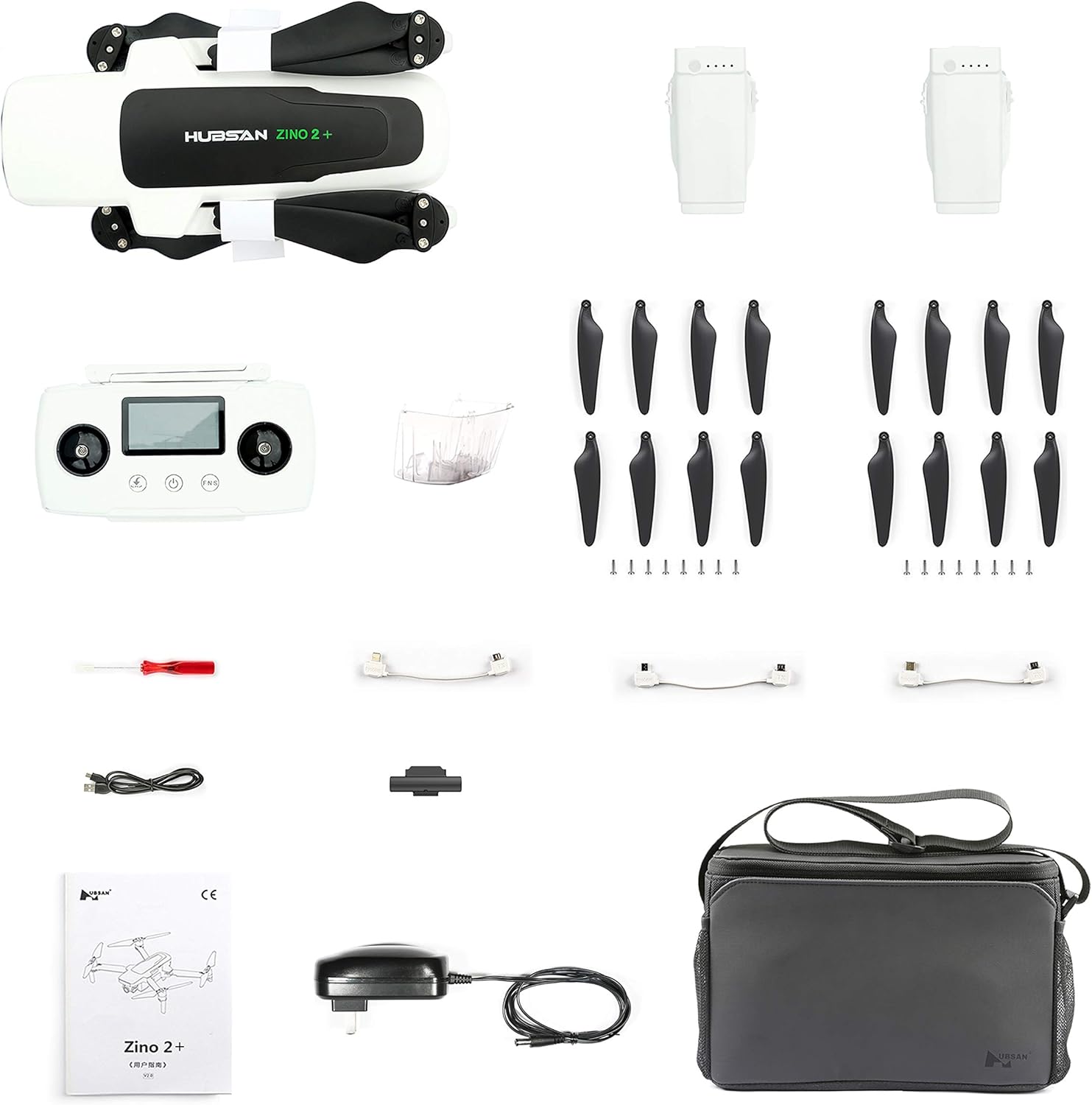
Figure 2: All included components of the Hubsan Zino 2+ drone, neatly arranged for inspection.
2. Battery Charging
Before initial use, fully charge the drone battery and the remote control. The intelligent charger supports charging up to three batteries simultaneously. The drone battery can also function as a power bank for external power supply.
- Connect the charger to a power outlet.
- Connect the drone battery(ies) to the charger.
- Connect the remote control to the charger using the USB charging cable.
- Monitor the charging indicators until all batteries are fully charged.
3. Propeller Installation
Attach the propellers to the drone arms using the provided screws and screwdriver. Ensure propellers are securely fastened and correctly oriented according to the markings on the drone and propellers.

Figure 3: The Hubsan Zino 2+ drone with its arms and propellers unfolded, ready for flight.
The drone features a foldable design for portability. When preparing for flight, gently unfold the arms until they lock into place. For storage, fold the arms back into the compact position.

Figure 4: The Hubsan Zino 2+ drone in its folded, compact state, ideal for transport.
Operating Instructions
1. Pre-Flight Checklist
- Ensure drone and remote control batteries are fully charged.
- Verify propellers are securely attached and undamaged.
- Check that the 3-axis gimbal is free from obstructions and moves smoothly.
- Select an open, clear area for flight, away from obstacles, people, and restricted airspace.
- Power on the remote control, then the drone.
- Connect your mobile device to the remote control and launch the companion app for real-time FPV and flight data.

Figure 5: The remote control for the Hubsan Zino 2+ drone, showing its integrated display and control sticks.
2. Calibration and GPS Lock
Perform compass and IMU calibration as instructed by the app before each flight, especially when flying in a new location. Wait for a strong GPS signal lock (GPS+GLONASS+OPTICAL positioning) before takeoff to ensure stable flight and accurate return-to-home functionality.
3. Takeoff and Landing
- Automatic Takeoff: Use the one-key takeoff function in the app or on the remote control. The drone will ascend to a safe hovering altitude.
- Manual Takeoff: Push both control sticks down and outwards to start the motors, then slowly push the left stick up to ascend.
- Automatic Landing: Use the one-key landing or Return Home (RTH) function. The drone will return to its takeoff point and land automatically.
- Manual Landing: Slowly pull the left stick down to descend. Ensure the landing area is clear.
4. Flight Modes and Intelligent Functions
The Hubsan Zino 2+ offers various intelligent flight modes:
- Headless Mode: Simplifies flight by eliminating the need to orient the drone relative to the pilot.
- Image Tracking: The drone will automatically follow a selected subject.
- Orbiting: The drone will circle a point of interest.
- Panorama: Captures multiple images to stitch into a wide panoramic shot.
- Hyperlapse: Creates dynamic time-lapse videos.
- Low Light Capture: Optimized settings for improved performance in low light conditions.
- Vision Auxiliary Landing: Assists with precise landings.
Video 1: A sample video demonstrating the 4K 60fps camera capabilities of the Hubsan Zino 2+ drone, showcasing aerial footage in various environments.
Maintenance
1. Post-Flight Inspection
- Inspect propellers for any cracks, bends, or debris. Replace damaged propellers immediately.
- Check the drone body and landing gear for any signs of damage.
- Ensure the gimbal and camera are clean and free from dust or dirt.
- Verify battery contacts are clean and free of corrosion.
2. Battery Care and Storage
- Store batteries in a cool, dry place, away from direct sunlight and extreme temperatures.
- Do not fully discharge batteries for long-term storage; maintain a charge level of approximately 50-60%.
- Avoid overcharging or over-discharging batteries.
3. Firmware Updates
Regularly check for and install firmware updates via the companion app. Updates often include performance improvements, bug fixes, and new features.
Troubleshooting
Common Issues and Solutions:
- Drone not powering on: Ensure battery is fully charged and correctly inserted. Check for any physical damage to the battery or drone.
- Loss of signal/connection: Ensure remote control is fully charged. Fly within the specified 10KM FPV range. Avoid areas with strong electromagnetic interference. Re-pair the drone and remote control if necessary.
- Unstable flight/drifting: Perform compass and IMU calibration. Ensure GPS lock is acquired before takeoff. Check propellers for damage or incorrect installation.
- Poor camera quality: Ensure the camera lens is clean. Check camera settings in the app (resolution, bitrate). Verify sufficient lighting conditions.
- App connectivity issues: Ensure your mobile device's operating system is up to date. Reinstall the app if problems persist. Check USB cable connection between mobile device and remote control.
For persistent issues, contact Hubsan customer support or refer to the official Hubsan website for detailed troubleshooting guides.
Specifications
| Feature | Detail |
|---|---|
| Brand | HUBSAN |
| Model Name | HUBSAN ZINO 2 PLUS |
| Age Range (Description) | Adult (Manufacturer recommended age: 14 - 14 years) |
| Color | White |
| Video Capture Resolution | 3840*2160 4K (Max Bitrate: 60Mbps) |
| Connectivity Technology | USB, Wi-Fi |
| Skill Level | Intermediate |
| Item Weight | 910 Grams (2.01 pounds) |
| Battery Capacity | 3800 Milliamp Hours (4s battery) |
| Video Capture Format | MP4 |
| Control Type | Remote Control |
| Media Type | SD |
| Material | Plastic |
| Battery Cell Composition | Lithium Ion |
| Video Output Resolution | 1280x720 Pixels (FPV) |
| Optical Sensor Technology | CMOS (Sony 1/2.3 inch) |
| Max FPV Distance | 10 KM (Remote Control), 8 KM (Image Transmission) |
| Flight Time | Up to 33 minutes (cruising), 31 minutes (hovering) |
Warranty and Support
For warranty information, technical support, or service inquiries, please refer to the official HUBSAN website or contact their customer service directly. Keep your proof of purchase for warranty claims.
Included Components: 2 x Blade, 2 x Blade Screw, Battery, Charger, English Manual, Remote Control, Remote Control USB Charging Cable, Screwdriver, ZINO 2 RC Drone.
Related documentsHUBSAN ZINO 2 PLUS


Ask a question about this manual
Ask about setup, troubleshooting, compatibility, parts, safety, or missing instructions. Manuals+ will review the question and use this page’s manual context to help answer it.