1. Introduction
This manual provides essential information for the proper installation, operation, and maintenance of your KENWOOD MDV-M807HDW 7-inch Wide Car Navigation System. Please read this manual thoroughly before using the product to ensure safe and optimal performance.
The MDV-M807HDW is a 7V wide model (200mm) AV navigation system featuring a terrestrial digital TV tuner, built-in Bluetooth, DVD, USB, and SD card compatibility. It is designed to enhance your in-car entertainment and navigation experience.
2. Product Features
- High-Resolution HD Panel: The system features a high-resolution HD panel, offering approximately 2.4 times the pixel density of conventional WVGA panels. This provides sharp, clear, and vibrant images with enhanced color reproduction, improving the visual experience for navigation, media, and user interface displays.
- Wide Viewing Angle: The wide-angle HD panel provides a 170° viewing angle (up, down, left, right), which is approximately 1.3 times wider than previous models. This ensures consistent color and contrast, allowing clear viewing from both driver and passenger seats without color distortion.
- Optimized HD Map Display: The navigation system utilizes an HD map display specifically optimized for the high-resolution HD panel. This ensures maps are rendered with exceptional clarity and detail, providing an easy-to-read and precise navigation experience.
- Monitor Mirroring Function: The system supports monitor mirroring via HDMI, allowing the high-definition navigation display to be shown on a rear monitor for passenger viewing. When connected to the optional DRV-MN940 drive recorder via HD-TVI, recorded and live camera feeds can also be viewed on rear monitors, enhancing passenger awareness of driving conditions.
- High-Resolution Audio Support: This unit supports high-resolution audio formats including DSD, FLAC, and WAV (up to 192kHz/24bit). This capability delivers transparent and immersive sound reproduction, characteristic of high-fidelity digital audio.

Figure 2.1: High-resolution HD display showing detailed map and media content.

Figure 2.2: Detailed 3D map rendering on the navigation screen.
3. Setup
3.1 Included Components
Before beginning installation, verify that all included components are present:
- GPS Antenna
- Mounting Screws
- Microphone
- Terrestrial Digital Antenna
- Power Harness
3.2 Installation Overview
The MDV-M807HDW is designed for dashboard mounting. Professional installation is recommended due to the complexity of vehicle wiring and integration.

Figure 3.1: System connectivity diagram, illustrating connections for speakers, cameras, and monitors.
3.3 Wiring Connections
- Power Harness: Connect the power harness to the vehicle's power supply according to the vehicle's wiring diagram. Ensure proper grounding.
- GPS Antenna: Mount the GPS antenna in a location with a clear view of the sky, typically on the dashboard or under the windshield. Connect the antenna cable to the designated port on the main unit.
- Terrestrial Digital Antenna: Install the terrestrial digital antenna(s) as per the instructions provided with the antenna kit. Connect the antenna cables to the main unit.
- Microphone: Connect the microphone for hands-free calling and voice commands. Position it near the driver for optimal voice pickup.
- External Devices (Optional): Connect external devices such as a rear camera, drive recorder (e.g., DRV-MN940), or rear monitor via their respective ports (e.g., HDMI, USB, HD-TVI).
4. Operating Instructions
4.1 Basic Operation
- Power On/Off: The unit powers on automatically with the vehicle's ignition. To manually turn off, press and hold the power button (if available) or turn off the vehicle's ignition.
- Touch Screen: Operate the unit using the touch screen. Swipe, tap, and drag gestures are supported for navigation and menu selection.
- Volume Control: Adjust the audio volume using the on-screen controls or steering wheel controls (if connected and configured).
4.2 Navigation Functions
- Destination Entry: Tap the "Navigation" icon on the home screen. Enter your destination using the on-screen keyboard, voice commands, or by selecting from points of interest (POIs) or recent destinations.
- Route Guidance: Once a destination is set, the system will calculate and display the optimal route. Follow the voice prompts and on-screen directions.
- Map View: Switch between 2D, 3D, and junction views. Zoom in/out using pinch gestures or dedicated on-screen buttons.
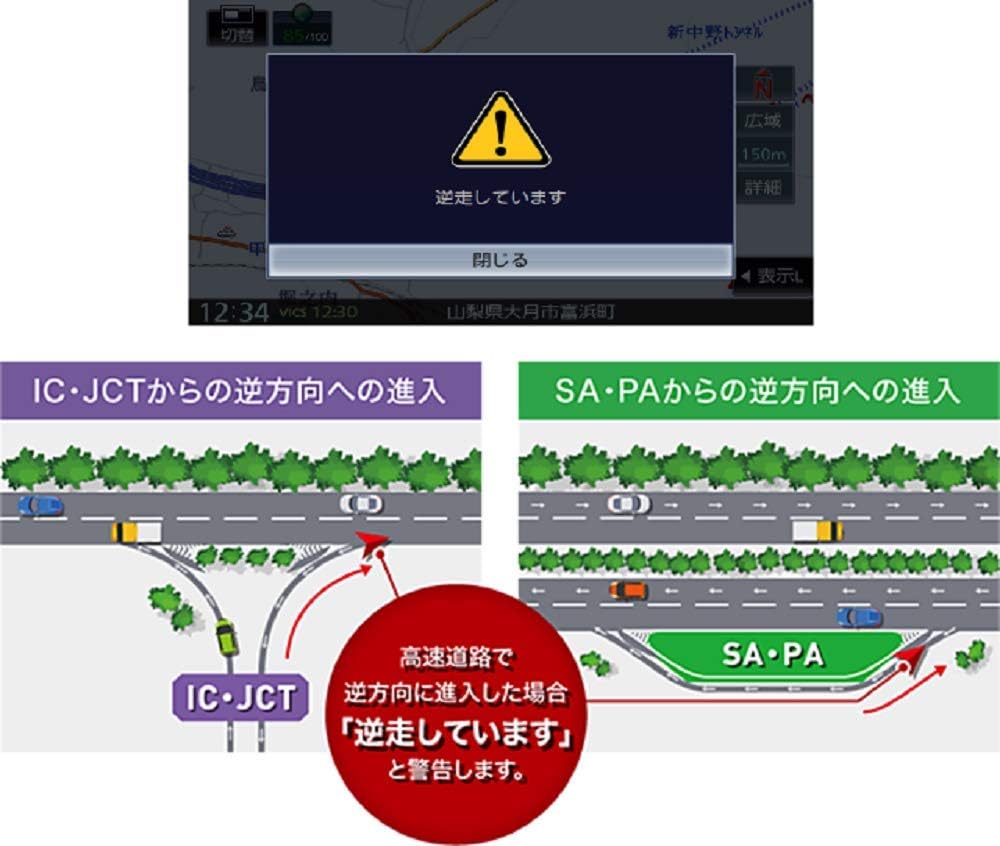
Figure 4.1: Example of a safety warning displayed on the navigation screen, indicating incorrect driving direction.
4.3 Media Playback
- DVD/CD: Insert a DVD or CD into the disc slot. Playback will begin automatically or can be selected from the media menu.
- USB/SD: Connect a USB device or insert an SD card containing audio or video files. Select the USB or SD source from the media menu to browse and play content.
- Bluetooth Audio: Pair your Bluetooth-enabled device with the navigation system. Select Bluetooth Audio as the source to stream music wirelessly.
- Terrestrial Digital TV: Select the TV source to watch terrestrial digital broadcasts. Ensure the vehicle is stationary for video playback in some regions.
5. Maintenance
5.1 Screen Cleaning
To clean the display panel, gently wipe it with a soft, dry cloth. For stubborn dirt, use a cloth lightly dampened with water or a screen cleaning solution. Avoid using abrasive cleaners, alcohol, or solvents, as these can damage the screen surface.
5.2 Software Updates
Periodically check the KENWOOD website for software and map updates. Follow the instructions provided with the update files for proper installation. Keeping your software updated ensures optimal performance and the latest map data.
5.3 General Care
Avoid exposing the unit to extreme temperatures, direct sunlight for prolonged periods, or excessive moisture. Ensure proper ventilation around the unit to prevent overheating.
6. Troubleshooting
| Problem | Possible Cause | Solution |
|---|---|---|
| No power | Loose power connection; Blown fuse; Vehicle ignition off | Check power harness connections; Inspect and replace fuse if necessary; Turn on vehicle ignition. |
| No GPS signal | GPS antenna obstructed or disconnected; Unit in an area with poor satellite reception | Ensure GPS antenna has a clear view of the sky; Check antenna connection; Move to an open area. |
| Touch screen unresponsive | System frozen; Screen dirty | Restart the unit (turn vehicle ignition off and on); Clean the screen. |
| No audio | Volume too low; Mute activated; Speaker connections loose | Increase volume; Deactivate mute function; Check speaker wiring. |
| Bluetooth connection issues | Device not paired; Bluetooth off on device or unit | Ensure device is in pairing mode; Verify Bluetooth is enabled on both devices; Re-pair the device. |
If you encounter problems not listed here or if the suggested solutions do not resolve the issue, please contact KENWOOD customer support or consult a qualified service technician.
7. Specifications
| Feature | Specification |
|---|---|
| Model Name | MDV-M807HDW |
| Screen Size | 7 inches (7V wide, 200mm) |
| Display Type | LCD |
| Color | Black |
| Mounting Method | Dashboard Mount |
| Connectivity | Bluetooth, HDMI, USB |
| Memory Storage Capacity | 16 GB |
| Compatible Vehicle Type | Passenger Car |
| Item Weight | 2.4 kg |
| Package Dimensions | 29.1 x 26.8 x 17.6 cm |
| Release Year | 2020 |
| Included Accessories | GPS antenna, mounting screws, microphone, terrestrial digital antenna, power harness |
8. Warranty and Support
For warranty information, please refer to the warranty card included with your product or visit the official KENWOOD website. Keep your proof of purchase for warranty claims.
For technical support, product inquiries, or service requests, please contact KENWOOD customer service through their official channels. Contact details can typically be found on the KENWOOD website or in the product packaging.