
FORTINET FortiGate-1100E-DC Network Security Appliance User Manual
Model: FG-1100E
1. Introduction
The FORTINET FortiGate-1100E-DC is a high-performance Network Security Appliance designed for large enterprises and service providers. It delivers Next-Generation Firewall (NGFW) capabilities, offering robust protection against various cyber threats. This appliance integrates advanced security features with high-speed networking to ensure optimal network performance and security.
Key features include deep inspection for thousands of applications, protection against malware and exploits, and continuous threat intelligence from AI-powered FortiGuard Labs. The device utilizes purpose-built security processor (SPU) technology for industry-leading threat protection performance and low latency. It also supports SSL encrypted traffic inspection and offers extensive deployment flexibility through advanced networking capabilities and virtual domains (VDOMs).
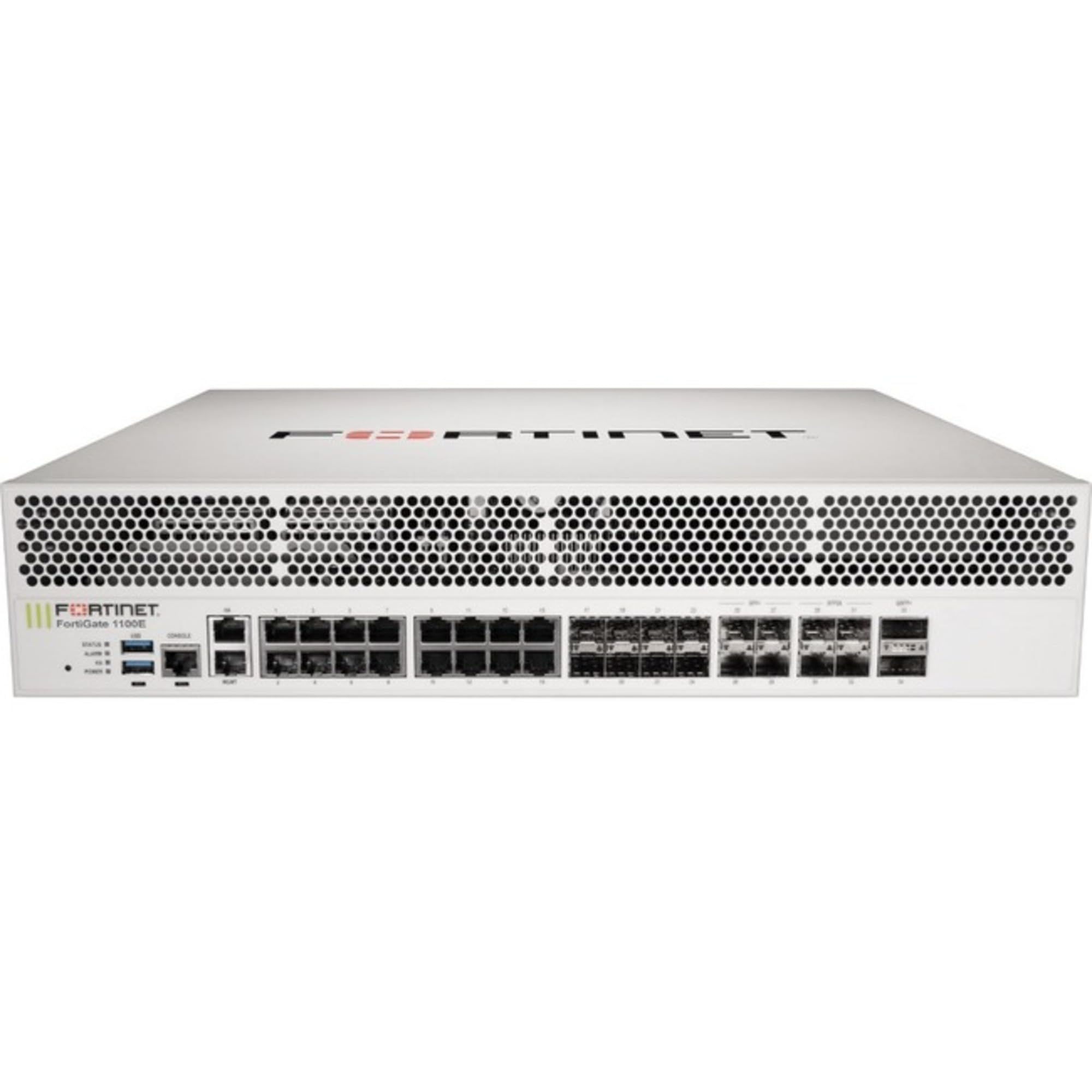
This image displays the front panel of the FortiGate-1100E-DC appliance, showing various network ports and status indicators. It provides a visual reference for physical connections.
2. Setup
2.1 Unpacking and Inspection
- Carefully unpack the FortiGate-1100E-DC appliance from its packaging.
- Verify that all components listed in the packing slip are present.
- Inspect the appliance for any physical damage that may have occurred during shipping. If damage is found, contact your vendor immediately.
2.2 Rack Installation
The FortiGate-1100E-DC is designed for standard 19-inch rack mounting. Use the provided rack-mount kit to secure the appliance in a server rack. Ensure adequate ventilation around the unit to prevent overheating.
2.3 Power Connection
This model is equipped with two DC power supplies for redundancy. Connect the provided DC power cables to the power inputs on the rear of the appliance and then to appropriate DC power sources. Ensure both power supplies are connected for redundant operation.
2.4 Network Connections
Connect your network cables to the appropriate interfaces on the FortiGate-1100E-DC. The appliance features a variety of high-speed interfaces:
- 2x 40 GE QSFP+ slots
- 4x 25 GE SFP28 slots
- 4x 10 GE SFP+ slots
- 8x GE SFP slots
- 18x GE RJ45 ports (including 16x data ports, 2x management/HA ports)
Connect the management ports to your management network for initial configuration and ongoing administration.
2.5 Initial Configuration
Access the management console via a web browser or command-line interface (CLI) using the IP address assigned to the management interface. Refer to the Fortinet documentation for detailed steps on initial setup, including network settings, security policies, and integration with the Fortinet Security Fabric.
3. Operating the FortiGate-1100E-DC
3.1 Powering On and Off
- Power On: After connecting the power cables, the appliance will power on automatically. Observe the status indicators on the front panel.
- Power Off: To power off, gracefully shut down the system through the management console or CLI before disconnecting power cables.
3.2 Management Console Overview
The FortiGate management console provides a comprehensive interface for configuring and monitoring the appliance. It offers visibility into network traffic, security events, and system status. Key areas include:
- Dashboard: Real-time system status, network activity, and security alerts.
- Network: Interface configuration, routing, and VPN settings.
- Policy & Objects: Firewall policies, NAT, and security profiles (IPS, Application Control, Web Filtering).
- Security Fabric: Integration with other Fortinet products for unified security management.
- System: Firmware updates, administrators, and system settings.
3.3 Security Features
The FortiGate-1100E-DC provides advanced security capabilities:
- Intrusion Prevention System (IPS): Detects and blocks known and unknown threats.
- SSL Inspection: Decrypts and inspects SSL/TLS encrypted traffic for hidden threats.
- Application Control: Identifies and controls thousands of applications.
- Web Filtering: Blocks access to malicious or inappropriate websites.
- Threat Protection: Utilizes FortiGuard Labs intelligence to protect against advanced persistent threats.
4. Maintenance
4.1 Firmware Updates
Regularly check for and apply firmware updates to ensure your appliance has the latest features, security patches, and performance enhancements. Firmware updates can be managed through the FortiGate management console.
4.2 Monitoring and Logging
Monitor system logs and security events regularly to identify potential issues or security incidents. The FortiGate provides extensive logging capabilities that can be viewed directly on the appliance or sent to a FortiAnalyzer for centralized logging and reporting.
4.3 Hardware Inspection
Periodically inspect the physical condition of the appliance, including power cables, network cables, and ventilation. Ensure that the operating environment remains within specified temperature and humidity ranges.
5. Troubleshooting
5.1 Basic Checks
- No Power: Verify that both DC power cables are securely connected and that the power sources are active. Check the power status indicators on the appliance.
- Network Connectivity Issues: Check all network cable connections. Verify interface status in the management console. Ensure correct IP configurations and routing.
- Management Access Issues: Confirm the management interface IP address and subnet mask. Ensure your management workstation is on the same network or has a valid route. Try accessing via CLI if web access fails.
5.2 Common Issues
- Slow Performance: Check resource utilization (CPU, memory) in the dashboard. Review traffic logs for unusual activity or high-bandwidth applications. Optimize firewall policies.
- Blocked Traffic: Review firewall policies and security profiles to ensure legitimate traffic is not being inadvertently blocked. Check logs for denied connections.
5.3 Contacting Support
If you encounter issues that cannot be resolved using the basic troubleshooting steps, refer to the official Fortinet documentation or contact Fortinet Technical Support for assistance. Provide detailed information about the problem, including error messages, logs, and steps taken.
6. Specifications
| Feature | Specification |
|---|---|
| Model Number | FG-1100E |
| Firewall Throughput | 80 Gbps |
| IPS Throughput | 12.5 Gbps |
| NGFW Throughput | 9.8 Gbps |
| Threat Protection Throughput | 7.1 Gbps |
| Interfaces | 2x 40 GE QSFP+ slots, 4x 25 GE SFP28 slots, 4x 10 GE SFP+ slots, 8x GE SFP slots, 18x GE RJ45 ports (16x data, 2x management/HA) |
| Hardware Acceleration | SPU NP6 and CP9 |
| Power Supplies | 2x DC power supplies (redundant) |
| Product Dimensions | 18 x 17 x 4 inches |
| Manufacturer | FORTINET |
| First Available | February 24, 2021 |
7. Warranty and Support
7.1 Warranty Information
The FORTINET FortiGate-1100E-DC Network Security Appliance typically includes a standard hardware warranty. For specific details regarding the warranty period and terms, please refer to the documentation provided with your purchase or visit the official Fortinet website.
7.2 FortiCare and FortiGuard Services
This appliance is often bundled with a 1 Year 24x7 FortiCare and FortiGuard Enterprise Protection License. These services provide:
- FortiCare: 24x7 technical support, advanced hardware replacement, and firmware upgrades.
- FortiGuard: Real-time threat intelligence updates for antivirus, IPS, web filtering, and other security services.
Ensure your FortiCare and FortiGuard licenses are active to receive continuous protection and support.
7.3 Technical Support
For technical assistance, product documentation, and software downloads, please visit the official Fortinet Support website: https://support.fortinet.com. You will need your product serial number to register your device and access support resources.


