
1. Introduction and Overview
The LEXI RFID NFC Duplicator is a versatile device designed for reading and writing various RFID and NFC smart cards and key fobs. It supports both 125KHz and 13.56MHz frequencies, making it suitable for a wide range of applications including access control, time attendance, and identification systems. This device features a USB interface for easy connection to a computer and comes with accompanying software for comprehensive control over duplication and programming tasks.

This image displays the main components of the LEXI RFID NFC Duplicator package, including the black duplicator unit, a USB cable, several white writable cards, and blue key fobs.
2. Features
- Lightweight and easy to use: ABS flame-retardant material shell, small size and thin, high-quality microchip control inside, fast card reading effect.
- LED warning light / buzzer: The LED reminder light is red in standby mode, the green light is in card reading status, and a built-in buzzer is provided for convenient and effective reminders.
- Working frequency: 125KHz / 13.56 MHz, support IC / ID dual frequency replication.
- USB full speed efficient: 1.2 meters long USB transmission line connected to the device, respond immediately, no need to install a driver, quickly read the card number.
- Software: When you connect this product to a computer, you can find the software on the computer. You can also download the software via the link in the "NOTE" section below this product page.

This image highlights the main features of the device, such as its LED indicator, USB connectivity, software compatibility, encryption decoding capabilities, and fast reading speed.
3. Setup
- Connect the Device: Connect the LEXI RFID NFC Duplicator to your computer using the provided USB cable. The device is designed for plug-and-play functionality and typically does not require manual driver installation.
- Locate Software: Upon connecting, the device may appear as a removable drive on your computer containing the necessary software. If not, refer to the product page for a download link.
- Install Software: Run the executable file (e.g., "vCopy-EM5-125CV2.exe" or similar) to install the "Smart Card Tool Software". Follow the on-screen prompts to complete the installation.

This image demonstrates how the device appears as a drive on a computer, with the software executable file visible for installation.
4. Operating Instructions
This section details the process of reading and writing RFID/NFC cards and fobs using the LEXI Duplicator and its accompanying software.
4.1 Device Indicators
The device features an LED indicator and a buzzer to provide feedback on its status:
- Red LED: Indicates standby mode.
- Green LED: Indicates card reading or writing status.
- Buzzer: Provides audible confirmation for successful operations.

This image illustrates the meaning of the LED light on the device: red for standby and green for active reading/writing.
4.2 Reading Cards/Fobs
- Launch the "Smart Card Tool Software" on your computer.
- Place the card or fob you wish to read onto the designated read/write area of the duplicator. The device's LED will turn green and a beep will sound upon successful detection.
- In the software, click the "Read" button (for 13.56MHz IC cards) or "Read EMID" button (for 125KHz ID cards) to retrieve the card's data. The software will display the read information.
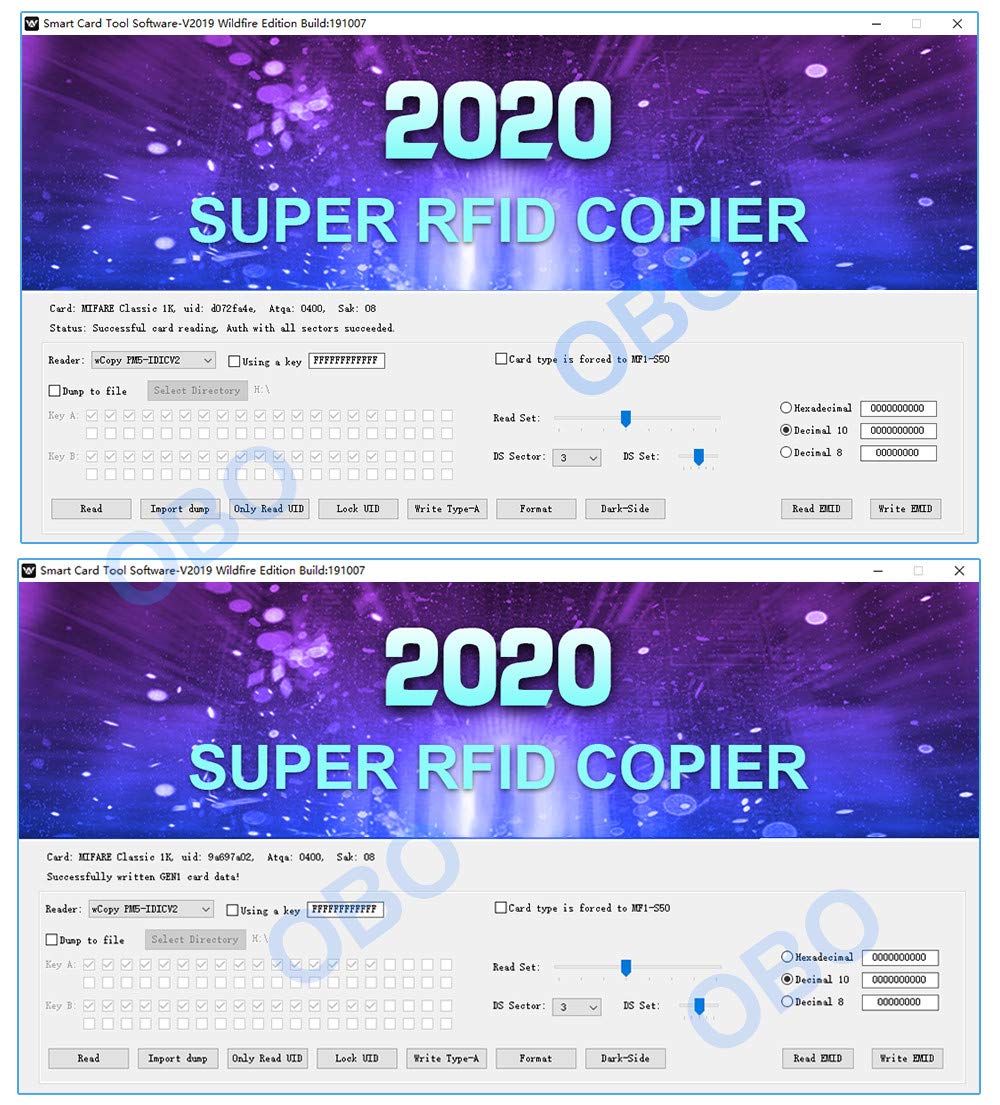
This image shows the main software interface, which allows users to read data from various card types, including Mifare Classic and EM4100/TK4100.

This image demonstrates the device's ability to read different types of smart cards, including 125KHz ID and 13.56MHz IC cards, near an access control keypad.
4.3 Writing Cards/Fobs
- After successfully reading the source card/fob, remove it from the duplicator.
- Place a compatible writable card or fob (e.g., 13.56MHz UID writable or 125KHz EM4305 T5577) onto the read/write area.
- In the software, click the "Write Type-A" button (for 13.56MHz IC cards) or "Write EMID" button (for 125KHz ID cards) to transfer the previously read data to the new card/fob. The device will beep and the LED will flash green during the writing process.
- Wait for the software to confirm successful writing.
4.4 Handling Encrypted Cards
For encrypted 13.56MHz cards, the software may attempt to decrypt the card during the read process. If successful, all sectors will be read. If decryption fails, you may need to use specific keys or methods provided by the software for partial reading or further analysis.
4.5 Instructional Video
Watch this official product video for a visual guide on using the LEXI RFID NFC Duplicator:
This video provides a comprehensive demonstration of the RFID duplicator, including connecting the device, launching the software, reading different types of RFID cards and fobs, and writing data to writable cards. It also shows how to handle encrypted cards.
5. Maintenance
- Keep the device clean by wiping it with a soft, dry cloth. Avoid using harsh chemicals or abrasive materials.
- Store the duplicator in a cool, dry place away from direct sunlight and extreme temperatures.
- Ensure the USB cable is not bent or damaged to maintain proper connectivity.
6. Troubleshooting
6.1 Device Not Recognized by Computer
- Ensure the USB cable is securely connected to both the duplicator and the computer.
- Try connecting to a different USB port on your computer.
- Restart your computer.
- Verify that the necessary software drivers are installed. If the device does not appear as a removable drive, download the software from the official product page or contact support.
6.2 Unable to Read/Write Cards
- Ensure the card or fob is placed correctly on the read/write area.
- Verify that the card/fob is compatible with the device's supported frequencies (125KHz or 13.56MHz).
- For writing, ensure you are using a writable card/fob (e.g., UID writable for 13.56MHz, T5577 for 125KHz). Standard cards are often read-only.
- Check the software for any error messages. Some encrypted cards may require specific keys or advanced procedures not covered in basic operation.
- Ensure no other RFID/NFC devices are interfering with the operation.
6.3 Software Issues
- If the software crashes or does not launch, try reinstalling it.
- Ensure your operating system meets the software's compatibility requirements.
- Temporarily disable antivirus software during installation or operation if it interferes with the software.
7. Specifications
| Attribute | Value |
|---|---|
| Product Dimensions | 4.3 x 2.7 x 0.5 inches |
| Item Weight | 4.94 ounces |
| Item Model Number | NS106 |
| Manufacturer | LEXI |
| ASIN | B088FB92XL |
| Supported Frequencies | 125KHz / 13.56 MHz |
| Interface | USB |

This image provides a visual representation of the physical dimensions of the RFID reader, indicating its length, width, and thickness.
8. Warranty and Support
For warranty information or technical support, please refer to the product packaging or contact the seller directly through the platform where the product was purchased. Keep your purchase receipt as proof of purchase for any warranty claims.


