
1. Introduction
Thank you for choosing the Hiseeu IP Camera PTZ 3MP Full Color Night Vision Alexa Indoor Camera. This manual provides essential information for the proper installation, operation, and maintenance of your camera. Please read it thoroughly before use and retain it for future reference.
2. Package Contents
Please check the package contents to ensure all items are present and in good condition:
- Hiseeu IP Camera (Main Unit)
- Power Adapter
- LAN Cable
- Mounting Screws and Wall Plugs
- Waterproof Connector for LAN Cable
- User Manual (Japanese)
Note: The included user manual is in Japanese. This document serves as an English instruction guide.
This video demonstrates the unboxing of the Hiseeu IP Camera, showing the included accessories such as the power adapter and LAN cable. It then shows the initial power-on sequence of the camera, including the self-test rotation and light activation.
3. Setup
3.1 Initial Power-On
- Connect the power adapter to the camera's power input port.
- Plug the power adapter into an electrical outlet.
- The camera will perform a self-test, rotating and activating its lights. Please wait approximately 2 minutes for the camera to complete its startup sequence.

A close-up of the camera showing the SD card slot for local storage (up to 128GB) and the reset button, which is protected by a waterproof cover.
3.2 App Registration and Camera Connection
To use the camera's smart features, you need to download the 'EseeCloud' app and connect the camera to your network.
- Download the free 'EseeCloud' application from Google Play or the App Store.
- Register an account within the app using your email address or phone number.
- Before connecting, ensure both the camera and your mobile device are near your WiFi router.
- In the app, select to add a new device. You may need to scan a QR code on the camera or manually enter its ID.
- Connect your mobile device to the camera's hotspot (e.g., 'IPCxxxxxx'). The initial password is '11111111'.
- Once connected to the camera's hotspot, return to the EseeCloud app and select your home WiFi network. Enter your WiFi password.
- The camera will attempt to connect to your WiFi network. This process may take 1-2 minutes. If connection fails, try again.
- After successful connection, you will be prompted to set a device name and a new password for the camera.

This diagram illustrates the three ways to connect the Hiseeu camera: directly via WiFi, using a LAN cable, or integrating it into a Hiseeu wireless NVR system.
3.3 NVR Pairing Method
This camera is compatible with Hiseeu, YESKAMO, HeimVision, ZOSI, and SMONET wireless camera systems.
- Using the provided pin, press and hold the reset button on the camera for 3-4 seconds to restore factory settings.
- Perform the initial setup as per your NVR system's instructions.
- Right-click the NVR mouse and select 'Add Wireless' to add the camera to your NVR system.
4. Operation
4.1 Remote Viewing and Control
Once connected, you can view live footage and control the camera from anywhere using the EseeCloud app on your smartphone or tablet. CMS software is also available for Windows, and MAC CMS software can be requested via email to Hiseeu.
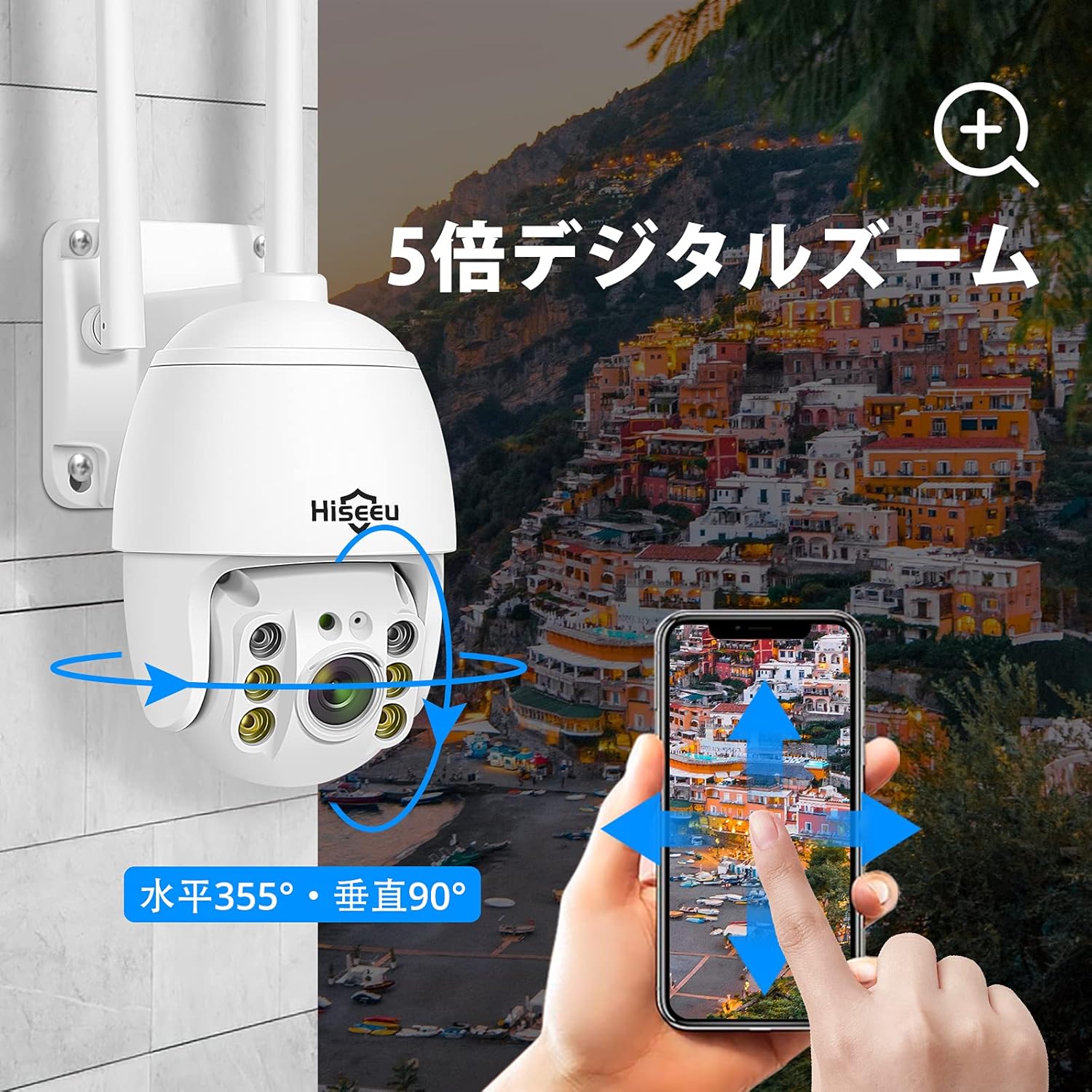
This image illustrates the Hiseeu PTZ camera's 5x digital zoom capability and its flexible pan (355°) and tilt (90°) movement, controllable through a smartphone application.
4.2 Pan, Tilt, and Digital Zoom
The camera offers 360° coverage with 320° horizontal pan and 90° vertical tilt. You can control these movements directly from the EseeCloud app. The camera also supports 5x digital zoom, which can be activated within the app.
4.3 Night Vision Modes
The camera is equipped with 2 infrared LEDs and 4 white LEDs, supporting two night vision modes for clear images in various lighting conditions:
- Full-Color Night Vision: Utilizes the white LEDs to provide color images even in low-light environments.
- Infrared Night Vision: Uses infrared LEDs for black and white images in complete darkness.

This image demonstrates the camera's two night vision modes: full-color night vision using white LEDs and infrared night vision using IR LEDs for clear visibility in low light.
4.4 Motion Detection and Alerts
The camera features advanced motion detection. When motion is detected, the camera will automatically send real-time notifications to your smartphone. You can customize specific detection zones within the app to reduce false alarms. Additionally, the built-in strobe light and loud siren can be activated to deter intruders.

The camera detects motion, activating a strobe light and sending an alert to a smartphone, illustrating its security features against intruders.
4.5 Two-Way Audio
The integrated microphone and speaker enable two-way audio communication. You can listen to the camera's surroundings and speak through the camera using the EseeCloud app, allowing for remote interaction.
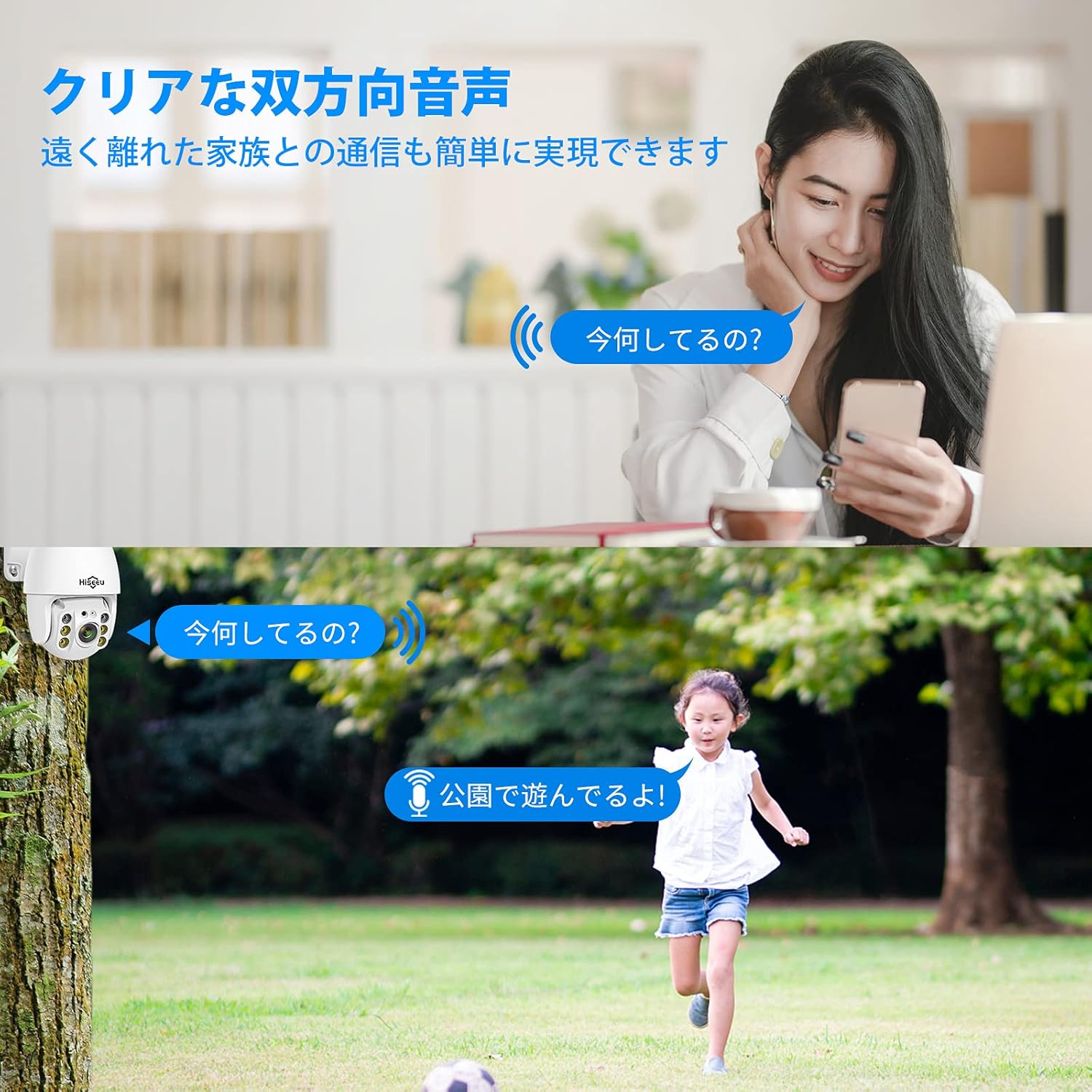
This image shows the camera's two-way audio function, allowing users to communicate remotely, for example, speaking to a child playing outdoors.
4.6 Local Storage
The camera supports local recording to an SD card, up to 128GB. Insert the SD card into the designated slot on the camera. Ensure the SD card is formatted correctly for optimal performance.
5. Maintenance
- Cleaning: Use a soft, dry cloth to clean the camera lens and body. Do not use harsh chemicals or abrasive cleaners.
- Firmware Updates: Regularly check the EseeCloud app for available firmware updates to ensure optimal performance and security.
- SD Card Management: If using an SD card for recording, periodically review and manage stored footage. Replace the SD card if it shows signs of wear or malfunction.
- Power Supply: Ensure the camera is connected to a stable power source. Avoid frequent power interruptions.
6. Troubleshooting
| Problem | Possible Cause | Solution |
|---|---|---|
| Camera not powering on | No power, faulty adapter | Check power connection and adapter. Ensure the outlet is working. |
| Unable to connect to WiFi | Incorrect WiFi password, 5GHz network, camera too far from router | Verify WiFi password. Ensure you are connecting to a 2.4GHz network. Move camera closer to the router. Reset camera and try again. |
| No motion detection alerts | Motion detection disabled, sensitivity too low, incorrect detection zone | Enable motion detection in the app. Adjust sensitivity settings. Configure detection zones correctly. |
| Poor image quality | Dirty lens, low bandwidth, insufficient lighting | Clean the camera lens. Ensure stable internet connection. Check night vision settings. |
| Two-way audio not working | Microphone/speaker disabled, app permissions | Check audio settings in the app. Ensure app has microphone permissions on your device. |
7. Specifications
- Model Number: WHD902A
- Brand: Hiseeu
- Video Capture Resolution: 3 MP (2304x1536P)
- Lens: 110° Wide-angle
- Pan/Tilt Range: Horizontal 320°, Vertical 90°
- Digital Zoom: 5x
- Night Vision: 2 Infrared LEDs, 4 White LEDs (Full-Color & Infrared modes)
- Connectivity Technology: Wireless (2.4 GHz Wi-Fi only)
- Connection Protocol: Wi-Fi
- Compatible Devices: Smartphone (Android/iOS), Tablet, Windows (CMS software), Mac (CMS software via email request)
- Storage: Supports up to 128GB SD card
- Waterproof Rating: IP66
- Recommended Use: Indoor, Outdoor
- Alert Type: Motion Only (with strobe light and siren)
- Audio: Two-Way Audio
- Power: DC 12V (Power Adapter included)
- Batteries Required: No
- Video Capture Format: MPEG-4
- UPC: 791378155859
- ASIN: B088D6WP8B

The camera is shown mounted outdoors, highlighting its IP66 waterproof rating suitable for both indoor and outdoor environments, and its continuous 24-hour recording feature.
8. Warranty and Support
Hiseeu provides customer support for its products. For technical assistance, warranty claims, or any questions regarding your camera, please contact Hiseeu customer service. Refer to the contact information provided with your product packaging or on the official Hiseeu website.