
TRONWIRE TRONWIRE 92mm CPU Cooler
TRONWIRE CPU Cooler Instruction Manual
Model: TRONWIRE 92mm CPU Cooler
Product Overview
The TRONWIRE CPU Cooler is designed to provide efficient cooling for Intel Core i3, i5, i7, and i9 processors on various sockets including 1200, 1151, 1150, 1155, and 1156. It features a durable aluminum heatsink, a 92mm 4-pin PWM fan for optimized airflow and quiet operation, and comes with pre-applied TRONWIRE thermal paste for convenient installation.
This cooler is an ideal solution for maintaining optimal CPU temperatures in desktop PC computer systems, ensuring stable performance and longevity of your processor.

Figure 1: Top-down view of the TRONWIRE CPU Cooler, showing the 92mm fan and blue TRONWIRE label.
Safety Information
- Always disconnect power from your computer before installing or removing any components.
- Handle the CPU cooler and other computer components with care to avoid damage.
- Be aware of static electricity. Consider using an anti-static wrist strap or touching a grounded metal object before handling components.
- Keep small parts away from children.
- Do not attempt to modify the cooler. Unauthorized modifications may void your warranty and pose safety risks.
Package Contents
Please verify that all items are present in your package:
- 1 x TRONWIRE CPU Cooler with pre-applied thermal paste and 92mm 4-pin PWM fan
Note: No additional mounting hardware is typically required for compatible Intel sockets as the cooler uses a push-pin mechanism.
Installation Guide
Before You Begin
- Ensure your motherboard socket is compatible (1200, 1151, 1150, 1155, 1156).
- If replacing an old cooler, carefully remove it and clean any old thermal paste from the CPU surface using isopropyl alcohol and a lint-free cloth.
- Ensure the CPU is properly seated in its socket and the retention arm is locked.
Step-by-Step Installation
- Prepare the Cooler: The TRONWIRE CPU Cooler comes with thermal paste pre-applied to its base. Ensure the protective cover (if any) is removed from the base before installation.
- Position the Cooler: Carefully align the four push-pins on the cooler's base with the four mounting holes around the CPU socket on your motherboard. Ensure the fan cable is oriented towards the CPU_FAN header on your motherboard.
- Secure the Cooler: Press down firmly and evenly on each of the four push-pins until they click into place. You should hear a distinct click as each pin locks into the motherboard. Press diagonally (e.g., top-left then bottom-right, then top-right then bottom-left) to ensure even pressure distribution.
- Connect the Fan Cable: Locate the 4-pin CPU_FAN header on your motherboard. Carefully plug the cooler's 4-pin PWM power connector into this header. Ensure it is fully seated.
- Final Check: Gently tug on the cooler to ensure it is securely mounted and does not wobble. Verify the fan cable is not obstructing any other components or fan blades.

Figure 2: Bottom view of the cooler, showing the aluminum heatsink fins and the area where thermal paste is pre-applied.

Figure 3: Angled view of the cooler, highlighting the four black push-pin mounting mechanisms.
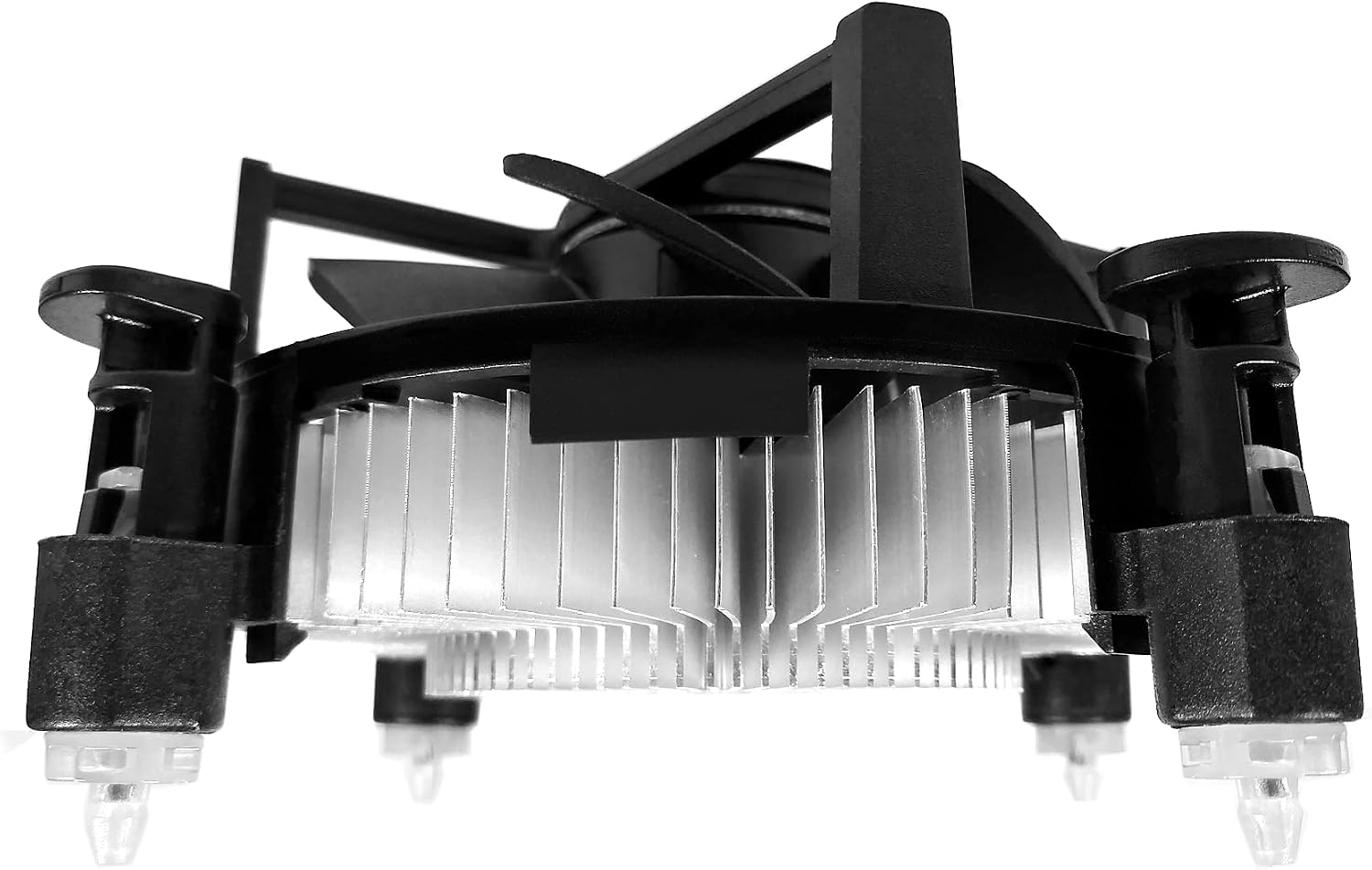
Figure 4: Side view of the cooler, illustrating the heatsink fins and the secure attachment of the push-pins to the mounting frame.
Operation
Once installed, the TRONWIRE CPU Cooler will automatically begin operating when your computer is powered on. The 4-pin PWM (Pulse Width Modulation) fan allows your motherboard to dynamically control the fan speed based on CPU temperature. This ensures optimal cooling performance while minimizing noise during lighter loads.
You can monitor CPU temperatures and fan speeds using motherboard monitoring software or BIOS/UEFI settings. The fan is designed for quiet operation with a typical noise level of 30 dB.
Maintenance
Regular maintenance helps ensure the longevity and optimal performance of your CPU cooler:
- Dust Removal: Periodically (e.g., every 3-6 months), power off your computer and use compressed air to blow dust out of the heatsink fins and fan blades. Hold the fan blades gently to prevent them from spinning rapidly during cleaning, which can damage the fan motor.
- Thermal Paste: The pre-applied thermal paste is designed for long-term use. However, if you remove the cooler for any reason, it is recommended to clean off the old thermal paste from both the CPU and the cooler base and apply a fresh layer of high-quality thermal paste before reinstallation.
Troubleshooting
- Fan Not Spinning:
- Ensure the 4-pin fan connector is securely plugged into the CPU_FAN header on the motherboard.
- Check BIOS/UEFI settings to ensure the CPU fan header is enabled and not set to a "silent" or "off" mode at low temperatures.
- Inspect the fan blades for any obstructions.
- High CPU Temperatures:
- Verify the cooler is securely mounted and all four push-pins are fully locked. A loose cooler will not make proper contact with the CPU.
- Ensure there is adequate airflow within your PC case.
- Check for excessive dust buildup on the heatsink fins and fan. Clean if necessary.
- Confirm the thermal paste is making good contact. If the cooler was removed and reinstalled without new paste, reapply.
- Excessive Noise:
- Check for loose cables or other components touching the fan blades.
- Ensure the fan is clean and free of dust buildup.
- If the noise is a grinding sound, the fan bearing may be failing. Contact support if under warranty.
Specifications
| Feature | Detail |
|---|---|
| Brand | TRONWIRE |
| Compatible Sockets | Intel Socket 1200 / 1151 / 1150 / 1155 / 1156 |
| Compatible Processors | Intel Core i3 / i5 / i7 / i9 series |
| Cooling Method | Air Cooling |
| Heatsink Material | Aluminum |
| Fan Size | 92mm |
| Fan Connector | 4-Pin PWM |
| Voltage | 12V DC |
| Maximum Rotational Speed | 2500 RPM |
| Noise Level | 30 dB |
| Thermal Paste | Pre-applied TRONWIRE thermal paste |
| Installation Type | Tool-free push pin installation |
| Item Weight | 6.6 ounces |
| Package Dimensions | 4.5 x 4 x 2.5 inches |
| UPC | 664697942403 |
| ASIN | B088CYYXTM |
Warranty and Support
For warranty information or technical support regarding your TRONWIRE CPU Cooler, please contact TRONWIRE customer service. You can often find contact details on the product packaging or by visiting the official TRONWIRE brand store on Amazon:
Visit the TRONWIRE Store on Amazon
Please have your product model and purchase details ready when contacting support.
Ask a question about this manual
Ask about setup, troubleshooting, compatibility, parts, safety, or missing instructions. Manuals+ will review the question and use this page’s manual context to help answer it.