
1. Introduction
This manual provides comprehensive instructions for the installation, operation, and maintenance of your ARRIS Touchstone CM3200 DOCSIS 3.0 Cable Modem. The CM3200 is designed to deliver high-speed internet access and other online services to your home or small business network. It allows direct connection of a computer via an Ethernet port, facilitating reliable and fast internet connectivity.
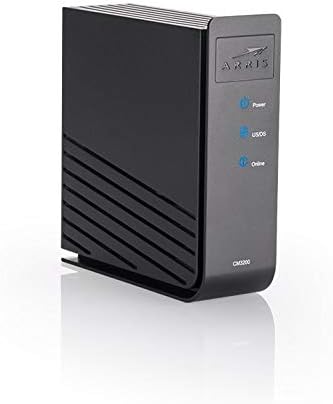
Figure 1: Front view of the ARRIS Touchstone CM3200 Cable Modem, showing the ARRIS logo and LED indicators for Power, US/DS, and Online status.
2. Key Features
- Flexible DS x US channel bonding support, up to 32 downstream and 8 upstream channels, for enhanced data rates.
- Integrated DS Spectrum Analysis and Speed Test capabilities, along with diagnostic LEDs, for efficient troubleshooting.
- Supports data transfer rates up to 1 Gbps and includes a Gigabit Ethernet Port for high-speed wired connections.
- Business Services over DOCSIS (BSoD) support for advanced business-grade internet services.
- DOCSIS 3.0 Certified, ensuring compatibility with current cable internet standards, and backward compatible with earlier DOCSIS versions.
3. Package Contents
Verify that your package contains the following items:
- ARRIS Touchstone CM3200 Cable Modem
- Ethernet Cable
- Power Adapter
- Quick Start Guide (if included)
4. Installation and Setup
Follow these steps to install your ARRIS Touchstone CM3200 Cable Modem:
- Connect the Coaxial Cable: Connect one end of a coaxial cable (not included) to the Cable port on the back of your CM3200 modem and the other end to a cable wall outlet or a cable splitter. Ensure the connection is finger-tight.
- Connect the Ethernet Cable: Connect one end of the provided Ethernet cable to the Ethernet port on the back of your CM3200 modem and the other end to the Ethernet port on your computer or wireless router.
- Connect the Power Adapter: Connect the power adapter to the Power port on the back of your CM3200 modem, then plug the other end into an electrical outlet.
- Power On: The modem will automatically power on. Allow several minutes for the modem to establish a connection with your cable internet provider. The Power, US/DS, and Online LEDs on the front panel will illuminate.
- Activate Your Service: Contact your cable internet service provider (ISP) to activate your new modem. You will typically need to provide the modem's MAC address, which is located on a label on the bottom or back of the unit.

Figure 2: Rear view of the CM3200 modem, highlighting the coaxial cable input, Ethernet port, and power input.
5. Operation and LED Indicators
The front panel of your CM3200 modem features LED indicators that provide status information:
- Power: Indicates the power status of the modem.
- US/DS (Upstream/Downstream): Indicates the status of the upstream and downstream channel connections.
- Online: Indicates that the modem is successfully connected to the internet.
Refer to your ISP's documentation or support for specific LED behavior interpretations during activation and normal operation.

Figure 3: Close-up view of the CM3200 front panel, showing the Power, US/DS, and Online LED indicators.
6. Maintenance and Care
To ensure optimal performance and longevity of your ARRIS Touchstone CM3200 Cable Modem, follow these guidelines:
- Placement: Place the modem in a well-ventilated area, away from direct sunlight, heat sources, and moisture. Ensure adequate airflow around the device.
- Cleaning: Use a soft, dry cloth to clean the exterior of the modem. Do not use liquid cleaners or abrasive materials.
- Power Cycle: If you experience connectivity issues, try power cycling the modem by unplugging the power adapter for 10-15 seconds and then plugging it back in.
- Cable Connections: Periodically check all cable connections (coaxial and Ethernet) to ensure they are secure.
7. Troubleshooting
If you encounter issues with your CM3200 modem, refer to the following common problems and solutions:
| Problem | Possible Solution |
|---|---|
| No Power LED | Ensure the power adapter is securely connected to the modem and a working electrical outlet. Try a different outlet. |
| US/DS LED is blinking or off | Check the coaxial cable connection to the modem and the wall outlet. Ensure it is tight. Contact your ISP to verify service status in your area. |
| Online LED is blinking or off | The modem is attempting to establish an internet connection. This may take several minutes. If it persists, power cycle the modem. If the issue continues, contact your ISP for activation or service troubleshooting. |
| No internet access on connected device | Verify the Ethernet cable connection between the modem and your computer/router. Ensure your device's network settings are configured for automatic IP address acquisition (DHCP). Power cycle both the modem and your connected device. |
8. Technical Specifications
| Feature | Detail |
|---|---|
| Model Number | CM3200 |
| DOCSIS Standard | DOCSIS 3.0 (Backward compatible) |
| Channel Bonding | 32 Downstream x 8 Upstream |
| Max Downstream Speed | Up to 1 Gbps (ISP dependent) |
| Ethernet Port | 1 x Gigabit Ethernet Port |
| Connectivity Technology | Ethernet |
| Compatible Devices | Personal Computer, Routers |
| Color | Black |
| Package Dimensions | 9.09 x 8.35 x 2.83 inches |
| Item Weight | 1 pound |
| Manufacturer | Arris_ |
| Date First Available | May 7, 2020 |
9. Warranty and Support Information
For warranty information, please refer to the documentation included with your product or visit the official ARRIS website. Please note that according to some reports, this modem model (CM3200) may be discontinued and no longer officially supported by ARRIS for direct customer service. It is recommended to contact your Internet Service Provider (ISP) for support related to modem activation, connectivity issues, or service-specific inquiries, as they are typically responsible for supporting customer-owned equipment on their network.
For general product information and resources, you may visit the ARRIS website.