
1. Product Overview
The WAVLINK USB C M.2 NVMe SSD Enclosure provides a high-speed external storage solution for your NVMe M.2 SSDs. Designed for portability and ease of use, this enclosure supports data transfer speeds up to 10Gbps, making it ideal for large file transfers and demanding applications. Its robust design includes enhanced heat dissipation features to ensure optimal performance and longevity of your SSD.
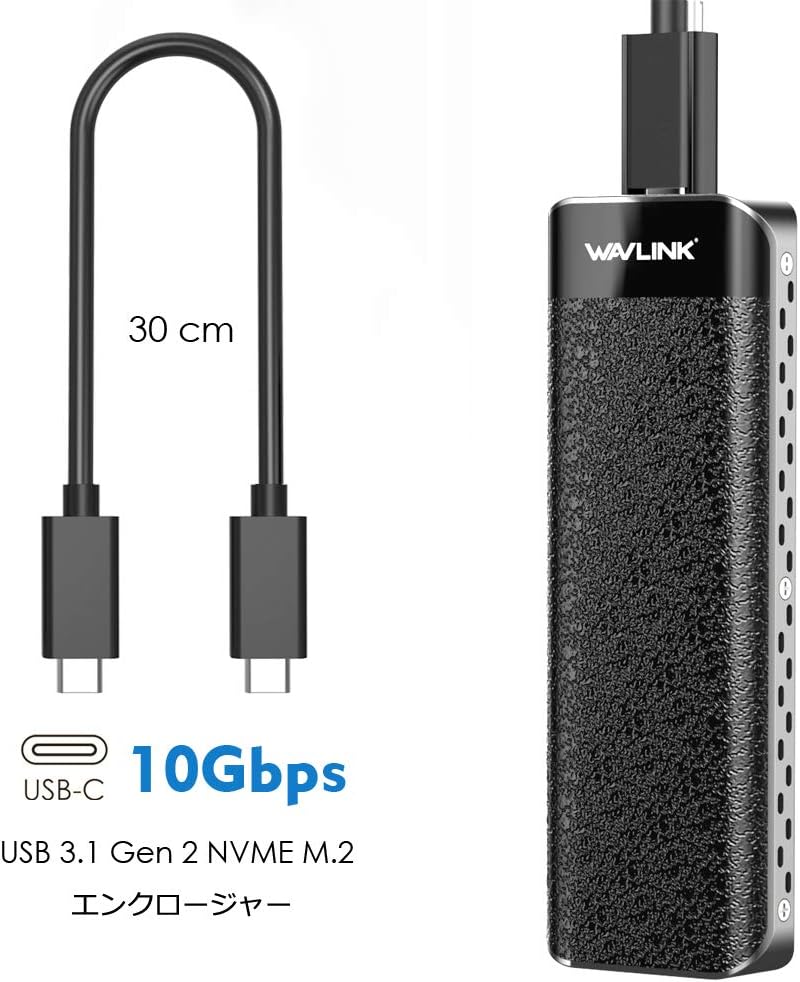
Image: The WAVLINK USB C M.2 NVMe SSD Enclosure connected via a 30cm USB-C cable, highlighting its 10Gbps USB 3.1 Gen 2 capability.
2. Package Contents
Please verify that all items are present in your package:
- WAVLINK USB C M.2 NVMe SSD Enclosure
- USB-C to USB-C Cable
- Screwdriver (for securing SSD, if needed)
- Quick Start Guide

Image: The product box displaying the enclosure, USB-C cable, screwdriver, and quick start guide.
3. Compatibility
3.1 Supported SSD Types
- M-Key NVMe M.2 SSDs
- B+M Key NVMe M.2 SSDs
- Supported SSD sizes: 2230, 2242, 2260, 2280 mm
3.2 Supported Operating Systems & Devices
- Windows PC
- Mac (macOS)
- Android devices
- Gaming Consoles: PS4, PS4 Pro, PS4 Slim, Xbox One, Xbox One X
3.3 Not Supported
- mSATA SSDs
- SATA M.2 SSDs
- SSDs from MacBook Pro/Air/iMac/Mac Pro

Image: A visual guide indicating that only NVMe PCIe SSDs are compatible, while mSATA and SATA SSDs are not.
4. Setup Instructions
Follow these steps to install your NVMe M.2 SSD into the enclosure:
- Open the Enclosure: Gently slide open the enclosure cover. The design is tool-free for easy access.
- Insert the SSD: Align your NVMe M.2 SSD with the M-Key or B+M Key slot on the circuit board inside the enclosure. Insert the SSD firmly into the slot at an angle.
- Secure the SSD: Once inserted, gently push down the SSD and secure it with the provided fastener or screw, if applicable. Ensure it is seated correctly.
- Apply Heatsink and Thermal Pad: For optimal heat dissipation, place the thermal pad onto the SSD chip, then attach the heatsink on top. This helps maintain performance during heavy use.
- Close the Enclosure: Slide the cover back onto the enclosure until it clicks securely into place.
- Connect to Device: Use the provided USB-C cable to connect the enclosure to your computer or compatible device.
- Initialize New SSD (if applicable): If you are using a brand new SSD, it may need to be initialized and formatted through your operating system's Disk Management (Windows) or Disk Utility (macOS) before it can be used.

Image: The enclosure disassembled, revealing the circuit board, heatsink, and thermal pad, demonstrating compatibility with 2230/2242/2260/2280mm NVMe SSDs.

Image: The enclosure showing a ribbon mechanism designed to assist in pulling the SSD upwards for easy removal.
5. Operating Instructions
The WAVLINK USB C M.2 NVMe SSD Enclosure is designed for plug-and-play operation, requiring no additional drivers for most modern operating systems.
- Connect: After installing your SSD, connect the enclosure to your device using the USB-C cable.
- Access Data: The enclosure will appear as an external drive on your computer or device. You can now drag and drop files, perform backups, or run applications directly from the SSD.
- Safe Removal: Always safely eject the drive from your operating system before disconnecting the cable to prevent data corruption.

Image: The WAVLINK enclosure connected to a laptop via USB-C, illustrating its plug-and-play functionality with Mac OS X and Windows, and 10Gbps data transfer.
6. Maintenance
Proper maintenance ensures the longevity and optimal performance of your SSD enclosure.
- Cleaning: Use a soft, dry cloth to clean the exterior of the enclosure. Avoid liquid cleaners or abrasive materials.
- Handling: Handle the enclosure with care. Avoid dropping it or exposing it to extreme temperatures or humidity.
- Heat Management: The integrated heatsink and thermal pad are designed to manage heat. Ensure the enclosure's ventilation holes (if any) are not obstructed during operation.
7. Troubleshooting
If you encounter issues, refer to the following common solutions:
- Enclosure Not Recognized:
- Ensure the USB-C cable is securely connected to both the enclosure and your device.
- Try connecting to a different USB port on your device.
- Test with a different USB-C cable if available.
- Verify that the SSD is correctly installed inside the enclosure and fully seated in its slot.
- For new SSDs, ensure it has been initialized and formatted in your operating system's disk management utility.
- Slow Data Transfer Speed:
- Ensure your device's USB port supports USB 3.1 Gen2 (10Gbps) or higher. Connecting to a slower USB port (e.g., USB 2.0 or USB 3.0 Gen1) will limit the speed.
- Confirm your SSD is an NVMe M.2 SSD, not a SATA M.2 SSD, as SATA SSDs have lower maximum speeds.
- Close any background applications that might be consuming system resources or disk I/O.
- Enclosure Feels Warm:
- It is normal for the enclosure to become warm during high-speed data transfers, especially with NVMe SSDs. The heatsink is designed to dissipate this heat.
- Ensure the heatsink and thermal pad are correctly installed on the SSD.
- Avoid operating the enclosure in confined spaces without adequate airflow.
8. Specifications
| Feature | Specification |
|---|---|
| Brand | WAVLINK |
| Model Number | WLAMJP2C-ST238C-JP |
| Color | Black |
| Material | Polycarbonate (PC) |
| Data Transfer Speed | Up to 10 Gigabits per second (USB 3.1 Gen2) |
| Supported SSD Interface | NVMe M-Key, NVMe B+M Key |
| Supported SSD Form Factors | 2230, 2242, 2260, 2280 mm |
| Number of Supported Devices | 1 |
| Hardware Platform Compatibility | Windows, Game Console |
| ASIN | B088831LJZ |
9. Warranty and Support
WAVLINK products are designed for reliability and performance. For warranty information or technical support, please refer to the official WAVLINK website or contact their customer service directly. Keep your purchase receipt as proof of purchase for warranty claims.


