
Introduction
This manual provides detailed instructions for the installation, operation, and maintenance of your YUNTX Android 14 Car Stereo. Please read this manual thoroughly before using the product to ensure proper functionality and safety. This unit is designed to enhance your driving experience with advanced features such as integrated CarPlay, Android Auto, GPS navigation, Bluetooth 5.0, and a responsive IPS touchscreen.
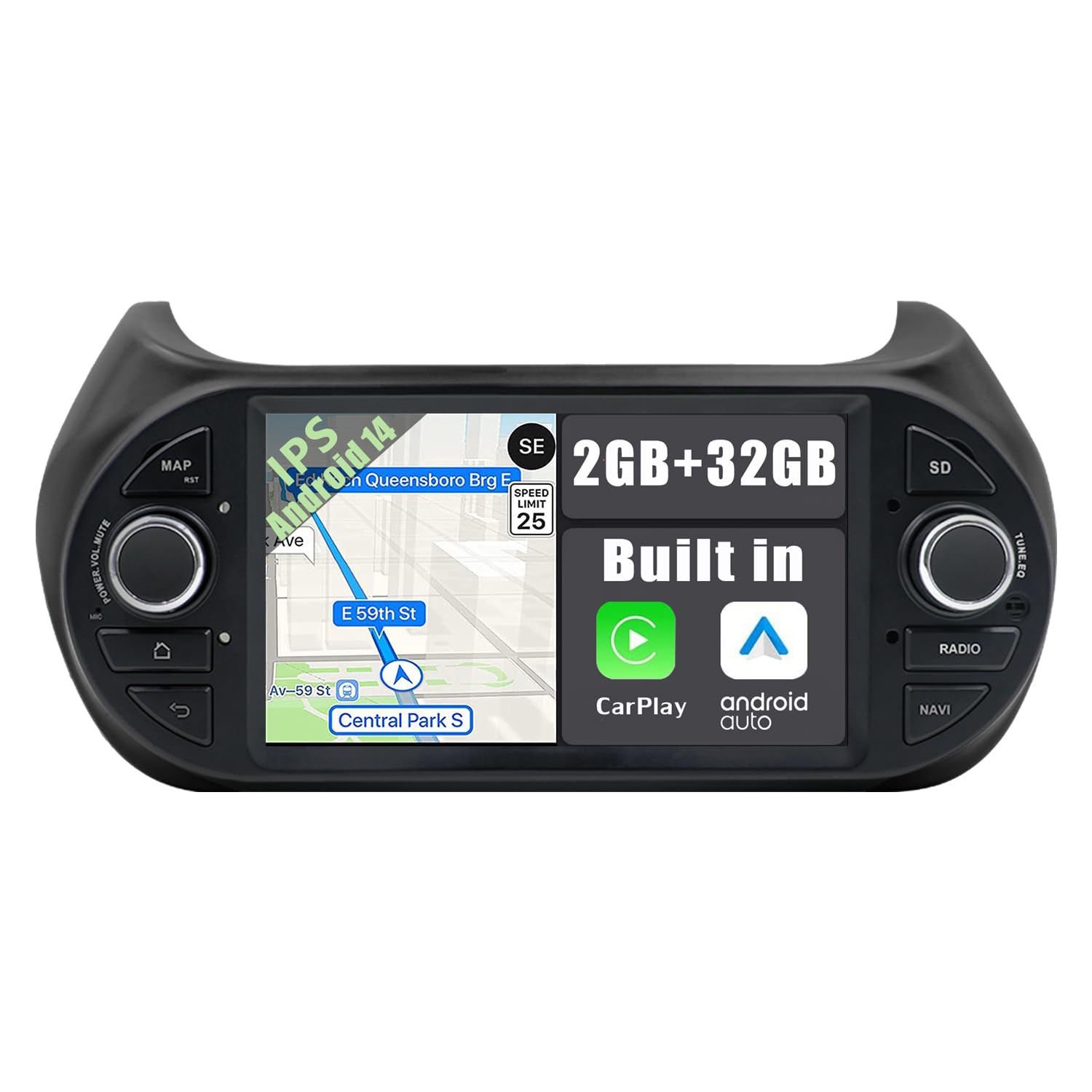
Image: YUNTX Android 14 Car Stereo main unit, showcasing its 7-inch IPS touchscreen and physical buttons.
Package Contents
Verify that all items are present in the package before installation:
- 1 x YUNTX Android 14 Car Stereo Unit
- 1 x Power Cable
- 1 x RCA Output Connector A
- 1 x RCA Output Connector B
- 1 x USB Cable
- 1 x GPS Antenna
- 1 x Rear Camera
- 1 x Canbus Decoder
- 1 x External Microphone Cable
- 1 x Radio Antenna
- 1 x User Manual (this document)
Setup and Installation
Professional installation is recommended. Ensure the vehicle's ignition is off and the battery is disconnected before beginning installation.
Wiring Diagram

Image: Detailed wiring diagram showing connections for power, RCA outputs, USB, GPS antenna, radio antenna, and optional accessories like camera and external microphone.
Power Socket: Connect the main power harness to the vehicle's wiring. Ensure correct connections for 12V (B+), ACC (ignition), GND (ground), and ILL (illumination).
RCA Output Sockets: Use RCA Output A and B for connecting external amplifiers, subwoofers, or additional displays. RCA Output C is typically for video output.
USB Cable: Connect the provided USB cable for media playback, smartphone charging, or connecting external devices.
GPS Antenna: Mount the GPS antenna in a location with a clear view of the sky, such as on the dashboard or under the windshield, to ensure optimal signal reception.
Rear Camera: Connect the rear camera cable to the designated input. The unit will automatically switch to the rear camera view when the vehicle is in reverse gear.
Canbus: Connect the Canbus decoder to integrate with your vehicle's steering wheel controls and other factory features.
External Microphone: Connect the external microphone for improved call quality during hands-free operation.
Initial Power-On
- After completing all wiring, reconnect the vehicle battery.
- Turn the vehicle ignition to the ACC or ON position.
- The car stereo should power on automatically. If not, press the power button on the unit.
- Follow the on-screen prompts for initial setup, including language selection and time zone.
Operating Instructions
Basic Functions
- Touchscreen: Navigate the interface by tapping, swiping, and pinching on the 7-inch IPS display.
- Volume Control: Adjust volume using the physical knobs or on-screen controls.
- Home Button: Return to the main Android home screen.
- Back Button: Go back to the previous screen or menu.
CarPlay / Android Auto
Connect your smartphone to the car stereo via USB cable or wirelessly (for compatible phones) to use Apple CarPlay or Android Auto. This allows access to navigation, calls, messages, and music directly from your phone's interface on the stereo screen.
Bluetooth 5.0
Pair your smartphone via Bluetooth for hands-free calling and audio streaming.
- Go to the Bluetooth settings on the car stereo.
- Enable Bluetooth on your smartphone and search for available devices.
- Select the car stereo (e.g., "YUNTX Car Stereo") from the list on your phone.
- Confirm the pairing code on both devices.
GPS Navigation
The unit comes with Google Maps pre-installed. You can download other navigation apps from the Google Play Store. Ensure the GPS antenna is properly installed for accurate positioning.
Radio (FM/AM/DAB+)
Access the Radio application to tune into FM and AM stations. For DAB+ digital radio, an optional DAB+ adapter is required (see Features section).
Steering Wheel Control
If your vehicle supports steering wheel controls and the Canbus decoder is correctly installed, you can configure the buttons to control the car stereo functions (e.g., volume, track skip, mode).
Split Screen Mode
Run two applications simultaneously on the screen, such as navigation on one side and media playback on the other.
MirrorLink Mode
Mirror your smartphone screen onto the car stereo display via USB cable or Wi-Fi connection. This allows you to view and control your phone's content directly from the stereo.
Key Features
- Android 14 Operating System: Provides a modern, intuitive interface with access to a wide range of apps from the Google Play Store.
- IPS Touchscreen: A 7-inch LCD display with 1024x600 resolution offers wide viewing angles and vibrant colors.
- Integrated CarPlay & Android Auto: Seamless smartphone integration for navigation, communication, and entertainment.
- Bluetooth 5.0: Fast and stable wireless connection for hands-free calls and audio streaming (A2DP, HFP, OBD profiles supported).
- GPS Navigation: Supports online and offline navigation applications.
- Wi-Fi / 3G / 4G Connectivity: Built-in Wi-Fi (2.4-5 GHz IEEE 802.11 b/g/n 1T1R) for internet access. Supports external 3G/4G dongles for mobile data (optional).

Image: Optional 4G LTE USB Dongle for mobile internet connectivity.
- DAB+ Digital Radio Support (Optional): Experience high-quality digital radio with an optional DAB+ adapter.

Image: Optional DAB+ USB Receiver for digital radio reception.
- OBD2 Support (Optional): Compatible with most Bluetooth/WiFi OBD2 ELM327 diagnostic devices for vehicle data monitoring (requires compatible app like Torque).
- Rear Camera Input: Automatically displays the rear camera feed when reversing.

Image: Included Rear View Camera for enhanced safety during reversing.
- Multicolor Button Illumination: Customize the color of the physical buttons to match your vehicle's interior lighting.
Specifications
| Feature | Specification |
|---|---|
| Operating System | Android 14 |
| Processor | Quad Core Cortex-A7 @ 1.8 GHz |
| RAM | 2 GB |
| ROM | 32 GB |
| Display | 7-inch IPS LCD Touchscreen |
| Screen Resolution | 1024 x 600 |
| Output Power | 4 x 45 Watt |
| FM Range | 87.5 MHz ~ 108 MHz |
| AM Range | 522 KHz ~ 1620 KHz |
| Bluetooth | Bluetooth 5.0 (A2DP, Hands-free, OBD profiles) |
| Wi-Fi | 2.4-5 GHz IEEE 802.11 b/g/n 1T1R |
| USB Ports | 2 (supports up to 500GB memory cards) |
| File Compatibility | JPEG, MP3, MP4, AVI, WAV, and more |
| Compatible Vehicles | Fiat Fiorino (2008-2019), Fiat Qubo (2008-2019), Citroën Nemo, Peugeot Bipper |
Maintenance
Cleaning the Unit
Use a soft, dry cloth to clean the screen and exterior of the unit. For stubborn marks on the screen, use a screen cleaner specifically designed for electronic displays. Avoid using abrasive cleaners or solvents.
Software Updates
Periodically check for software updates to ensure optimal performance and access to the latest features. Updates can typically be found on the manufacturer's website or through the unit's system settings if an internet connection is available.
Troubleshooting
| Problem | Possible Cause / Solution |
|---|---|
| Unit does not power on | Check power cable connections (B+, ACC, GND). Ensure the vehicle's ignition is on. Check vehicle fuses. |
| No sound | Check speaker wiring. Ensure volume is not muted or set to minimum. Verify RCA connections if using external amplifier. |
| Bluetooth not connecting | Ensure Bluetooth is enabled on both the stereo and your phone. Delete previous pairings and try again. Restart both devices. |
| GPS signal weak or inaccurate | Ensure GPS antenna is mounted in a clear, unobstructed location. Check antenna connection. |
| Steering wheel controls not working | Verify Canbus decoder is correctly installed and configured. Check wiring connections to the vehicle's steering wheel control interface. |
| Slow performance / Apps freezing | Close unnecessary background applications. Clear cache for problematic apps. Perform a factory reset if issues persist (note: this will erase all user data). |
Warranty and Support
For warranty information, please refer to the documentation provided at the time of purchase or contact your retailer. YUNTX is committed to providing quality products and customer support.
If you encounter any issues not covered in this manual or require further assistance, please contact YUNTX customer support through the retailer where the product was purchased. When contacting support, please have your product model number (2db1584b-f3b2-4b04-8ec6-ceb750a02a72) and purchase details ready.