
1. Introduction
Welcome to the user manual for your new Acer Predator Helios 300 Gaming Laptop. This guide provides essential information to help you set up, operate, maintain, and troubleshoot your device. Please read this manual thoroughly to ensure optimal performance and longevity of your laptop.
The Acer Predator Helios 300 is engineered for high-performance gaming and demanding tasks, featuring a powerful Intel Core i7 processor, NVIDIA GeForce RTX graphics, a high-refresh-rate display, and advanced cooling solutions.
2. Package Contents
Before you begin, ensure all items are present in your package:
- Acer Predator Helios 300 Gaming Laptop
- AC Adapter
- Power Cord
- Protective Sleeve

Figure 2.1: The included protective sleeve for the laptop.
3. Setup
3.1 Initial Power-On
- Unpack the laptop and place it on a stable, flat surface.
- Connect the AC adapter to the laptop's power input port and then plug the power cord into a wall outlet.
- Open the laptop lid. The laptop may power on automatically, or you may need to press the power button.
- Follow the on-screen instructions to complete the initial Windows setup, including language, region, and network settings.
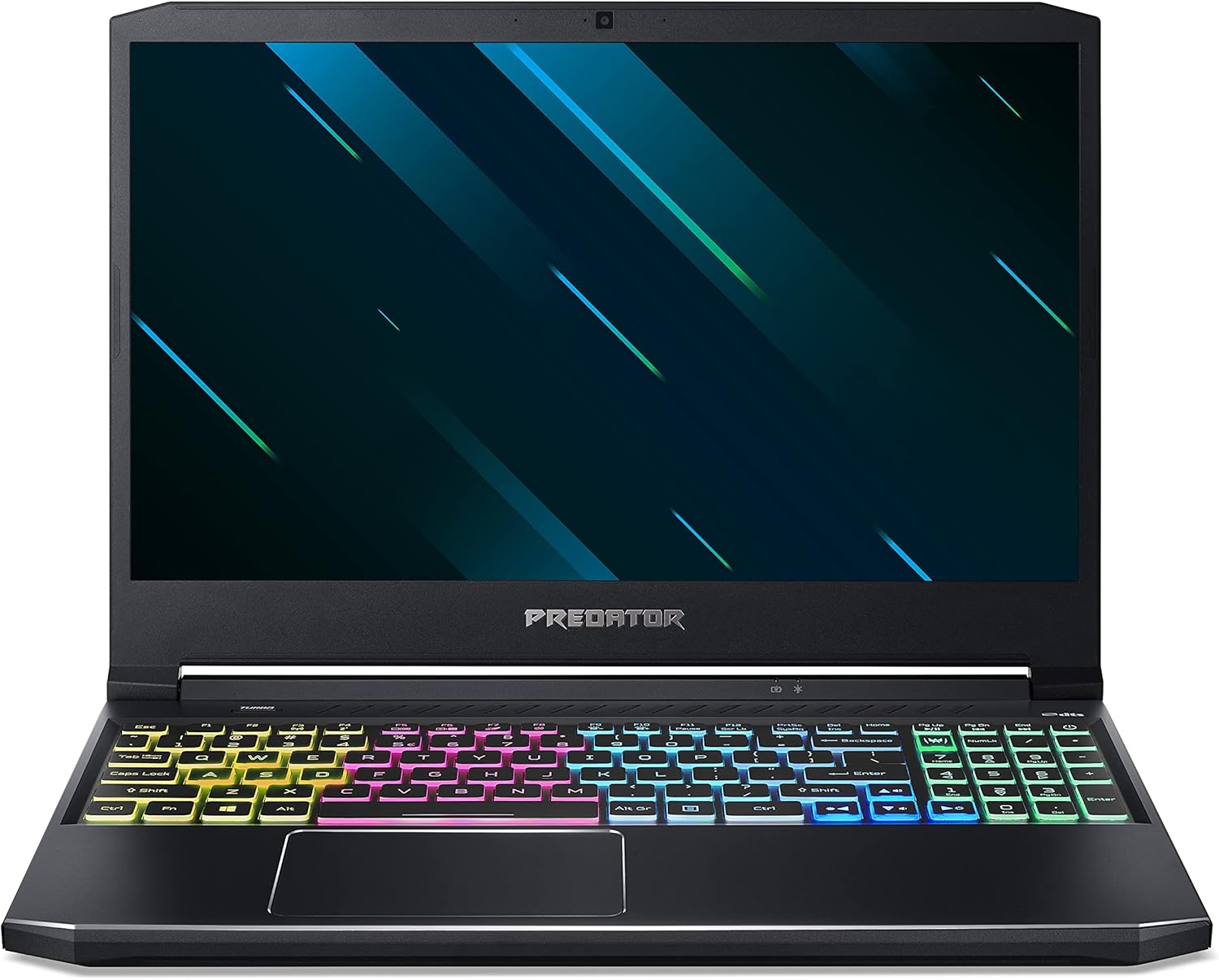
Figure 3.1: Front view of the Acer Predator Helios 300 laptop, showcasing its design and RGB keyboard.
3.2 Connecting Peripherals
Your laptop is equipped with various ports for connecting external devices:
- USB Ports: Connect mice, keyboards, external drives, and other USB devices.
- HDMI/Mini DisplayPort: Connect external monitors or projectors for extended display.
- Ethernet (RJ-45): For wired network connections.
- Headset/Speaker Jack: For audio input/output.

Figure 3.2: Overview of the laptop's connectivity ports.
4. Operating Your Laptop
4.1 Keyboard and Touchpad
The laptop features a 4-zone custom RGB backlit keyboard and a precision touchpad. The keyboard includes dedicated keys for specific functions, such as the PredatorSense key for system monitoring and customization.

Figure 4.1: The customizable RGB backlit keyboard.

Figure 4.2: Key features of the keyboard, including the Turbo button for instant overclocking.
4.2 Display Features
The 15.6" Full HD (1920 x 1080) IPS display offers a 144Hz refresh rate and 3ms Overdrive Response Time for smooth visuals, crucial for gaming.

Figure 4.3: Visual comparison of 144Hz 3ms vs. 60Hz display performance.
4.3 Network Connectivity
The laptop supports both wired and wireless network connections. It features Killer Double Shot Pro Wireless-AX 1650i 802.11ax Wi-Fi 6 and Killer Ethernet E2600 Gigabit Ethernet LAN for optimized network performance.

Figure 4.4: Killer DoubleShot Pro technology for optimal network connection.

Figure 4.5: Benefits of Killer Wi-Fi 6 AX1650.
5. Maintenance
5.1 Cleaning
- Use a soft, lint-free cloth to clean the screen. Avoid harsh chemicals.
- For the keyboard and chassis, use a slightly damp cloth. Ensure no liquid enters the device.
- Regularly clean the cooling vents to prevent dust buildup, which can affect performance.
5.2 Battery Care
- To prolong battery life, avoid fully discharging the battery frequently.
- Store the laptop in a cool, dry place if not used for extended periods.
5.3 System Updates
Regularly update your operating system, drivers (especially graphics drivers), and Acer PredatorSense software to ensure optimal performance, security, and compatibility.

Figure 5.1: The 4th Gen AeroBlade 3D Fan for efficient cooling.
6. Troubleshooting
This section addresses common issues you might encounter.
6.1 No Power / Laptop Not Turning On
- Ensure the AC adapter is securely connected to both the laptop and a working power outlet.
- Check if the power outlet is functional by plugging in another device.
- Try holding the power button for 10-15 seconds to perform a hard reset.
6.2 Display Issues
- If the screen is black, ensure the laptop is powered on and not in sleep mode.
- Connect an external monitor to check if the issue is with the laptop's display or the graphics card.
- Update your graphics drivers.
6.3 Performance Slowdown
- Close unnecessary background applications.
- Check for malware or viruses using reputable antivirus software.
- Ensure adequate ventilation to prevent overheating. Use the PredatorSense software to monitor temperatures and fan speeds.
7. Specifications
| Component | Specification |
|---|---|
| Processor | 10th Generation Intel Core i7-10750H (Up to 5.0 GHz) |
| Graphics | NVIDIA GeForce RTX 2060 with 6 GB GDDR6 VRAM |
| Display | 15.6" Full HD (1920 x 1080) IPS, 144Hz Refresh Rate, 3ms Overdrive Response Time |
| RAM | 16 GB DDR4 2933MHz Dual-Channel Memory |
| Storage | 512GB PCIe NVMe SSD |
| Operating System | Windows 10 Home |
| Wireless Connectivity | Killer Double Shot Pro Wireless-AX 1650i 802.11ax Wi-Fi 6 |
| Wired Connectivity | Killer Ethernet E2600 10/100/1000 Gigabit Ethernet LAN |
| Ports | 1x USB Type-C (USB 3.2 Gen 2), 1x USB 3.2 Gen 2 (Power-off Charging), 2x USB 3.2 Gen 1, 1x HDMI 2.0, 1x Mini DisplayPort 1.4, Headset/Speaker Jack, RJ-45 |
| Battery Life | Up to 6 hours (approximate) |
| Weight | 5.51 lbs (2.5 kg) |
| Dimensions (LxWxH) | 14.31 x 10.04 x 0.9 inches |
8. Warranty and Support
For warranty information, please refer to the warranty card included with your product or visit the official Acer support website. Acer provides technical support and resources to assist with any product-related inquiries or issues.
You can find additional support, drivers, and FAQs on the Acer support website: www.acer.com/support