
1. Introduction
The EMAIKER Professional USB Headset EMK805DUC is designed for clear and reliable communication in various professional settings, including offices, call centers, and remote work environments. This manual provides essential information for setting up, operating, maintaining, and troubleshooting your headset to ensure optimal performance.
2. Package Contents
Please verify that all items are present in your package:
- EMAIKER Professional USB Headset EMK805DUC
- User Manual (this document)
3. Setup Instructions
3.1 Connecting the Headset
- Locate an available USB-A port on your computer (PC, Laptop, Mac) or other compatible USB device.
- Plug the USB-A connector of the headset into the USB-A port. The headset is designed for plug-and-play functionality, meaning it should be recognized automatically by most operating systems.
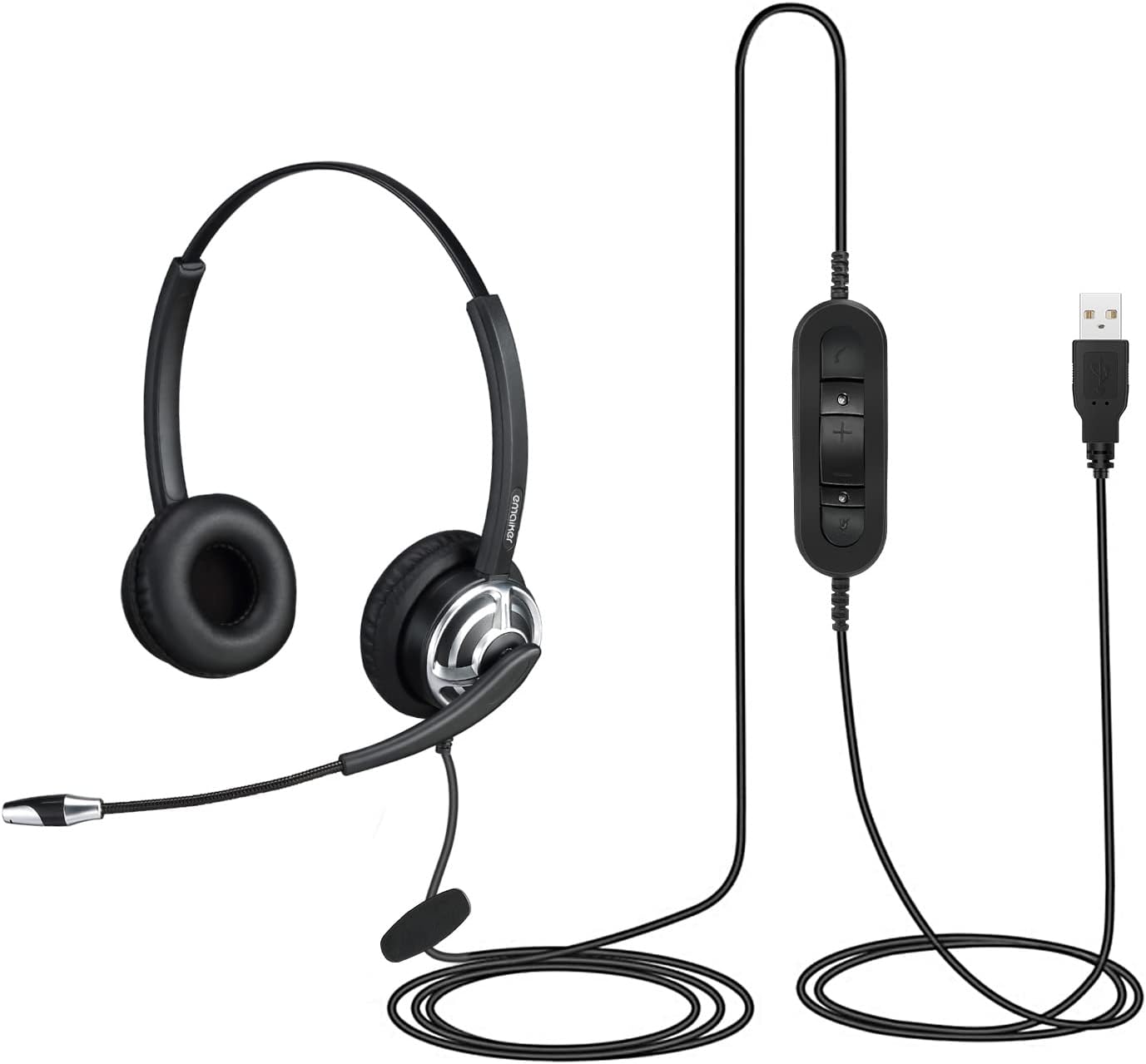
Image: The EMAIKER Professional USB Headset, featuring the headset unit, an inline control panel, and a USB-A connector for easy plug-and-play connectivity.
3.2 Initial Configuration (Operating System)
While the headset is plug-and-play, you may need to select it as your default audio device in your operating system settings.
- For Windows:
- Go to 'Settings' > 'System' > 'Sound'.
- Under 'Output', select 'UC USB Headset' (or similar name) as your speaker.
- Under 'Input', select 'UC USB Headset' (or similar name) as your microphone.
- For macOS:
- Go to 'System Preferences' > 'Sound'.
- In the 'Output' tab, select 'UC USB Headset' (or similar name).
- In the 'Input' tab, select 'UC USB Headset' (or similar name).

Image: A visual guide illustrating how to select the USB Headset as the primary audio input and output device within both Mac and Windows operating system sound settings.
4. Operating Instructions
4.1 Wearing the Headset
Adjust the headband to fit comfortably over your head. The ear cushions are designed for all-day comfort. The microphone boom can be rotated 120 degrees to position the microphone optimally near your mouth, typically about 1-2 inches away.

Image: A person wearing the headset, highlighting its flexible design, including the adjustable headband and the 120-degree rotatable microphone for optimal positioning.
4.2 Using the In-line Controls
The headset features an in-line control unit for convenient audio management:
- Volume Up (+): Press to increase listening volume.
- Volume Down (-): Press to decrease listening volume.
- Microphone Mute Button: Press to mute or unmute the microphone. An LED indicator will typically show the mute status.
- Call Button: For compatible applications, this button can answer or end calls.

Image: A detailed view of the in-line control unit, clearly labeling the buttons for volume adjustment, microphone mute, and call management, alongside the USB-A plug.
4.3 Microphone Usage
The headset is equipped with a noise-cancelling microphone designed to reduce background noise and ensure your voice is transmitted clearly. Position the microphone approximately 1-2 inches from your mouth for optimal voice pickup.

Image: The EMAIKER USB Headset with a visual representation of sound waves, demonstrating the unidirectional noise-cancelling microphone's ability to filter out ambient noise for clearer communication.
4.4 Application Compatibility
This headset is compatible with a wide range of communication platforms and applications, including but not limited to:
- Microsoft Teams
- Skype / Skype for Business
- Zoom
- Cisco
- 3CX
- Avaya
- Linkus
- Ringcentral
- Webex
- Zoiper
- Countpath Bria
- Five9
- Dragon Dictation

Image: A user wearing the headset, surrounded by logos of popular communication platforms such as Skype, Facebook, Google Meet, Zoom, Microsoft Teams, and RingCentral, indicating broad compatibility.
5. Maintenance
5.1 Cleaning
- Gently wipe the ear cushions and headset surfaces with a soft, dry cloth.
- For stubborn dirt, use a slightly damp cloth with mild soap, then wipe dry immediately.
- Do not use harsh chemicals or abrasive cleaners.
- Avoid getting moisture into the microphone or speaker openings.
5.2 Storage
When not in use, store the headset in a clean, dry place away from extreme temperatures and direct sunlight. Avoid tangling the cable to prevent damage.
5.3 Cable Care
The headset features a Kevlar-reinforced cable for durability. To prolong its lifespan, avoid sharp bends, excessive pulling, or wrapping the cable tightly around the headset.
6. Troubleshooting
If you encounter issues with your EMAIKER USB Headset, please refer to the following common problems and solutions:
- No Sound or Distorted Audio:
- Ensure the USB-A connector is fully inserted into the port.
- Check the volume levels on the in-line control unit and your computer's operating system.
- Verify that the 'UC USB Headset' is selected as the default output device in your computer's sound settings (refer to Section 3.2).
- Try plugging the headset into a different USB port.
- Restart your computer.
- Microphone Not Working:
- Ensure the microphone mute button on the in-line control unit is not activated (check LED indicator).
- Verify that the 'UC USB Headset' is selected as the default input device in your computer's sound settings (refer to Section 3.2).
- Check the microphone input level in your computer's sound settings.
- Ensure the microphone boom is positioned correctly near your mouth.
- Test the microphone with a different application or device.
- Headset Not Recognized by Computer:
- Try plugging the headset into a different USB port.
- Restart your computer.
- Ensure your operating system is up to date.
7. Specifications
| Feature | Description |
|---|---|
| Model Name | EMK805DUC |
| Connectivity Technology | Wired (USB-A) |
| Headphones Jack | USB-A |
| Noise Control | Sound Isolation |
| Microphone | Noise Cancellation, 120° Rotating |
| In-line Controls | Volume Control, Microphone Mute, Call Button |
| Item Weight | 88 Grams (3.1 ounces) |
| Product Dimensions | 174 x 2.17 x 7.44 inches |
| Material | Leather, Metal, Plastic, Rubber, Stainless Steel |
| Special Features | Lightweight, Microphone Included, Noise Cancellation, Tangle Free Cord, Volume Control |
| Compatibility | Computers, Laptops (Windows, macOS, Android) |
8. Warranty and Support
EMAIKER products are manufactured to high-quality standards. For specific warranty information and support, please refer to the warranty card included with your purchase or visit the official EMAIKER brand store.
For further assistance, you may contact EMAIKER customer support through their official channels. Please have your model number (EMK805DUC) and purchase details ready.
Visit the EMAIKER Store: EMAIKER Official Store